
Although it’s now less common to encounter problems when updating macOS, you can still face difficulties ranging from being unable to find an update, to strange glitches when running the new version. This article explains what you can try before contacting Apple Support.
Main tools
Restart
The simplest solution in many cases is to restart your Mac, and try again. This is well known for finding an update you know has been released, but can’t be found in Software Update, and for fixing glitches after an update has completed. It’s so obvious, but often overlooked.
Safe mode
One of the original purposes of Safe mode was to work around updating problems. Although a little more demanding than a simple restart for Apple silicon Macs, it’s usually more likely to be effective.
On an Apple silicon Mac, you’ll need to shut your Mac down, wait a few moments, then start it up holding the Power button pressed until it shows it’s entering Options, then enters Recovery mode. You’ll see two (or more) icons displayed, with the startup disk on the left. Select that and press and hold the Shift key. The button below it then changes to read Continue in Safe Mode.
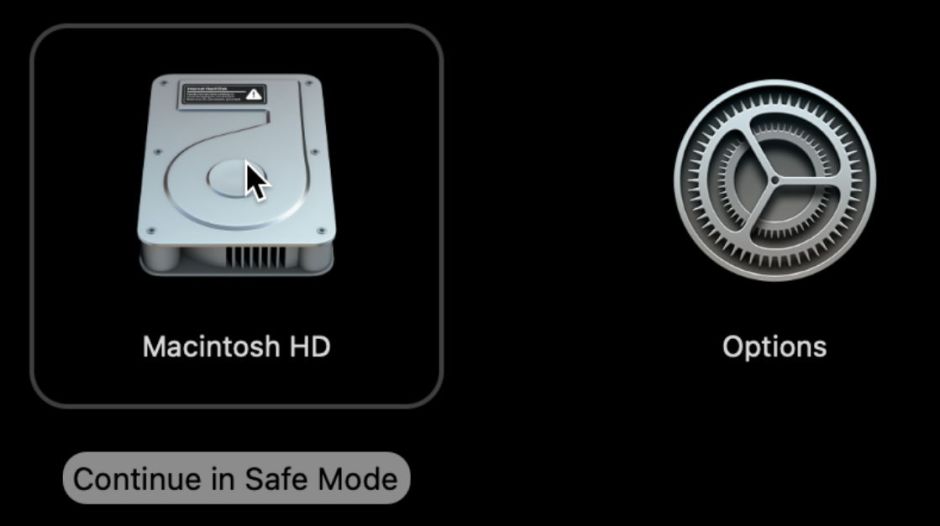
Click on that, and you’ll be asked to log into it twice before it enters Safe mode. Software Update is more likely to find a missing update and to install it successfully. When used to address glitches after updating, leave your Mac running in Safe mode for a couple of minutes, then restart it back into normal user mode.
Device Recovery Assistant

If your Mac has been updated to run Tahoe or later, it may run an extension to Recovery confusingly named Device Recovery Assistant. The distinctive feature is its plus-in-a-circle icon. Although you can opt to run this through the main Recovery menu, your Mac could enter Device Recovery Assistant in the event of a problem occurring during startup or after an update. When you see this window, click on Continue and follow the instructions.
This article explains more.
Lockdown mode
Although Apple doesn’t mention it in its documentation, trying to update macOS while your Mac is in Lockdown Mode is prone to fail. If you have enabled that, disable it before trying to install an update. Once your Mac has updated successfully, you should be able to lock it down again.
Find a missing update
When you know a macOS update has been released, but Software Update doesn’t find it, and tells you that your Mac is up to date when it isn’t, first try restarting your Mac. The softwareupdated background service may be temporarily out of order, and a restart is a simple way to address that. If it doesn’t, then it often pays to wait for an hour or two before trying again with Software Update. When macOS updates are first made available, Apple’s update servers soon come under great pressure, and waiting a little may help.
This article provides more detail about what to do next.
Kernel panics and boot loops
Once an update has started to install, the worst that can happen is that can result in a kernel panic, or a boot loop where your Mac panics, restarts, then panics again and cycles through that. Don’t delay with a boot loop: press and hold the Power button until your Mac shuts down safely. Then refer to this article for further guidance.
Frozen
This is now one of the more common of the serious problems that occurs with macOS updates: your Mac just sits there going nowhere, either with a blank, black display, or a progress bar that doesn’t move. After 15 minutes, further progress becomes unlikely, and after 30 minutes you can be fairly certain the update has come to a halt. All you can do then is press and hold the Power button to shut it down, leave it at least ten seconds, then press the Power button to start it up again.
The good news is that this can often enable the update to resume, and it may then carry on to completion. If you’re unlucky, though, your Mac may start up back in its previous version of macOS, having abandoned the update altogether. This is because, during the boot process, it has to locate a valid Signed System Volume (SSV), and if the new updated SSV can’t be used to boot that Mac, it should fall back to using the old SSV if that’s still available. Although a huge improvement on what used to happen in the days before the SSV, it’s frustratingly binary.
If your Mac does start up back in its previous version of macOS, restart it before trying to install the update again, or try in Safe mode. If this is repeated, or you’re still unable to update the Mac at a further attempt, contact Apple Support. These days, macOS updates have extensive telemetry, so Apple should know quickly when there are problems with specific chips or models, and Apple Support should be made aware of those long before you see them reported in online user forums.
Failed updates
If anything does go wrong with a macOS update, it’s most likely that the update will fail to boot the Mac, and you’ll find it started up in the previous version. Working out what went wrong and how to update it is then more difficult. Take this opportunity to make a full backup, as the solutions now expose your Mac more to the risk that you’ll need to migrate from a backup if things go wrong, and it’s good to have that insurance policy.
Rather than trying to update, you should now try installing the new version of macOS in Recovery. Using a press-and-hold of the Power button, enter Recovery mode from Options, and use the option in its main window. If that doesn’t offer the correct version of macOS, try downloading the Installer app from Mr Macintosh’s links to Apple’s servers, and running that instead. Both installers should normally do the job without destroying the contents of your Mac’s Data volume, but if that doesn’t work out you have your latest backup ready to migrate from.
Some failed updates are being attributed to problems with LocalPolicy for that boot volume group. You may well see the recommendation to refresh LocalPolicy in Startup Security Utility in Recovery mode. Although that does sometimes appear to help with bootable external disks, I’ve not seen any good evidence that it would fix these problems after a failed update. You might wish to try that if you still haven’t solved the problem.
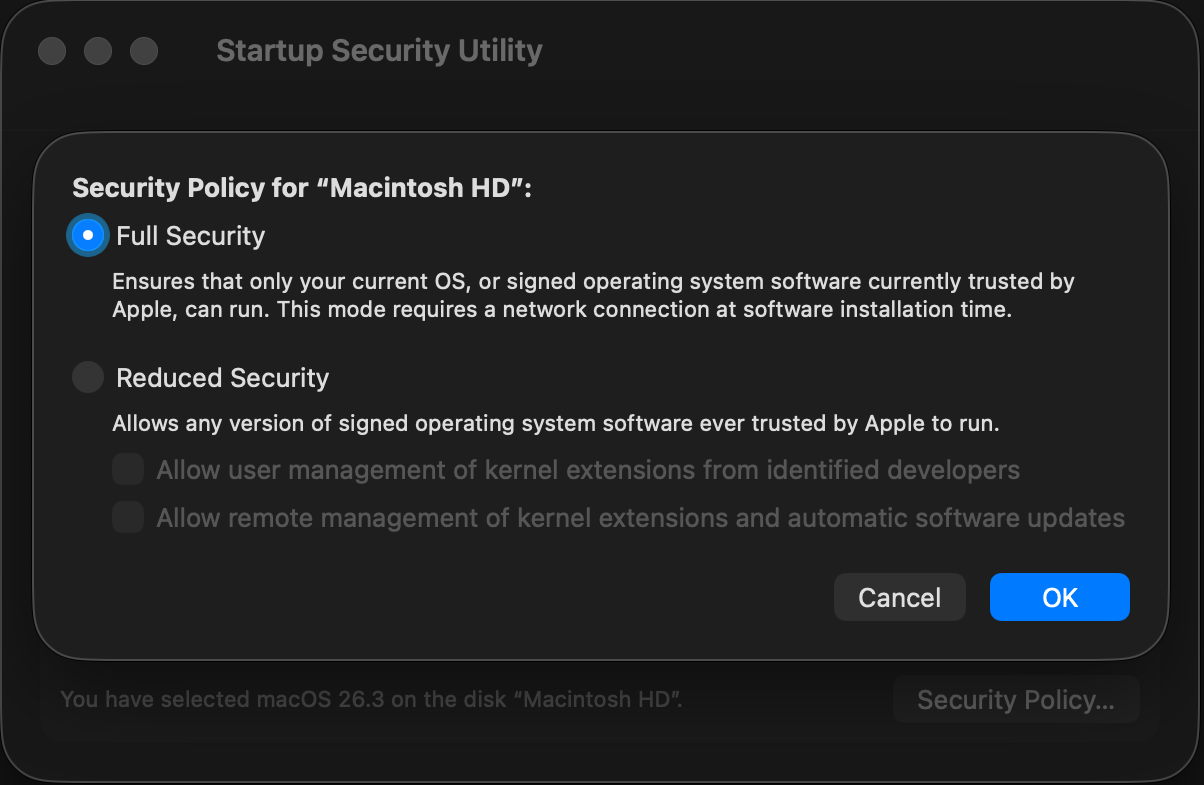
Further advice is given here.
Ultimate solution
If all else fails, Apple silicon Macs have a fallback that should always work, when performed correctly, restoring them from an IPSW image file in DFU mode. This is one solution that will invariably require you to migrate from your backup, as it completely wipes the internal SSD and installs fresh firmware and macOS, leaving your Mac in the same state it was when it was unboxed and new.
Success depends on:
- putting your Mac into DFU mode;
- connecting its DFU port to another fairly recent Mac using the correct USB-C cable;
- downloading the correct IPSW file to that other Mac;
- running Restore rather than Revive.
This process is detailed here.
Apple Support
If at any stage you feel you’re getting out of your depth and require more help, then don’t hesitate to contact Apple Support, or arrange to take your Mac into an Apple store for assistance.
I wish you success.
I’m grateful to @blacktop for the info about Lockdown Mode.

