
These brief notes are intended to guide those who are pondering whether to upgrade to Golden Gate, or have just done so.
Problems
If you’re experiencing problems, my suggestions as to how to fix them should help.
Recovery mode doesn’t appear to have changed significantly since Tahoe 26.6. You’ll find an illustrated guide here.
Liquid Glass controls
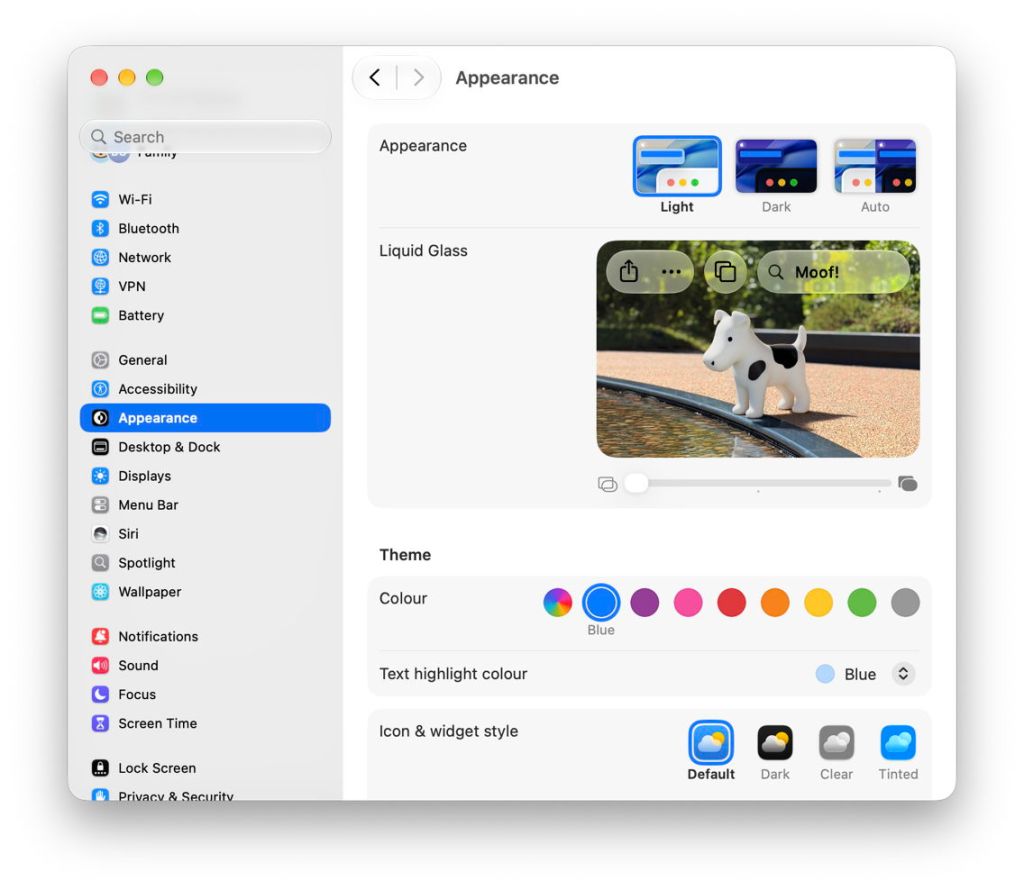
The most obvious improvement in Liquid Glass from Tahoe is the change from a choice between Clear or Tinted to a replacement slider. This also features one of the new Easter Eggs, a beautifully rendered image of Clarus the Dogcow.
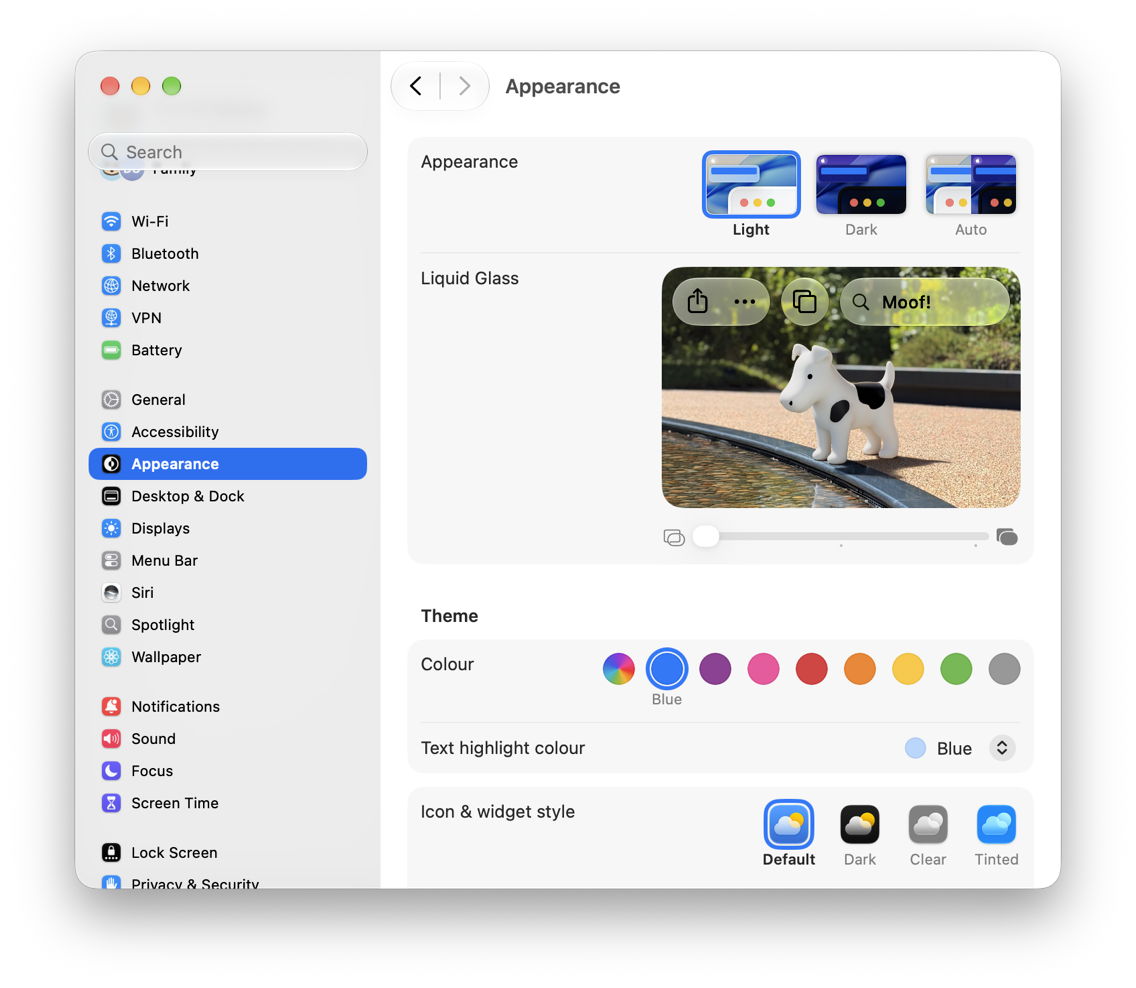
To see this, scroll the mini-view contents down until you reach the foot, then keep tugging at the scroll until it finally scrolls further to reveal this portrait with the search term of Moof! The tools shown in that view are also delightfully non-functional.
You should recall this slider from personalisation and setup at the end of the upgrade process. Quite why Apple has pushed this decision so far forward I don’t understand, though. As with the previous options, for this slider to work, Accessibility settings like Reduce transparency must be turned off, on the basis that you can’t have too much of a good thing.
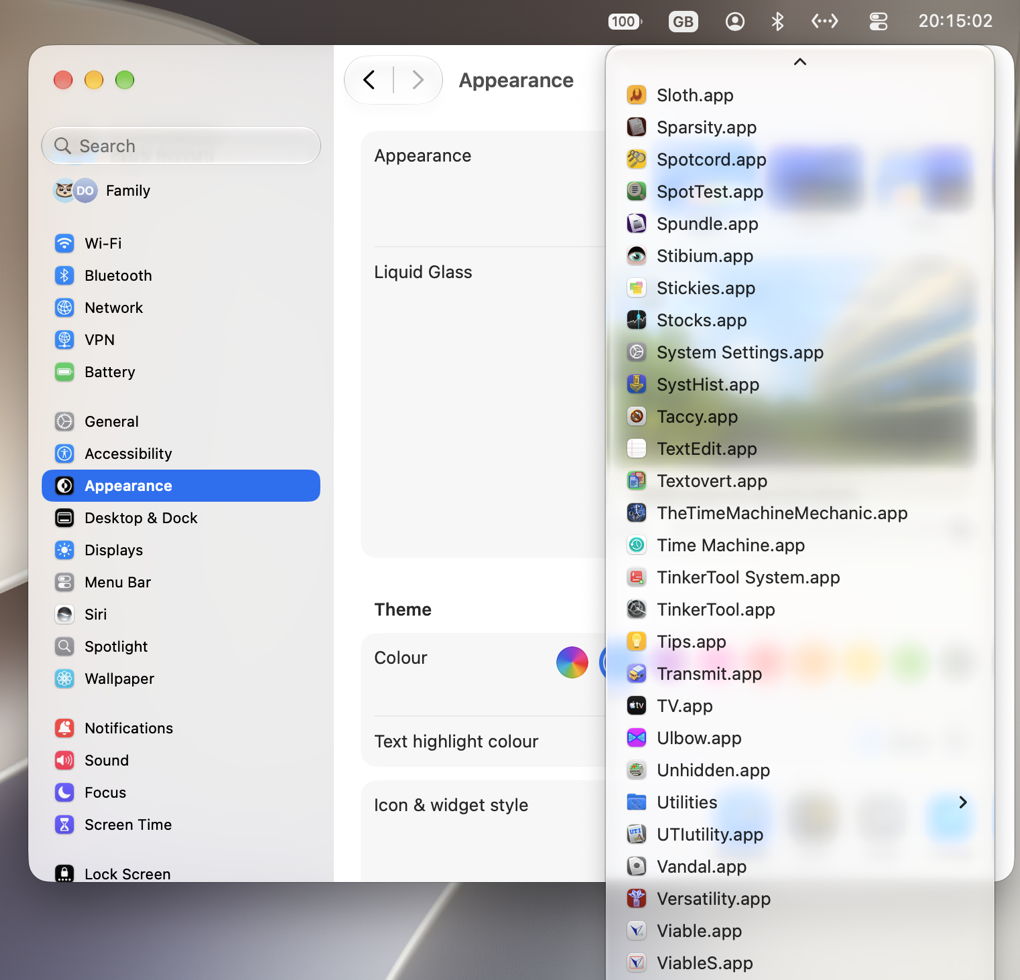
With the slider at the far left, Liquid Glass is at its most transparent.
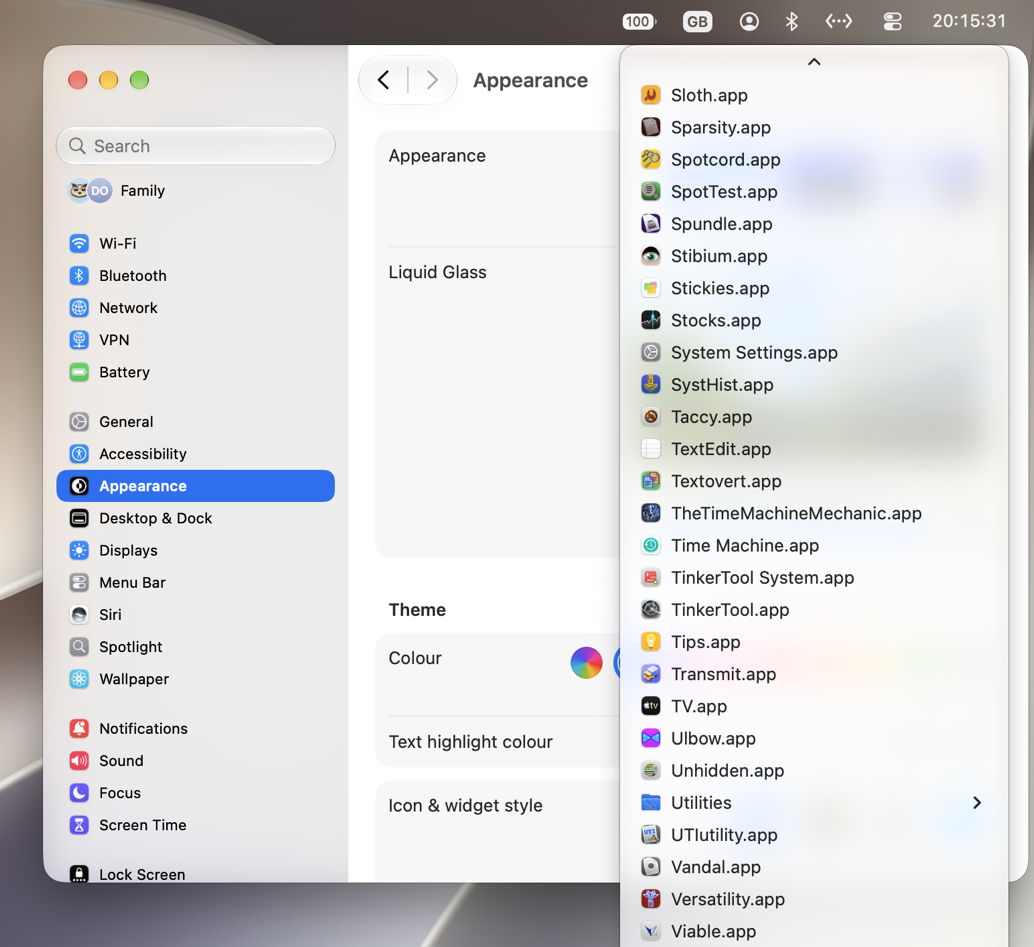
With the slider at the far right, it’s at its most opaque without being disabled altogether.
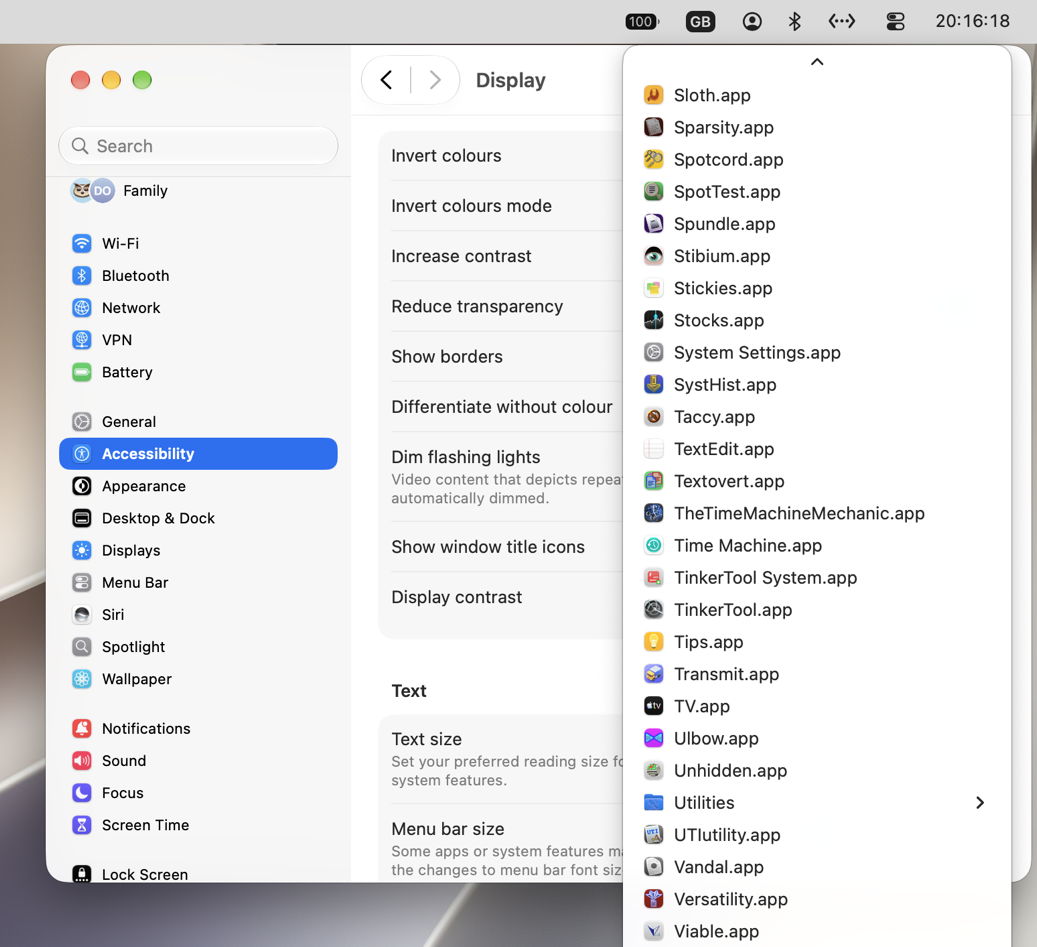
The alternative is to enable Reduce transparency in Accessibility settings, which makes windows essentially opaque.
Design improvements
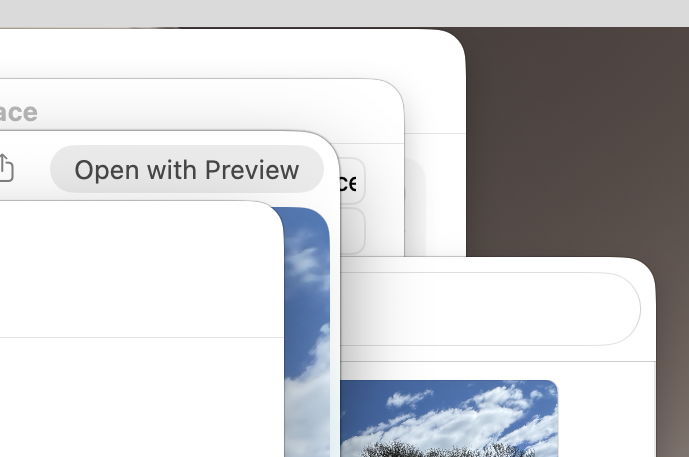
Rounding of rectangles is more subtle and far more consistent than in Tahoe. Conflicts between rectilinear window contents and rounded corners are also less stark.
Unfortunately, improvements in controls in Light and Dark modes are relatively small, as shown below in those of LogUI.


AI
The floating AI tool that appears when Writing and other tools are available for selected text is no longer blue, but a plainer black and white icon.
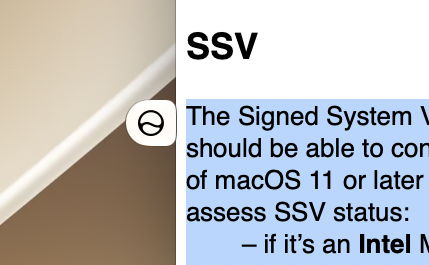
The tools offered are also simpler.
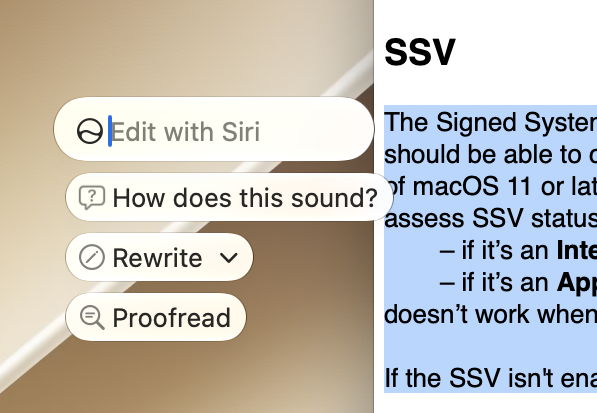
I remain confused by the second seen here, How does this sound? Sometimes this shows a brief proofreading and stylistic comment, other times it waits for audio input that is disabled in Siri here. A useful prompt to type into the top Edit with Siri box is then How does this read?
As with previous versions of AI, if you’re not seeing the tools you expect, first check that the Preferred Language set in Language & Region is the same as that set in Siri. When Golden Gate has just been installed, it takes time to complete downloading the cryptexes and other support components required. This is reported in Siri settings.
If none of this seems to work, check that your chosen language is already supported. I know that English (United States) and English (United Kingdom) are, and Apple’s full listing is here.
Siri settings also includes a new final section listing all apps and whether to allow Siri to learn how you use each app so it can make suggestions in other apps.
Have fun exploring Golden Gate’s other new and improved features!

