
Apple gives three main reasons for starting your Mac up in Safe mode:
- To prevent third-party and some other software from loading during startup, including “login items and extensions that aren’t required by macOS, and fonts that weren’t installed by macOS.”
- To perform “a basic check of your startup disk, similar to the more comprehensive check performed by the First Aid feature of Disk Utility.”
- To increase free disk space temporarily by clearing “some system caches, including font caches and the kernel cache, which are automatically created again as needed.”
The first of those can be used to diagnose the cause of almost any problem caused by third-party software, and may make some tasks such as obtaining and installing macOS software updates possible, when they fail in normal user mode.
Entering Safe mode
Consider first whether you should disconnect some or all non-essential peripherals. If you’re only intending to use Safe mode to clear caches, or to install an awkward macOS update, that shouldn’t be necessary. When trying to diagnose potential problems with extensions, though, it could be beneficial.
Apple silicon Macs
The Mac must be shut down to begin with. Press its Power button and keep it held until you see its Recovery options loading. Then select the startup disk you want your Mac to boot from, and hold the Shift key. The button underneath that disk icon will change to read Continue in Safe Mode. Click on that button, and your Mac will restart.
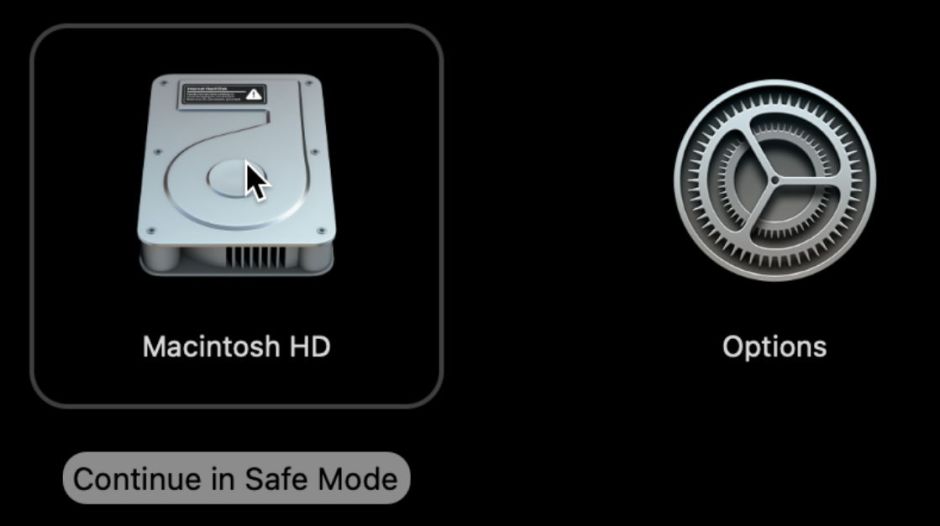
You’ll normally be asked to log in twice, and initially, at the upper right of the display, the words Safe Boot may be shown in red.
Intel Macs
All you need do with an Intel Mac is start up (or restart) with the Shift key held down until you see the login window. If you have set a firmware password, you’ll need to remove that in Recovery before trying to start up in Safe mode.
Checking
Once your Mac is running in Safe mode and you’ve logged in, check that it really is in Safe mode by opening System Information. Click on Software at the left, and the line Boot Mode should say Safe rather than Normal.

If you can’t start your Mac up successfully in Safe mode, Recovery is your only option, where you might consider reinstalling macOS.
Leaving Safe mode
To leave Safe mode and return to normal mode, simply restart the Mac.
Blocking extensions and customisations
Booting in Safe mode blocks the loading of all third-party kernel extensions, and may delay the loading of some provided in macOS. Specifically, those in the Auxiliary Kernel Collection (AKC) aren’t loaded, and any devices or features relying on them won’t be available. All kernel extensions in the main Kernel Collection appear to be loaded normally. If you suspect your Mac’s problems could relate to a third-party kernel extension, this makes Safe mode an excellent diagnostic test without having to alter Startup Security for an Apple silicon Mac.
Apple adds to that login items, system extensions (the modern replacement for kernel extensions), and fonts not installed by macOS. These are other common causes of compatibility problems, adding to its usefulness.
Checking the startup disk
Older versions of macOS performed extensive checks of both disks and snapshots using fsck_apfs. Apple discontinued those some years ago, because they extended Safe boot time to periods sometimes exceeding half an hour. Since then, checks performed by fsck_apfs don’t include snapshots, and are quick checks rather than a full check-and-repair. Those checks currently appear identical to those made during a normal boot. Accordingly, if you want to perform checks on your Mac’s current boot volume group, you should do so using Disk Utility or fsck_apfs in Recovery mode. I detailed this earlier this year.
Increasing free disk space
Apple identifies two instances of caches that are cleared in Safe mode: font and kernel. While font caches apply to all Macs, kernel caches don’t apply to Apple silicon Macs. In addition to those, deleted does clear some purgeable space, but doesn’t
- evict any files in iCloud Drive,
- remove local copies of content available through iCloud or Apple’s media services, such as TV,
- delete Time Machine local snapshots.
Although your mileage may vary considerably, the increase in free space brought about by booting in Safe mode can be small. For example, in a test 100 GB VM running macOS 26.6.2, free and purgeable space reported by Disk Utility was:
- 135.8 MB free, 22.3 MB purgeable before Safe mode
- 341.2 MB free, 27.9 MB purgeable in Safe mode
- 309.9 MB free, 28.4 MB purgeable when booted back in regular user mode.
Good reasons for Safe mode
- To identify and locate problems with third-party kernel extensions.
- To identify and locate problems with third-party system extensions, fonts, login items, and other user customisations, as a quicker alternative to creating a ‘clean’ user account.
- To download and install macOS updates, when they don’t work in normal mode.
- To fix problems following macOS updates, when a normal restart doesn’t help.
- To clear font and user caches.
- When there are problems preventing booting in normal mode, short of going to Recovery mode.
- As a generic non-destructive panacea.

