
From day one Macs have been designed to associate files with the apps that open them, so you can use the Finder’s Open command or double-click a file, and it will automatically be opened by the app you expect. This article explains how that can go wrong, and how to fix it.
Opening the file correctly relies on a chain of information to work out which app to launch. If anything goes wrong in that chain you’ll end up with the wrong app trying to do the job. Key steps are:
- LaunchServices checks whether there’s a custom setting for that file; if there is, it opens the app specified in the file’s com.apple.LaunchServices.OpenWith extended attribute (xattr).
- If no custom setting is in force, LaunchServices checks the Uniform Type Identifier (UTI) of the file.
- LaunchServices then checks its database to determine the default app for that UTI and its location.
- LaunchServices launches that default app and sends it an AppleEvent to open the file.
- Once it has launched, the app tries to open the file.
Custom setting
This is controlled in the Finder’s Get Info dialog. When a file is set to be opened by an app other than the default for its UTI, a com.apple.LaunchServices.OpenWith xattr is added, containing a property list specifying:
- bundleidentifier, e.g. co.eclecticlight.DelightEd
- path, e.g. /Applications/DelightEd.app
- version, e.g. 0 to allow any version.
If you use the Get Info dialog to set that back to the default app, that xattr may be retained, but then will contain details of the default app instead. You can also manually reset it by deleting the xattr, so reverting its behaviour to the default.
File UTI
In the great majority of cases, this is determined by the filename extension. Change it from rtf to pdf and you’ll see how important it is to use the correct extension. Reference material on UTIs is available in my free app UTIutility, and they are explained here.
LaunchServices database
When an app is first run from the Finder and GUI, information about it is extracted from its Info.plist file and added to LaunchServices’ database. This includes custom file types specified by the app and its abilities to open and edit different types of file. These are then used to match file UTIs against the apps that can open them. Unless you’ve set any different, LaunchServices should normally open the most recent version of the specified app in your Applications folder, which usually coincides with that in the Dock if it’s installed there.
When the wrong app is opened, it’s simple to fix. Select the file, Get Info, and change the Open with: setting to the app that you want. If you want this to apply to all files with that UTI, click on the Change All… button.
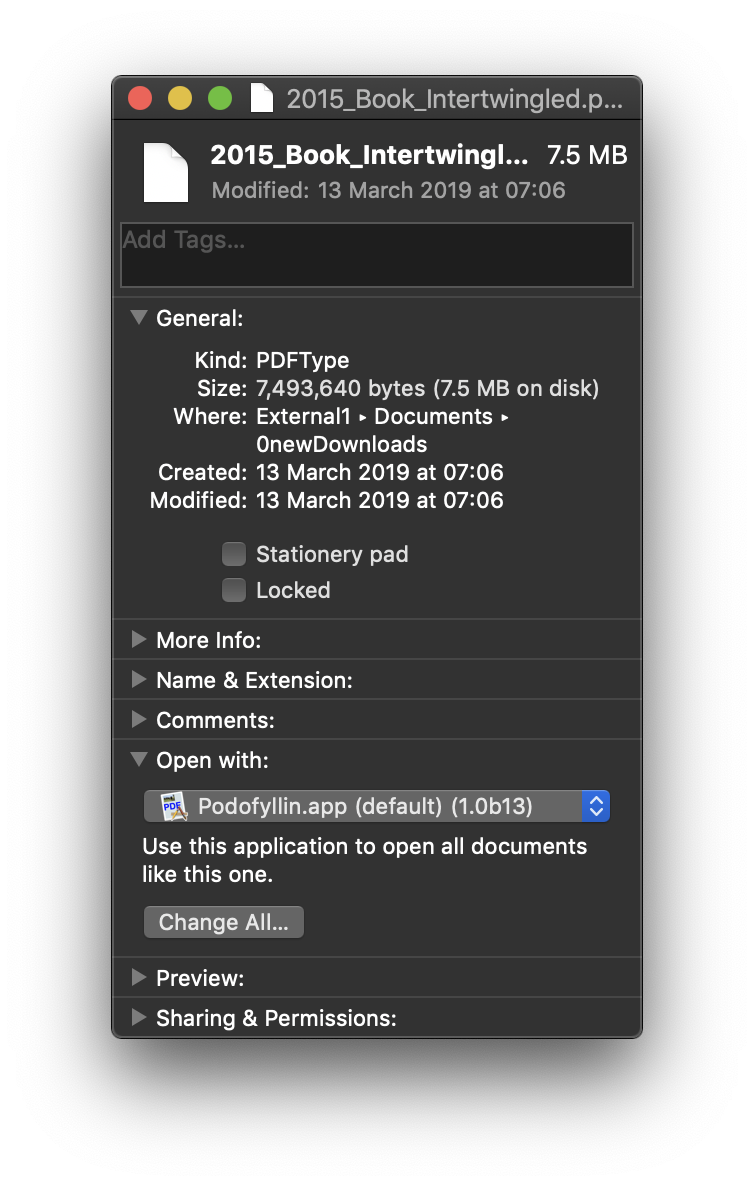
When LaunchServices keeps opening the wrong version or copy of the right app, rather than the one that’s installed in your Dock and your Applications folder, it’s slightly more complicated to fix. It usually helps to discover which copy of the app LaunchServices is opening. Double-click on one of its files, and Control-click on the app’s icon in the Dock. Towards the bottom of the menu, you’ll see the item Options, in which you can Show in Finder.
This opens a Finder window on the copy of the app LaunchServices is currently using to open files with this UTI. That may come as a surprise, as it may be one you didn’t know about. Rather than removing those unwanted copies of an app until finally LaunchServices opens the right one, there’s a better way to fix that.
Before going any further, check the version installed in your main Applications folder (or wherever it should be) is the one you want LaunchServices to open, and, if it’s installed there, the app in the Dock is one and the same. Then return to the Finder’s Get Info dialog, and open the list of apps which could open that file in the Open with: item.

If there are multiple versions of the same app, go to the foot of that menu, and select Other… to bring up an Open File dialog, where you should select the correct copy of the app you want to open those files with.

Click on Open and verify that this is the right copy, through the Dock.
Now that’s set, click on the Change All… button in the Get Info dialog’s Open with: section. Now you should find LaunchServices opening double-clicked documents using the right app, the right version, and the right copy at last.
If this doesn’t work, and the wrong app keeps launching, there are two command tools that might help, although they can also cause more problems. I’ll consider how you could use lsappinfo and lsregister in a separate article.
macOS refuses
Sometimes LaunchServices launches the correct app, but macOS refuses to open the file, claiming it could be malicious, and even offering to move it to the Trash, typically in one of two dialogs.
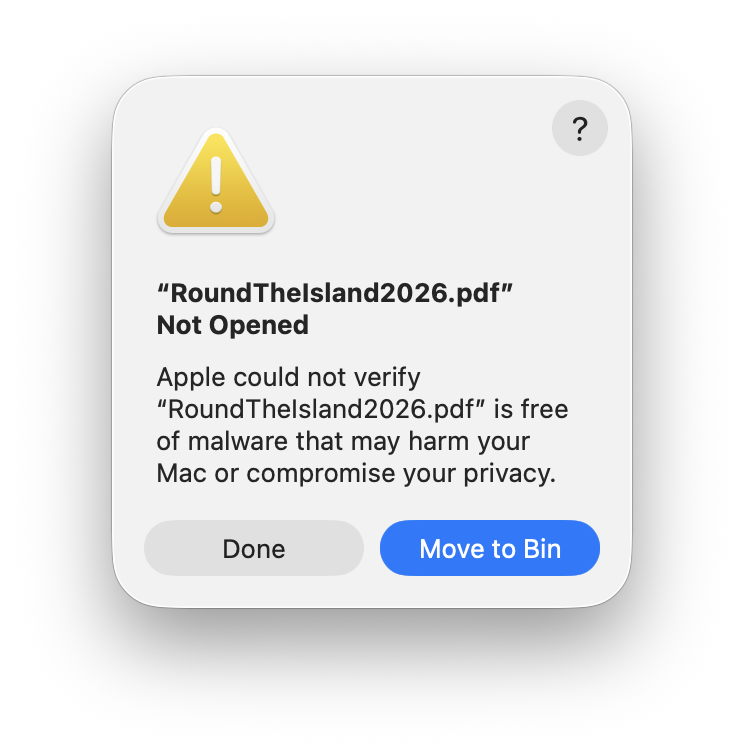

This can happen to files that have never left the Mac, and most often for those with a custom launch setting. In the great majority of cases, the quickest solution is to use the Finder’s Open command rather than double-clicking the file, or by opening the app and using its Open command in the File menu.
A common cause is a quarantine xattr that has been attached to the file and is clashing with restrictions imposed on apps that run in a sandbox, such as Preview and those obtained from the App Store. If you suffer from this repeatedly, try my free utility Quarant2, which will clear the quarantine flag inside that xattr.
Summary
- Check and correct any custom setting in the Finder’s Get Info dialog.
- Check the filename extension results in the correct UTI file type.
- If the wrong version of the right app is used, correct it in Get Info, if necessary using the Other item at the end of the list in Open with:.
- If macOS refuses to let the app open the file, use the Finder’s Open command or the app’s Open command in its File menu.
- Avoid using command tools such as
lsappinfoandlsregisterif possible.

