
One of the design features of macOS is that a file’s metadata can be stored separately from that file’s data. This is normally achieved by extended attributes, xattrs, and to aid that there’s a rich and extendable range of them. This article explains what you can and can’t do with them, as of macOS 26.4.1.
More generally, most metadata are stored within a file’s data, to accommodate operating systems and file systems that don’t have such rich features. Most image formats, for example, incorporate standard collections of metadata such as EXIF information, which are saved with the image data. PDF and Word documents have similar features. These have the disadvantage that changing the metadata results in the file data being altered, and that makes it difficult to track and to guarantee the data’s integrity. This can result in damage or corruption to the data in a PDF file during editing of comment metadata, for example. When possible it’s far better to separate metadata.
Distinguishing between data and metadata can also be tricky at times. This is easiest with non-verbal data like images and audio, where text is clearly separate from data, but it can appear more arbitrary with written documents. Some content such as copyright information or an index is universally accepted as metadata, but abstracts and appendixes may vary. Some types of document, such as official standards, draw explicit distinctions, using qualifiers like normative and informative, to assist.
Finder Comments and Tags
These are the two standard types of metadata currently best supported in macOS, both being readily accessible in the Finder and applicable to any file or folder.
The main problem with Finder Comments is that they are primarily stored separately in the hidden .DS_Store file in the same directory as the item, although a secondary copy is written to a xattr attached to that file/folder. They’re easily accessed in the Finder’s Get Info dialog, and can be shown in List view windows, although that doesn’t work for multi-line comments. On balance, their strange storage makes them fragile and unsuitable for many uses.
Finder Tags are stored properly in a xattr, and are most widely distinguished by the coloured tag displayed. Although they can be repurposed to store text, their main value remains in categorisation. There’s a practical limit of 20-25 characters before their text label is cropped in most views, and labels for multiple items can only be shown in the Finder’s List view layout. For the majority, they are best used for allocating items to a limited number of categories, distinguished foremost by their tag colour, and aren’t suitable for more substantial text like even a brief summary.
Properties
To be generally suitable for storing text metadata for a file or folder in macOS, these should:
- be attached to the file or folder as a xattr;
- be capable of storing and displaying up to 3,804 bytes of UTF-8 text, the upper limit of data stored alongside the xattr;
- use xattr flags to control their persistence;
- be indexed by Spotlight so their contents can be searched;
- be preserved in iCloud Drive, and when copied to a different volume;
- be displayed and edited easily, ideally in the Finder, without the need for third-party software.
Which xattrs?
Of the dozens of xattrs available, I’m aware of just three that come closest to meeting all those requirements:
- com.apple.metadata:kMDItemComment, known in Spotlight search menu as Comment, and different from Spotlight Comment, which is synonymous with Finder Comment;
- com.apple.metadata:kMDItemKeywords, Spotlight Keywords;
- com.apple.metadata:kMDItemSubject, Spotlight Subject.
These are sufficiently persistent as to be preserved in iCloud Drive, and when transferred between Macs using AirDrop. Although they can be displayed in the Finder, they each require third-party software for creation and management. As explained below, this doesn’t apply to image files, which are expected to store their metadata in EXIF information within the file, and not in xattrs.
Management
All three can be created and managed using my free Metamer, as well as with the more extensive features of xattred.
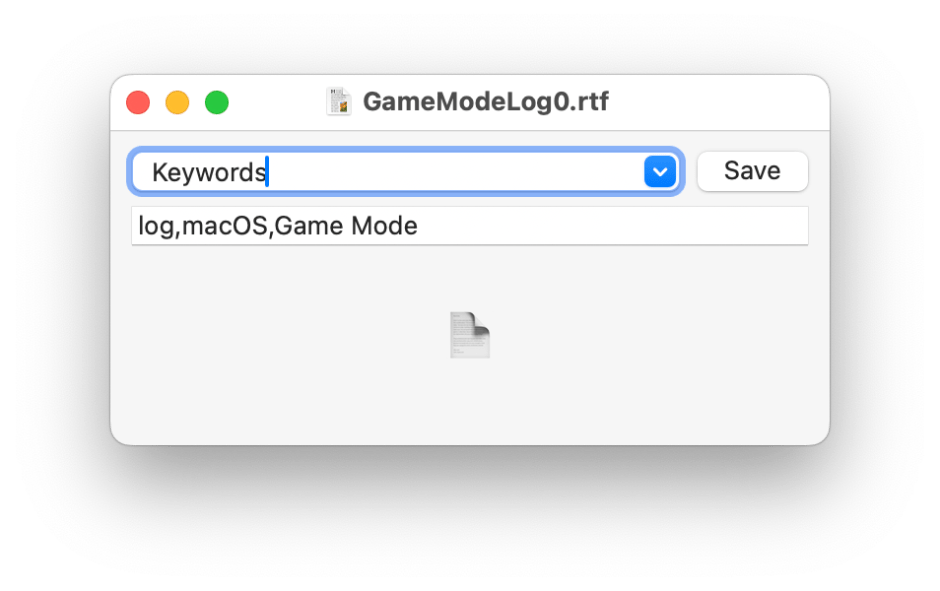
Metamer is a lightweight drag-and-drop utility to create, edit and view many different types of xattr, including the three recommended. It uses a Combo box offering 16 of the most commonly used xattrs, and you can enter the full name of any other if you need. Although it can be used to edit multi-line text, it’s designed to work best with single lines.

xattred is a general xattr editor with more extensive capabilities, and ideal for checking all the xattrs attached to a file or folder. It doesn’t offer the conveniences of Metamer, though.
Display
Each of these three xattrs is displayed in the More Info section of the Get Info dialog, and depending on settings, they can also be shown in the Finder’s preview pane when enabled in Preview Options for that file type. The latter is explained in more detail here, and can appear counter-intuitive at times. However, they can only be added and displayed for supported file types. For example, JPEG and PNG image files can’t display these three xattrs in Get Info dialogs or in the preview pane, but PDF, RTF, text and many other file types can.
None of the three can be listed for multiple files in any of the Finder’s view layouts.
Spotlight
All three are available in the list of search terms available in the Other item at the foot of the search term menu in a Finder Find window, as listed above.
But
When researching this article, I discovered some odd behaviours that render some xattrs both invisible and undiscoverable by Spotlight search. I hope to describe those fully tomorrow if I can get my head around them.
 The Eclectic Light Company