
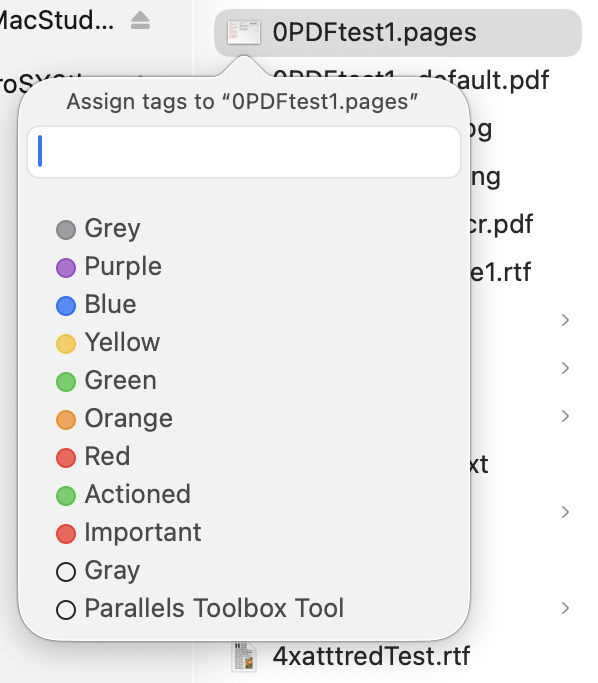
Finder tags are a simple and accessible way of categorising files and folders by attaching one or more of seven colours to them, together with a text label. This article explains how they work, and how to get the best from them.
Tag metadata
Finder tags are stored in extended attributes of type com.apple.metadata:_kMDItemUserTags. They consist of a binary property list containing a little UTF-8 text. This is an array of strings, each containing a tag name, followed by the newline character, followed by the colour number (0-7). The array can be empty, which usually indicates a tag had been attached, but has now been removed.
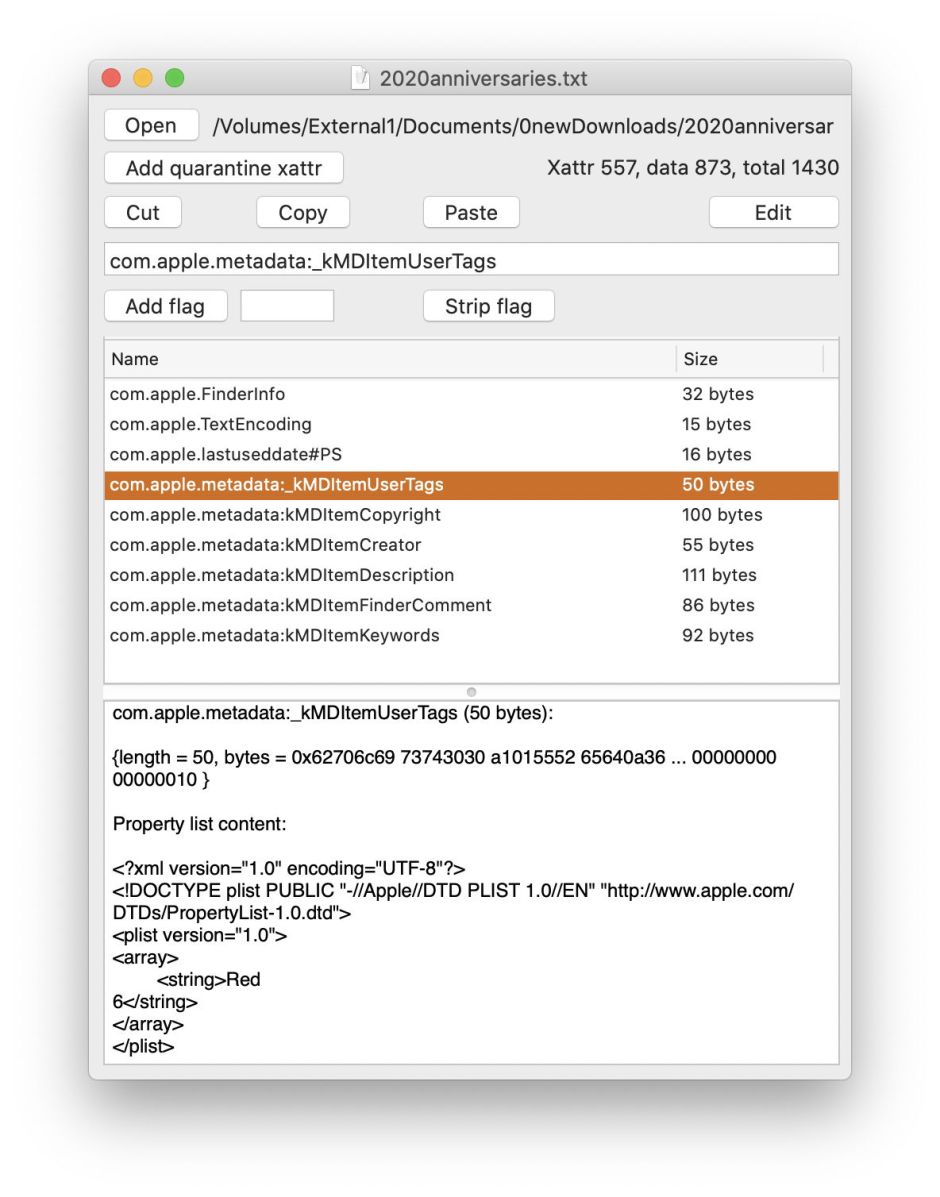
Colour numbers used are:
- none, 0
- grey, 1
- green, 2
- purple, 3
- blue, 4
- yellow, 5
- red, 6
- orange, 7.
Thus a tag name might read Red\n6, or Orange\n7 Green\n2 for two colours, where \n represents the newline character 0a. As the user can assign (almost) arbitrary text to labels, those could equally be Urgent\n6, or Important\n7 Project\n2. When in a location indexed by Spotlight, the text content prior to the newline character (excluding the digit) in each tag is indexed.
When the Finder writes a tag extended attribute to an item, it also adds a null com.apple.FinderInfo xattr of 32 bytes length, if that isn’t already present.
Tagging
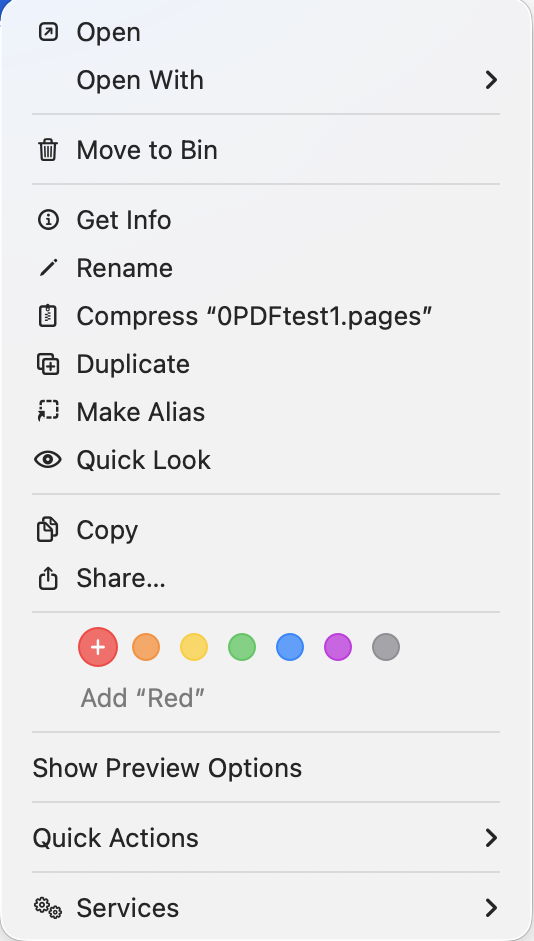
Tags are easily added to a file or folder in the Finder by selecting the item and using the command in the contextual menu. The menu lists the seven favourite tags, as selected in the Finder’s settings, by colour.
A separate command opens a floating window offering all tags instead, giving access to others in addition to the seven favourites.
Tags are removed from items using the same tools, either to remove one of the seven favourite tags, or any other that has been attached.
Once attached to a file or folder, the colours of its tags are displayed in the Name section of each type of Finder window. List view can be set to display the text label as well, although that’s not available in other window types. In macOS Tahoe, tagged folders are also coloured according to the last of the tags attached to them, when that option is enabled in the Finder’s settings.
Tags are widely supported in the Finder, macOS tools, and apps. When you show Tags in the Finder’s sidebar, you can view items with only a specific tag by selecting that tag in the sidebar. The same feature works in file Open and Save dialogs in all apps using the standard macOS dialog too. You can further refine tag-based listings by opting to sort those files in date or other orders, and you can group by tags as well.
Editing and management
Tags and their text labels are managed in the Finder’s settings, in the Tags tool.
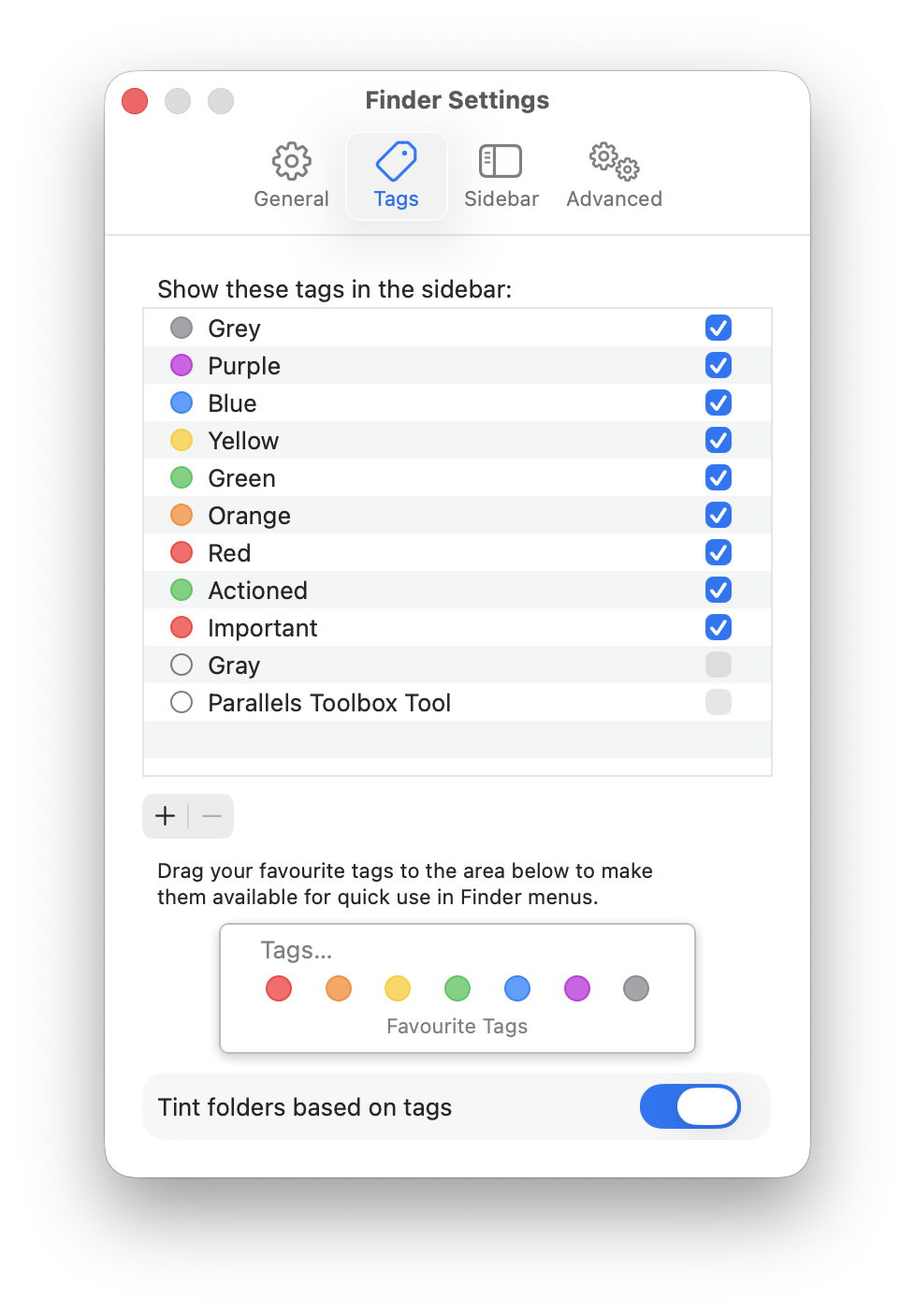
This allows you to add and remove tags from the main list, to edit the label of each (either in the same way you rename files in the Finder, or using the contextual menu), to delete a tag, and to set which tags appear in the list of seven favourites at the foot. If you customise one of the standard tags by changing its name, say from Red to Urgent, then the Finder automatically changes all items marked with that tag to show that new label.
Similarly, deleting an existing tag from this list removes it and its label from all files and folders tagged with them, throughout that Mac’s storage. This behaviour can sometimes catch users unaware of those extensive consequences.
Each tag and label remains associated with that file or folder: when you copy it across to another Mac, the tag remains attached, and on that second system should continue to show the same colour and label. This also applies to any custom tags you add. The important exception to this is if the item is moved using a method that doesn’t preserve its extended attributes, which occurs on some file systems such as NFS, and when using some command line tools. Some backup methods may also not preserve extended attributes, and will strip all your tags; Time Machine preserves them all.
Categories and labels
There are only seven different tag colours, and although many different labels can be associated with each colour, in practice Finder tags work best when tags and labels are matched one-to-one. Note that you can’t associate two different coloured tags with the same label.
Tagging is simplest when each colour only has a single label associated with it, as colours and labels are then fully interchangeable. Labels can also work well when used to qualify categories, for example using red tags for those tasks due this week, with text specifying the day. Broadening the range of labels for a given tag can quickly lead to confusion: imagine the consequences of using a red tag with emails that are labelled Important, and those marked as Junk.
For example, if you want to classify your photos into no more than seven categories, such as social, travel, parties, and so on, they should work well with tags. If you want to add the names of people in each image, or their locations, then tags are likely to be the wrong type of metadata for that. Another example is tagging projects: if you need no more than seven different project tags, then Finder tags should serve well. If you need a dozen or more, then they’ll quickly prove inadequate.
Labels aren’t intended to contain longer text, as they’re not displayed in a way that would make that easy to read. If you want to attach structured or free text to files and folders, use other extended attributes including Keywords, Comment (not Finder comment, though), Description, Subject and Information. Although these are also indexed by Spotlight and can be searched for, there is still no option to display them in Finder windows.
Spotlight search
Finder tags can also be used as a criterion in Spotlight searches, although those are based not on the tag colour but its label, such as Important for a red tag labelled Important. You’ll need to add the Tags item to the Finder’s list of search criteria before you can use it to find items in the Finder’s Find window.
Happy tagging!
 The Eclectic Light Company