
Disk errors can present in a variety of ways, some of which may not help you identify the underlying problem, including:
- a kernel panic, which may not appear directly linked to the error;
- failure to recognise and mount an external disk, which might appear to be the result of a physical connection problem such as a defective cable;
- missing contents on a mounted disk;
- impaired disk performance, or hanging when trying to access files;
- errors accessing or maintaining Time Machine backups;
- corrupt data displayed in documents;
- errors reported when running First Aid in Disk Utility, although some may be spurious (see below).
The first thing you need to establish is which disk is affected, which volume on that disk, and what format that volume uses. If it’s a PC format such as ExFAT or another non-native disk format, then you’re best off attempting to repair that disk on a computer with more extensive tools and utilities to support that, such as a PC. While Disk Utility and its command tool sibling fsck can check and repair other formats, they’re best at dealing with the Mac’s two native formats, HFS+ and APFS.
When the error occurs on an external disk, your first action should normally be to unmount and disconnect that disk, to avoid using it any further and possibly worsening the error to the point where its contents become unrecoverable. You don’t have that option when the problem is on the Mac’s internal storage, particularly the SSD in an Apple silicon or T2 Mac.
One action that can make it easier to access an ailing Intel Mac with a T2 chip is to start up in Recovery mode, open Startup Security Utility and enable that Mac to boot from an external disk: that’s disabled by default. Apple silicon Macs can always start up from suitably prepared external bootable disks, but only do so after starting their boot process from the internal SSD. As a result, they can’t boot unless their internal SSD has a reasonable degree of function, and won’t boot at all if that is badly damaged.
Volumes and disks can only be effectively checked and repaired when they’re unmounted from the Mac. Attempting to fix a live file system is dangerous, and, even when supported, is often doomed to fail unless the errors are only minor. The contents of disks can only be checked and repaired when the Mac recognises that disk: if it doesn’t appear in Disk Utility, then you can’t run First Aid on it.
When you’ve considered these often conflicting factors, and whether the disk needs a professional recovery service (see below), you can decide whether to attempt to repair it yourself, and how best to do that.
HFS+
HFS+ volumes are fixed-size partitions of the disk, and enjoy the support of a range of mature third-party tools including DiskWarrior, as well as Disk Utility and fsck. By convention, checking and repair is performed first on the disk itself, to ensure that its partition table is correct, then on the individual volumes within that.
In the past, HFS+ has been prone to accumulate minor disk errors resulting from incomplete file system changes. Journalling was introduced to reduce their frequency, and has proved effective. Use of a good repair tool such as DiskWarrior can normally rebuild the file system on even quite damaged volumes.
APFS
APFS volumes are variable-size file systems within fixed-size partitions or containers of the disk. The only tools that can check and repair them at present are Disk Utility and fsck (calling fsck_apfs), although there are some third-party tools that can recover the contents of corrupt disks. Apple recommends performing checking and repair first on volumes, then on containers, and finally on the disk itself, although that may result in repeated checks of volumes and their snapshots.
Because APFS is a relatively new file system, its capabilities have changed rapidly over the last few years. Older repair tools may not cope well with newer features of the file system: for best results, always use the versions of Disk Utility and fsck supplied with that version of macOS, or newer versions of those tools. The latest release of Disk Utility, version 22.6, also fixes most of the bugs that have in the past made First Aid unreliable. If you can, use that from macOS 13.4 or a more recent version.

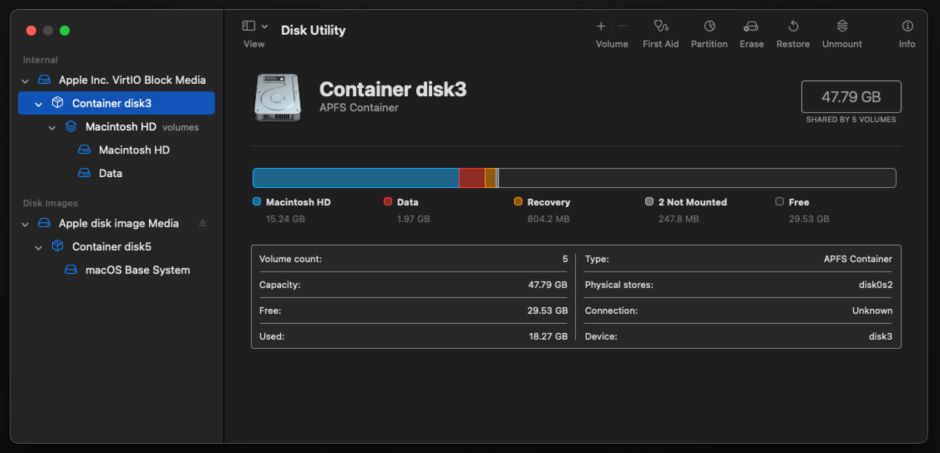
The most common error encountered when using First Aid in Disk Utility to check and repair disks is that the procedure fails because the volume or container to be checked can’t be unmounted, as required by fsck_apfs when it’s run by Disk Utility. If that happens, first ensure that no volume on that disk is open in the Finder, then select the disk in Disk Utility and unmount it. Once the disk is no longer mounted, running First Aid should complete successfully.

Although Disk Utility will make a good attempt at checking and repairing the contents of the current boot disk, it’s far better to attempt that when in Recovery. You will also find it better to work with Time Machine backup disks from Disk Utility in Recovery. Be cautious, though, when using Disk Utility in Fallback Recovery, as that may be from an older version of macOS.
fsck_apfs
First Aid in Disk Utility relies on running the command tool fsck_apfs, but only provides fixed options. If you want more flexibility, then use the command directly in Terminal.
Before trying to use fsck_apfs on a disk, you need to identify its device name, such as disk3s1, and discover whether it’s encrypted. Unlock an encrypted volume without mounting it using a command like
diskutil apfs unlockVolume /dev/disk7s2 -nomount
Typical commands used include:
sudo fsck_apfs -n /dev/disk7s2just to check the volume disk7s2 but not repair it, including its snapshots.sudo fsck_apfs -y /dev/disk7s2to check and repair all errors automatically, including its snapshots.sudo fsck_apfs -n -S /dev/disk7s2to check but not repair, excluding all snapshots.sudo fsck_apfs -n -S /dev/disk7to check but not repair the container disk7, excluding all snapshots.
You can find details of all available options in man fsck_apfs.
Snapshot errors
When checking volumes or containers, First Aid and fsck_apfs normally check snapshots too, which can take a long time on Time Machine backup volumes, in particular. Snapshots are also more likely to contain errors that can’t be repaired, which perhaps isn’t surprising as they’re intended to be read-only.
Isolated snapshot errors can usually be dealt with by deleting that snapshot, although if more recent snapshots have the same error, it suggests the problem may be in the volume being used as the source of those snapshots.
Content recovery
Disks that contain valuable contents are usually best recovered by specialists. While the procedure can be extremely expensive, the cost of losing the contents could be far higher. If your disk is valuable and may need professional recovery, unmount it and remove power from the disk as soon as possible, then contact the recovery specialists and follow their instructions to preserve as much of its contents as possible.
Third-party tools to recover the contents of damaged disks can be useful, but normally lose their directory structure, and some may have fragmented contents. Manually recovering tens or hundreds of thousands of files is non-trivial and not a task you want to start unless you have ample time and great patience.
Failed repair
When First Aid or fsck_apfs are unable to complete a repair, you should normally recover the contents of the disk as effectively as you can, and consider whether to discard that disk. Obtaining SMART indicators from the disk can give insight into whether the disk itself is still healthy and can be reformatted, but isn’t possible for external disks connected via USB rather than Thunderbolt (unless using the SATSMART kernel extension). In many cases, it’s wise to relegate reformatted disks to secondary roles where further failure would have little or no impact.
Poor hard disk performance
Poor performance is a common problem when using hard disks formatted in APFS, mostly because of severe fragmentation occurring in file system metadata. Once it has become noticeable, it’s going to get progressively worse as fragmentation increases. There doesn’t appear to be any way of preventing or slowing this down, and cloning the disk to another empty disk doesn’t appear to help. The only lasting solution is to replace hard disks with solid-state storage, for which APFS was designed.
 The Eclectic Light Company