
Following Monday’s debut release of my overhauled app for virtualising macOS in Apple silicon Macs, I’m delighted to provide a new build (100) of that, making a few tweaks and providing a comprehensive Help book at last.
I have been extending my testing to running two VMs simultaneously. Although it’s not a common requirement, it’s a good form of stress-testing. One problem I spotted was that it was possible to inadvertently try to run the same VM twice, at the same time. So I have added a little check to prevent that, although the determined could still open and run the same VM, something I’ll let the virtualisation framework trap.
Here are two Golden Gate VMs running from a single instance of Viable.
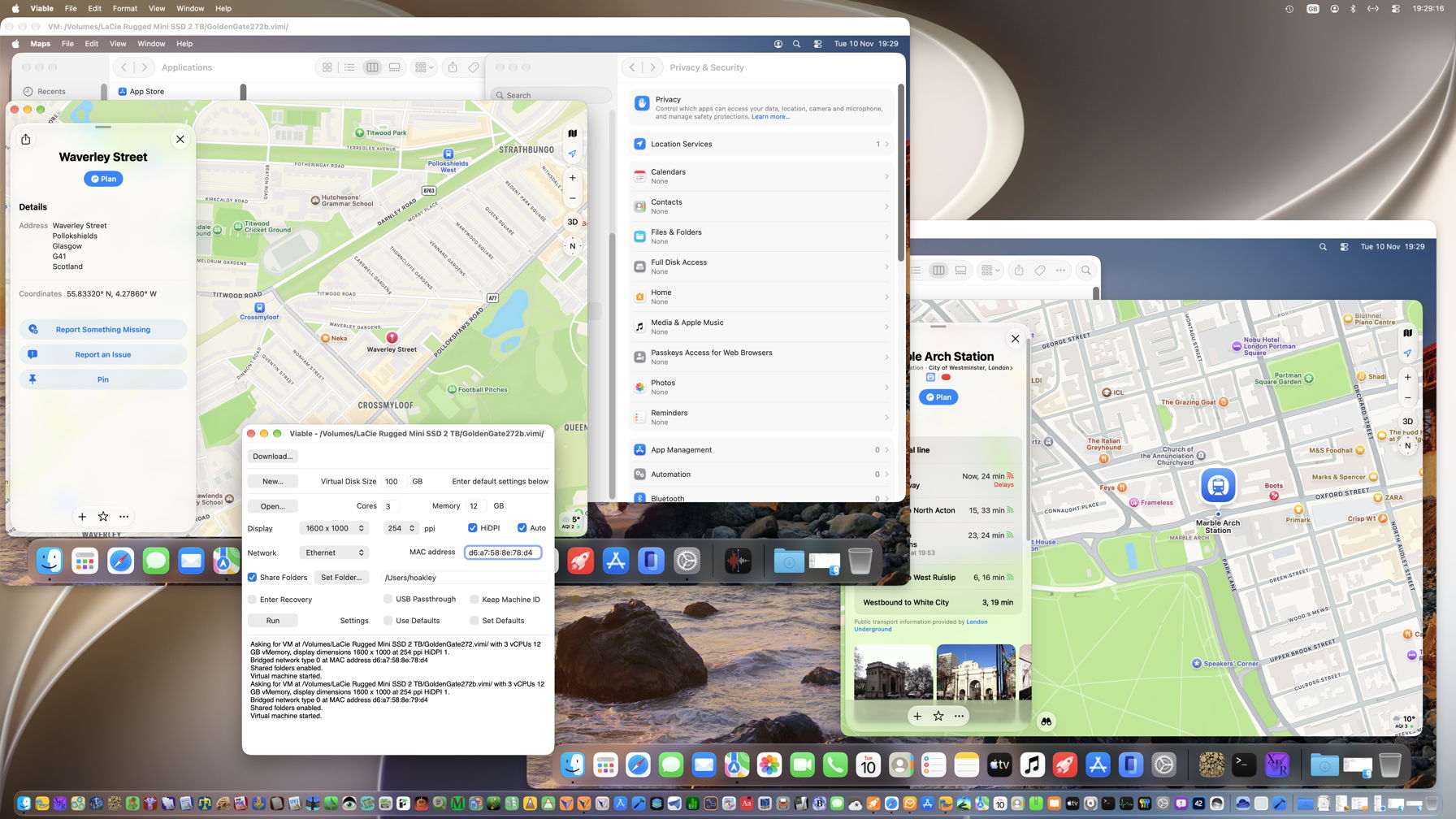
So long as you can afford to give each a minimum of three CPU cores and 12 GB of memory, and don’t fancy doing anything too ambitious in them, this appears to work fine. It’s worth pointing out that macOS enforces Apple’s licensing terms, and won’t allow more than two instances of macOS to be virtualised on the same Mac. There has been at least one workaround devised, but as it requires major surgery to security systems and breaches Apple’s licence, I don’t see the point.
I also took the time to confirm, again, that nested virtualisation of macOS within macOS doesn’t work, as the nested virtualiser crashes out consistently, as it always has done. I doubt that virtual Linux would nest inside virtual macOS either, but you’re welcome to try.
The Help book is now fairly comprehensive, and covers just over 18 pages. One that you might find a useful introduction is its workflow summary:
Start
Download the IPSW for your chosen version of macOS; for the current version click on Download.
Create a new VM
Set Virtual Disk Size, and the default settings below that. Then click on New or Command-N,
select the IPSW to be used, and save the new VM. Once complete, click on Run or Command-R to run and configure your new VM.
Open an existing VM
Click on Open or Command-O, then either √ Use Defaults to run it using its default settings, or
untick that and adjust other settings. When happy, click on Run or Command-R.
Double-click a VM to run it
Download and install Vimy: it’s what it does.
Quit a running VM
Use the Shut Down menu command in the VM.
Force quit a running VM
Quit Viable.
It really is that simple.
Viable 1.1 build 100 for Sonoma and later on Apple silicon Macs is now available from here: viable11a
from Downloads above, and from its Product Page.
I hope you find it easy to use and useful.

