
The ability to ‘pin’ files had been one of the longstanding wishes of many who use iCloud Drive. It was introduced two years ago in macOS Sequoia, with a contextual menu command to Keep Downloaded, when Optimise Mac Storage is enabled. This gives you the best of both worlds: files that are seldom accessed on your Mac can have their local data removed by Remove Download to free up space, but those you want to keep handy can be pinned, so their data remains local.
However, pinning behaviour is unusual. For example, if you pin a folder, its entire contents are pinned, and can’t then be unpinned individually. This article explores some of those quirks in macOS Golden Gate, and why they occur.
Pin an item in iCloud Drive
Assuming your Mac is connected to iCloud Drive and you have enabled Optimise Mac Storage, so files in iCloud Drive can be evicted from local storage, you can use pinning to ensure designated files aren’t evicted, and remain downloaded and synced at all times.

Select the file or folder in the Finder and Control-click to bring up its contextual menu. Select the command Keep Downloaded.

That adds a new icon to the pinned files, with a white downward arrow on a circular grey background, indicating that file is to be kept downloaded or pinned locally.

To unpin an item, select it and open the contextual menu, where the Keep Downloaded item will be ticked. Select that command to toggle the setting off, unpinning the item so it can again be evicted from local storage.
Behaviour
When you pin files individually or in groups, each file has a pinning extended attribute attached to it. But when you pin a folder, only that folder gains the extended attribute, not the files or folders within it. The whole folder and the paths within it are designated and shown as being pinned. Although files inside a pinned folder don’t have that extended attribute while they remain there, move them outside that folder and it’s added to them so they remain pinned.
A file’s pinning setting travels with it if you move that file within the same volume, and may be preserved when it’s moved away. It’s preserved when you make changes to that file, but not when it’s copied, and pinning settings are specific to a local Mac, and aren’t transferred to other Macs or devices connected to the same iCloud Drive.
Pinning is only shown for individual files and folders in Finder views, and isn’t reflected in the Get Info dialog in any way, or anywhere else. The user thus has no idea of the total number or size of files currently pinned, nor of their location, without inspecting the contents of every folder in iCloud Drive.
How it works
Pinning is set by macOS attaching an extended attribute (xattr) named com.apple.fileprovider.pinned to each file that’s pinned, or a folder. That xattr contains a single byte, the character 1 as 0x31. Their name is often shown with two special xattr flags as com.apple.fileprovider.pinned#PX, although those aren’t technically part of its name. Those control how the xattr is preserved during file operations, with the P flag meaning the xattr shouldn’t be exported or shared, but should be preserved during copying. The X flag keeps the xattr only when saving and in backups.

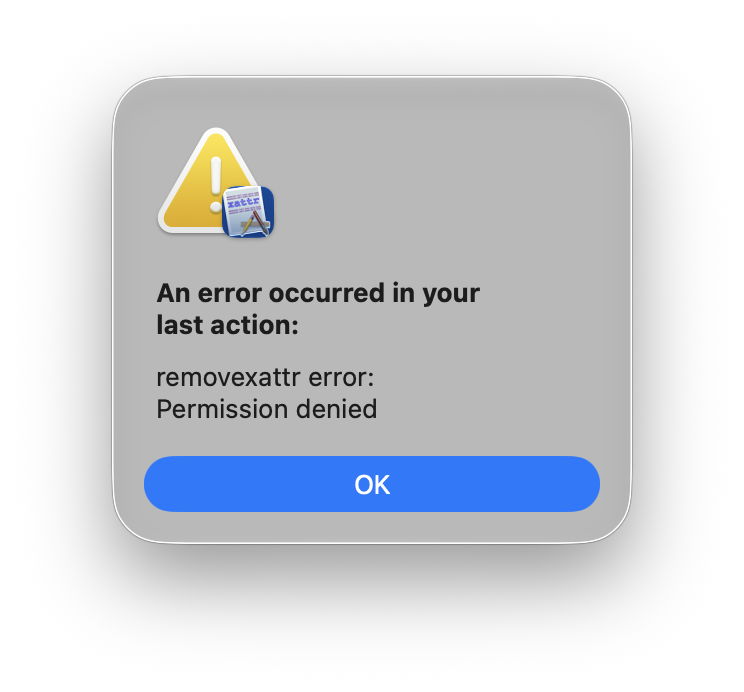
Surprisingly, the com.apple.fileprovider.pinned xattr is protected by macOS, perhaps by a mechanism like SIP. Attempts to strip that xattr, even from files outside iCloud Drive, fail with an error.
Most other file and folder attributes can be inspected and changed using the macOS API, but not pinning. It appears to be buried deep in the FileProvider API, in NSFileProviderContentPolicy, where it’s downloadEagerlyAndKeepDownloaded. Third-party apps aren’t given a direct way to check whether that policy is set for files or folders, nor do they have any way of changing it, and that’s reserved for the Finder.
Quirks
Because pinning isn’t implemented as a regular attribute, and depends on properties of folders in a file’s path, it doesn’t behave like other parts of macOS.
Create a folder of test files in iCloud Drive, open it, select all the files within the folder and use the contextual menu Keep Downloaded command to pin them individually. Then select the folder enclosing them, and use the contextual menu this time to Remove Download. You’ll first see all those pinned files evicted, as if they hadn’t been pinned at all. Over the following seconds and minutes, they’ll be downloaded and pinned again until the effects of their eviction have been fully reversed.
Repeat that process to create an unpinned folder full of individually pinned files. Inspect the xattrs of any of those pinned files (for example, using my free xattred) and you’ll see they all have the com.apple.fileprovider.pinned#PX xattr attached. Then select their enclosing folder and set that to Keep Downloaded. Although the files inside it remain pinned, they lose their pinned xattr. Drag one of those out, though, and it will then have that xattr attached automatically.
Summary
- If you have Optimise Mac Storage turned on for iCloud Drive, you can pin files so they aren’t evicted from local storage.
- Pin a file or folder with the Finder’s contextual menu command Keep Downloaded.
- Unpin a file by unticking the Keep Downloaded command.
- Pinning works by adding an extended attribute to each pinned file.
- Pinning folders behaves differently from pinning their contents, and can appear counter-intuitive and unpredictable. You may find pinning simpler if you never pin folders, just individual files.

