
One of the reassuring features of Siri AI in Apple silicon Macs is that you can inspect records of what leaves your Mac to be run on Apple’s Private Cloud Compute (PCC) servers. Those records are provided in an Apple Intelligence Report or AIR, readily obtained from that section in Privacy & Security settings. However, as I have shown in this article, what’s in an AIR is largely encoded and inaccessible, and a challenge even for those using Apple’s advanced engineering tools.
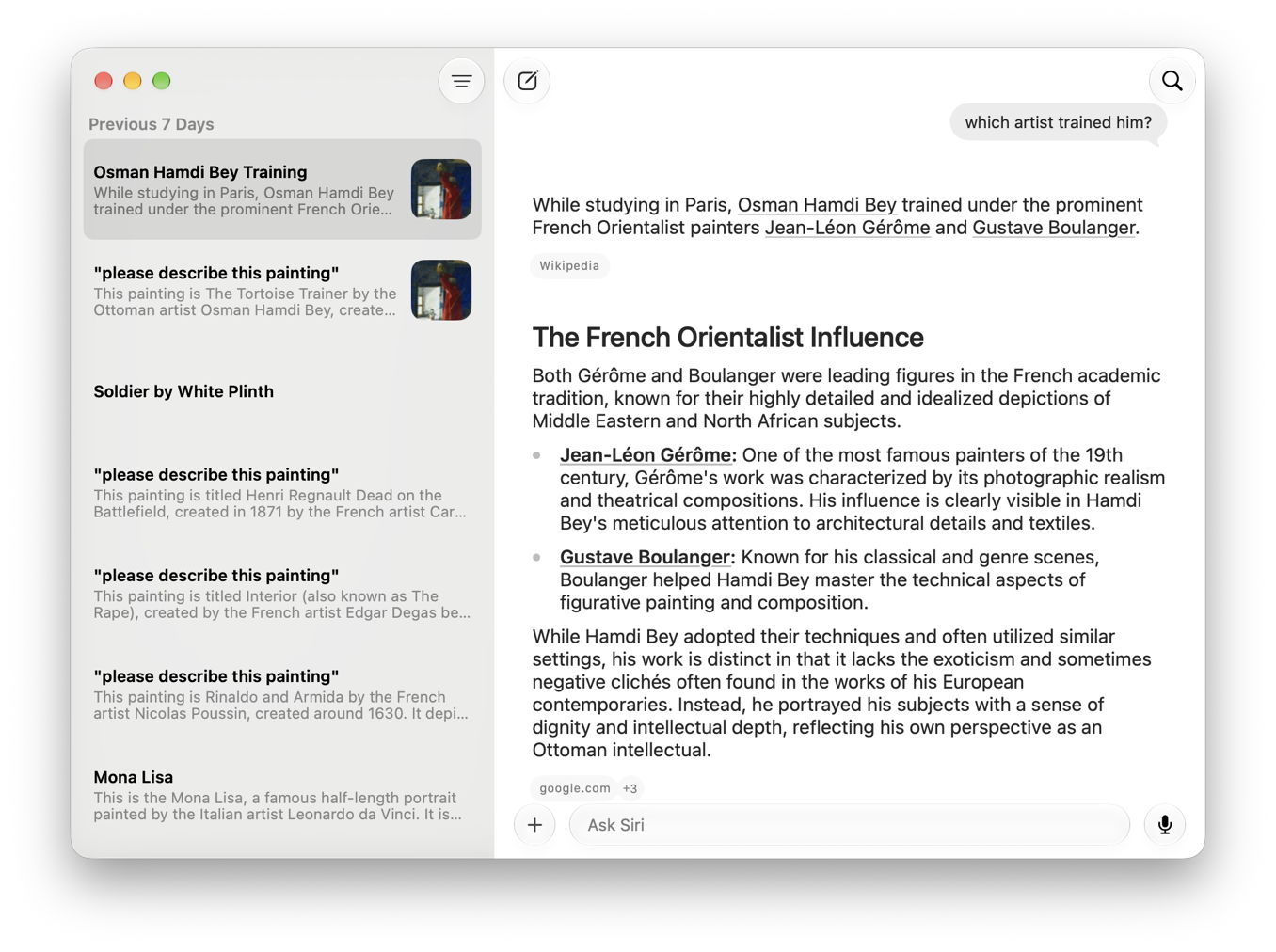
The new Siri app in Golden Gate provides a useful transcript of what you see when interacting with Siri AI, but that’s as far as it goes. It doesn’t tell you what left your Mac for PCC, or what came back. That’s what an AIR is intended to do.
Save an AIR
Before your AIR can contain anything of interest, you have to:
- Open Privacy & Security settings, scroll down towards the foot, and open Apple Intelligence Report. Set the Report Duration to 15 minutes (or 7 days if you want a huge report).
- Over the next 15 minutes, use Siri AI features, such as Writing Tools, Ask Siri, and image AI tools.
Once you’re happy the AIR will be worth browsing, return to that setting and click on the Export Activity button. Be sure to save that AIR with the default .json extension.
Hot AIR?
If you’ve not looked inside an AIR yet, now’s the time to do so. Try opening yours in a versatile text editor like BBEdit, and a specialised JSON editor, such as JSON Editor from the App Store.
In a text editor, most of the AIR is just screen after screen of Base64 gibberish. While JSON Editor makes a neat job of displaying its structure, that’s of little further help. Even the most basic information is a pain to discover. For example, each entry has a timestamp conveniently given as decimal seconds since 1970. To make any sense of those you’ll need to copy and paste them into one of the sites offering to convert those into regular time and date format.
AIRer
Provided you’re running macOS Golden Gate, download the first beta of my new app AIRer from here: AIRer100
Unarchive it, and move the AIRer app from that folder into a convenient Applications folder. Open it, and click on the Read AIR tool at the upper right of its window (the tool on the left of the two). Select your AIR file and open it in AIRer.
If there are records in that AIR, they will be listed by time and date, with the oldest at the top, in the left sidebar. Select one of them, and its useful contents will be displayed in the main part of AIRer’s window.
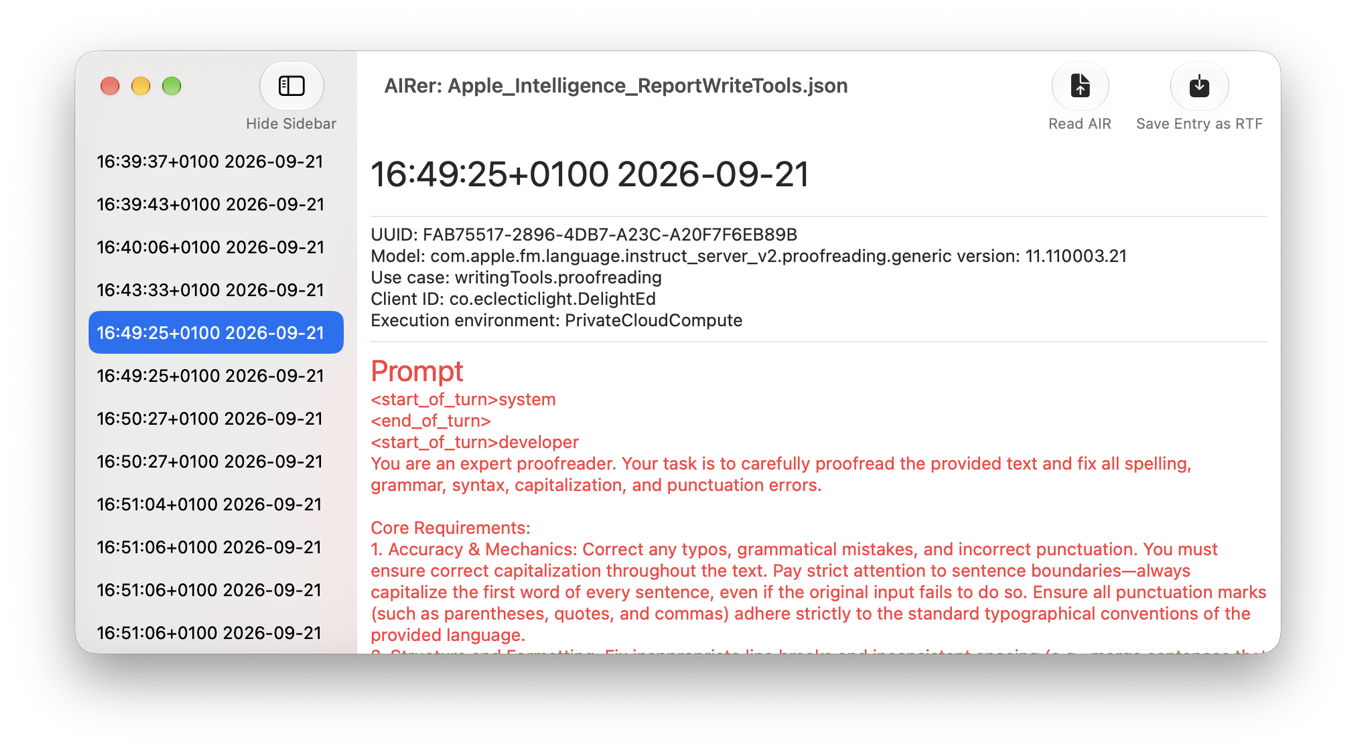
In this case, it’s a Model request from when I asked Siri AI to proofread part of a draft for me, using Writing Tools. AIRer tells you this used a generic proofreading model, with its version number, that it was being used for proofreading from Writing Tools, and the app this was run from was my Rich Text Editor DelightEd. It then confirms the model was run in PCC.
Below the separator is the usually long prompt given to the model, shown in red, and after that comes the model’s response in blue.
The other type of request you’ll see in AIRer is a PCC request, which lacks the lengthy prompt and response, but gives you insights into token accounting and more. In the raw JSON file of an AIR, PCC requests are largely responsible for all the Base64 encoded data that fills the file. Much of that are attestations of great interest to security researchers, but of no use when you’re trying to browse an AIR.
In the AIR, Model and PCC requests are separated. To match up a PCC request with a corresponding Model request is difficult. AIRer arranges them together in a single time sequence, making it far easier to follow transactions between your Mac and Apple’s PCC.
Currently, you can’t copy excerpts from your AIR, but you can save any request as a Rich Text file, by clicking on the Save Entry as RTF tool at the top right. This uses an identical layout and colour conventions as AIRer’s window.
AIRer is my code doodling from this week, squeezed in between updates. I’ll be interested to hear whether you find it useful, and what you’d like to see it do in the future.
Enjoy!

