
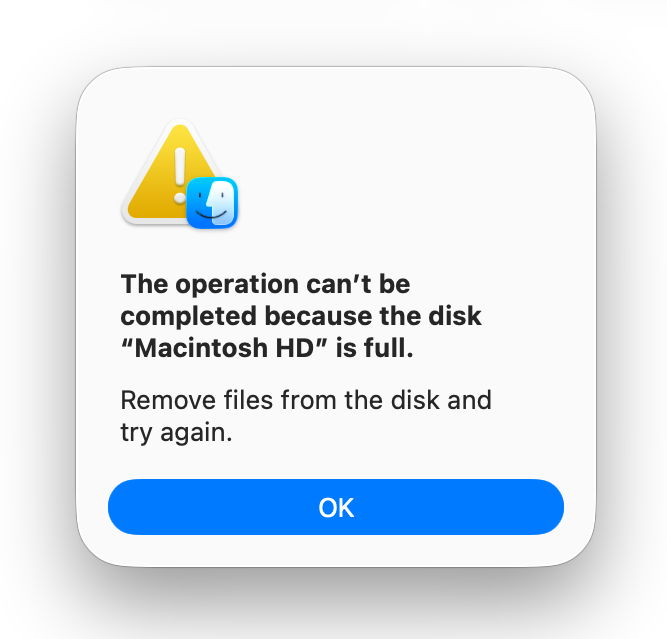
In an ideal world you should always keep ample free space in the container of your boot volume group, including the Data volume containing all your writable files, and the VM volume used as the backing store for macOS virtual memory. That not only ensures they won’t run out of free space, but that the SSD can run its normal maintenance regimes to ensure it lasts as long as possible and doesn’t suffer an early death. This article explains what happens when that free space falls to the point where it affects macOS. Observations and log entries described here are based on macOS Tahoe 26.6.2 running in a VM of 100 GB on a Mac mini M4 Pro host.
Visible effects
In the event that you’re caught out by circumstances, such as the combination of recent large snapshots and exceptionally large caches, macOS does try to manage as well as possible even when there’s just a few GB free. But once free space falls to around 1 GB you should see a warning notification.

If you accept its offer to open the Storage section in System Settings, you may not find that of much help. Options offered include:
- Store in iCloud, which evicts files in iCloud Drive, so removing their data from local storage. As that will be offered even if your Mac isn’t signed into iCloud, or has no files saved to iCloud Drive, that may not be of any use.
- Optimise Storage, to remove movies and TV shows from TV’s local storage. Again, this is offered even when there are no files that could be removed.
- Empty Trash automatically. Although that would normally delete them after 30 days, when free space is low enough files moved to the Trash will be deleted immediately.
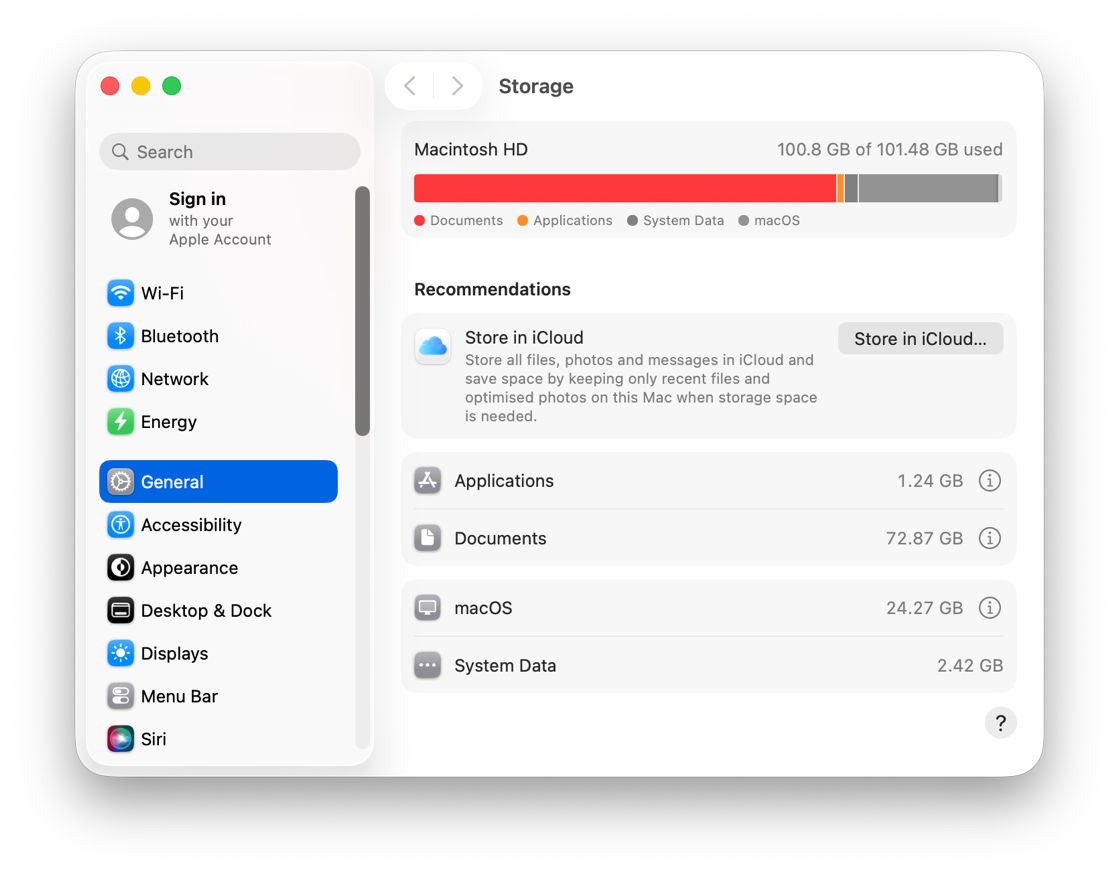
You can of course click on the ⓘ button and delete apps, documents, and other files if you wish.
From then on, most file operations, even creating a new folder, will fail. That applies to all apps, regardless of whether they handle those failures gracefully and warn you of the error. Actions like taking a screenshot start normally, but after their image has floated across the display, they just vanish and can’t be saved.
You should still be able to open most apps, including Disk Utility, which will inform you fully.
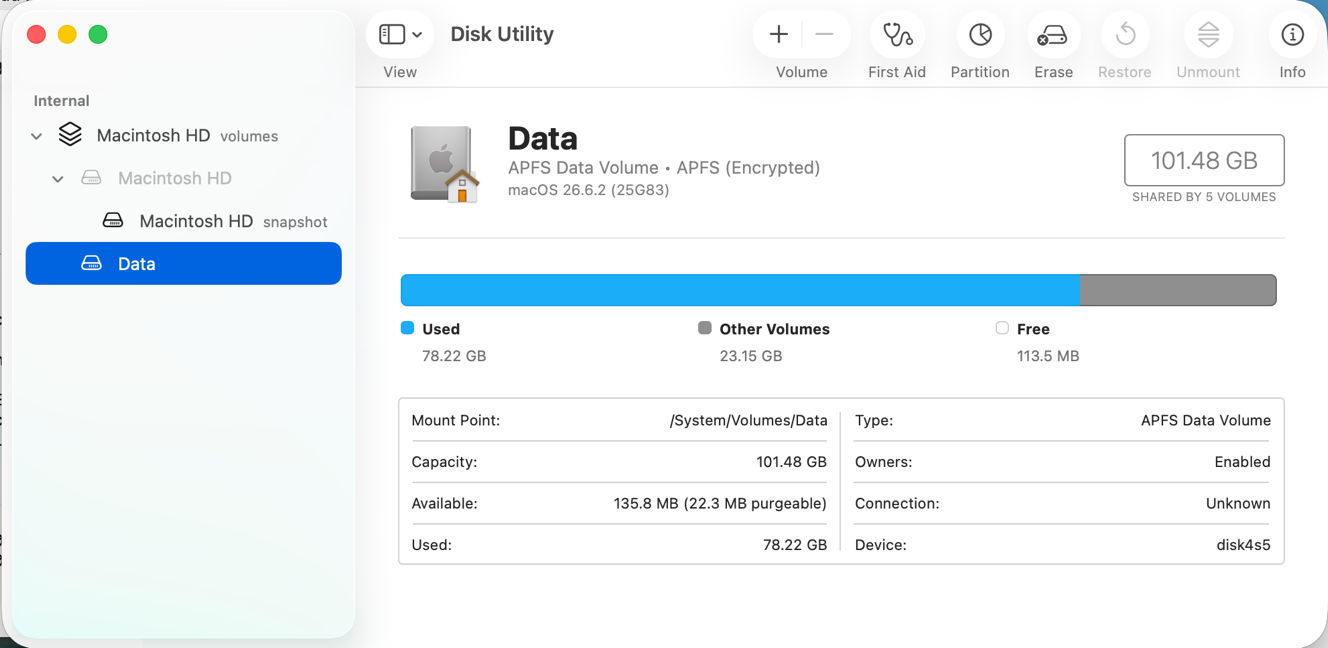
In this case, there was only 135.8 MB free, although there was still the promise of 22.3 MB purgeable. Even if there appears to be more substantial purgeable space available, don’t count on it. Purgeability is a potential, and until deleted has both identified and been able to realise purgeable space, don’t expect it to be freed.
Purging
The first error seen in the log is likely to be ENOSPC, reporting that there’s insufficient free space for a file operation. Lowdisk notifications are then sent for other writeable volumes in the boot volume group, VM, Preboot and Update. For the Data volume this first affects the Spotlight server, which recycles and closes its stores. deleted then sets to work preparing to delete whatever purgeable space it can, setting itself a ‘freespace goal’, in my test case of 14.8 GB. No explanation for that is revealed in the log, and it’s unclear whether that’s derived from the capacity of the container or SSD.
deleted then subtracts current free space from the freespace goal to arrive at the amount it needs to delete to attain that. This is stated explicitly in log entries such as
01.397073 com.apple.cache_delete Purge: goal 14817637171 freespace 152190976
It proceeds through up to three rounds of attempts to delete purgeable space, with an urgency starting at 1 and rising to 3. In my test example, the challenge was going to be great, as Disk Utility only claimed 22.3 MB of purgeable space, far short of the 14.7 GB required to reach the freespace goal. Even on a small Data volume of less than 100 GB, each of these three urgency phases took around 1.5 seconds. In the meantime all further attempts to write data return an ENOSPC error.
VM
The worst combination of problems occurs when a Mac runs out of free disk space and physical memory at the same time. macOS memory management then wants to allocate space in the VM volume as its backing store for virtual memory, but in the absence of free space to do so, that fails and should propagate as a memory allocation error.
Safe mode
In the event that you need to free up space temporarily, Apple recommends considering starting up in Safe mode, as “it may help”. I will look at that next.

