

The commonest problem suffered by those using iCloud Drive is failure to sync files promptly. In some cases, even with those of modest size, it can take hours or days before your local copy matches that held on the servers. Conventional wisdom suggests turning iCloud off and back on, but offers little beyond that, even to establish whether other files can still sync correctly, or identify those that aren’t syncing. One test you can perform that helps establish whether this is limited to certain files is that in my free utility Cirrus. This article suggests how you might use the test.
Initial checks
Before going any further:
- Check Apple’s System Status to ensure there isn’t a reported service outage.
- If you’re using a software firewall, turn it off for the time being, to allow all outgoing network connections.
- If you’re using a Content Caching server, restart that Mac and let it run for five minutes, then restart the client Mac (if that is having problems syncing) to ensure it connects to that server correctly.
- Verify your network connections are working properly. For example, try downloading one of the apps from here.
- If you think it might help, don’t disconnect from iCloud, but restart your Mac, if you haven’t just done so.
Because Cirrus has to be approved to have access to iCloud, if you haven’t run the app before, open it and complete any necessary user consents to allow it to access iCloud Drive. At the end of those, it should be listed in iCloud settings as having access to iCloud Drive, and the same in Files & Folders in Privacy & Security settings. Once it has been approved, quit Cirrus.
What the test does
Use the Test Upload command in the Window menu to create a new 1 MB file and copy that file from Cirrus’ /Library/Preferences/co.eclecticlight.Cirrus.data to iCloudDrive, in /Library/Mobile Documents/com~apple~CloudDocs/co.eclecticlight.Cirrus.data, shown in the Finder as being at the top level of iCloud Drive. Following testing, clean up by removing those test files using the app’s Clean Up Test command in its Window menu, or manually if you prefer.
Procedure
Arrange the Finder’s windows so you can keep an eye on the sync indicator that will appear for the iCloud Drive item in a Finder window’s sidebar. Open Cirrus’s Window menu and wait with the Test Upload command poised, releasing that just as the menu bar clock turns to 00 seconds. Sit back and leave your mouse, trackpad and keyboard alone for up to 20 seconds, watching for the sync indicator that is shown for iCloud Drive.
Then open the Log Window using the same menu, and set it to start the log extract at the clock time shown with 00 seconds, for 20 seconds or so, and click on Get Log. To start with, uncheck all the checkboxes except FileProvider at the left, as that should provide a clearer view of what happened during syncing.
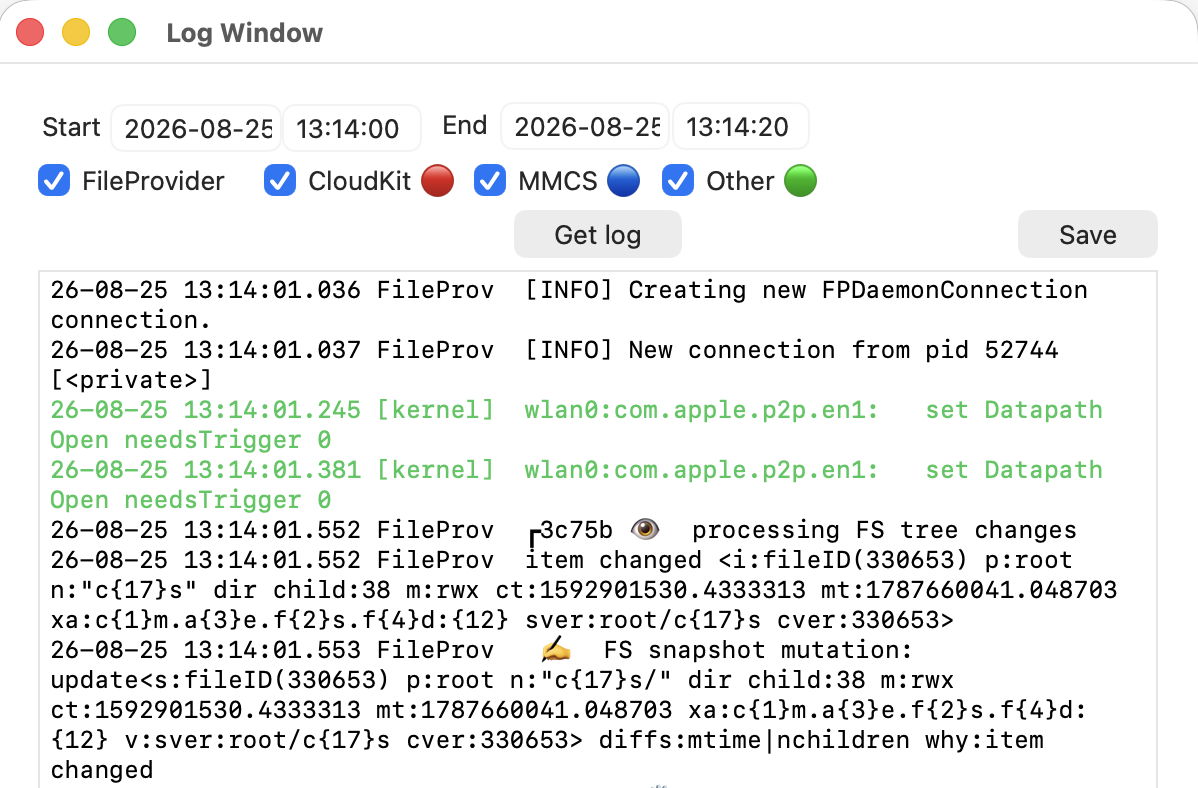
Browsing log extract
At this stage, the extract should be shown in black or white, and fairly brief. I know from a full LogUI extract that in this case the menu item to run the test was actioned just over one second after the clock showed 00 seconds:
01.034487 Cirrus perform action for menu item
An important early entry from FileProvider reports that it’s starting to process the change made to the file system to accommodate the new file uploaded. Note the abundant use of appropriate emoji in these log entries. (I have replaced angle brackets with square brackets throughout these extracts.)
01.552 FileProv ┏3c75b 👁 processing FS tree changes
A little further down FileProvider refers to the test file as c{21}s.data, and gives its size:
01.556 FileProv ✍️ FS snapshot mutation: insert[s:docID(15159) p:fileID(330653) n:"c{21}s.data" doc sz:1000000 m:rw- ct:1787660041.0457435 mt:1787660041.0459552 xa:c{1}m.a{3}e.f{2}s.f{4}d:{13} v:sver:fileID(330653)/c{21}s.data cver:42149380@1:sz:1000000] why:item changed
Then add some more detail by ticking the CloudKit checkbox, to display its entries in red. This starts up with an entry like
01.603 CloudKit Starting operation [CKModifyRecordsOperation: 0xcaf2ed200; databaseScope=Private, operationID=7BCEDF565694D11F, resolvedConfig={ timeoutForRequest=60, flags=autoRetry, container=com.apple.clouddocs, discretionary=Infers Disc }, qos=Utility, operationGroup={ operationGroupID=75C1B0BD7381A4DB, shortened-name=Upload }, [private]]
Finally, add entries from MMCS, the MobileMe Chunking Service, in blue. This service announces it’s starting up
02.071 MMCS Created mmcs engine (0xaaf203f00) 'com.apple.CloudKit/(null)' com.apple.Dataclass.CloudKit DebugLevel:0
When the file to be synced up has been chunked, it reports
02.083 MMCS Chunking finished for itemId 1 of 1000000 bytes in 0.0071 sec.
And once its job is complete and the test file has been uploaded, it reports
03.042 MMCS Uploads complete. All done! (Put request 0xaaf2a3480)
There’s a lot of additional detail you can browse through if you’re interested, and you are likely to come across the occasional innocent error. However, these log entries should confirm that iCloud Drive is functioning correctly and will sync up Cirrus’s test file. If you’re left with your files still not synced, the next step is to identify which files are affected, again using log extracts with the help of the files’ status icons in the Finder.
I wish you success.

