
Recovery mode is a relatively recent addition to macOS. For the first decade or so of Mac OS X, if you needed to check and repair the boot disk, or perform other surgery, you started up in Single User Mode (SUM), with the Command and S keys. That was supplemented in Mac OS X Lion by Recovery Mode, engaged by starting up an Intel Mac with the Command and R keys held, and that has since been enhanced, extended and has finally replaced all other startup modes in Apple silicon Macs, where it’s entered using the Power button. But what if that doesn’t work?
Apple silicon Macs
Because there’s no other option, Apple silicon Macs normally have two Recovery Modes, both triggered using the Power button:
- for primary or paired Recovery, press and hold the Power button until a message on the display reports the Mac is entering Options;
- for fallback Recovery, use a short press first, then press and hold the Power button until entering Options is displayed. The rhythm of pressing the Power button is ‘di-dah’.
Paired recovery
If your Mac is still running, you can force it to shut down by holding the Power button until it does. You can also use this to force a laptop Mac to shut down instead of starting up when its lid is opened.
Then disconnect all non-essential peripherals, leaving just the Mac, any required display, a mouse or trackpad, any wired Ethernet connection, and its keyboard. Try again by pressing and holding the Power button until the display shows that it’s loading or entering Options.
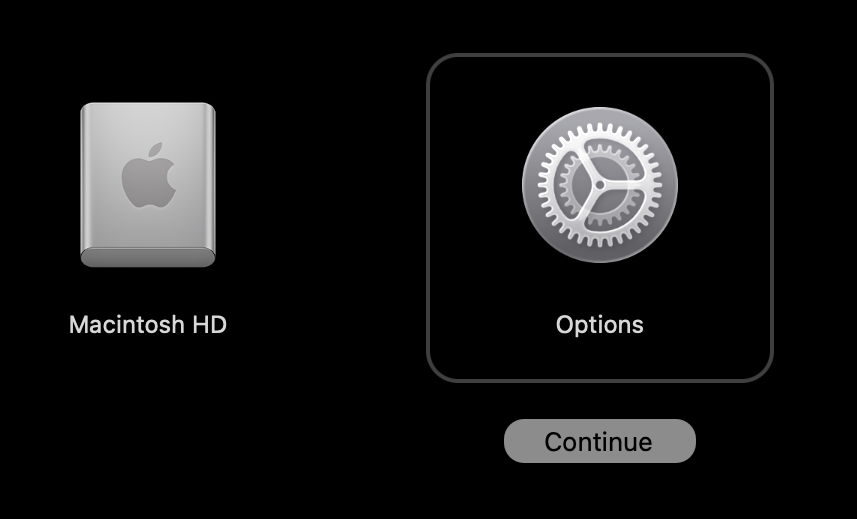
This should load its primary or Paired Recovery system, from the Recovery volume that’s paired with the last version of macOS that your Mac was running before it was shut down. If that’s installed on an external disk, then paired Recovery should also be loaded and run from the copy on that external disk. If that doesn’t work, the next step is to try Fallback Recovery, so shut your Mac down again by pressing and holding the Power button.
Fallback recovery
Apple silicon Macs maintain a second Recovery system in the Recovery volume in a hidden container named Apple_APFS_Recovery on their internal SSD, for use as a fallback. This normally contains a slightly older version of the Recovery system. For example, in a Mac running macOS Tahoe 26.6.1, paired Recovery should also be version 26.6.1 but fallback Recovery might be version 26.3.
The other major difference between the two Recovery systems is that Startup Security Utility is only available in paired Recovery. If you try using that in fallback recovery, you’ll be told that it isn’t available. This means you can’t change Boot Security settings from fallback Recovery, but otherwise it should be able to do anything that paired Recovery can.
Device Recovery Assistant

If your Mac has been updated to run Tahoe or later, it can run an extension to Recovery confusingly named Device Recovery Assistant. The distinctive feature is its plus-in-a-circle icon. Although you can opt to run this through the main Recovery menu, your Mac could enter Device Recovery Assistant in the event of a problem occurring during startup.
Navigation
Most of us are unfamiliar with Recovery modes and their layout. The diagram below should help you navigate them.
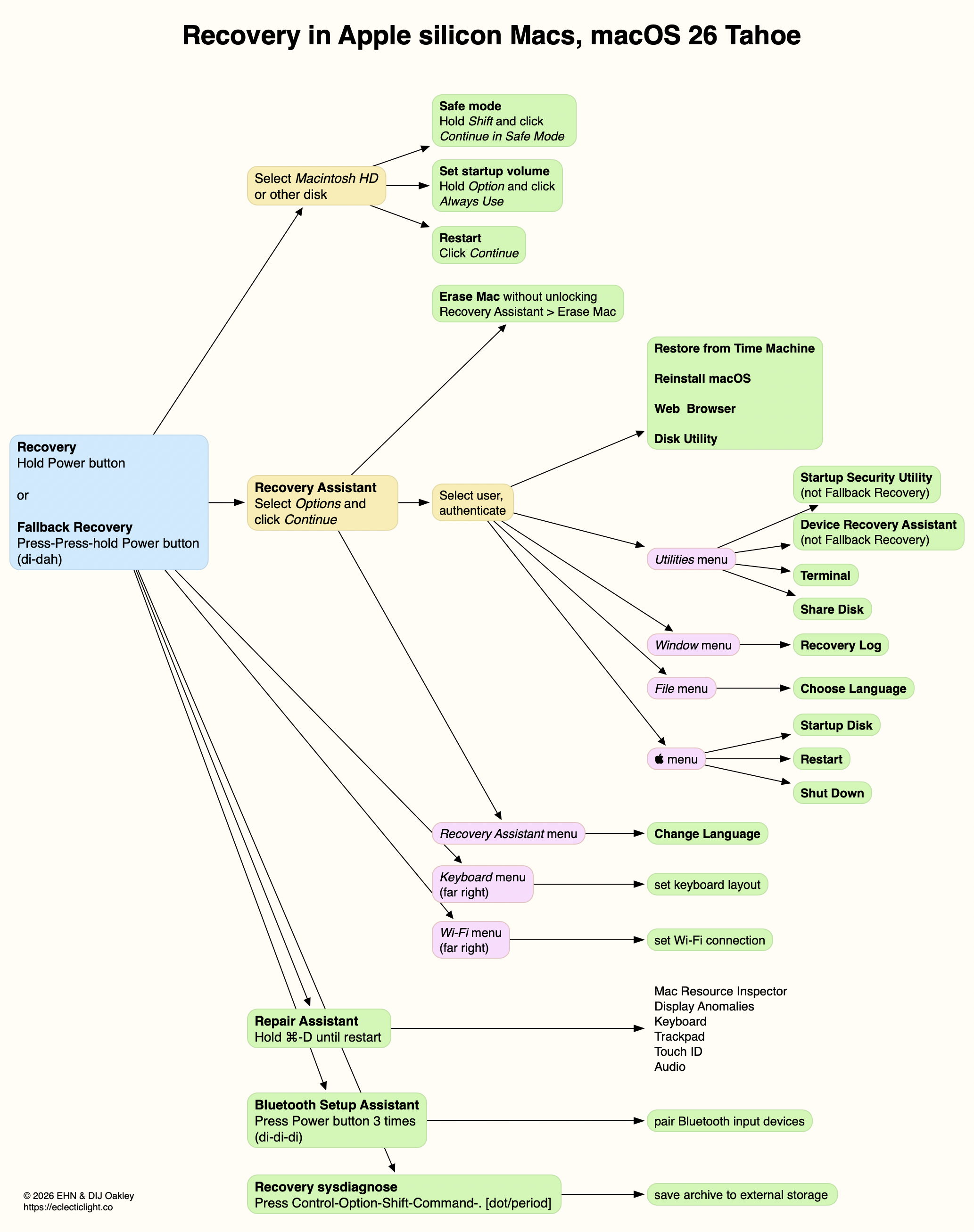
Further details are illustrated in my guide to Recovery on Apple silicon Macs.
Refresh firmware
If neither Paired nor Fallback Recovery are available, the best way to restore them for an Apple silicon Mac is to put that Mac into DFU mode, connect it to another recent Mac using a USB-C cable, and use that Mac to refresh their firmware. This is explained in more detail here. Refreshing the firmware isn’t destructive, and should leave both the macOS System and your Data volume intact. If that still doesn’t work, the only remaining option is to perform a full restore, which wipes everything on the internal SSD.
Which Recovery?
You may notice that Fallback Recovery is significantly slower to handle user authentication, and may display an ‘authorisation succeeded’ window before proceeding to the main Recovery window. There are two ways to tell for certain which Recovery mode your Mac is running:
- In Terminal, type
sw_versto see the macOS version. If that’s the same as the normal version of macOS on that Mac, then it’s most probably Paired Recovery; if it’s an older version, then it’s Fallback Recovery. - Try opening Startup Security Utility. If it’s Fallback Recovery, you should be informed that it’s not available; if it opens correctly, then that should be Paired Recovery.
Rarely you may start your Mac up in Paired Recovery, only to find that Startup Security Utility isn’t available. This seems to occur if you’ve just had the Mac running in Fallback Recovery, or when it hasn’t run regular macOS since starting up from cold. Either way, the solution is to restart it normally, leave it running for a few minutes, shut it down, then after 30 seconds or so start it up in Paired Recovery again.
You can also check the versions of Recovery currently installed on your Mac using my free utility Mints. Its Software Update button lists those versions, with sfrProductVersion as Paired Recovery, and recoveryOSProductVersion as Fallback Recovery. You don’t get to choose those, as they’re set by Software Update.
Intel Recovery
If your Intel Mac is still running, perhaps displaying a folder with a question mark ? superimposed, force it to shut down by pressing the Power button until it does.
Then disconnect all non-essential peripherals, leaving just the Mac, any required display, a mouse or trackpad, any wired Ethernet connection, and its keyboard. If the latter is wireless, connect it to the Mac using its charging lead so that it’s no longer reliant on Bluetooth. Then try again using the Command and R keys.
That should enable it to start up from the secure disk image in its paired Recovery volume, and enter local Recovery mode. If it doesn’t, it suggests that isn’t available, and the only way to enter Recovery is using its Internet or remote version, holding the Command, Option and R keys during startup. This is notoriously slow, as it first has to download a disk image of the recovery system before running it.
Rarely, the Recovery volume becomes deleted, or the secure disk image it should contain gets removed. Unfortunately the only means of restoring it is to perform a macOS update, and even then some Macs seem unable to recover Recovery without the boot volume group being deleted and installed from scratch, best performed when booted from an external disk. Unfortunately, on Intel Macs with T2 chips, you might need to enable that using Startup Security Utility, which is, of course, only available in Recovery. You may now wish to scream.
Intel Recovery options are:
- local Recovery, Command-R;
- remote latest Recovery, Command-Option-R, for latest version of macOS compatible with that Mac, over the internet;
- remote original Recovery, Command-Option-Shift-R, to reinstall the version of macOS that shipped with the Mac, over the internet.

