

I make no claim the idea came to me in the bath, nor that it arrived in a single moment of eureka, more a series of smaller realisations, but I have a new version of LogUI that is truly exciting. So much so that I have incremented its version number to 1.1, although I did toy with going straight to 2.0.
Why?
The best way to understand how profoundly it changes working with log extracts is to explain how I have been preparing them for articles here in the past. Although in some circumstances I use predicates to limit the log entries in any extract, in many cases I need a fuller if not complete extract of what was written to the log in response to an action, like double-clicking an app’s icon to run it. So I perform that action just as the menu bar clock turns to 00 seconds, wait for it to complete, say three to five seconds later, then collect all log entries for that period.
If I’m lucky and macOS hasn’t been fretting about its Wi-Fi connection, or DAS has spontaneously decided to schedule a couple of dozen weird background activities, I should have less than five thousand log entries to browse in LogUI. Where an action has been triggered using one or more clicks those are easy to locate early in the extract, and I read on down from there, skipping past all the chatter and noise.
Once I’ve built a picture of what has been recorded there, I open a new document in DelightEd, my RTF editor, and copy relevant entries from LogUI into that. I then edit those down to produce the short excerpts I include in the article. It’s this editorial stage that takes the most time, selecting a couple of log entries here and there, copying and pasting them, to tell the story of what went on.
What if I could add a note to each of those, for example, to record their significance, then search for all entries with a note? Not only would it enable me to record, for example, which entries mark the double-click that started the activity, but I could add notes to all the entries I wanted to separate into my action-packed summary account, so incorporating them ready to use in an article here.
What has changed?
Each log entry is a Swift structure, identified by its unique UUID, and containing a series of fields to accommodate the structured data obtained from the log. Essentially, those entries are displayed in the window by writing their field contents as entries in a SwiftUI List. To accommodate an extra field that would only be present in some entries, I therefore added one called userNote which could have a String value, or could be absent. This is also handy for minimising the size taken by each entry, as that additional String value is only used when needed, and ensures backward compatibility with all previous LogUI JSON files.
Next I had to decide how to add and remove those userNote fields for chosen entries. After mulling over ideas of a popup window from the entry, which would look neat but be tedious to apply to multiple entries, I decided on a simple combination of a text box, log entry selection, and a new tool in the toolbar.
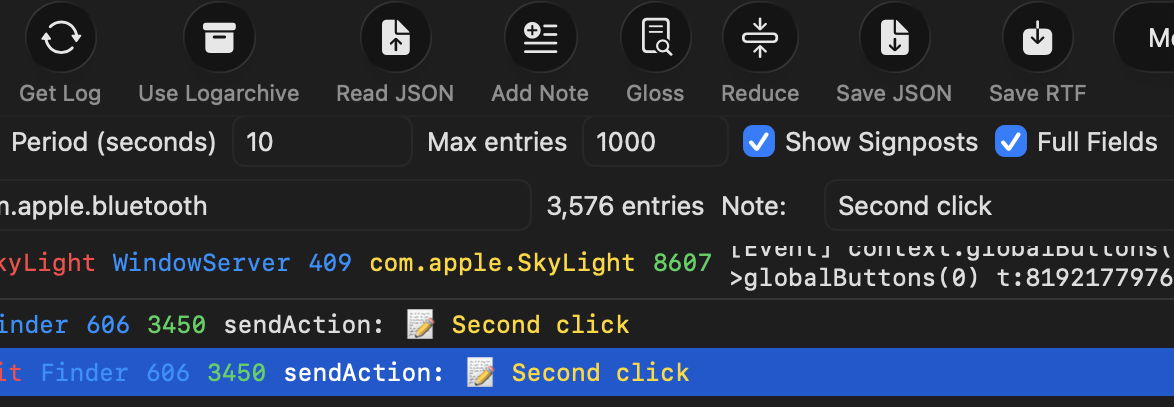
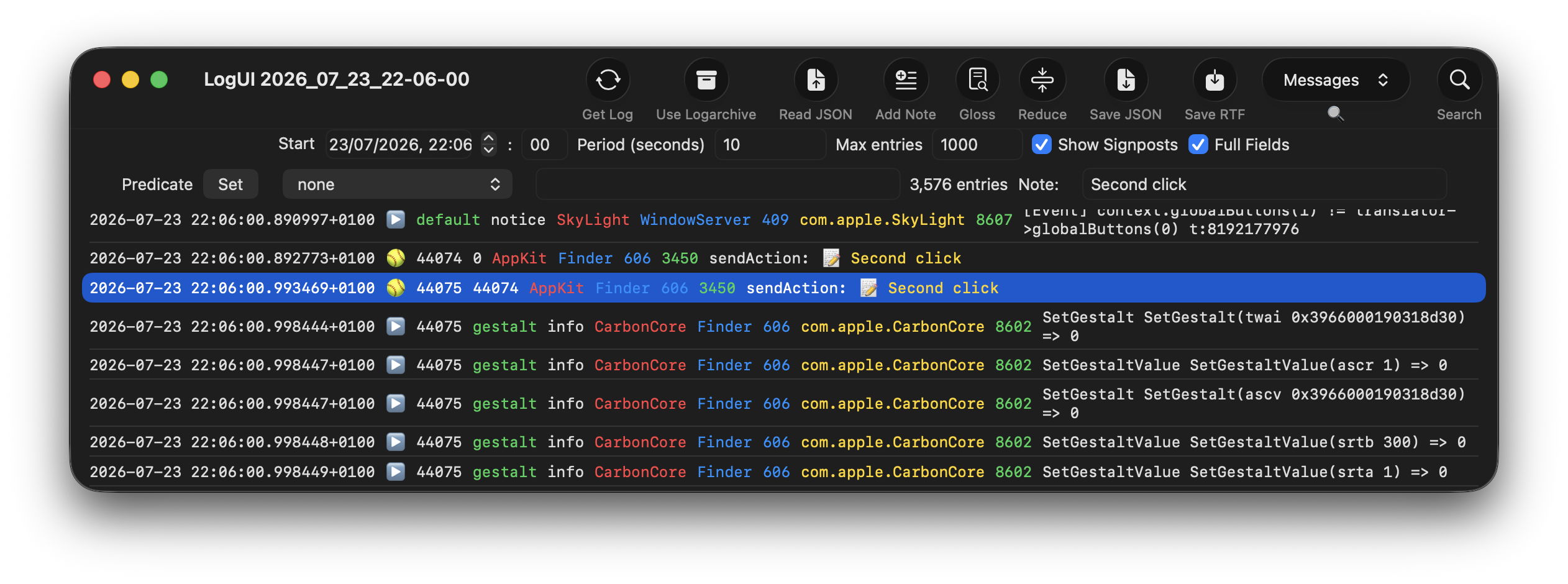
This detail of the window shows how they work. You type in the text for a note to the right of Note:, where it here shows the words Second click. Select all the log entries you want to add that note to, then click on the Add Note tool at the top. LogUI supports continuous (Shift-click) and discontinuous (Command-click) selection, as well as Select All (Command-A), ensuring it’s as flexible as possible.
It might then appear necessary to add yet another tool to remove notes, but I resisted the temptation to clutter the toolbar any more: all you do is remove the text from the Note: text box, select the entries, and click on Add Note. My code then checks whether it’s trying to add empty text, and removes the contents of the note if it is.
This also makes it simple to change any note, just by replacing it with the new text. I should also point out the emoji shown at the start of each note isn’t saved in userNote but a simple embellishment for display purposes.
Search as a force multiplier
Those notes are neat, but what transforms them is adding them to LogUI’s search feature, so you can display all log entries whose notes contain given characters.
To see how useful this can be I turn to the composite log extracts produced by log tools in Mints. I’ve found these extremely helpful in understanding how different subsystems in macOS interact, for example in scheduling and running Time Machine backups. To see that, you need a combination view containing log entries from DAS, CTS, Time Machine itself, and sometimes a few other sources. You can achieve that using a complex predicate, which is exactly what Mints does.
With LogUI’s notes and search, you can now search for all entries from DAS, select them all and add a note containing DAS entry to them. Return to the full log extract, and repeat that for entries containing CTS labelling them CTS entry, and again for Time Machine as TM entry. Once you’ve got all those entries labelled, search instead for notes containing entry, and you’ve got the same composite as you’d get from a complex predicate. The final step would be to use LogUI’s Reduce tool and save that log extract in JSON as a reference. Tomorrow I’ll work through an example in detail.
The big difference from using a predicate is that your original log extract still contains all other log entries over that period, whereas an extract obtained using a predicate only contains entries that satisfy that predicate. If you decide you then need entries from another source, such as the kernel, you still have those and don’t need to go back for a second attempt. Predicates do still have their uses, for example when you want to obtain infrequent log entries made over a long period, for which a full extract would be unmanageable.
Ever since I first started writing code to browse the Unified log I have been in search of a method for building sophisticated predicates to eliminate the chatter and noise of the log, but haven’t found anything to compare with the power and simplicity of search and notes now built into LogUI 1.1.
Availability
This version also fixes a bizarre problem I discovered during compatibility testing in older versions of macOS, where they can’t show some of the tool icons, making the app difficult if not impossible to use. This was the result of SF Symbols changing the names of some symbols resulting in backward incompatibility. I have spent another day updating and improving its Help book too.
LogUI version 1.1 for macOS 14.6 and later, including Golden Gate, is now available from here: logui11
from Downloads above, and from its Product Page. I did look at adding auto-update to it, but have put that off for the time being due to the structural changes necessary in what remains a pure SwiftUI app.
Enjoy!

