
We’re only aware of a few of the more obvious background activities our Macs have scheduled, essential services like software updates, backups and malware scans. In fact, at any given moment your Mac has several hundred in its lists, almost all of them by and for macOS. These include maintenance to keep your Photos library and Spotlight up to date, and a great many whose purposes may seem obscure. Because most of these are run by a hidden scheduling system, you have little awareness or control over them, and recognising problems requires browsing the log. So what can you do when they stop running reliably?
DAS-CTS
The central system that schedules and runs most of these is a combination of Duet Activity Scheduler (DAS) to schedule background activities, and Centralized Task Scheduling (CTS) to run those activities when they’re called off by DAS.
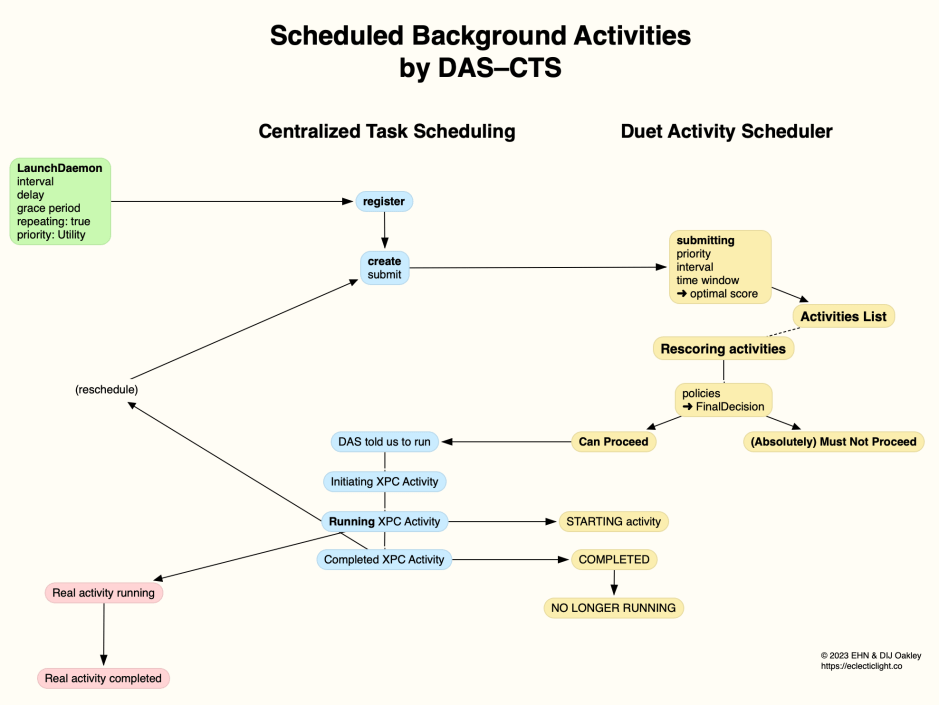
In the example of automatic Time Machine backups, the activity is specified in a LaunchDaemon property list, where it’s set to be repeating, at a given time interval and priority. Its configuration file com.apple.backupd-helper.plist schedules an XPC service com.apple.backupd-auto with the following key-value pairs for its background activity:
- Interval: 1800 seconds = 30 minutes, the minimum interval between repeats,
- Delay: 900 seconds = 15 minutes, the time period before starting,
- GracePeriod: 300 seconds = 5 minutes, the time period to allow before scheduling becomes more aggressive,
- Repeating: true
- AllowBattery: true allowing backups when running on battery,
- PowerNap: true
- Priority: Utility setting the Quality of Service (QoS).
Note these have changed in Sonoma and later, before which the interval set was 3600 seconds (1 hour), with a delay of 3600 seconds, and a grace period of 1800 seconds, which might appear to make more sense in this case. One plausible reason might be that the interval actually used is set in DAS following startup, which would accommodate less frequent backups when they’re set by the user.
During startup, these property lists and their dictionaries are assembled into a list of activities for DAS. Those for most if not all macOS background activities are put in groups with identifiers starting with com.apple.dasd.default. Entries contain the contents of the dictionary for each activity for DAS to use when rescoring activities to determine which should proceed, and which should not.
During startup, in this case before the user logs in, the settings in that property list are used to register the activity with CTS, which then creates a new activity and submits that to DAS for scheduling. DAS uses the settings passed to determine that activity’s optimal score, and adds it to its list of activities.
Periodically, typically every minute or so, DAS rescores activities in its list to determine whether each can be run, or shouldn’t be run at that time, given its policy scores. There’s no way to examine that activity list except by inspecting it in the log whenever DAS chooses to write details there. If an expected activity doesn’t occur, the only way to try to determine whether it has been scheduled by DAS is to browse the log.
Scoring is weighted by policies that may include the application, battery level, time since last boot, CPU usage, energy budget, memory pressure, network quality, power nap, whether a charger is connected, and thermal environment. When the score computed by DAS is insufficient to proceed with that activity, that’s reported in the log, and DAS re-evaluates it later, as in
14:35:39.849 501:com.apple.spotlightknowledged.task:F68610:[

	{name: Activity Group Policy, policyWeight: 0.500, response: {33, 0.00, [{"com.apple.dasd.defaultIntensive".currentAvailableLimit == 0}]}}

 ], Decision: MNP}
where MNP stands for Must/May Not Proceed.
When the score is high enough to merit running the activity, that’s also recorded in the log, for example:
16:06:39.777 '0:com.apple.backupd-auto:6EFEBD' CurrentScore: 0.956411, ThresholdScore: 0.068766 DecisionToRun:1
DAS then tells CTS, which initiates the XPC activity and runs it to completion. Once complete, CTS initiates rescheduling by submitting the next task to DAS.
In the case of scheduled backup activities, the CTS activity isn’t the main task, but initiates the backup task, which then runs to completion in whatever time it takes. Accurate rescheduling is thus accomplished by the scheduled XPC activity completing quickly, ensuring that rescheduling doesn’t drift over time. It’s also up to the CTS activity to detect whether the previous main task has completed, something particularly relevant to backups, which could take several hours. In those circumstances the main task doesn’t initiate another backup, but cancels that and leaves CTS to schedule the next.
Laptops and power requirements
Property lists used for macOS LaunchDaemons and LaunchAgents can use two keys for their activities and background services to determine whether they run when powered by battery alone:
AllowBatteryis set to true when the service can be run on battery, or to false when it can’t;RequiresExternalPower, its converse, is set to true when it can’t be run on battery, or to false when it can.
Among the activities and services that are unlikely to run when on battery alone are:
- com.apple.corespotlightd.updateContacts in
corespotlightd, which presumably updates search information for Contacts’ database; - com.apple.calendar.daemon.databasecleanup, performing maintenance on Calendar databases;
- com.apple.cloudphotod.maintenance, performing maintenance on iCloudPhotos;
- com.apple.photoanalysisd.backgroundanalysis and several other
photoanalysisdservices, used to analyse media content, particularly for indexing by Spotlight; - com.apple.photolibraryd.periodicmaintenance, performing maintenance on Photos libraries;
- com.apple.Safari.SafeBrowsing.BrowsingDatabases.Update, updating Safari’s Safe Browsing databases.
Of these the most noticeable are photoanalysisd services, which can flood the E cores in a laptop Apple silicon Mac left connected to mains power, particularly when many images have been added or modified since the last session on mains. Those can in turn trigger copious Spotlight indexing activity with mds and related processes.
Regular scans performed by XProtect Remediator (XPR) to detect and remove known malicious software can busy a whole E core for well over half an hour, and are accompanied by intensive disk activity. Because of that, its main scanning services will only be run when a Mac is powered by mains. Current property lists in XPR call for three types of scan:
- Fast scan, run every 6 hours, when AllowBattery is set to true;
- Regular scan limited by a timer, run every 24 hours, AllowBattery false;
- Slow scan without any time limit, run every 7 days, AllowBattery false.
You should therefore expect daily XPR scans only to take place when your laptop is awake and connected to power. Fast scans don’t result in any of the distinctive reports from scan modules that are checked by utilities like XProCheck and SilentKnight, and appear to pass unrecorded in the log.
launchd
Third parties, including users, are most unlikely to negotiate the complexities of DAS-CTS, and rely instead on conventional launchd scheduling of repeated tasks. In this, a simple LaunchAgent might be used with RunAtLoad set to true, and a StartInterval of 3600 seconds, to run a task every hour.
That won’t be scheduled or dispatched by DAS. Instead, typical log highlight entries from launchd might read:
6.245204 gui/501/co.eclecticlight.blowhole internal event: WILL_SPAWN, code = 0

6.245853 gui/501/co.eclecticlight.blowhole xpcproxy spawned with pid 51928

6.251844 gui/501/co.eclecticlight.blowhole service state: running

6.251862 gui/501/co.eclecticlight.blowhole Successfully spawned blowhole[51928] because interval

6.258190 co.eclecticlight.blowhole Blowhole snorted!

6.258590 gui/501/co.eclecticlight.blowhole exited due to exit(0)

6.258610 gui/501/co.eclecticlight.blowhole service state: not running

6.258661 launchd removing child: pid/51928
which ran my blowhole command tool, which doesn’t itself use XPC, to write Blowhole snorted! to the log.
That runs the task every hour exactly, regardless of other activities and conditions, and in most circumstances that’s most appropriate. For instance, daily backups are normally run in the small hours of the morning. Heavier tasks that could clash with user activity are less suitable, though.
Priority and core allocation
Although priority is conventionally set in the property list for an activity, activities requiring significant computing resources should normally set their own Quality of Service (QoS) for their threads, which is then used to allocate those threads to the two different CPU core types in Apple silicon Macs. In any case, QoS set in property lists appears to be adjusted for use by DAS-CTS, for instance a Background QoS of 9 may be passed to scheduling as 5 instead.
Run failure
An important first step is to establish which of these two mechanisms is used by the background activity that failed to run. That’s almost guaranteed to be launchd for third-party services, and most likely to be DAS-CTS for those that come as part of macOS. For third-party launchd items, it’s then a matter of checking their property list, establishing when they should run, and browsing the log for that time to discover what happened.
The great majority of macOS background activities are locked into the Signed System Volume, although some like XProtect Remediator have to be saved to the Data volume. For those you’ll need to check the log using a utility like Mints, which features a DAS Scheduling button to obtain custom log extracts covering DAS and CTS.
Provided the activity is correctly set up using property lists, and can be run when dispatched, the best remedy is normally to restart the Mac. This enables macOS to construct fresh lists of activities for DAS to dispatch, and a normal service should then resume. Attempts to kill services related to the activity, or DAS itself, usually only make matters worse. As an interim measure, some activities like Time Machine backups and XProtect Remediator scans can also be run manually, although they often work slightly differently then.
Some infrequent activities, such as XProtect Remediator scans, may not be dispatched for long periods because environmental conditions remain unsuitable. Most are more likely to be run automatically when the Mac is awake, not asleep, but has little or no user activity. It’s not uncommon for notebook models to spend all their time either working or asleep, and that can suppress some background activities for several days, particularly when minimal time is spent using mains power.
Summary
- Determine whether the activity is dispatched by
launchd(third-party) or DAS-CTS (macOS). - For
launchdactivities, check their property lists, and browse the log for when they should have run, to discover the cause of failure. - For DAS-CTS, browse the log using Mints’ DAS Scheduling tool to discover the cause. Remember the requirement for mains power for some activities, as shown in their property list.
- As an interim measure, run the activity manually if possible.
- Restart the Mac.

