
In theory, there’s one central part of macOS that should handle all language and locale settings, in Foundation’s Locale, which even determines sorting order, currency and the characters used for quotations. In practice this is more complicated, and it can be easy to end up inadvertently setting the wrong keyboard when you need to enter your password, or mysteriously losing access to AI features. This article explains what you can set, where, and what to avoid.
Language & Region
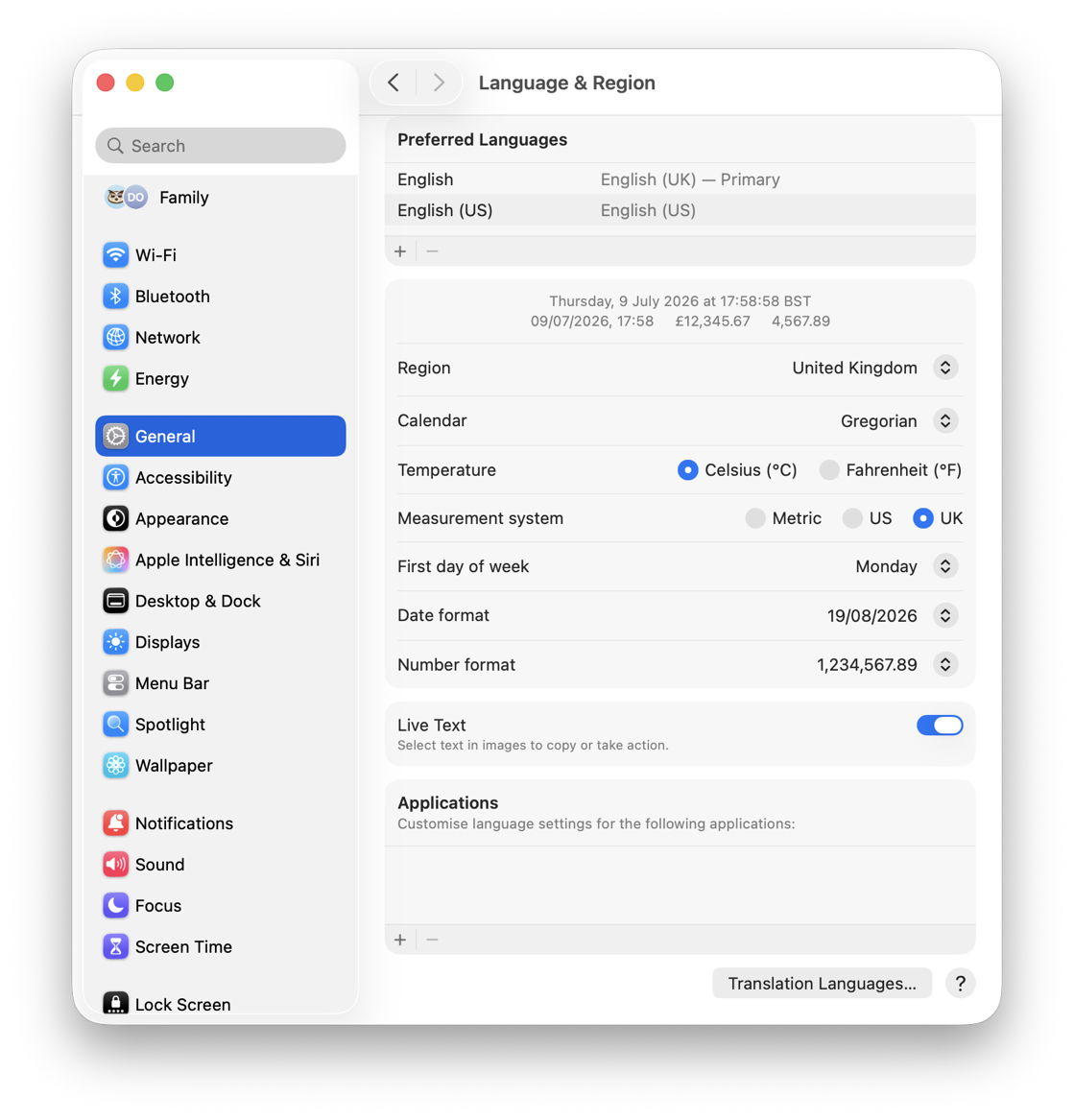
This is the central group of settings that become your system’s defaults for most of the more specific settings elsewhere. Check carefully through these, because an error could pose more opaque problems. There are some strangely prescient items here, for example if you’re in Greenland, you can set that through either the Americas or Europe regional listings. Note the list of Preferred Languages here doesn’t have to be the same as the language-specific keyboards, although for those languages with more complex input methods, you may find matching them helpful.
This also gives you the option to set custom languages and locales for individual apps, which can help with some apps that don’t work well with specific localisations. macOS should run an app with its explicit localisation, use the current primary language, or default to English, in that order of precedence.
Apple Intelligence & Siri
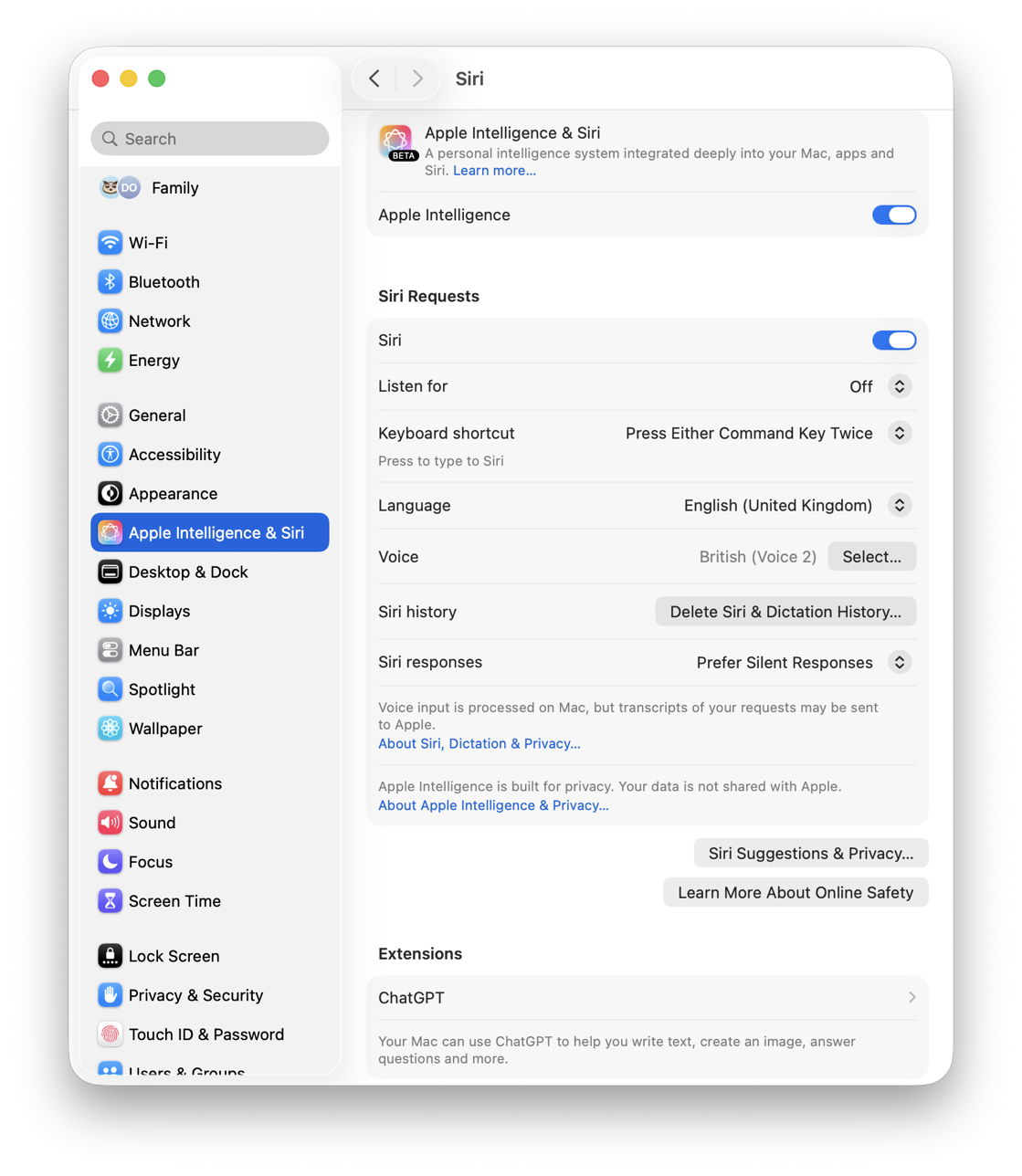
If you want to use AI, you must set the same language here as your current Primary Language in Language & Region. Equally, if you change either you must remember to change the other or you may find that AI simply stops working.
Early in each release cycle, limits on the language availability of AI features may require you to compromise here by selecting a language you wouldn’t normally choose, to ensure fullest support for newer AI features. Again, if you do that you’ll also need to match that setting in Language & Region. This can be a particular problem for beta-testers, who are trying to use what could be patchy and incomplete at that stage.
For those like me who don’t want to end up talking to your Mac, this also lets you effectively disable that by setting Listen for to Off, as I have done here. You then get to type to Siri instead.
Keyboard
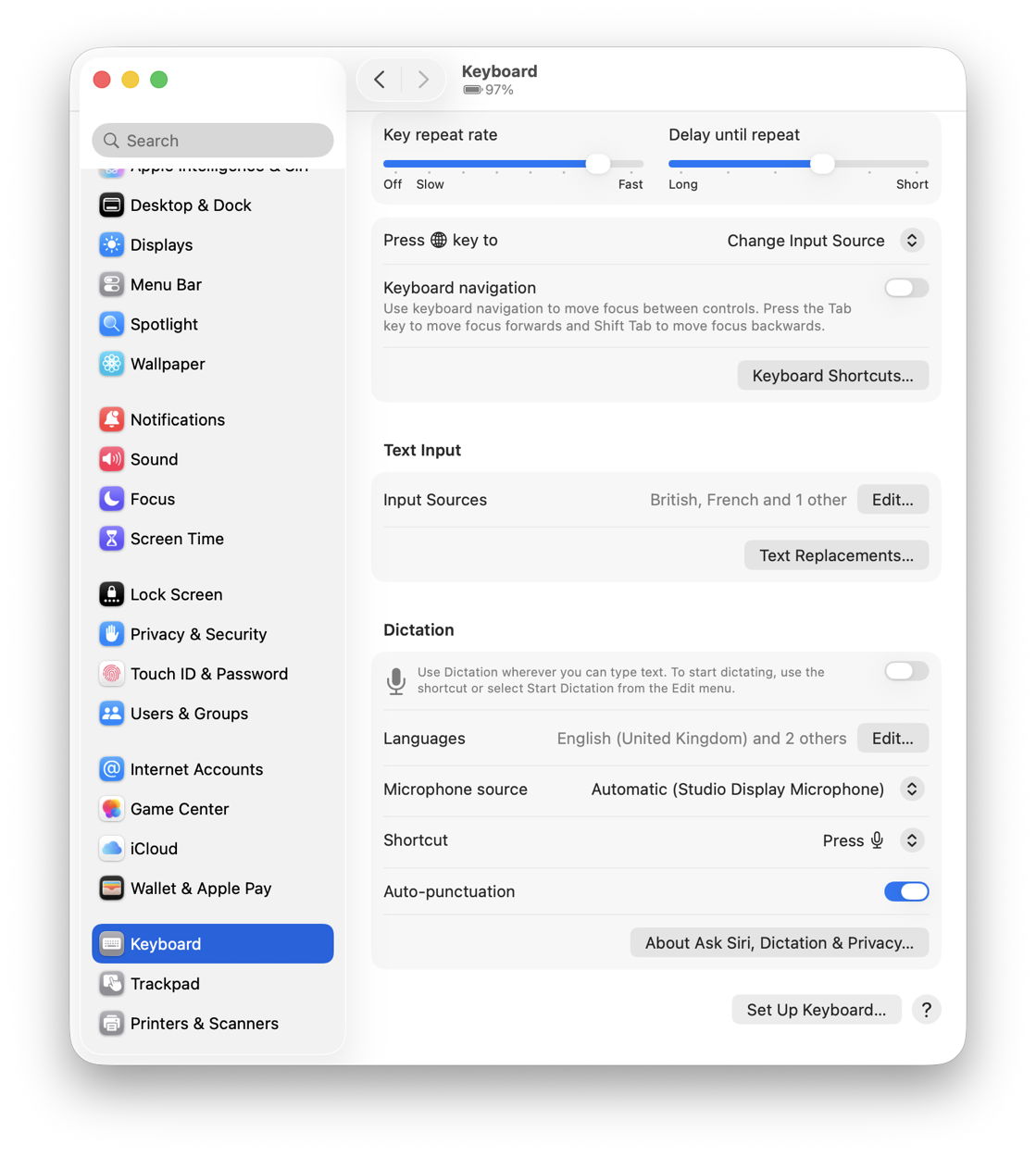
Once you’ve set your primary language and synced that for AI and Siri, the next most important step is to ensure you have appropriate keyboard support.
There’s one significant catch here: don’t overdo the list of Input Sources if you allow the Globe key to change them. It can be easy to switch keyboard without being aware of it. If that changes the layout significantly, the next time you try to enter any password it’s likely to fail, leaving you wondering why, until you look up at the setting in the menu bar. In the worst case, this can lead to failed attempts to enter your password when logging in, which could quickly end up in locking you out of your Mac. Thankfully Apple now provides access to a range of keyboard layouts from the menu bar for the login window, and again in Recovery mode.
Ensure the list of Input Sources is limited to those keyboard layouts you really need, and consider using the Globe key for something more innocuous like Show Emoji & Symbols instead.
Input Sources
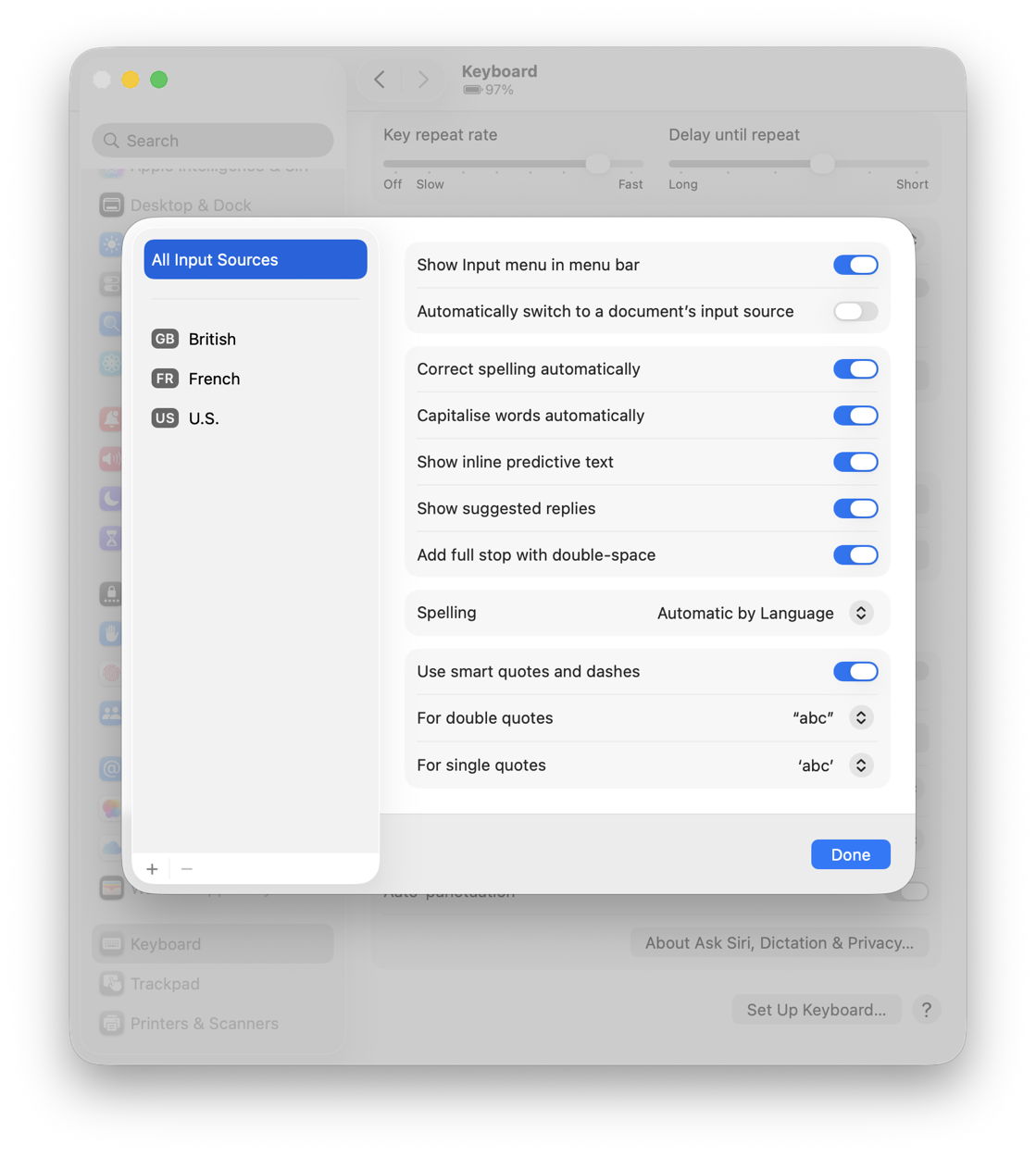
Click on the Edit button for Input Sources and select All Input Sources at the top left. This is where you set the global spelling dictionary. If you’re using one regional English and keep getting incorrect spellings suggested (color v colour), you can change that here. For those who make sufficient use of more than one language, Automatic by Language can work very well.
Other useful controls here are those for smart quotes, automatic capitalisation (upper case), and inline predictive text.
Time zone
Of course, Macs using Location Services that set their time and date automatically don’t need their time zones set manually. If your Mac doesn’t do that, or in a macOS VM where Location Services isn’t supported, you’ll need to set the Time zone manually using the closest city, in Date & Time settings.
Accessibility
If you use any of the language-specific features in Accessibility, you’re now only half way through. Among those you should check are:
- Live Captions,
- Voice Control,
- Read & Speak,
- Live Speech.
Each of those should default to using the primary language set in Language & Region, but they’re worth checking if you use them.
Locale
Apple’s account of locale, including language settings and options, is provided here for developers.
Available features
If you use any language setting other than US English, you’ll be aware that some features aren’t available for other languages. Apple provides a current list of those here for macOS Tahoe, and should provide similar for Golden Gate in due course.
I’m wondering whether a full listing of current locale settings might be a useful feature for Mints, perhaps?
 The Eclectic Light Company