
Many of us have long-running documents dating back months or years. Some grow steadily in size, and most get saved quite often. Although we maintain their contents carefully, some seem to grow old less gracefully than others and become sluggish to use. Recent examples I’m aware of include a huge Numbers spreadsheet, and several unusually large Pages documents.
Garbage collection
When Microsoft Word 5.2 was one of the best word processors on the Mac, we learned that its doc format accumulated junk when we saved to the same file repeatedly. For longer documents – and it’s here worth remembering that the hefty volumes in Apple’s exemplary Inside Macintosh series were created using Word – previous versions of whole chapters got tucked away and forgotten long after they had been replaced. Not only did those documents grow inexorably in size, and seldom shrank, but it was easy to leave embarrassing content for others to discover.
The solution was simple: every so often, and invariably before releasing a Word document to others, you used Save As to create a fresh copy that had its garbage collected and excluded. While many apps no longer offer a Save As command in their standard File menu, it usually returns when you hold the Option key with the menu open.
Although more modern programming languages and APIs should have made that a thing of the past, there’s one format that remains peculiarly prone to it, PDF. I demonstrated here how some redacted court documents could be unredacted and reveal what should have been removed. As in so much else, PDF works differently from everything else.
Versions
When Apple introduced macOS document version management in 2011, few apps adopted it. Since then many if not most support it by default, with few offering any opt-out. This can now be responsible for long-running and often-saved documents accumulating huge numbers of saved versions. As far as I can tell, those do make good use of storage space, so this doesn’t mean a hundred old versions of a 10 MB Pages document will necessarily consume 1 GB, but they still take up space.
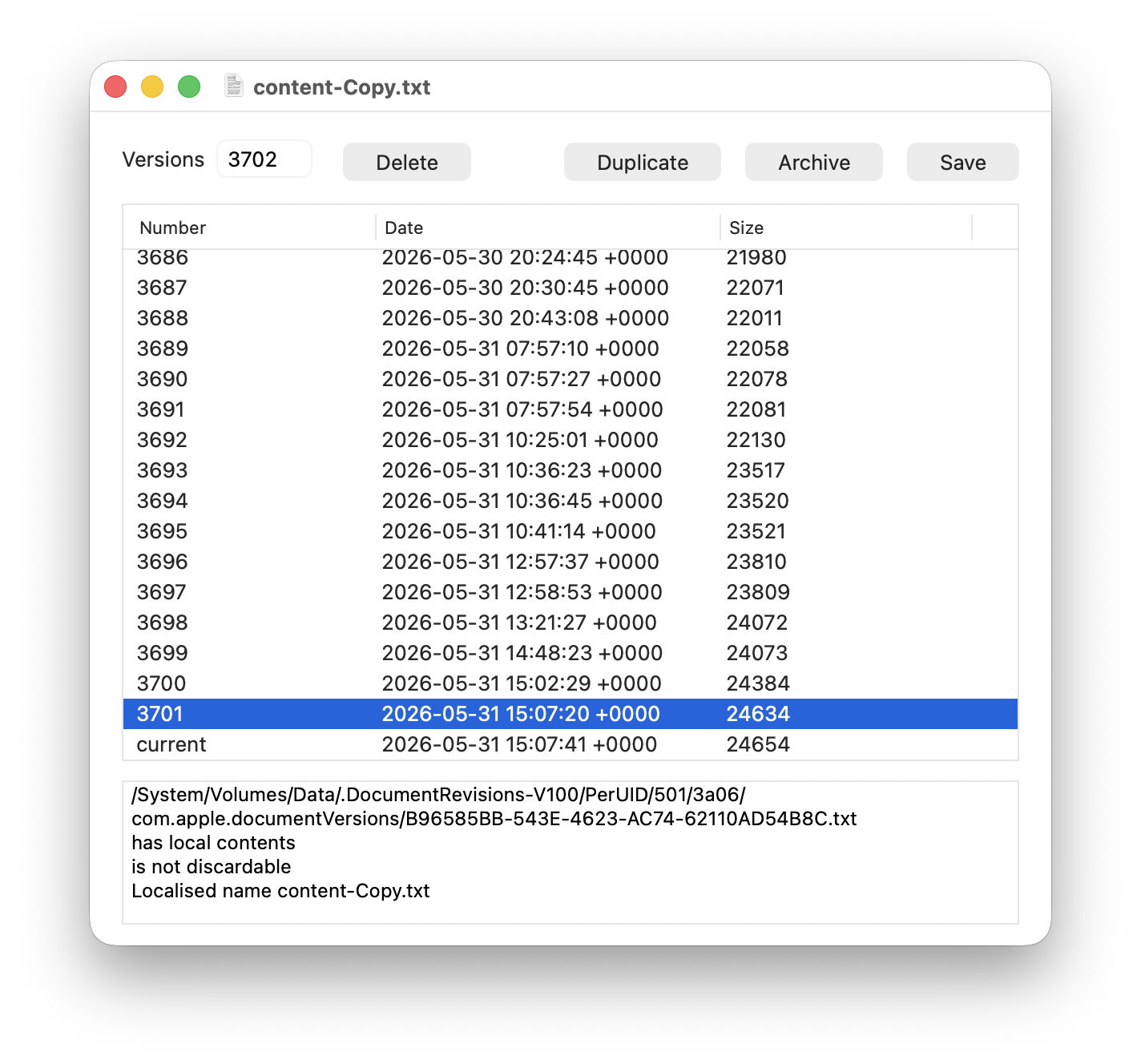
This is my most extreme example so far, a text file I use for assembling the content of my Genius Tips section in MacFormat and MacLife, that has quietly assembled a total of 3,702 versions while I haven’t been looking. Apps don’t warn you of this, nor do they offer an easy way to manage those versions efficiently. However, drag and drop a document from any app onto my free utility Revisionist, and it will tell you how many saved versions it has, their individual size, and the date and time each was added to the version database. If you want to check folders of documents, Revisionist also has a crawler feature that can report how many versions each has saved.
Before clearing out old versions, you may well want to archive those from important documents. As they aren’t included in backups or copied to external volumes, you’ll need a utility to help, such as my free Versatility. Drag and drop the document whose versions to want to archive onto the app’s window and it will save all those versions as separate files in the folder of your choice.
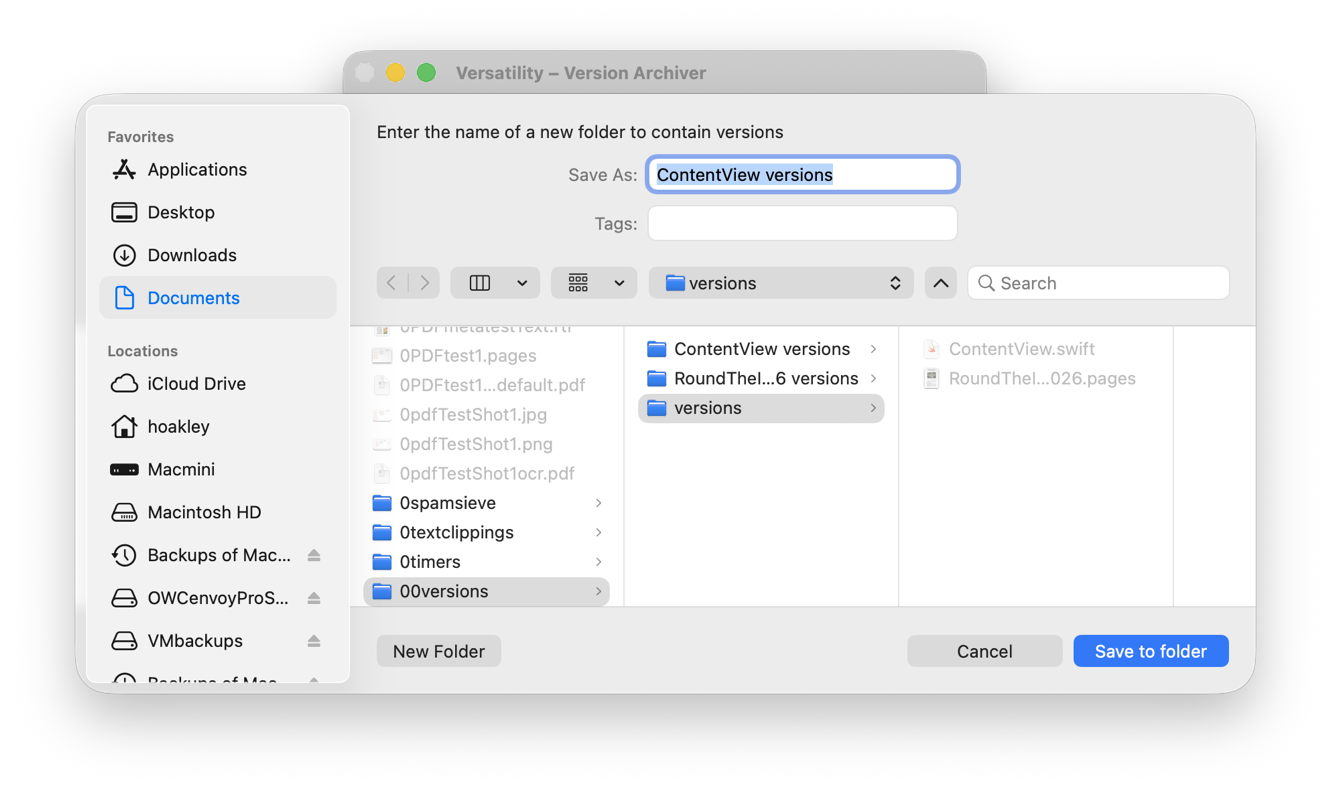
Compress that folder into an archive and store it in a safe place. Should you ever wish to access any of those old versions, or reconstitute the original document with them all, decompress the folder and drop it onto Versatility’s window.
There are two simple options to remove all saved versions from a document: either duplicate its file in the Finder and discard the original, or use the Save As command in the app just as you might for garbage collection.
Core Spotlight
Most recently some large documents have become associated with prolonged high CPU use by corespotlightd that can lead to thermal stress and sluggish behaviour even on powerful Apple silicon Macs. Although the exact cause hasn’t been established, and various solutions have been proposed, one straightforward approach is to dissociate a document from its previous Core Spotlight indexes, and any saved versions. That should force its old index entries to be purged, and new indexing to be performed.
Without knowing how an app identifies the documents it has indexed, it’s hard to be sure what can force it to treat a document as new. However, either Save As or duplication to create a new file, albeit a clone, should be effective.
Key points
- Before freshening up a document, archive its saved versions if you want to preserve them.
- For fullest effect, use the Save As command then remove the original.
- For speed, and without garbage collection, duplicate in the Finder then remove the original.
Utilities
Revisionist and Versatility, free from their product page here.

