
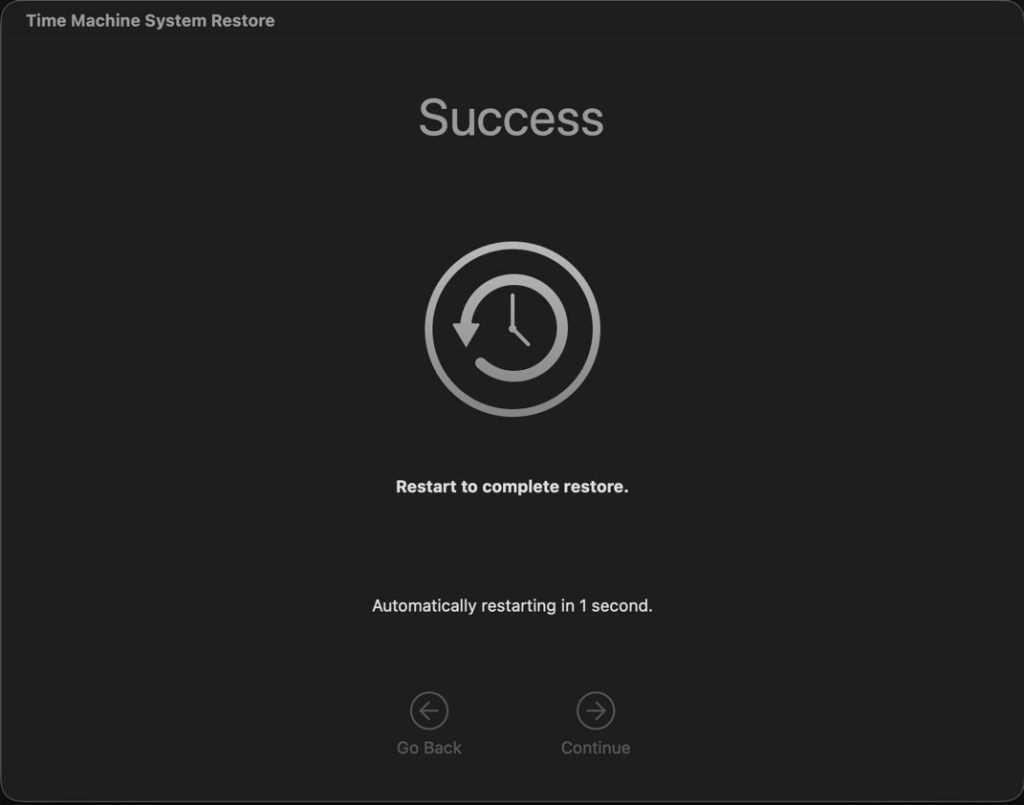
There are often times when a laptop Mac has to be separated from its backup storage. This article explains how you can use local snapshots to cover those, and roll back to a snapshot in the event of a problem.
Snapshots are one of the most valuable features new to APFS. In the days of HFS+, Time Machine offered something similar that required around 10,000 lines of code, and still wasn’t as good as a real snapshot. Although they’re no substitute for a proper backup on a separate disk, snapshots can get you out of a hole when nothing else will.
A snapshot is simply a copy of the file system for a single volume at a moment in time. The file system data itself is relatively small, but to ensure your Mac can roll back to that, it has to retain changed and deleted storage from that moment on, and that makes increasing demands on space. So you only want to keep snapshots for the shortest time necessary, or they can quickly consume tens and even hundreds of GB.
If you want to restore just part of a snapshot, you can mount it as a volume in the Finder and copy the folders and files you need from there, as if it was a backup. This article considers how you can address a bigger problem, where your best choice is to return the whole of your Mac’s Data volume to how it was when a snapshot was made.
Make a snapshot
The essential ingredient is, of course, a snapshot. If your laptop Mac is already making Time Machine backups, when its backup storage isn’t available it should continue making snapshots instead of full backups, so you’re covered.
You don’t need to be using Time Machine to make a snapshot of your current Data volume, though. Any Mac will make one when you enter the command in Terminal
tmutil snapshot
Although third-party backup utilities can also make snapshots, you may well find they don’t work with Apple’s rollback feature, and should check with their documentation before relying on them.
Roll back
To roll back your current Data volume to a previous snapshot, first check in Disk Utility that the snapshot you intend to use is still available, if necessary using the command Show APFS Snapshots in its View menu when the Data volume is selected. That will list all those available.
Then shut your Mac down and start it up in Recovery mode, passing through to the main window in Recovery Assistant.
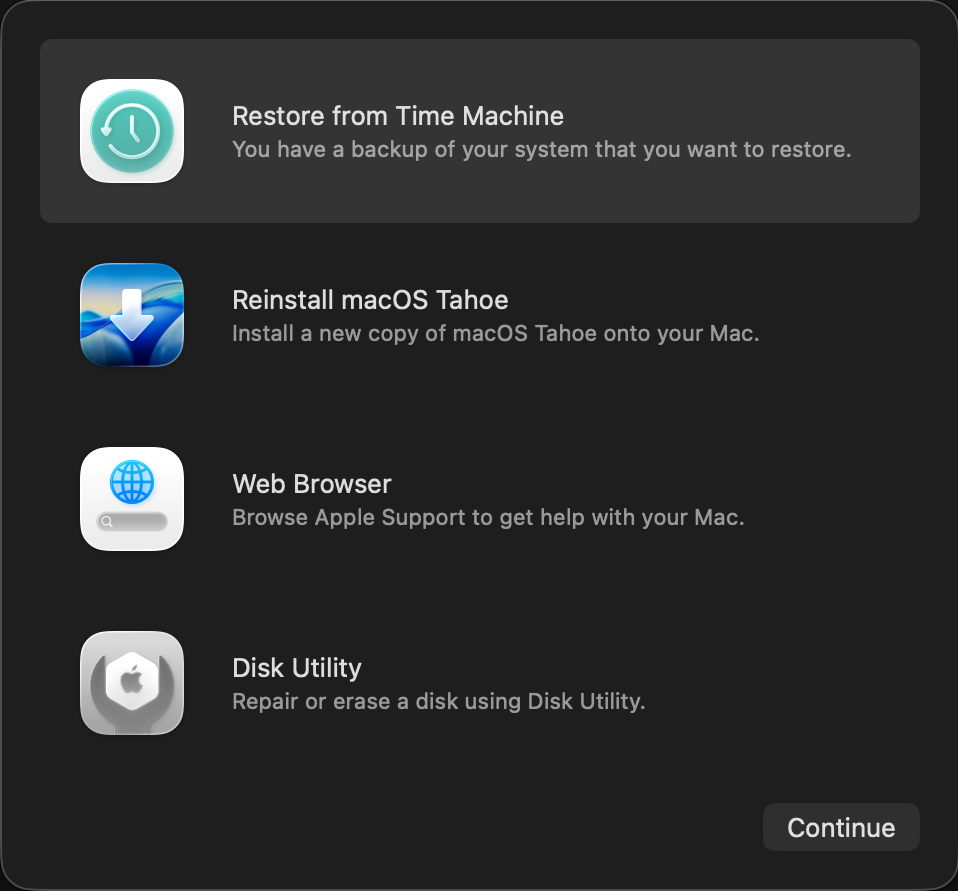
Select the top item to Restore from Time Machine, and click Continue.
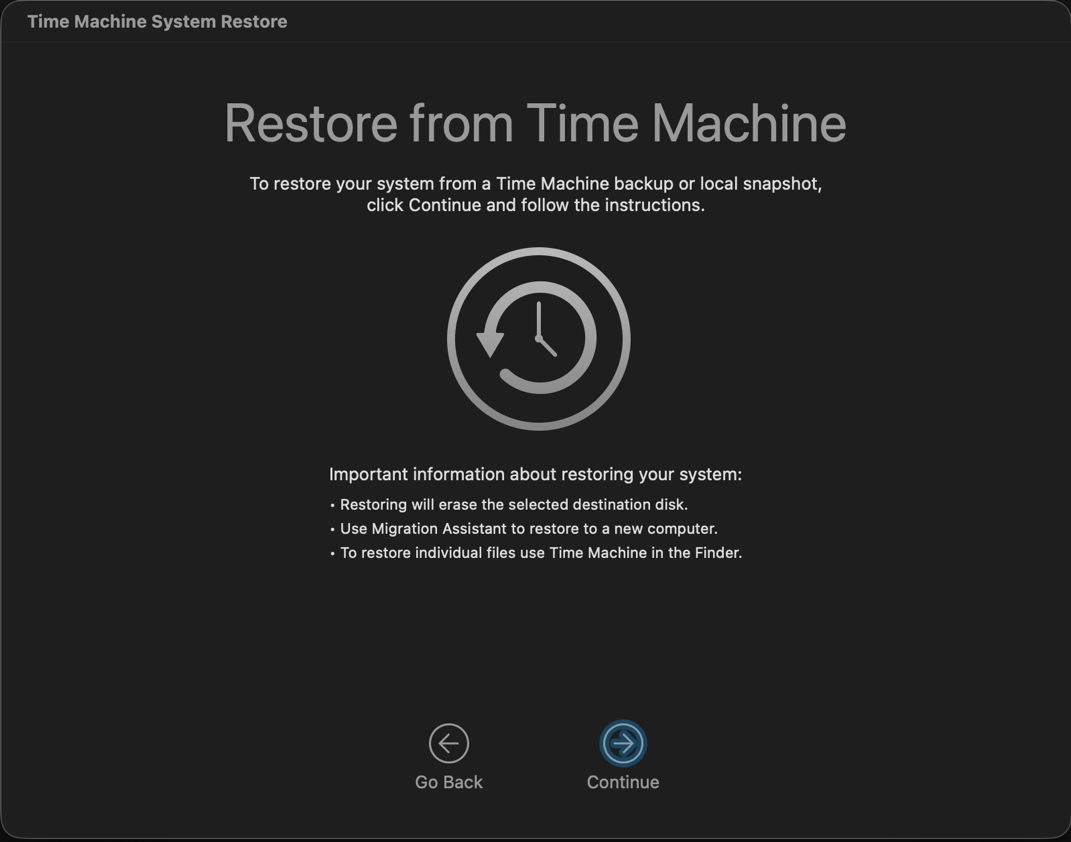
Click Continue to move past its opening window.
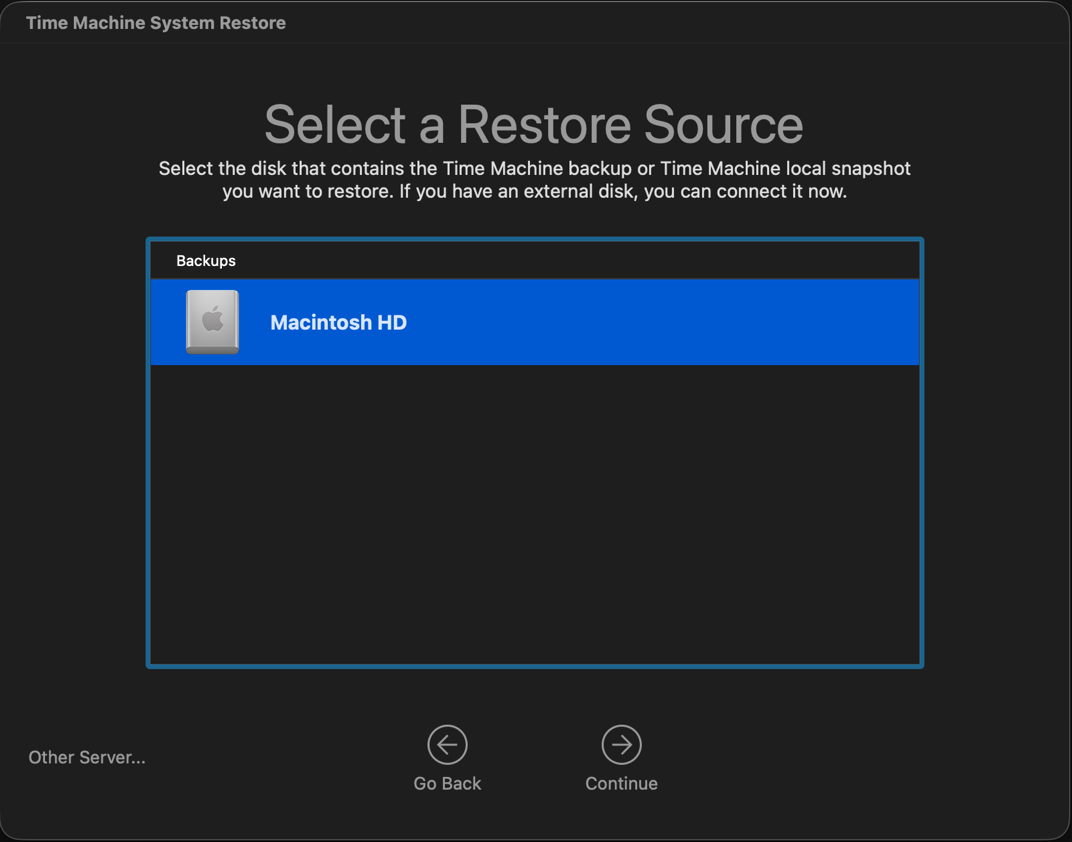
Select the boot volume group here, normally named Macintosh HD, then Continue.
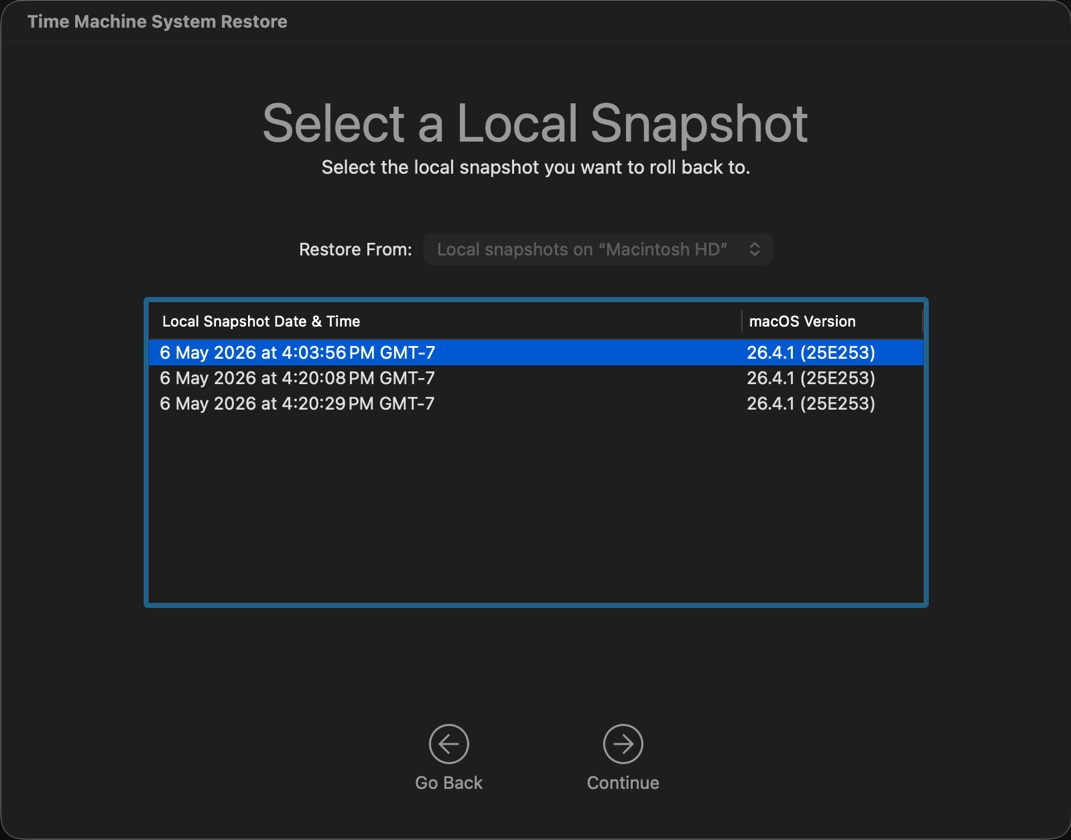
You’ll then be offered the list of available snapshots. If you don’t see any here, then I’m afraid you’re out of luck, and won’t be able to roll back using Time Machine System Restore. Click Continue.
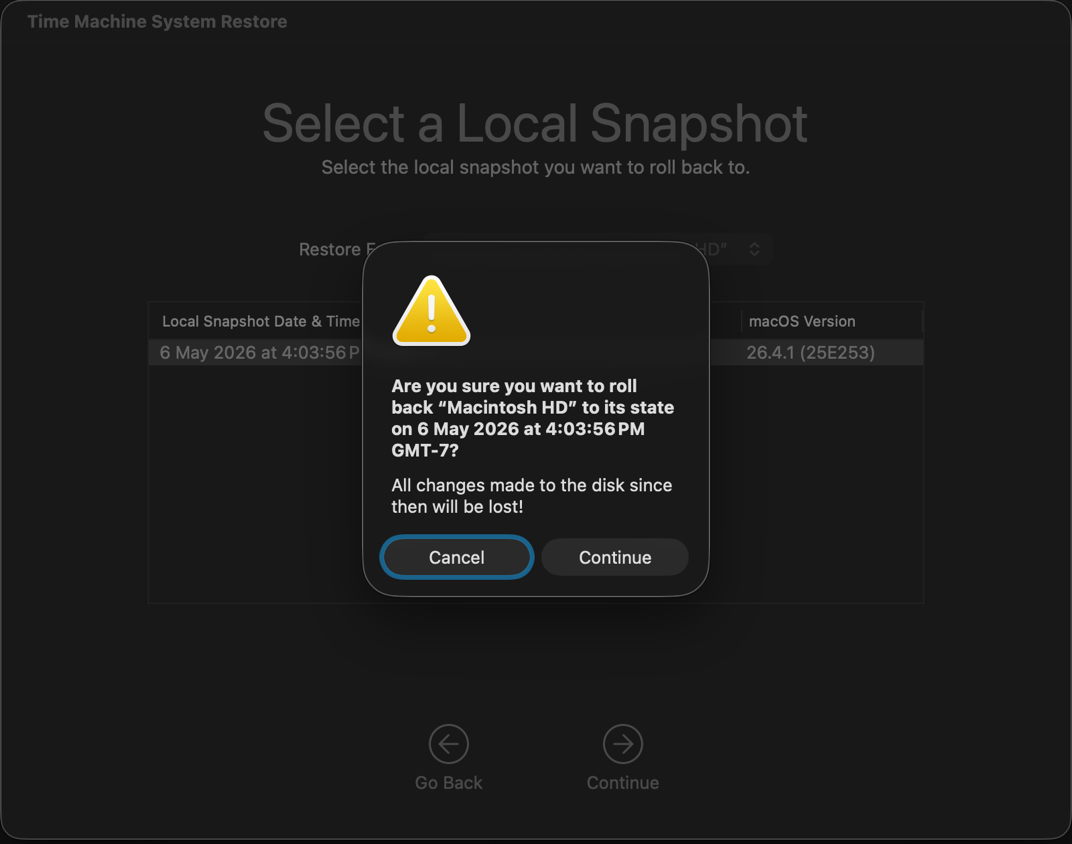
Check in this warning dialog that you’re going to roll back to the correct snapshot, then click Continue.
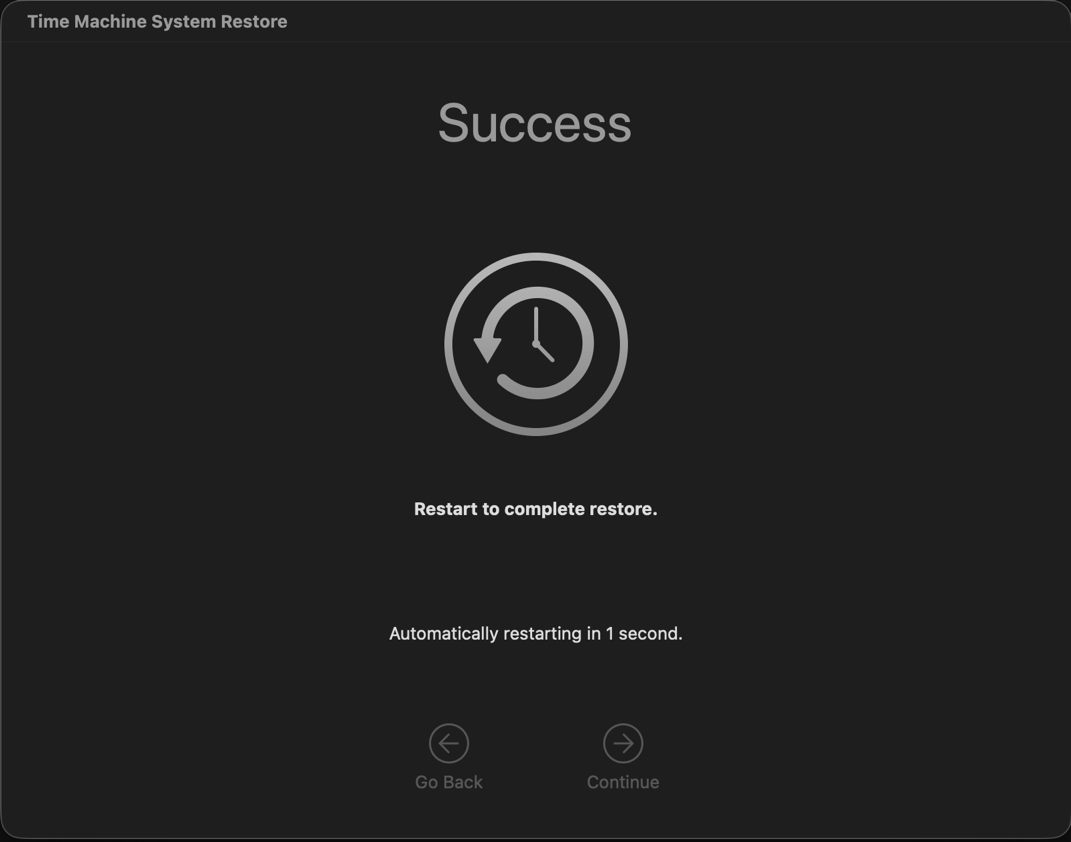
The rollback takes but the twinkling of an eye, following which your Mac will automatically restart back into normal user mode, with the snapshot contents as its Data volume. If you made the snapshot yourself in Terminal, Terminal will still be open, displaying that command, just as it was when you made that snapshot.
The only side-effect to be aware of is that all snapshots made after the one you rolled back to have now vanished, and can’t be retrieved. That’s because you have effectively forked the file system from the moment of the snapshot you have rolled back to, and more recent snapshots can’t fit in with the changes made by the rollback.
Finally, I have heard of commands that are claimed to perform rollbacks, including one for diskutil apfs. I believe those to be bogus. As far as I’m aware, Terminal in Recovery doesn’t offer a command tool to perform snapshot rollbacks, but I’ll be happy to be proved wrong.
Key points
- Use a Time Machine snapshot, or
tmutil snapshotin Terminal. - Roll back in Recovery, using Time Machine System Restore.
- Rolling back is almost instant, but deletes all later snapshots automatically.
 The Eclectic Light Company