
One of the first things that strikes you when you look at a log extract from a Mac, is the number of entries that have some or all of their contents censored with <private>. Another is the sheer number of entries; even when your Mac is doing little, there’s a constant stream of them. This article explains how you can get control of both.
Logging preferences
The keys to controlling what gets written to the log in macOS are property lists stored inside /Library/Preferences/Logging. By default you’re likely to see few files there, which may include a high-level policy in com.apple.system.logging.plist. If present, that’s likely to set just two keys, Enable-Logging to true, and Locked to true as well. But that property list doesn’t tell the whole story.
To discover full top-level policy, you need to enter the command
sudo log config --status
which is likely to return
System mode = INFO
Step one down from there with
sudo log config --status --subsystem com.apple.system.logging
and that might report
INFO PERSIST_DEFAULT
or could extend to include
SIGNPOST_PERSISTED_OFF SIGNPOST_ENABLED_ON SIGNPOST_BACKTRACE_ENABLED_OFF OVERSIZE_ENABLED_OFF
as well.
Now try a more specific subsystem with
sudo log config --status --subsystem com.apple.network
and you’re likely to see something similar, unless there’s a property listed named com.apple.network.plist in the Subsystems folder there, in which case it should reflect the settings in that.
Those settings largely concern two features:
- Levels of log entry recorded, set as default, info or debug. The first of those includes all entries of default or higher level, the second of info, default or higher, and the third of debug, info, default or higher. Default global level is normally info, so that debug entries don’t appear in the log.
- Whether the entries are saved to persistent storage (disk), using the same hierarchy of levels.
Thus INFO PERSIST_DEFAULT means that all log entries of info level and above, but not debug, will be collected, and the default setting is used to determine which get written to disk.
Apple explains those basic settings in man log, and its documentation for developers.
Signpost and Oversize settings aren’t explained there, but are in man 5 os_log. Signpost log entries are intended for use by developers to assess performance, and are rarely of any use to others. Oversize log entries can be many pages long, and are stored separately when enabled.
Controlling logging preferences
There are three ways to control logging preferences, which all converge on those same property lists:
- The
log configcommand, as used above. This is quick and simple, but limited, and perhaps best used to check effective settings for individual subsystems and processes. - Write your own property lists and install them in the appropriate folder in /Library/Preferences/Logging. Although this is powerful, as there’s limited guidance on what can be included, you’ll probably want to start from existing property lists. There’s further information in Peter Steinberger’s post and
man 5 os_log. - Install a custom log profile, which you can also use as a model to develop your own property lists and profiles.
Custom logging preferences take effect almost immediately, and don’t require restarting, but they only apply to log entries written once they have been applied, never retrospectively.
Limiting log entries by level
As the Unified log discards old log entries to constrain the space occupied by the logs, the only way to extend the period covered by stored log entries is to limit the rate at which fresh entries are added to the log. You can do this by careful assessment of which subsystems are writing most entries, and changing their logging preferences.
However, that only applies when there’s an excess of log entries at debug or info levels. When there is, adding or modifying the preferences for that subsystem to store entries at a level of default or info should extend the period they cover. Be cautious, though: that excess of entries could reflect a problem, and by excluding them you may well conceal its cause and extent.
Custom log profiles
The simplest alternative is to install a Configuration Profile containing the saved settings to be applied to the property lists in /Library/Preferences/Logging. I provide a signed profile to remove all that <private> censorship in enablelogprivatedata.
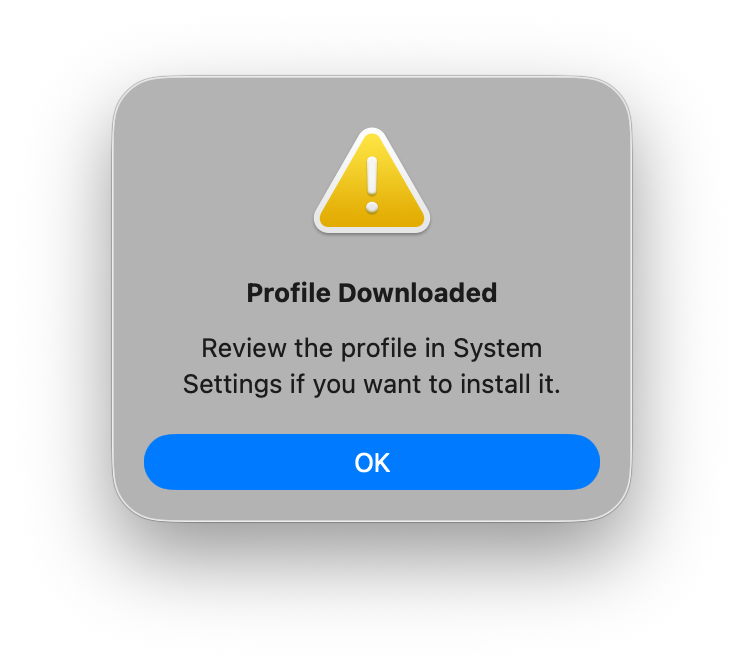
To install the profile unzip the archive into a convenient folder and double-click it. You’ll be prompted to review the profile to install it.
Open System Settings > General & Device Management, and inspect it by double-clicking the profile there.
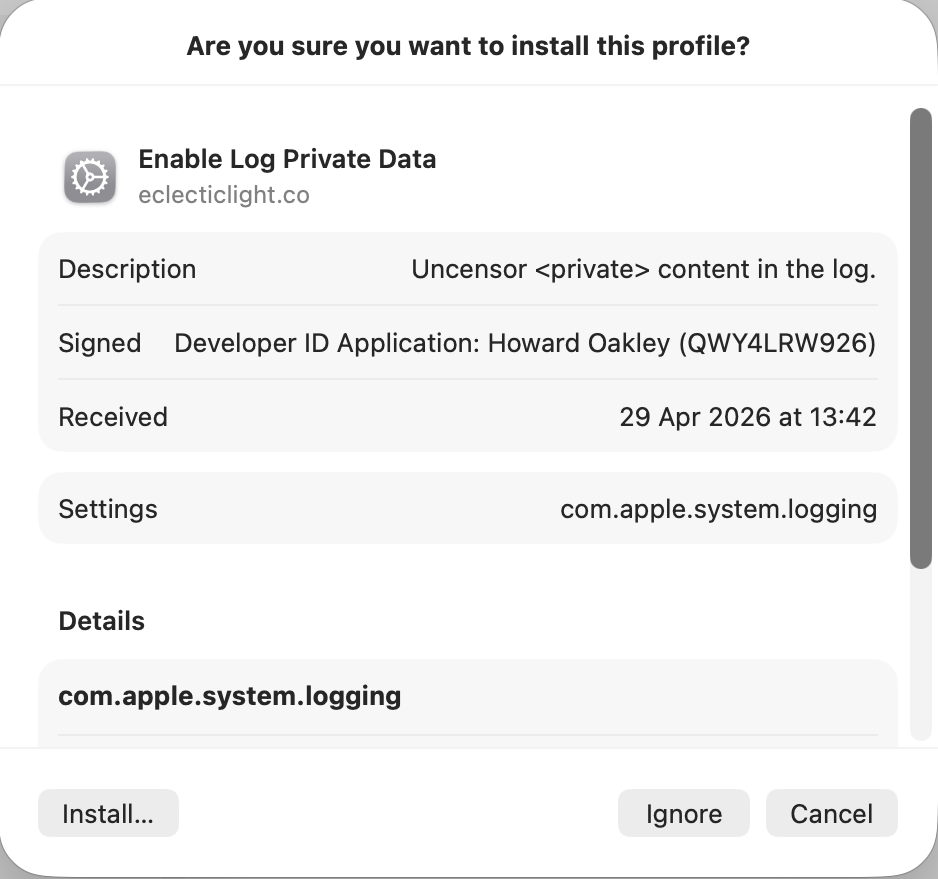
Click on the Install button to accept and install the profile.
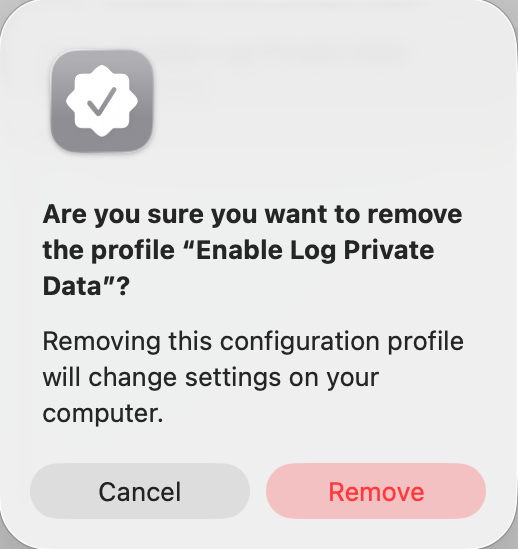
To remove it, select the profile and click the – tool below.
If you watch the contents of com.apple.system.logging.plist in /Library/Preferences/Logging you’ll see that change, with the setting of the key Enable-Private-Data to true. If you then run
sudo log config --status
with that profile installed, it should report something like
System mode = INFO PRIVATE_DATA
to confirm that private data is being shown in log entries, and that’s the best way to gain access to their full contents. Remember to remove the profile as soon as you’re done, or your log will continue to leak sensitive data.
There’s a collection of custom log profiles to gather log extracts about specific features in macOS (and Apple’s other OSes). Although they’re listed here, you can only download them if you have a developer (or equivalent) account with Apple. What’s more, Apple describes these as confidential, and explicitly forbids their use or disclosure without its permission. So much as I’d love to explain the undocumented features they use, I regret that I can’t.

