
If you run macOS Sonoma on an Apple silicon Mac, you’re probably aware that it can now use Game Mode. Apple explains that this “optimizes your gaming experience by giving your game the highest priority access to your CPU and GPU, lowering usage for background tasks. And it doubles the Bluetooth sampling rate, which reduces input latency and audio latency for wireless accessories like game controllers and AirPods.”
That seems to be the extent of Apple’s documentation on Game Mode at present. It released no technical information about it at WWDC last June, and I can’t find any reference to it in current developer documents. This article starts to explain a bit more about Game Mode and what it really does, a topic that seems to have drawn a bit of blank elsewhere.
CPU, GPU and background tasks
I’ve already looked extensively at how macOS manages task priorities and allocation of threads to the two different types of CPU core in Apple silicon chips. Few games should be particularly demanding on CPU cores, though, and should be able to run fairly freely on Performance (P) cores when in Full Screen mode.
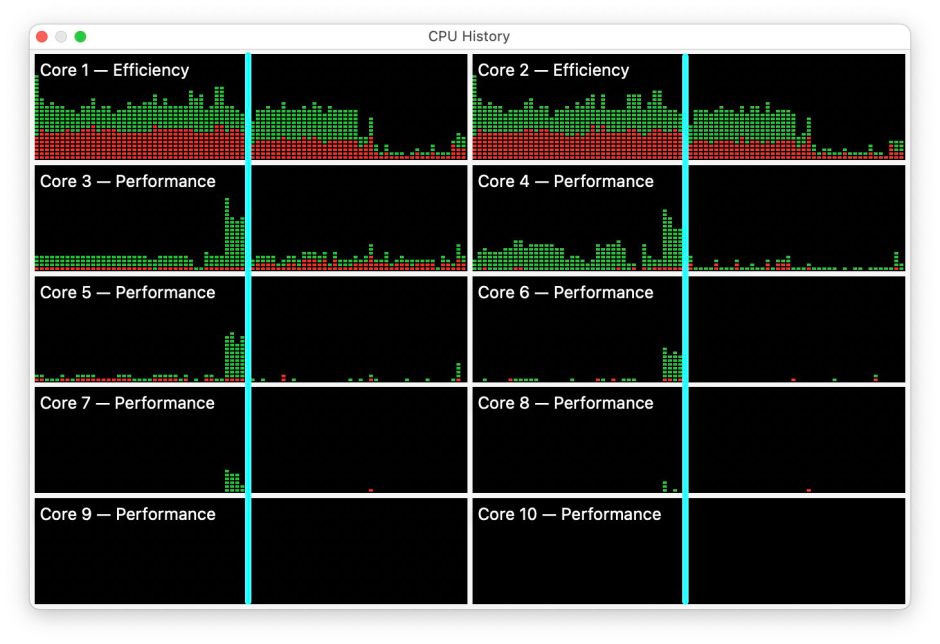
This is illustrated in this screenshot of Activity Monitor’s CPU History window on a Mac Studio M1 Max running Asphalt 9. That has been in Game Mode from the start (left) of each view in the window. The vertical light blue line then marks where it came out of Game Mode into a regular window. Although the two E cores were running at about 50% when in Game Mode, the eight P cores were only lightly loaded. Out of Game Mode, P cores were even lighter loaded.
Apple’s words, though, appear to refer to existing background threads being suppressed in order to run game threads preferentially. That would normally be achieved by increasing the game threads’ Quality of Service (QoS), and by reducing those of background tasks, although the latter should already be running at low QoS, and on the Efficiency cores. It’s important to understand what is happening here in Game Mode.
Much less is known about allocation of GPU resources, and obtaining good estimates of GPU utilisation isn’t easy, but many games are likely to be more GPU-bound. Apple states that the trigger to enter Game Mode is to put that game into Full Screen mode, which would be expected to give it the lion’s share of the GPU anyway. To be effective, Game Mode would thus need to give more of the GPU than would come only with Full Screen mode.
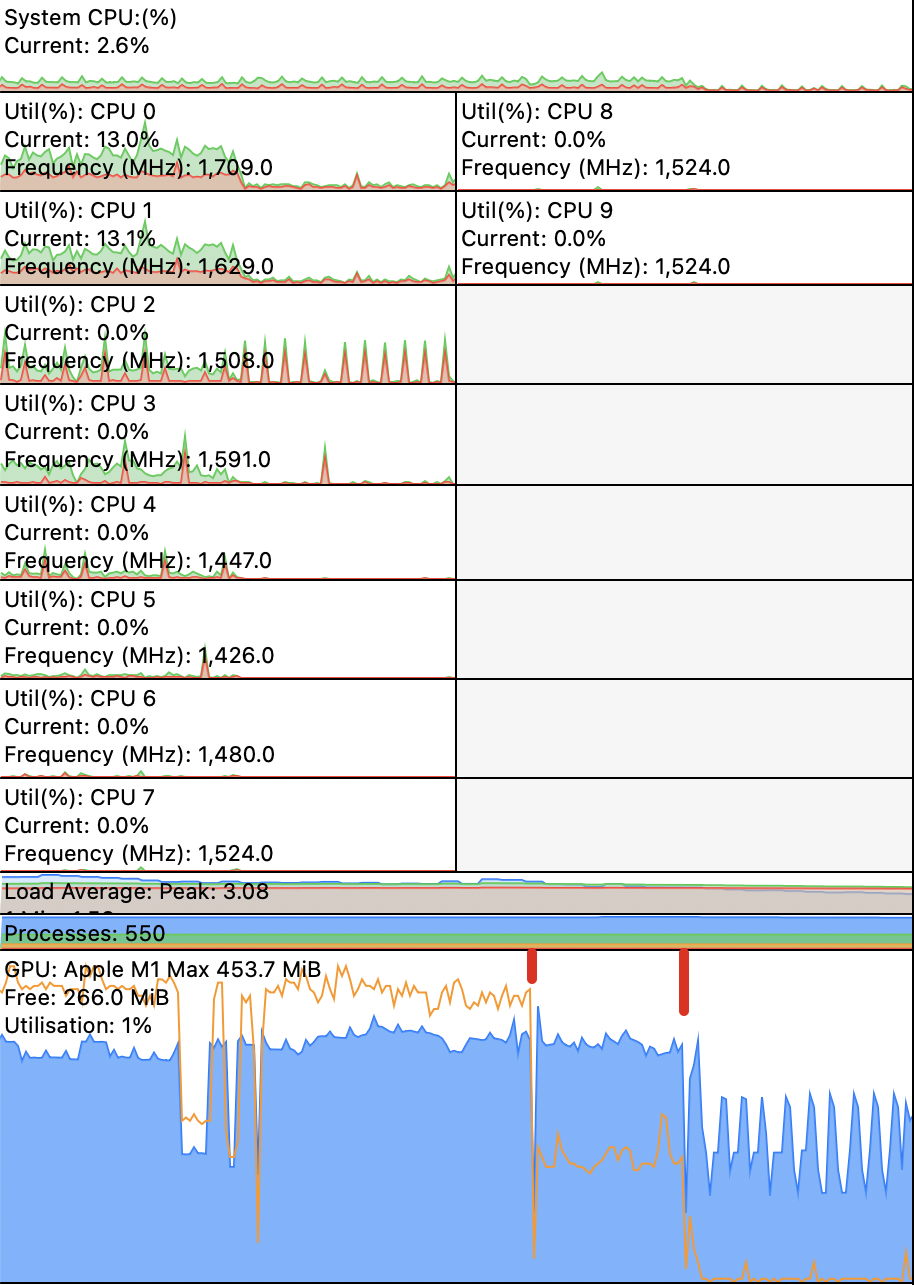
To look quickly at GPU load, I’ve used Bryan Christianson’s excellent CPUSetter. This is shown in the orange line in the lowest chart. In the period from the left to the first (shorter) vertical red line, Asphalt was running in Game Mode, and using over 80% GPU. At that point, it left Game Mode but ran on in a smaller window and about 50% GPU, until it was quit at the second (longer) vertical red line. That appears consistent with Apple’s description.
At least the information about Bluetooth input and audio latencies is easier to interpret.
In this article, I start by looking at what is recorded in the log when entering and leaving Game Mode.
Game Mode on
Normally, Game Mode is engaged when a recognised game is set to Enter Full Screen, for example using the command in its View menu. This immediately triggers WindowManager to put the game’s window into full screen mode. Shortly afterwards, gamepolicyd is launched to manage Game Mode, and announces in the log
Game mode enabled.
gamepolicyd works with RunningBoard to designate gameconsole and some other services as “Game Mode Critical Services”.
bluetoothd is then put into Game Mode, which in turn changes SystemSettingsModel::systemMonitor game console mode, and makes adjustments to Bluetooth to use its Low Latency Game Controller settings, and to reduce Bluetooth audio latency, as described by Apple.
Once those are done, macOS posts the user notification that Game Mode is on, the first sign to the user that the Mac has entered Game Mode. GamePolicyAgent next records
Game mode is on, with 1 user game processes
RunningBoard then changes the roles of many of the tasks that it’s managing, to clear the field for the game to be run.
The whole process of turning Game Mode on should be complete in little more than a second, when the full screen transition completes.
Game Mode off
When a game running in Full Screen mode is returned to a normal window on the display, Game Mode is automatically turned off. There’s a bug in macOS 14.0 that leaves the Game Mode menu (in the menu bar) still reporting that Game Mode is on, and offering to turn it off. Using that does nothing if the game has already left Game Mode as a result of giving up Full Screen mode. However, Apple claims that you can also exit Game Mode using the menu command without leaving Full Screen mode, although I don’t think that works at present.
The game’s window is returned to normal, and RunningBoard then undoes all the management changes to the background tasks it’s managing. Finally, GamePolicyAgent reports
Game mode is off, with 1 user game processes
even though the Game Mode menu doesn’t change to reflect that. That should take around 0.1 second.
Now is the time to sharpen my tools, and look in more detail at CPU and GPU performance: you can now find that in the sequel to this article.
Summary
- Game Mode is turned on automatically by putting a recognised game into Full Screen mode; there’s no alternative method.
- A game is taken out of Game Mode automatically by returning it from Full Screen mode, or (possibly) manually in its menu in the menu bar.
- Game Mode is controlled by
gamepolicyd. - Game Mode results in RunningBoard making some services, including
gameconsole, critical, and suppressing other background servics. These could improve the game’s access to CPU cores, but this seems unlikely to have much effect on performance. - Game Mode appears to increase GPU load by the game, although it’s not clear whether this is significantly greater than would be achieved by Full Screen mode alone.
- Game Mode puts Bluetooth into Low Latency mode, reducing input latency from game controllers, and audio latency to output devices.
Thanks to Sam for asking me to look into Game Mode.
 The Eclectic Light Company