
At any given time your Mac has several hundred background activities scheduled, most of them by macOS. These include important services like making scheduled Time Machine backups, and a great many whose benefits may be less apparent, such as running medianalysisd to keep your Photos library and other media up to date. When one or more of those stop working, they can be hard to detect, with backups being one of the more obvious. Because most of these are run by a hidden scheduling system, there are essentially no user controls, and recognising the problem requires browsing the log. So what can you do if they stop running reliably?
DAS-CTS
The central system that schedules and runs most of these is a combination of Duet Activity Scheduler (DAS) to schedule background activities, and Centralized Task Scheduling (CTS) to run those activities when they’re called off by DAS.
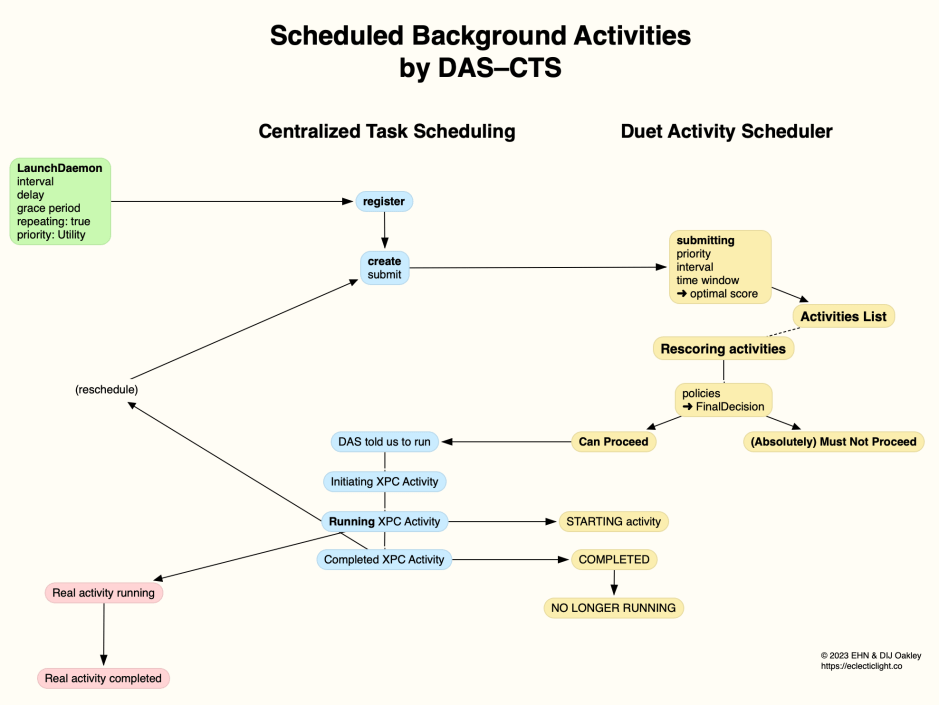
In the example of periodic automatic Time Machine backups, the activity is specified in a LaunchDaemon property list, where it’s set to be repeating, at a given time interval and priority. Its configuration file com.apple.backupd-helper.plist schedules an XPC service com.apple.backupd-auto with the following key-value pairs for its background activity:
- Interval: 3600 seconds = 1 hour, the average interval between repeats,
- Delay: 3600 seconds = 1 hour, the time period before starting,
- GracePeriod: 1800 seconds = 30 minutes, the time period to allow before scheduling becomes more aggressive,
- Repeating: true
- AllowBattery: true allowing backups when running on battery,
- PowerNap: true
- Priority: Utility setting the Quality of Service (QoS).
During startup, these property lists and their dictionaries are assembled into a list of activities for DAS. Those for most if not all macOS background activities are put in the group com.apple.dasd.default. Entries contain the contents of the dictionary for each activity for DAS to use when rescoring activities to determine which should proceed, and which should not.
During startup, in this case before the user logs in, the settings in that property list are used to register the activity with CTS, which then creates a new activity and submits that to DAS for scheduling. DAS uses the settings passed to determine that activity’s optimal score, and adds it to its list of activities.
Periodically, typically every minute or so, DAS rescores activities in its list to determine whether each can be run, or shouldn’t be run at that time, given its policy scores. There’s no way to examine that activity list except by inspecting it in the log whenever DAS chooses to write details there. If an expected activity doesn’t occur, the only way to try to determine whether it has been scheduled by DAS is to browse the log.
Scoring is weighted by policies that may include:
- application, 25.0
- battery level, 1.0
- boot time (how long since the last boot), 0.01
- CPU usage, 5.0
- energy budget, 1.0
- memory pressure, 5.0
- network quality, 8.4
- power nap, 5.0
- charger connected, 10.0 or 20.0
- thermal, 5.0
where the figure given for each is a typical value of its weighting in the overall scoring system.
In the case of the mediaanalysisd activity failing to score highly enough, DAS decides not to run it at this time:
501:com.apple.mediaanalysisd.filesystem:2CAABE:[

{name: DeviceActivityPolicy, policyWeight: 20.000, response: {Decision: Must Not Proceed, Score: 0.00, Rationale: [{deviceActivity == 1}]}}

{name: ThermalPolicy, policyWeight: 5.000, response: {Decision: Absolutely Must Not Proceed, Score: 0.00, Rationale: [{thermalLevel > 0}]}}

], FinalDecision: Absolutely Must Not Proceed}
When it’s time to run a backup, DAS records how it arrives at that decision.
0:com.apple.backupd-auto:CC9325:[

{name: DeviceActivityPolicy, policyWeight: 2.000, response: {Decision: Can Proceed, Score: 0.40}}

{name: ThermalPolicy, policyWeight: 5.000, response: {Decision: Can Proceed, Score: 0.20, Rationale: }}

] sumScores:25.320000, denominator:30.520000, FinalDecision: Can Proceed FinalScore: 0.829620}

'0:com.apple.backupd-auto:CC9325' CurrentScore: 0.829620, ThresholdScore: 0.088099 DecisionToRun:1

With <private> ...Tasks pre-running in group [com.apple.dasd.default] are 1!
DAS then tells CTS, which initiates the XPC activity and runs it to completion. Once complete, CTS initiates rescheduling by submitting the next task to DAS.
In the case of scheduled backup activities, the CTS activity isn’t the main task, but initiates the backup task, which then runs to completion in whatever time it takes. Accurate rescheduling is thus accomplished by the scheduled XPC activity completing quickly, ensuring that rescheduling doesn’t drift over time. It’s also up to the CTS activity to detect whether the previous main task has completed, something particularly relevant to backups, which can take several hours. In those circumstances the main task doesn’t initiate another backup, but cancels that and leaves CTS to schedule the next.
launchd
Third parties, including users, are most unlikely to negotiate the complexities of DAS-CTS, and rely instead on conventional launchd scheduling of repeated tasks. In this, a simple LaunchAgent might be used with RunAtLoad set to true, and a StartInterval of 3600 seconds, to run a task every hour.
That won’t be scheduled or dispatched by DAS. Instead, typical log highlight entries from launchd might read:
6.245204 gui/501/co.eclecticlight.blowhole internal event: WILL_SPAWN, code = 0

6.245853 gui/501/co.eclecticlight.blowhole xpcproxy spawned with pid 51928

6.251844 gui/501/co.eclecticlight.blowhole service state: running

6.251862 gui/501/co.eclecticlight.blowhole Successfully spawned blowhole[51928] because interval

6.258190 co.eclecticlight.blowhole Blowhole snorted!

6.258590 gui/501/co.eclecticlight.blowhole exited due to exit(0)

6.258610 gui/501/co.eclecticlight.blowhole service state: not running

6.258661 launchd removing child: pid/51928
which ran my blowhole command tool, which doesn’t itself use XPC, to write the log entry Blowhole snorted!
That runs the task every hour exactly, regardless of other activities and conditions, and in most circumstances that’s most appropriate. For instance, daily backups are normally run in the small hours of the morning. Heavier tasks that could clash with user activity are less suitable, though.
Priority and core allocation
Although priority is conventionally set in the property list for an activity, activities requiring significant computing resources should normally set their own Quality of Service (QoS) for their threads, which is then used to allocate those threads to the two different CPU core types in Apple silicon Macs. In any case, QoS set in property lists appears to be adjusted for use by DAS-CTS, for instance a Background QoS of 9 may be passed to scheduling as 5 instead.
Run failure
An important first step is to establish which of these two mechanisms is used by the background activity that failed to run. That’s almost guaranteed to be launchd for third-party services, and most likely to be DAS-CTS for those that come as part of macOS.
For third-party launchd items, it’s then a matter of checking their property list, establishing when they should run, and browsing the log for that time to discover what happened.
The great majority of macOS background activities are locked into the Signed System Volume, although some like XProtect Remediator have to be saved to the Data volume. For those you’ll need to check the log using a utility like Mints, which features a DAS Scheduling button to obtain custom log extracts covering DAS and CTS.
Provided that the activity is correctly set up using property lists, and can be run when dispatched, the best remedy is normally to restart the Mac. This enables macOS to construct fresh lists of activities for DAS to dispatch, and a normal service should then resume. Attempts to kill services related to the activity, or DAS itself, usually only make problems worse. As an interim measure, some activities like Time Machine backups and XProtect Remediator scans can also be run manually, although they often work slightly differently then.
Some infrequent activities, such as XProtect Remediator scans, may not be dispatched for long periods because environmental conditions remain unsuitable. Most are more likely to be run automatically when the Mac is awake, not asleep, but has little or no user activity. It’s not uncommon for notebook models to spend all their time either working or asleep, and that can suppress some background activities for several days.
Summary
- Determine whether the activity is dispatched by
launchd(third-party) or DAS-CTS (macOS). - For
launchdactivities, check their property lists, and browse the log for when they should have run, to discover the cause of failure. - For DAS-CTS, browse the log using Mints’ DAS Scheduling tool to discover the cause.
- As an interim measure, run the activity manually if possible.
- Restart the Mac.
 The Eclectic Light Company