
Some time in the next day or three, Apple looks set to release its first public beta of macOS 14 Sonoma. Should you risk or resist that tempting offer?
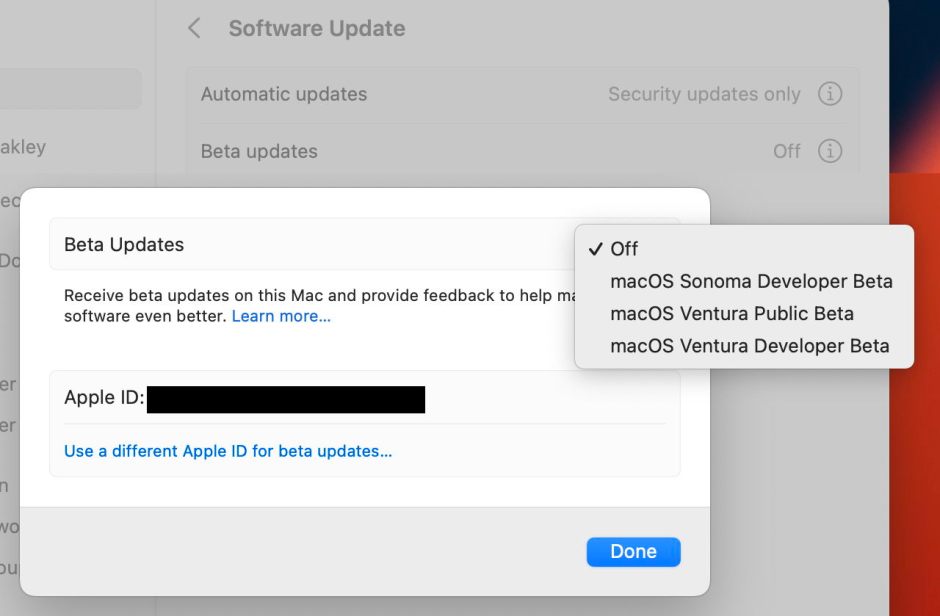
This year betas have already been more widely available. The first few releases are normally restricted to those who are paid-up developers, but Apple decided to open them up to others who had previously signed up with their Apple ID but don’t pay the annual subscription. This may have more to do with the new mechanism for being offered beta-releases: no longer do you have to download and install a special enabler from a closed website, but it’s now done through an extra option in Software Update. All you need to do is sign up here, and once the public beta is released you should see it offered in Software Update.
Can your Mac run Sonoma?
Sonoma is officially supported on all Intel Macs with T2 chips, all Apple silicon Macs, and just one Intel iMac without a T2 chip, the iMac 2019 (iMac19,x). If you have an older Mac, then it may well be able to run Sonoma using OCLP, but won’t do so until that has been updated to support Sonoma, later this year.
What do you get in the beta?
I have distilled Apple’s list of changes into a shorter list, with information on which Macs can use each of the new features, in this article.
Apple provides extensive release notes for betas. Those for Sonoma are worth reading as they explain some of the current problems you could encounter.
Can you lose that Mac?
The next question you should ask is whether you could afford to completely lose your Mac for a while, as a result of a problem with the beta. Although that’s most unlikely to happen, it’s a risk you’ve got to be prepared for when you install any macOS beta.
Never, under any circumstances, install a beta of macOS on any Mac you rely on for production. Betas almost invariably involve firmware updates, so even if you install the beta on an external disk, it will change your Mac’s firmware. Undoing that is hard enough for an Intel Mac with a T2 chip or an Apple silicon model, and it’s simply not possible on Intel Macs without a T2 chip. All you can then do is wait for another beta, or maybe the final release in the autumn/fall, which does update the firmware to something more compatible.
Betas also normally come with updated versions of key components such as iCloud, the APFS file system and Time Machine. Consider carefully what havoc they could produce if there’s a bug affecting other storage used by that Mac, and its backups.
If the worst comes to the worst, you could end up having to restore that Mac to an older version of macOS. Apple explains how to do that, and you should read that account carefully before making any decision. If you’re thinking of installing betas on an Apple Silicon model, beware that process requires another Mac running Apple Configurator 2 and restoring it in DFU mode.
Internal or external SSD?
One way to reduce the risk posed by beta versions of macOS is to install them on external storage. While that can enforce some degree of separation and protection, it still means that firmware is updated, and still brings significant risk of disaster. Don’t try this with a production Mac, even from an external disk.
If you’re going to install the beta on an external disk, you’ll need to be comfortable with the procedure for Apple silicon Macs. Although it does become straightforward with practice, some seem unable to get it to work at all. Intel Macs are far simpler, of course, although one important catch with T2 models is that you have to downgrade their security using Startup Security Utility in Recovery mode, if you haven’t already done so, or they can’t boot from an external disk.
Multiple systems on the same disk
You can also install multiple boot volume groups on the same disk, letting you choose which version of macOS to start up from. This provides even less separation or protection than installing them on separate disks, so should never be attempted on any production Mac.
Apple recommends that you do this into separate boot volume groups within the same APFS container, which has the great advantage that they share the same free space within that container. However, there are times when that can work against you, and I’ve explained why and how to opt for separate containers instead. The choice is yours.
Virtual machine
Some consider that the best way of keeping out of trouble when running beta versions of macOS is to install them into a Virtual Machine (VM), for example using VMware or Parallels. This can’t alter the firmware of the Mac hosting the VM, and that alone makes it far safer. On an Intel Mac, provided that your virtualiser can run Ventura, it should be capable of running Sonoma betas too, and you should be able to find full instructions as to how to do that from its support site.
This is even simpler on Apple silicon Macs, with their extensive built-in support for running virtualised macOS. Use any of the virtualisers, including Parallels, UTM, and my own Viable. Full instructions for Viable are given here. While Sonoma in a VM works best when on a host also running Sonoma, it still runs very nicely indeed in Ventura.
iCloud
Some betas bring substantial changes to iCloud, and in the past that has caused lasting havoc to accounts and on iCloud storage. I’m not aware of any particular issues that have been reported in this respect with Sonoma beta, but many testers prefer to use a different iCloud account for Macs when running beta-releases of macOS.
Deprecations
Sonoma finally removes some ancient parts of macOS that should have gone years ago, notably ATS/ATSUI that was Apple’s original support for Unicode text way back in Classic Mac OS 8.5. Because ATSUI isn’t simply deprecated but has been removed from Sonoma, any app that tries to use it results in a warning alert that the app needs to be updated. When you dismiss that, the app quits.
Those testing early developer betas have encountered similar alerts that don’t appear to be related to the removal of ATSUI support, but refer to other parts of the API being deprecated. These are controversial, to say the least, and it’s often not clear as to what’s causing them. If you encounter any, please report them to the developer of the app that seems to have caused them; if you don’t agree with this method of nudging developers away from deprecated code, then please feel free to tell Apple through Feedback.
Kernel panics
If you do decide to install the Sonoma beta, or have already done so, I have a big favour to ask on behalf of tens of millions of users, and quite a few of Apple’s engineers. By all means take a good look at its new features, and give Apple plenty of feedback on what you think of them. But please pay careful attention to the basics, exercising your Mac with peripherals such as external displays and hubs. Where you discover problems, please work with Apple to ensure that it knows what they are. If you can, test out features such as Time Machine (being careful not to put your existing backups at risk), which seldom get much attention from other beta-testers.
In particular, send Feedback reports on any kernel panic which your Mac encounters when running a beta. The normal system report, sent after your Mac has restarted, is helpful, but further details are much better still. Even betas should never suffer kernel panics; if yours does, please help Apple’s engineers fix that problem before Sonoma is released.
For those who do beta-test Sonoma, I wish us success, and hope you enjoy testing, and helping Apple make Sonoma even better for all of us.
 The Eclectic Light Company