
Skip to content

The Eclectic Light Company

Macs & painting – 🦉 No AI content
Main navigation
  • Downloads
  • Freeware
  • M-series Macs
  • Mac Problems
  • Mac articles
  • Macs
  • Art
hoakley May 1, 2020 Macs, Technology

How to find apps using metadata

If you can’t use Application Categories in Finder Item Groups to locate your apps easily, is there an alternative you can use? This article suggests some solutions.

The snags with Application Categories are that they’re baked into apps and can’t be added or changed by the user, and the list of categories is fixed and inappropriate for many Mac users. Show apps by Application Categories, and many are just dumped in Other, or into large and vague categories such as Utilities. To improve on this, we must turn to metadata.

macOS provides two specific types of metadata suitable for use to categorise apps: keywords and application categories (yes, confusingly with the same name as those you can’t use in the Info.plist file). These are stored in extended attributes (xattrs) named com.apple.metadata:kMDItemKeywords and com.apple.metadata:kMDItemApplicationCategories respectively. Apps consist of a top-level folder which is an executable bundle containing the signed executable code and other contents. By attaching the appropriate xattr containing keywords or app categories to the app’s top-level folder, with the extension .app, we can use the information there to locate and identify that app in the Finder.

Currently, it’s easier to use keywords, but you’ll discover that they’re also used by other files too. If you want to use metadata which will only be accessed for apps, use application categories if you can.

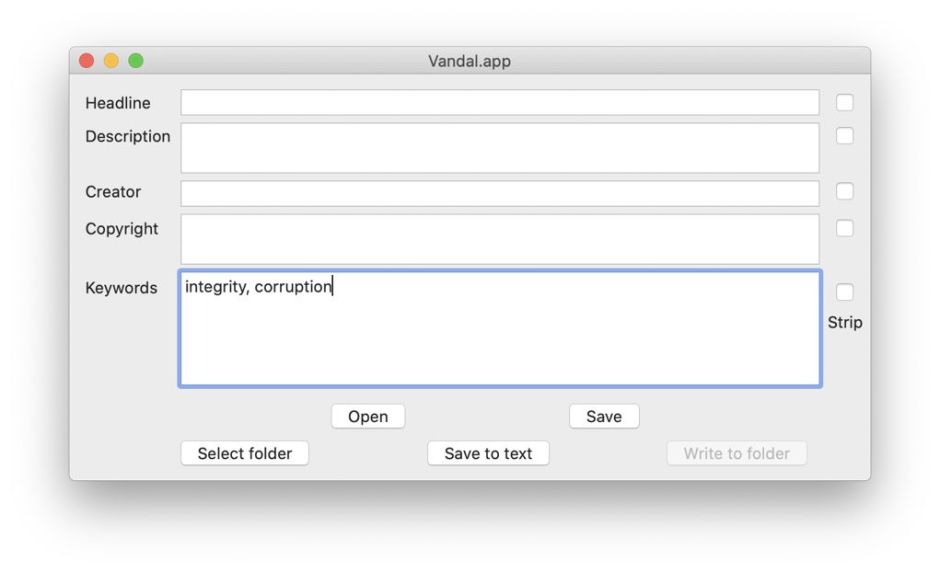
If you’ve opted to use keywords, you can tag your apps using my free utility SearchKey (not SearchKeyLite, in this case). Open a new window if necessary, click on its Open button to select an app to tag and ensure that you open the .app folder at the top level of the app. Type in the keywords you wish to attach to that app, separating them with commas, and click the Save button.
appcats1

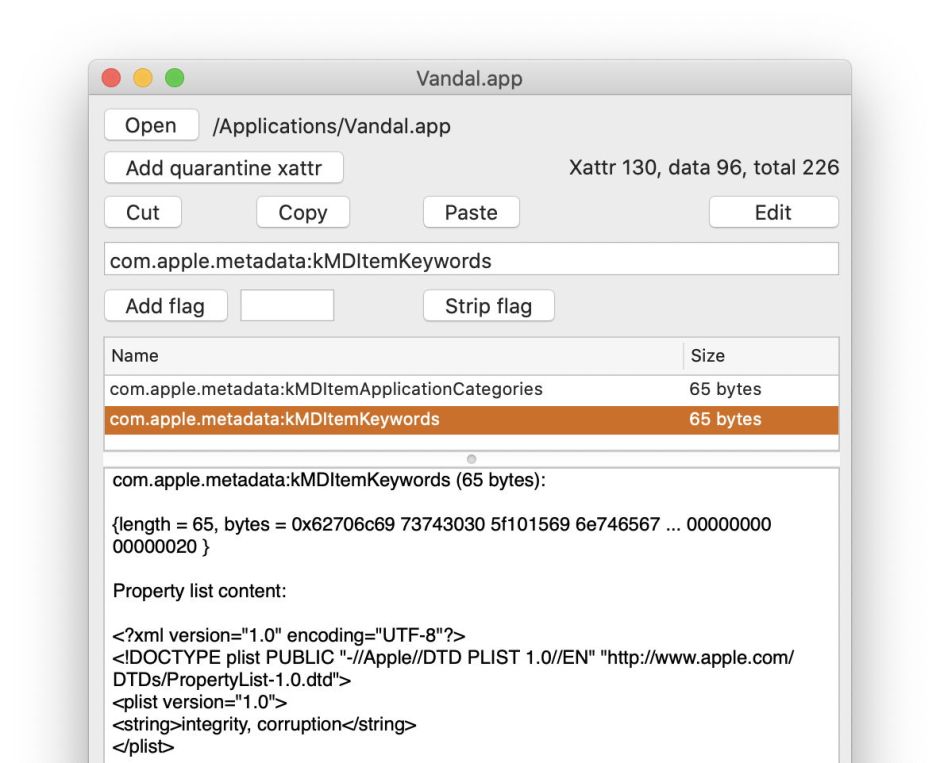
You can also attach keywords and application categories using my xattr editor xattred. Click on its Open button and select an app to tag, again ensuring that you’re working with the top-level .app folder. To add a new xattr, click on the New button. Paste in either
com.apple.metadata:kMDItemKeywords
or
com.apple.metadata:kMDItemApplicationCategories
as appropriate as the name of the xattr you want to add, then switch the popup menu to Property list, and paste in a plist containing your categories or keywords, such as
<?xml version="1.0" encoding="UTF-8"?>
<!DOCTYPE plist PUBLIC "-//Apple//DTD PLIST 1.0//EN" "http://www.apple.com/DTDs/PropertyList-1.0.dtd">
<plist version="1.0">
<string>Corruption, Integrity</string>
</plist>

where your text is given as the string value. Click on the Save button, and that new xattr should be written to that .app folder.
appcats2

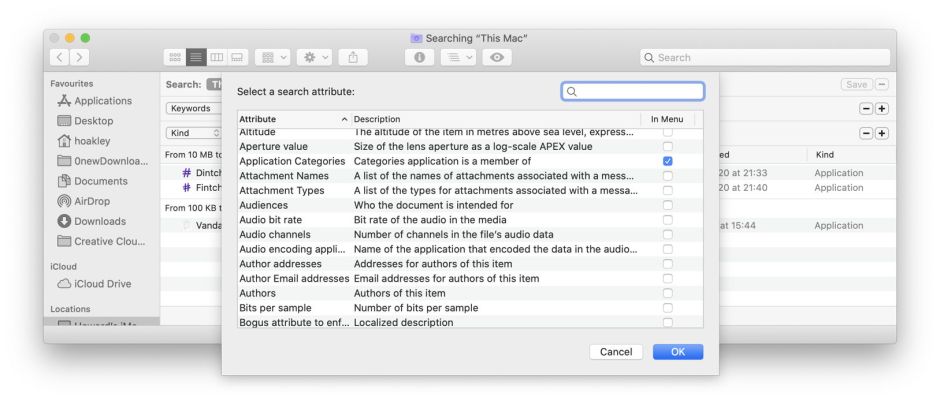
Once you’ve tagged your first app, test the system out by looking for it. Open a new Finder window and select the Find command in the File menu to prepare it for searching. The two search criteria which you need to bring into its popup menu, currently showing Kind, are Keywords and Application Categories (not Category, which confusingly refers to the Application Category baked into the app itself). You’ll probably need to add either or both of those to the popup menu through the Other… item at the end. Locate and tick the search criteria from that list.
appcats3

Set the criterion then to read, for example, Application Categories contains integrity to find all items with “integrity” in the string of the com.apple.metadata:kMDItemApplicationCategories xattr. If you’re using keywords and want to exclude any from documents and other files, add another search criterion to limit results to Kind is Application.

appcats4

You can now park this search window to one side, ready to type in some characters from the keywords or categories to find all apps which contain those.

There are some limitations to this scheme. You can’t of course tag any of the apps bundled as part of macOS, nor Safari, which are each protected by SIP. You should, though, be able to tag amost any other app, which needn’t even be in an Applications folder. However, when you update or replace an app, that is likely to wipe your xattrs, so be prepared.

If there’s sufficient interest, I could modify SearchKey so that it included Application Categories too, or even build a dedicated app for this purpose.

Share this:

  • Click to share on X (Opens in new window) X
  • Click to share on Facebook (Opens in new window) Facebook
  • Click to share on Reddit (Opens in new window) Reddit
  • Click to share on Pinterest (Opens in new window) Pinterest
  • Click to share on Threads (Opens in new window) Threads
  • Click to share on Mastodon (Opens in new window) Mastodon
  • Click to share on Bluesky (Opens in new window) Bluesky
  • Click to email a link to a friend (Opens in new window) Email
  • Click to print (Opens in new window) Print
Like Loading...

Related

Posted in Macs, Technology and tagged App Store, apps, category, Finder, keyword, metadata, SearchKey, xattred. Bookmark the permalink.

5Comments

Add yours
  1. 1
    EcleX's avatar
    EcleX on May 1, 2020 at 7:27 am

    Thanks. Yes, please. The possibility to add Application Categories using SearchKey or through a dedicated application would be quite useful.

    LikeLiked by 1 person

  2. 2
    John Gilbert's avatar
    John Gilbert on May 3, 2020 at 7:38 am

    To be worthwhile pursuing application categories, I suggest that there needs to be a way of preserving categories through app updates. At a minimum, a script to save all category/app combinations in use and a second script to restore them. At best an option in a dedicated application. And even better if the ‘saved’ categories can be synced via iCloud/Dropbox to multiple Macs.

    Whilst I understand your preference for using xattrs, I would use Finder tags which are easily accessible in many places (Spotlight, Finder, Alfred, Leap, etc.) and which are can be manipulated with existing tools. Of course, Finder tags, just like xattrs, are lost when an app is updated.

    LikeLiked by 1 person

    • 3
      hoakley's avatar
      hoakley on May 3, 2020 at 8:17 am

      Thank you.
      Yes, that’s why Appui needs a database of apps which have been categorised, so that it can automatically restore them in the event that an app is replaced. One advantage of tagging the .app folder itself is that most updates in place, such as Sparkle updates, don’t replace that folder, just some of its contents.
      Finder tags are actually just xattrs. What’s more, they have limited number of colours, and are widely used for all sorts of other purposes. The whole point here is to use something which is specific, not generic, or it just gets confused with everything else. I have tried using Finder tags in the past, and they’re of no use in this role, I’m afraid.
      Howard.

      LikeLike

  3. 4
    John Hay's avatar
    John Hay on May 7, 2020 at 6:49 pm

    Indeed, an interesting and illuminating topic to be sure. I guess I’m lazy. When I set up a new macOS machine I never use MA (Migration Assistant) because it will carry over any imperfections from the source to the target. Instead I always do a totally “clean install” even though it’s very time consuming. In the process I can do some general housekeeping such as not carrying over old, unused apps, etc. Inevitably however I then find myself purchasing new unneeded replacement software, some of which I already had in one form or another on the old machine, LOL.

    This got me thinking of the value of the topic at hand. Although I have nowhere near the 400 or so apps sited, I still find myself forgetting what I “used to have” on some of my older machines that might work, get lazy, and end up downloading something new from the Apple Store.

    Then I realized that it was not only the apps running on my internal storage, but that I also use more and more cloud based apps. To some degree my password manager (1PW) keeps track of these, and using tags in 1PW I can normally find whatever I forget.

    I’m glad that this topic has surfaced as it’s rightly of value to somehow “catalog” one’s existing resources. The only thing I’m adding into the mix I suppose is the additional load of one’s “cloud based” apps.

    Thank you all for your incredible insights, suggestions, and discussion of this topic. Perhaps this will inspire me to finally act.

    All the best,
    John
    Ocean City, NJ

    LikeLiked by 1 person

    • 5
      hoakley's avatar
      hoakley on May 7, 2020 at 10:01 pm

      Thank you.
      Howard.

      LikeLiked by 1 person

·Comments are closed.

Quick Links

  • Free Software Menu
  • System Updates
  • M-series Macs
  • Mac Troubleshooting Summary
  • Mac problem-solving
  • Painting topics
  • Painting
  • Long Reads

Search

Monthly archives

  • January 2026 (12)
  • December 2025 (75)
  • November 2025 (74)
  • October 2025 (75)
  • September 2025 (78)
  • August 2025 (76)
  • July 2025 (77)
  • June 2025 (74)
  • May 2025 (76)
  • April 2025 (73)
  • March 2025 (78)
  • February 2025 (67)
  • January 2025 (75)
  • December 2024 (74)
  • November 2024 (73)
  • October 2024 (78)
  • September 2024 (77)
  • August 2024 (75)
  • July 2024 (77)
  • June 2024 (71)
  • May 2024 (79)
  • April 2024 (75)
  • March 2024 (81)
  • February 2024 (72)
  • January 2024 (78)
  • December 2023 (79)
  • November 2023 (74)
  • October 2023 (77)
  • September 2023 (77)
  • August 2023 (72)
  • July 2023 (79)
  • June 2023 (73)
  • May 2023 (79)
  • April 2023 (73)
  • March 2023 (76)
  • February 2023 (68)
  • January 2023 (74)
  • December 2022 (74)
  • November 2022 (72)
  • October 2022 (76)
  • September 2022 (72)
  • August 2022 (75)
  • July 2022 (76)
  • June 2022 (73)
  • May 2022 (76)
  • April 2022 (71)
  • March 2022 (77)
  • February 2022 (68)
  • January 2022 (77)
  • December 2021 (75)
  • November 2021 (72)
  • October 2021 (75)
  • September 2021 (76)
  • August 2021 (75)
  • July 2021 (75)
  • June 2021 (71)
  • May 2021 (80)
  • April 2021 (79)
  • March 2021 (77)
  • February 2021 (75)
  • January 2021 (75)
  • December 2020 (77)
  • November 2020 (84)
  • October 2020 (81)
  • September 2020 (79)
  • August 2020 (103)
  • July 2020 (81)
  • June 2020 (78)
  • May 2020 (78)
  • April 2020 (81)
  • March 2020 (86)
  • February 2020 (77)
  • January 2020 (86)
  • December 2019 (82)
  • November 2019 (74)
  • October 2019 (89)
  • September 2019 (80)
  • August 2019 (91)
  • July 2019 (95)
  • June 2019 (88)
  • May 2019 (91)
  • April 2019 (79)
  • March 2019 (78)
  • February 2019 (71)
  • January 2019 (69)
  • December 2018 (79)
  • November 2018 (71)
  • October 2018 (78)
  • September 2018 (76)
  • August 2018 (78)
  • July 2018 (76)
  • June 2018 (77)
  • May 2018 (71)
  • April 2018 (67)
  • March 2018 (73)
  • February 2018 (67)
  • January 2018 (83)
  • December 2017 (94)
  • November 2017 (73)
  • October 2017 (86)
  • September 2017 (92)
  • August 2017 (69)
  • July 2017 (81)
  • June 2017 (76)
  • May 2017 (90)
  • April 2017 (76)
  • March 2017 (79)
  • February 2017 (65)
  • January 2017 (76)
  • December 2016 (75)
  • November 2016 (68)
  • October 2016 (76)
  • September 2016 (78)
  • August 2016 (70)
  • July 2016 (74)
  • June 2016 (66)
  • May 2016 (71)
  • April 2016 (67)
  • March 2016 (71)
  • February 2016 (68)
  • January 2016 (90)
  • December 2015 (96)
  • November 2015 (103)
  • October 2015 (119)
  • September 2015 (115)
  • August 2015 (117)
  • July 2015 (117)
  • June 2015 (105)
  • May 2015 (111)
  • April 2015 (119)
  • March 2015 (69)
  • February 2015 (54)
  • January 2015 (39)

Tags

APFS Apple Apple silicon backup Big Sur Blake Bonnard bug Catalina Consolation Console Corinth Delacroix Disk Utility Doré El Capitan extended attributes Finder firmware Gatekeeper Gérôme High Sierra history of painting iCloud Impressionism landscape LockRattler log M1 Mac Mac history macOS macOS 10.12 macOS 10.13 macOS 10.14 macOS 10.15 macOS 11 macOS 12 macOS 13 macOS 14 macOS 15 malware Metamorphoses Mojave Monet Monterey Moreau myth narrative OS X Ovid painting performance Pissarro Poussin privacy Renoir riddle Rubens Sargent security Sierra SilentKnight Sonoma SSD Swift Time Machine Tintoretto Turner update upgrade Ventura xattr Xcode XProtect

Statistics

  • 21,127,663 hits
Blog at WordPress.com.
Footer navigation
  • Free Software Menu
  • About & Contact
  • Macs
  • Painting
  • Downloads
  • Mac problem-solving
  • Extended attributes (xattrs)
  • Painting topics
  • SilentKnight, Skint, SystHist, silnite, LockRattler & Scrub
  • DelightEd & Podofyllin
  • xattred, SpotTest, Spotcord, Metamer & xattr tools
  • 32-bitCheck & ArchiChect
  • XProCheck, T2M2, LogUI, Ulbow, blowhole and log utilities
  • Cirrus & Bailiff
  • Precize, Alifix, UTIutility, Sparsity, alisma, Taccy, Signet
  • Versatility & Revisionist
  • Text Utilities: Textovert, Nalaprop, Dystextia and others
  • PDF
  • Keychains & Permissions
  • Updates
  • Spundle, Cormorant, Stibium, DropSum, Dintch, Fintch and cintch
  • Long Reads
  • Mac Troubleshooting Summary
  • M-series Macs
  • Mints: a multifunction utility
  • VisualLookUpTest
  • Virtualisation on Apple silicon
  • System Updates
  • Saturday Mac Riddles
  • Last Week on My Mac
  • sysctl information
Secondary navigation
  • Search

Post navigation

Apple has pushed updates to XProtect and MRT
The first American Symbolist painter Elihu Vedder 1

Begin typing your search above and press return to search. Press Esc to cancel.

  • Reblog
  • Subscribe Subscribed
    • The Eclectic Light Company
    • Join 8,902 other subscribers
    • Already have a WordPress.com account? Log in now.
    • The Eclectic Light Company
    • Subscribe Subscribed
    • Sign up
    • Log in
    • Copy shortlink
    • Report this content
    • View post in Reader
    • Manage subscriptions
    • Collapse this bar
 

Loading Comments...
 

    %d