
Disk Utility is one of the few utilities bundled in the first public beta release of Mac OS X in 2000 to have survived right the way through to Golden Gate. It provides a suite of essential tools for working with storage of different kinds to format it, divide it into volumes, check and maintain them. Despite being used by almost everyone who runs a Mac, apart from the few who prefer mind-bending with its command tool equivalent diskutil, it has often appeared to be Apple’s most unloved app.
Many versions of Disk Utility seem to have suffered from some bug or other, occasionally bad enough to make us throw our hands up in horror.

Sierra’s version of Disk Utility, even in 10.12.6, its last release, was prone to throw an error the first time you tried some actions, such as formatting a USB memory stick. When you repeated the same action, Disk Utility suddenly discovered that it could perform it without error after all.
High Sierra’s Disk Utility version 17.0 was the first to include support for Apple’s new file system, APFS.

This turned out to be a work in progress. Sometimes you could coax it into doing tasks by selecting the drive in the list at the left, unmounting it using that command in the File menu, then trying the task again.

Failure to unmount volumes continued to plague many of Disk Utility’s basic tasks until relatively recently, but has finally become sporadic rather than persistent.
No sooner does it lose one problem than another emerges, as Disk Utility has become one of the casualties of Golden Gate’s enhanced Sidecar and new touchscreen support. This time it affects the creation of disk images most.
If your Mac is running macOS Golden Gate 27.2 or 27.2.1 and has a trackpad, built in or external, try this.
Open Disk Utility and use its File / New Image / Blank Image menu command to drop down a sheet in which you configure that new disk image. Click in its Size text box, and edit its contents to read 50 GB or similar. Then set the Image Format menu to an option such as Apple Sparse Image (ASIF).
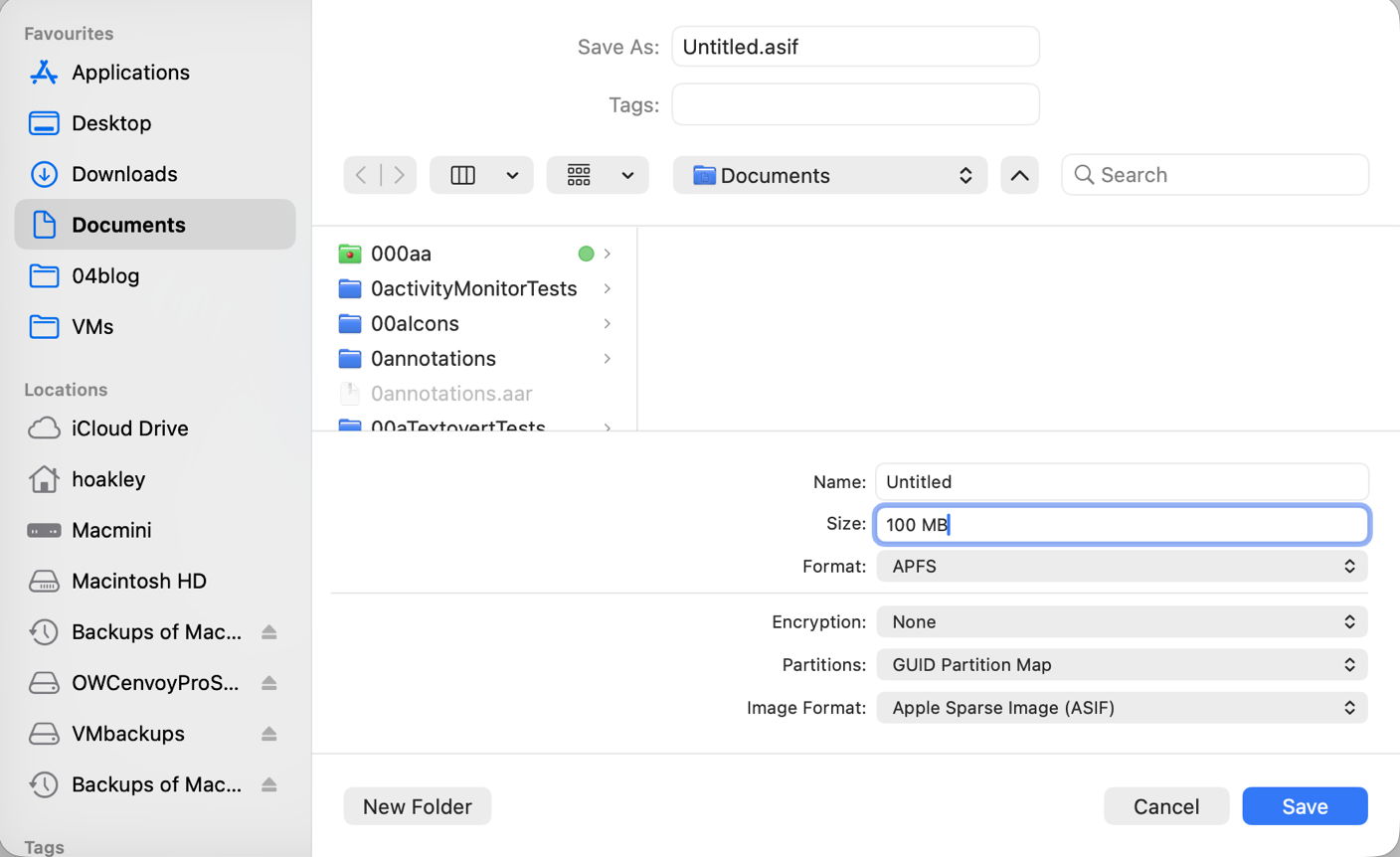
As you’ll see, the Size is changed back to its default of 100 MB, and now you’re unable to select anything using your trackpad and pointer. Disk Utility has locked you out as punishment for wanting a size other than its default.
One way to unlock that sheet is to change the item in focus by pressing the Tab key, possibly more than once. If you don’t do that, but in frustration click on the Cancel button, you’ll only have to repeat the process all over again.
The first bug here, which reverted the Size set to its default of 100 MB, is longstanding and has caught me out on numerous occasions. However, it has been exacerbated by the trackpad lockout, which seems to have been introduced in Golden Gate 27.2, although there was no change in Disk Utility’s version (22.7) or build number (2604) from that in 27.0. If it’s any consolation, it looks as if the lockout will be fixed in 27.3, but that still changes the Size set whenever you’re not looking.
Please, Apple, I know Disk Utility isn’t AI, and is far from being glamorous, but could someone please take it under their wing, and give it the loving care and attention it deserves? Meanwhile, if you do want to create disk images and retain your sanity, Michael Tsai puts his life and soul into DropDMG, and it shows.

