
Keeping your Mac secure shouldn’t be arduous or demanding, but it’s essential to get the basics right, so the layers of protection built into your Mac’s hardware and macOS are as effective as they can be. That’s true even if you’re using a third-party security product. This article identifies what you should check, depending on whether your Mac has just a single macOS system installed, or several.
Single system
Your Mac should start up in Full Security, with the Signed System Volume (SSV) and System Integrity Protection (SIP) enabled, and Gatekeeper/XProtect checks turned on.
The only significant exception to those is when your Mac needs to run a kernel extension, for which you’ll have to start it up in Recovery Mode and change the settings in Startup Security Utility to allow it to manage that kernel extension. Avoid this if you can: almost all good software has now moved to System Extensions and their relatives, which can still be used in Full Security.
Disabling SIP requires further reduction in startup security, and should only be for those who know what they’re doing and can accept the risks.

You can verify most of these in System Information’s Controller item, although I don’t know of anywhere accessible that tells you whether Gatekeeper/XProtect checks are turned on.
FileVault should also be turned on. When starting up from the internal SSD, this comes at no additional cost, and provides a high level of protection for everything stored on your Mac’s Data volume. Check that in Privacy & Security settings, where you can enable it if you haven’t already done so.
You should always keep macOS up to date, to ensure it has all the latest security fixes, and is using the current version of mBoot firmware. If the software you use is compatible, make that macOS 27 Golden Gate; if you rely on apps that aren’t yet compatible with that, you might need to stay with Tahoe or Sequoia instead, but still need to keep those up to date with their corresponding security updates.
XProtects
These are now more complicated, as there are three different types of XProtect, updated using two different installers, and two update services:
- XProtect itself scans apps on demand when they’re run, to check they aren’t known malware. It’s kept in two places, each updated separately. The more important is updated using iCloud, although it doesn’t require your Mac to be connected to iCloud or iCloud Drive, just requires a network connection. This is usually updated every week or so.
- XProtect Remediator runs daily scans to check for and remove any known malware. That’s delivered as a normal software update, and is updated every few weeks or months. Because its scans can only be run when your Mac is on mains power, this can be troublesome for laptops, but it’s worth the effort of ensuring scans are run when possible.
- XProtect Behavioural service monitors sensitive folders to provide Apple with security intelligence. Its Bastion rules are updated as part of XProtect Remediator updates.
Updates should be downloaded and installed automatically when Install system data files and security updates is turned on in Software Update settings, but can sometimes fall a version or two behind.
Multiple systems
If your Mac has more than one bootable system, keeping it up to date becomes more complicated. You’ll need to install macOS updates to each bootable system, when Apple releases them. That requires you to start your Mac up in that version of macOS and use Software Update settings to obtain and initiate the update for that copy of macOS.
Your Mac only has one copy of its firmware, installed to its internal SSD. Even if the version of macOS installed there is older than that in other storage, macOS installers will ensure that the firmware is the latest. For Sequoia and later, that doesn’t normally make any difference, as all three supported versions of macOS normally use the same firmware, but that isn’t always the case.
XProtect updates also need to be downloaded and installed to each version of macOS individually, as they can’t be shared between macOS, nor copied between them. Again, that means starting up in each system in turn, and updating that. There’s no single installer you could obtain to simplify that.
Virtual machines
VMs are different again, because in these respects they are separate Macs, and require their own macOS and its firmware to be updated individually, and XProtect updates downloaded and installed locally. Remember that updating the firmware in a VM doesn’t update it in your main system, as VM firmware is completely separate, another good reason for preferring to run beta versions of macOS in a VM.
It might appear tempting to cut corners and not keep VMs as up to date as your main macOS. Whether you can get away with that depends on what you do in your VMs. If they’re used for productive work or important tasks, you should ensure they’re as well and promptly protected as your main startup system.
ClickFix and phishing
ClickFix and phishing attacks aim to work around security protection the easiest way, by tricking you into bypassing that protection for them. Never open a link unless you trust its origin and are confident that it couldn’t be malicious. Never paste anything into Terminal, Script Editor, or anywhere else unless you have checked what it contains, understood exactly what it does, and have absolute confidence that it’s not malicious. Never drop your guard.
Checklist
- Full Security, SSV enabled, SIP enabled.
- Gatekeeper/XProtect enabled.
- FileVault on.
- Current version of macOS, with current firmware.
- XProtect up to date (weekly).
- XProtect Remediator up to date (less frequent).
- Maintain these for other bootable systems.
- Maintain them for VMs as required.
- Constant awareness of ClickFix and phishing attacks.
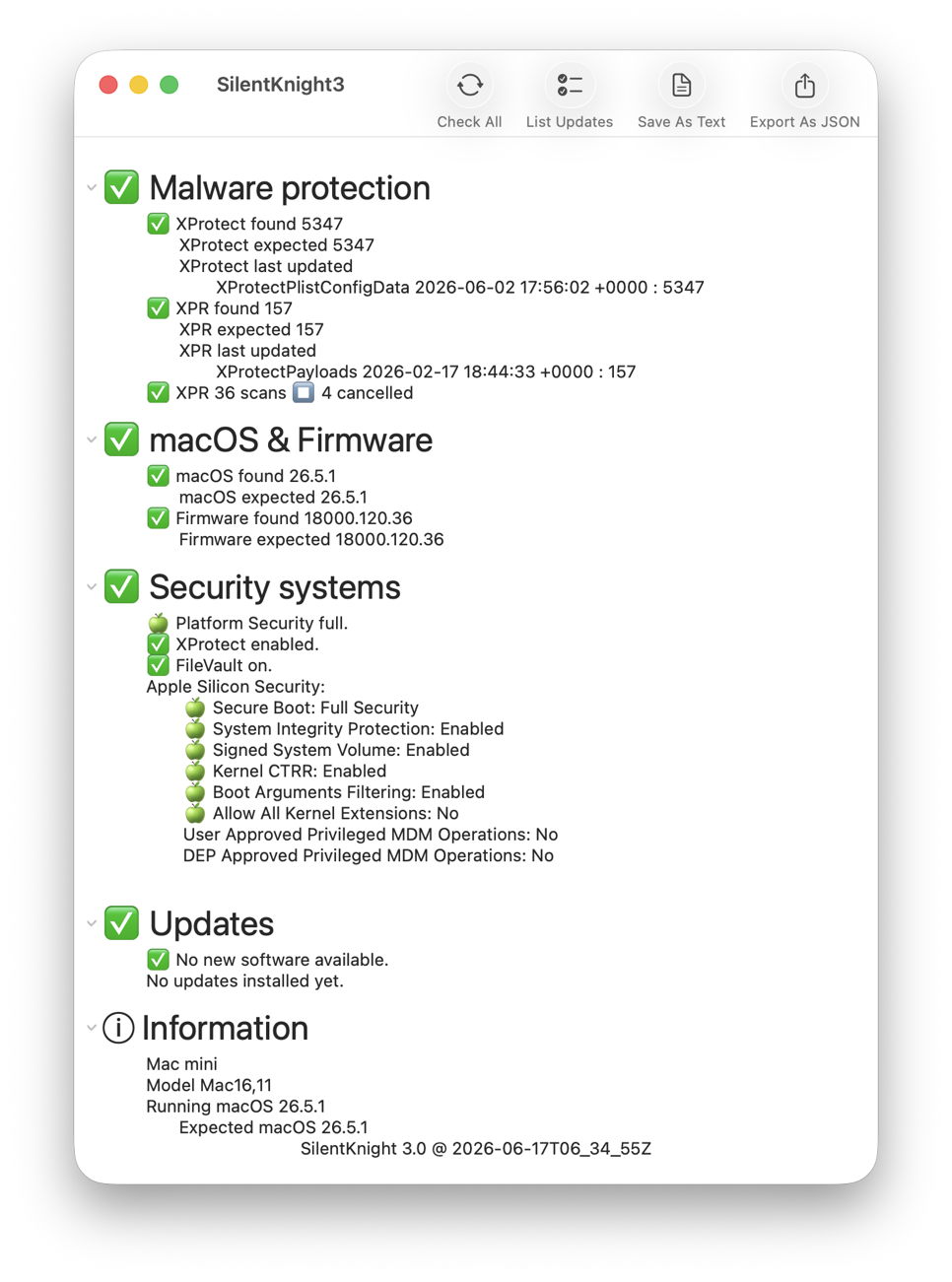
All these, apart from ClickFix and phishing, are fully covered in my free SilentKnight 3 for Apple silicon Macs, which also runs well in VMs. If your Mac is still running Sequoia or earlier, then version 2.14 may be preferable.
Stay fully protected!

