
In this week’s guide to freeing up space quickly on your startup volume, I mentioned briefly how removing unwanted document versions can save a great deal of space. As this is an opaque topic, this article explains and expands that.
When Mac OS X 10.7 Lion introduced document version management in 2011, few apps adopted it. Since then many if not most support it by default, with few offering any opt-out. Among the most widely used apps that support it are Pages and Numbers, but you’ll even find it’s popular among the better text editors like my own favourite, BBEdit.
Some of us use those to keep rolling records or journals we update frequently. One of the more common purposes is for maintaining details of business or employment expenses, and there are many other good reasons. As the version management system creates and saves a new version every time the app saves a document, macOS can easily accumulate huge numbers of saved document versions, each saved to the hidden .DocumentRevisions-V100 folder at the top level of each writeable volume.
That folder isn’t just hidden, but it’s locked away and won’t reveal any useful information about its contents or size. As far as I can tell, macOS does make good use of that storage space, so this doesn’t mean a hundred old versions of a 10 MB Pages document will necessarily consume 1 GB, but they still take up substantial space.
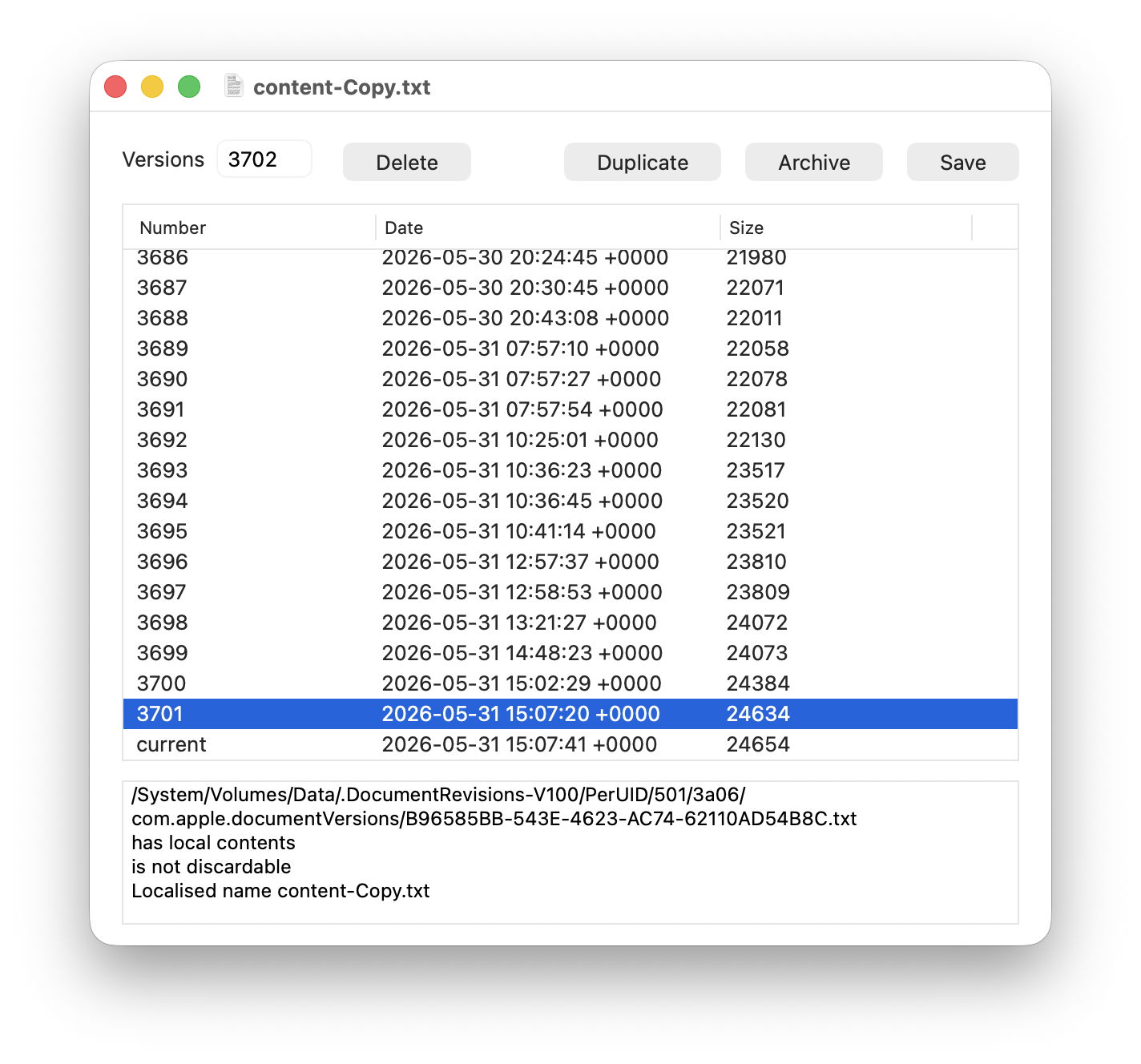
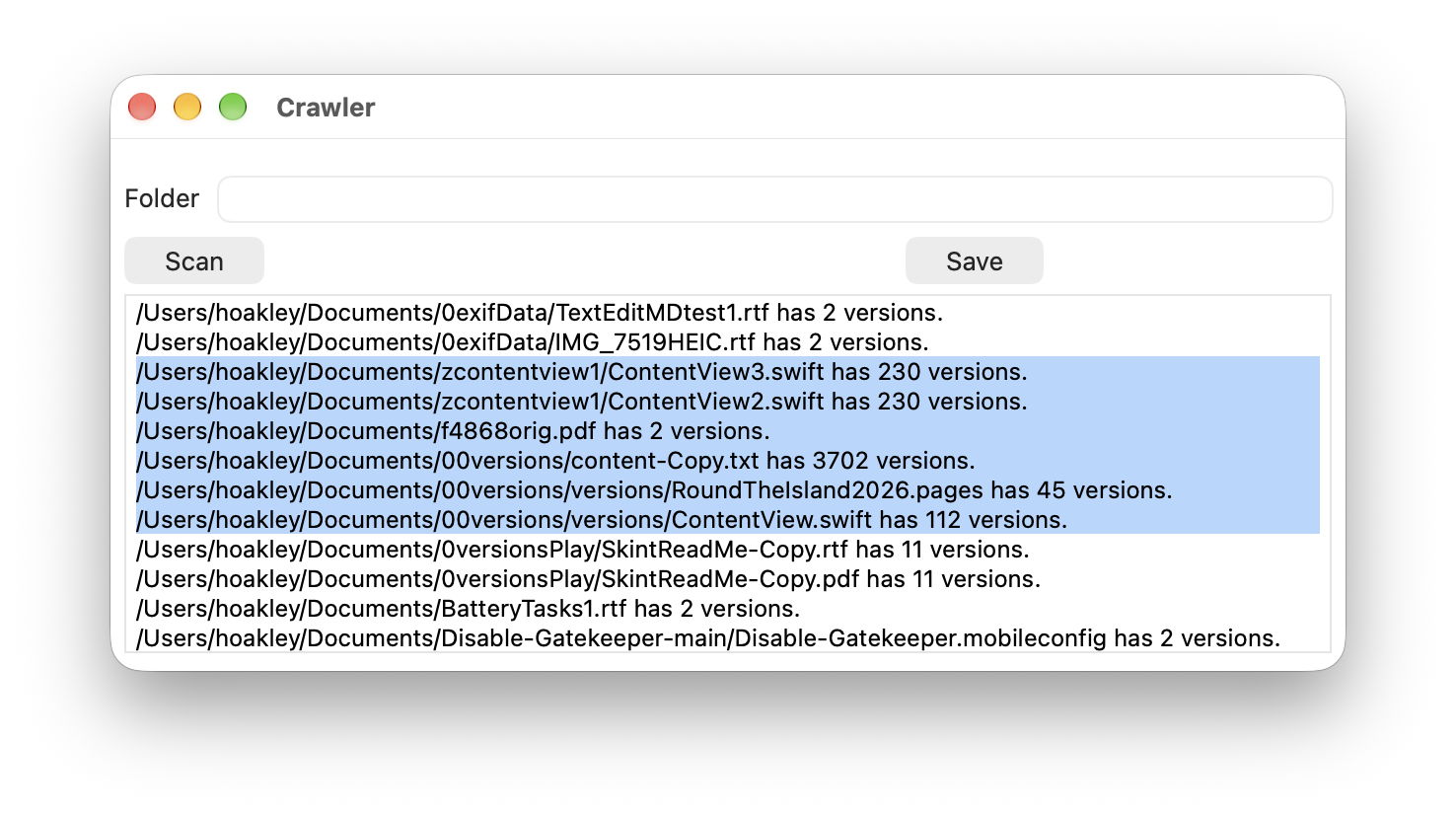
This is my most extreme example so far, a text file I use for assembling the content of my Genius Tips section in MacFormat and MacLife, that has quietly assembled a total of 3,702 versions while I haven’t been looking. Another example I found was a bulky Pages document quietly sitting on 45 versions, and I have many Swift source code files with more than 100 versions each.
Apps don’t warn you of this, nor do they offer an easy way to manage those versions efficiently. However, drag and drop a document from any app onto my free utility Revisionist, and it will tell you how many saved versions it has, their individual size, and the date and time each was added to the version database.
If you want to check folders of documents, Revisionist also has a crawler feature that can report how many versions each has saved.
Before clearing out old versions, you might want to archive those from important documents. As they aren’t included in backups or copied to external volumes, you’ll need a utility to help, such as my free Versatility. Drag and drop the document whose versions you want to archive onto the app’s window and it will save all those versions as separate files in the folder of your choice.
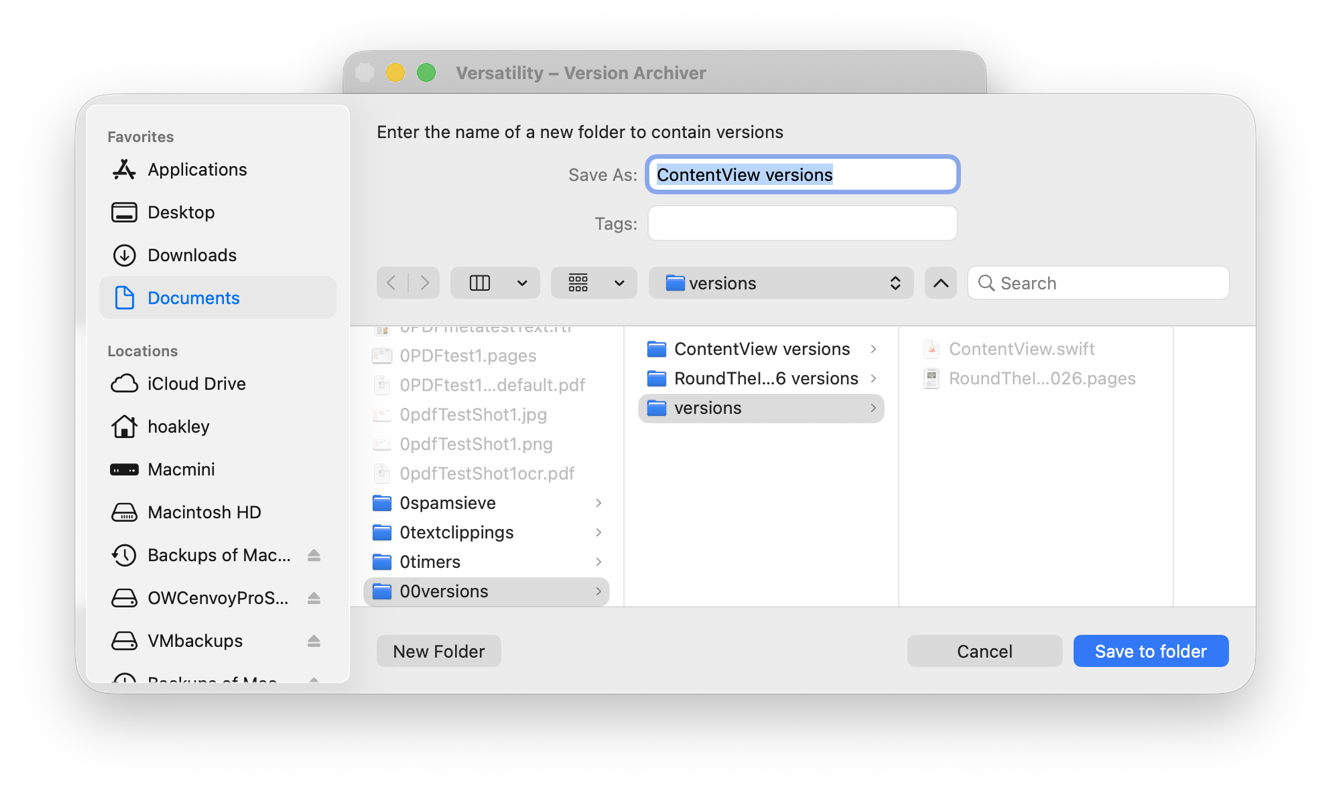
Compress that folder and move it into your archives. Should you ever wish to access any of those old versions, or reconstitute the original document with them all, decompress the folder and drop it onto Versatility’s window.
Document versions are tied to their original file. Thus the simplest and quickest way to blow away all the saved versions for an individual document is to select it and Duplicate it using Command-D. That creates a clone file whose name ends in copy. Check quickly that file is intact and contains the correct version of the original. Then move the original to the Trash, empty it and remove the copy from the duplicated file name. As an alternative, you could open the document and use the Save As menu command to write a new version.
I am in the process of doodling a little utility Deversion to make this process even simpler, and ensuring those old versions are removed from the .DocumentRevisions-V100 folder. I hope to offer it here next week.
Utilities
Revisionist and Versatility, free from their product page here.

