
I have been promising major revisions to my macOS virtualisation app Viable for several months, and am delighted to offer an initial test release of what I have in mind. Although it doesn’t yet add new features such as pausing VMs or USB passthrough support, I think it radically improves Viable’s workflows and interface.
Viable’s main workflows consist of creating a new VM with its default settings and running that, or opening an existing VM and running that, either using its default settings or new ones.
This version makes no changes to the structure of its .vimi VM bundles, nor to the Settings property list saved in them and also used by Vimy. It should thus be fully backward and forward compatible with all your existing Viable/Vimy VMs.
IPSW download
Because Viable now deletes the IPSW file it uses to build a new VM (as explained below), this is a separate action, and doesn’t automatically lead to the creation of a new VM, which would remove the download on completion. This also allows you to store IPSW files in a separate location from your VMs.
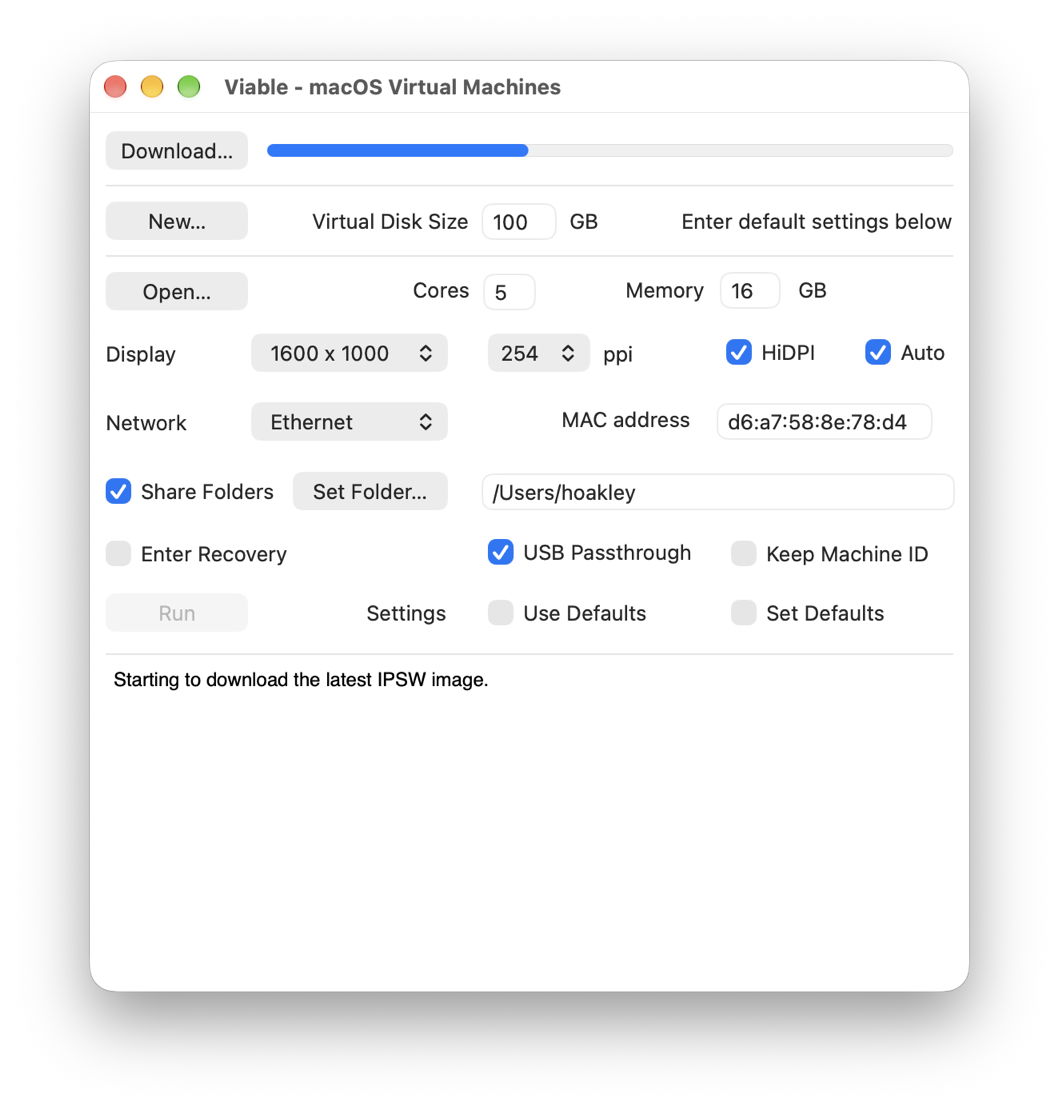
Click on the Download button, and Viable downloads the latest IPSW image file direct from Apple, and saves it to the filename and path of your choice. A future version could offer a menu of different versions available direct from Apple, but for the moment this is a convenience for obtaining the most popular IPSW image.
Create a new VM
Click on the New button to select a local IPSW image file, and create a new VM using that. As that new VM will be ready to run, its initial settings are those in the window’s controls, most importantly the Virtual Disk Size, and including all those below that. This allows Viable to create the initial Settings property list inside the new VM bundle, ready for its first run.
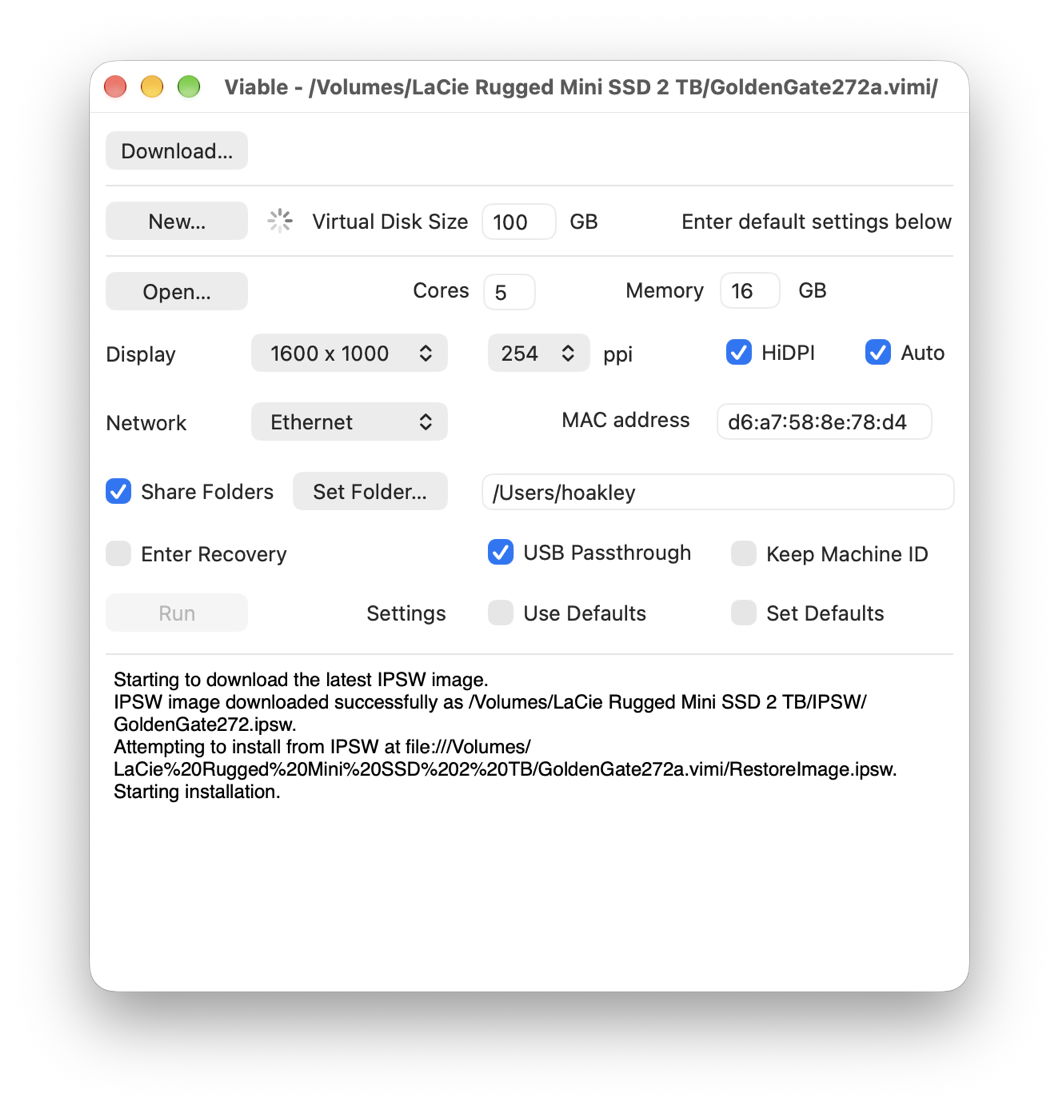
To do this, the IPSW image is copied (not moved) into the new VM bundle for its installation, then deleted automatically when that’s complete. There are several ways this could be handled: previous versions of Viable moved the IPSW into the VM bundle, then left the user to remove or delete that, which was fussy and surprised some users. Although installation could be performed from an IPSW outside the VM bundle, there are performance benefits from both being in the same volume. On balance, and following long experience, I think this is the best compromise, as it preserves the original IPSW image file, but doesn’t leave it inside the VM bundle taking up space unnecessarily.
Currently, this stage uses an indeterminate progress indicator, the spinning wheel. I will be looking into whether it might use the same progress bar as used for downloads.
Once the new VM has been created ready to run for its first time, Viable treats it as the current open VM, so its path and name are displayed in the window title bar, and you can click on the Run button to run it, or press Command-R. However, it doesn’t do that automatically, as that VM can instead be double-clicked to open it in Vimy, or you might wish to alter its settings before running it.
Run an existing VM
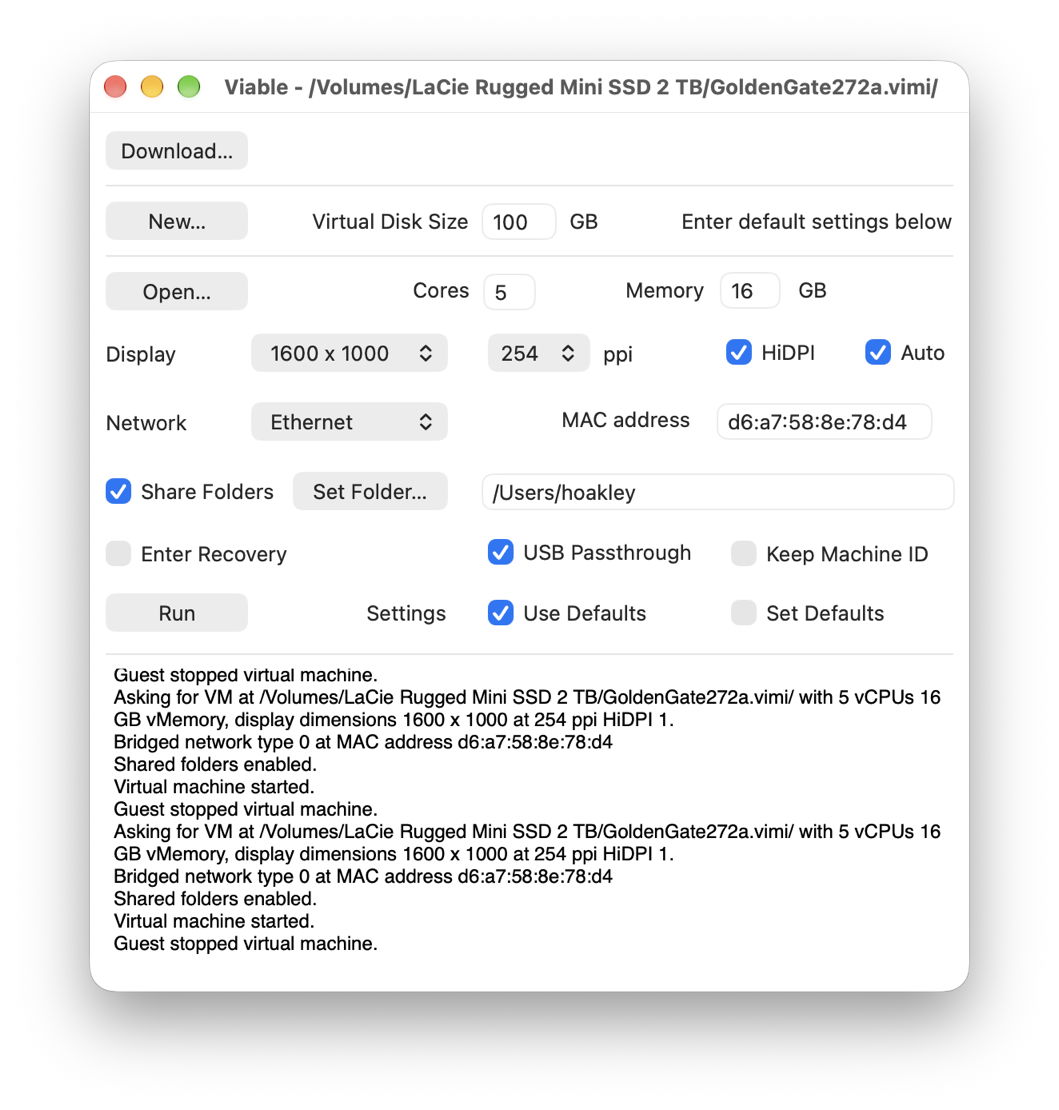
Unless you have just created a new VM, to run a VM you Open it first. This allows you to adjust its settings or to set new settings as its defaults. The current open VM is shown in the window title bar to ensure there’s no confusion.
I have changed the controls for Settings to improve their clarity. If the Use Defaults box is checked, then that VM will use the settings saved in the Settings property list inside its bundle. If that’s not checked, then the settings displayed above will be used instead. However, those will only be saved as the new settings for that VM if the Set Defaults box is checked. Although the previous options were logical, I think these are more understandable.
When running Viable in Golden Gate, you will see an option to enable USB Passthrough. This is currently just a teaser, and doesn’t do anything yet. There’s also a menu command to Pause a VM, again intended for a future version.
Once you’re happy the settings are right, click the Run button or press Command-R to launch that VM in its new window.
I have taken the opportunity to fix some bugs, including those preventing use of Location Services, and audio input.
Because I expect to make further changes in the coming days, the Help book included hasn’t been updated. Once its interface is more settled, I will write a new Help book.
Viable version 1.1 build 96 is available exclusively from here: viable11
It requires an Apple silicon Mac running at least macOS 14.6, and runs guests from macOS 12 Monterey onwards.
I look forward to your comments and discussion, please.

