
Although you don’t need Cirrus to test whether your Mac can sync a file up to iCloud Drive, and could do that manually, it’s simple and convenient, and can be accompanied by a log extract that could help you identify and diagnose any problem.
Test procedure
To perform a sync up test, pick a time when everything else is reasonably quiet, with no backup imminent. Arrange a Finder window so you can see its iCloud Drive item in the sidebar, and observe the sync taking place. Open Cirrus, and watch your Mac’s clock until it changes seconds to 00. At that exact moment press Command-1 to trigger the Window menu’s Test Upload command.
Shortly after that you should see the sync icon appear to the right of iCloud Drive, quickly fill, then vanish again. Look at the clock again and note the seconds, which should typically be less than 10 now.
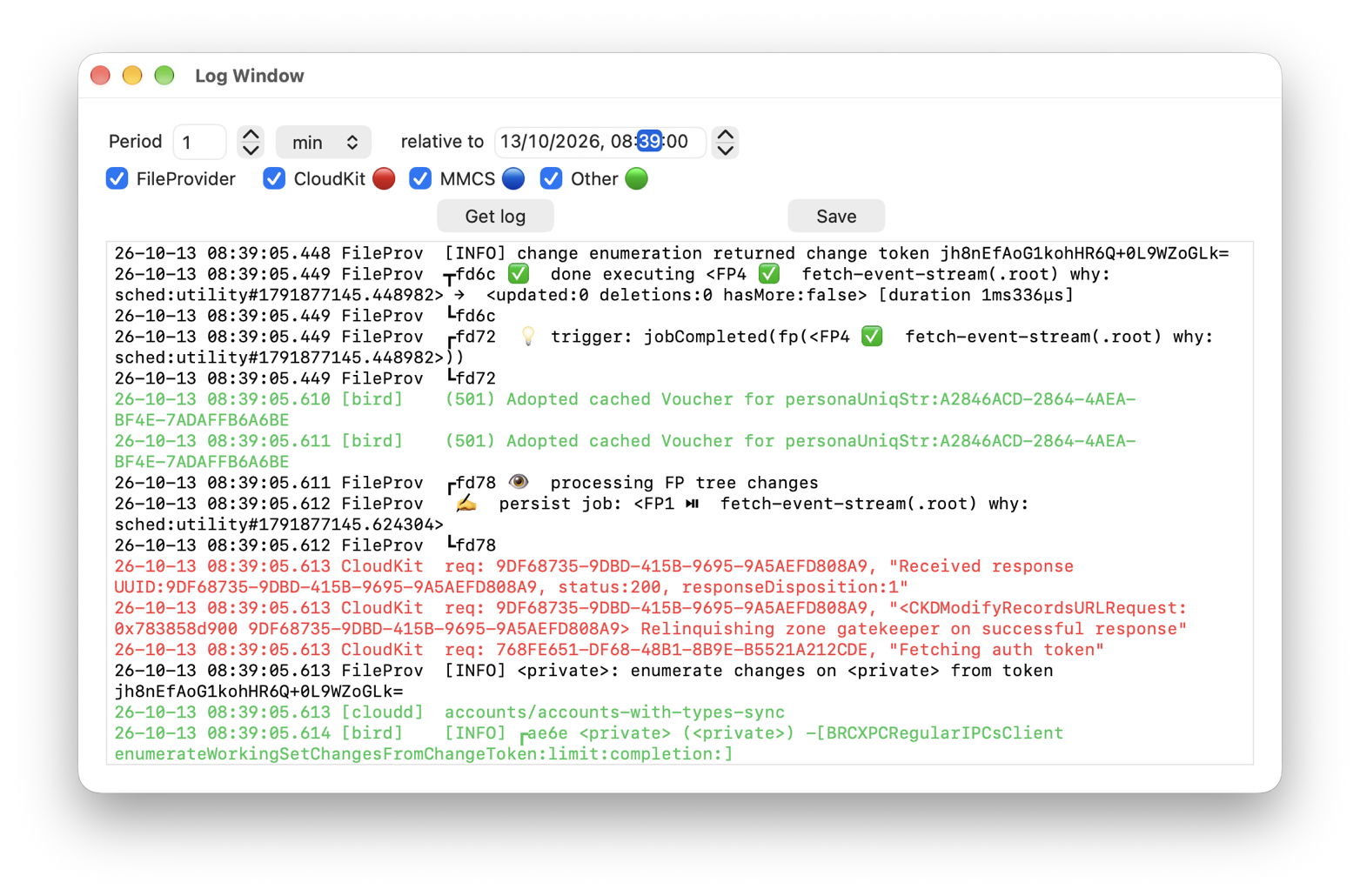
In Cirrus, open the Log Window using the command in the Window menu. Set the Period to the number of seconds when the sync had completed, and set the seconds in the date picker relative to, to the clock time at the start. That normally only requires setting the seconds back to 00 for the start time. Then click the Get log button, and after a short pause the log for that test period should appear below. If it doesn’t, check the Period and relative to settings. Once happy the log is there, use Command-2 or the Clean Up Test command in the Window menu to delete the test files.
Log view
Simplify the contents of the log window by deselecting the CloudKit (red), MMCS (blue) and Other (green) checkboxes, leaving just the FileProvider entries shown in black/white. Tick those three checkboxes later when you want to add their detail. To make a permanent copy of that log record, tick all the checkboxes and click on the Save button, for a Rich Text copy of all the entries shown in their original colours.
Conventions
Log entries for iCloud Drive, particularly those shown for FileProvider, are unusual in being structured to aid their understanding. That’s just as well, as there are hundreds, and much of their contents are given in shorthand.
Many use emoji to distinguish them. For example, the eye 👁 marks entries at the start of phases, the writing hand ✍️ is used when changes are being written, up ⬆︎ and down ⬇︎ arrows indicate the direction of data transfer, and you’ll see others.
Box drawing Unicode characters are used to mark out phases and processes, such as
┏a53 👁 processing FS tree changes
┗a53
which helps you see the structure.
Unlike some other subsystems, file and directory names aren’t removed and replace by the unhelpful <private&rt;. Instead, their names are written in shorthand. Two you should see in your extract are
n:"c{17}s"
which means the com~apple~CloudDocs directory, whose name starts with c, ends with s, and has 17 characters between those, and
n:"c{21}s.data"
which is the test file, co.eclecticlight.Cirrus.data, using a similar convention. The size of the test file may be referred to as
sz:1000000 or sz:1.0 MB.
Entries distinguish local and remote file systems as FS and FP. Although I could be wrong, I believe FS refers to the local file system, and FP is that managed by FileProvider in iCloud Drive.
Phases
Syncing up should start with the processing of FS tree changes, to the file system, creating the new file in “c{17}s”. That involves what’s termed FS snapshot mutation, which doesn’t refer to an APFS snapshot, but the file system structure. That’s reconciled up and followed by an FP snapshot mutation, which is reconciled down. You may well then see series of entries from CloudKit in red, modifying records.
The next phase should be to process FS tree changes, involving transferring the 1 MB data for the test file up to iCloud Drive. For that, the MobileMe Chunking Service, MMCS, shown in blue, is activated then goes idle. There’s a series of entries from MMCS recording its request options before it divides the data into chunks ready to be sent up to iCloud Drive.
Once that has been completed, FP tree changes should be processed by FileProvider. Those are reconciled, repeated, and you’ll see entries from CloudKit, cloudd, bird, and FileProvider while those are performed. After final FS and FP tree changes, there’s a short clean-up and entries should stop.
Although you are likely to see the occasional log entry reporting an error, those should be infrequent.
Follow-up
In many cases, Cirrus’s test completes normally, and the test file is synced up to iCloud Drive correctly, but one or more files still appear to be stuck. With the help of the browser window, you then need to identify the affected files, and try removing them from iCloud Drive. Occasionally, just running this test is sufficient to kickstart iCloud Drive into working properly. I wish you success.

