
As long as I can remember, and certainly back into the days of Classic Mac OS System 6, selecting a component within a view brought it into focus automatically. Select a file in the Finder and it’s highlighted and made the centre of action. The first version of macOS that has broken that consistent association is Golden Gate. Allow me to explain and demonstrate what I mean.
Click on a window and it’s brought to the front, and from then on your actions are directed at that window alone, and none of the others as they’re now out of focus. Within that window, click in a text entry box and the text insertion cursor is placed there, and characters you type using the keyboard appear inside it, as that control is currently in focus. Select an item in a list, and it’s highlighted and any associated action is performed as a result.
Focus is thus the centre of attention and actions, and selection brings focus.
Now open a Finder window in column view, and select a folder within that, so its contents are displayed. At that stage, the folder is highlighted and in focus. Change those using the up or down arrow keys, and the selection and focus moves up or down the list of items.
Now move the pointer to the right edge of the list of folder contents, just far enough to the left to avoid moving the window divider, but not so far as to fully select items from within that folder. Click there and the item will be selected, but in grey, the same as would appear if it had been fully selected but its window was no longer in focus. At this stage, the original folder will still be fully highlighted, as if nothing had been selected inside it, but you can drag that grey unfocussed selection to include other items inside the folder.
Now using the up and down arrow keys doesn’t move within the items inside that folder, but back with the fully highlighted folder. With a few of the items inside that folder in grey, so they’re selected but not in focus, press the spacebar for a QuickLook preview, and you’ll see the greyed items, not the folder that’s still fully selected to the left.
If, instead of clicking and dragging at the far right of the list of items in the folder, you click and drag from closer to the item names, or from below them, you’ll see what should have happened all the way along, with the selected items inside the folder being fully highlighted in colour, and the up and down arrows move that selection, not the parent folder.
In other situations, this becomes infuriating.
In my log browser LogUI, separation of selection from focus can leave you clicking wildly without being able to select log entries. To experience this frustration, open LogUI and set it to collect a few log entries, perhaps using its default settings. From the start, the selection and focus is in the date component of the Start date picker.
When you click on the Get Log tool, as it’s a single-shot control, it doesn’t take the focus, but should result in the main view in the window filling with log entries. But when it does, if the date picker remains selected and highlighted, you can’t fully select any of the log entries below. Instead they can only enter this half-selected but out of focus state distinguished by grey highlighting.
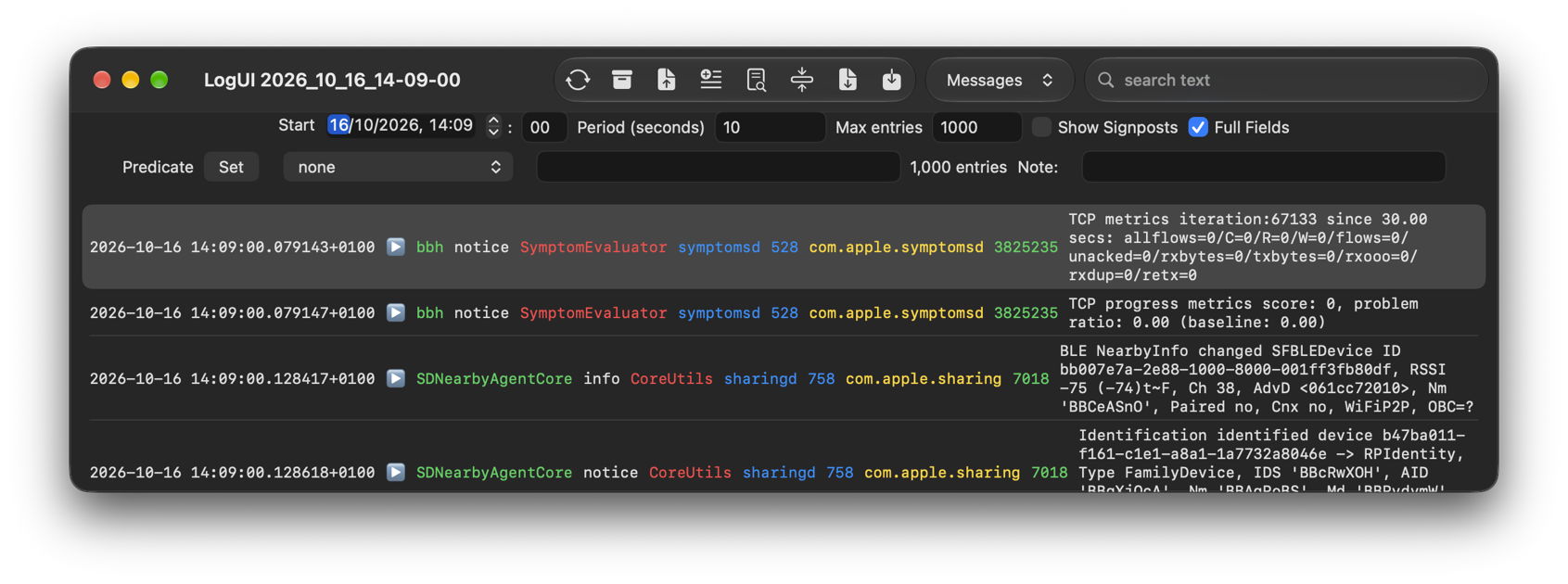
It doesn’t matter how you try to select those entries, the only thing you can achieve is that half-selected state. One reliable solution is to resort to changing the control focus using the Tab key. Press that or Shift-Tab a few times and the focus will be brought to the list view below, and any selected rows there will suddenly turn blue, as they should have done when you clicked them in the first place.
If you can, try these demonstrations in Sequoia or Tahoe, and in Golden Gate 27.0 and 27.0.1, and you’ll see how both versions of Golden Gate have, at times, lost the connection between selection and focus.
I can only presume this is a bug. It’s painfully obvious to anyone who uses the Finder or apps like LogUI in Golden Gate. Or maybe it’s just something peculiar to my Macs and VMs?

