
When I explained the meaning of the contents of the Finder’s Get Info dialog back in June, I noted:
“Size “on disk” reflects the actual space allocated for that file’s data, which gets complicated with APFS special file types. For sparse files, it’s the actual space used, so should be significantly less than the nominal data size. However, that isn’t applied to clone files, where size “on disk” isn’t reduced to allow for storage blocks currently allocated to the data of more than one file.”
This article demonstrates an example where this becomes so misleading as to be nonsense.
Space efficiency
Because of their space efficiency, I often duplicate virtual machine bundles. I keep a stock of those I use most commonly, including the current versions of Tahoe, Sequoia and Sonoma for testing apps in development. Before testing I duplicate the VM then use the cloned copy. VMs already use sparse files, and one with a nominal 100 GB disk capacity takes little more than 50 GB on disk. As the clone then only has to store what changes in that, it uses even less actual space.
For this test I started with a small container/partition just large enough to accommodate a VM in sparse file format and its clone. However, that has to be larger than the full non-sparse size of the VM, or the Finder refuses to copy it because there’s insufficient space. I therefore used a container of 120 GB to accommodate a VM of 107 GB taking only 53.83 GB on disk.
Cloning
I then cloned that VM within the container. Ignoring the efficiencies of APFS, that should have brought the total size used in that 120 GB to 214.8 GB. In practice, Get Info reported:
- the original VM was 107.41 GB, and used 53.83 GB on disk;
- the clone was also 107.41 GB, and used 54.57 GB on disk.
Thus according to the Finder, total space used on disk should have been 108.4 GB out of 120 GB available, leaving just 11.6 GB free.
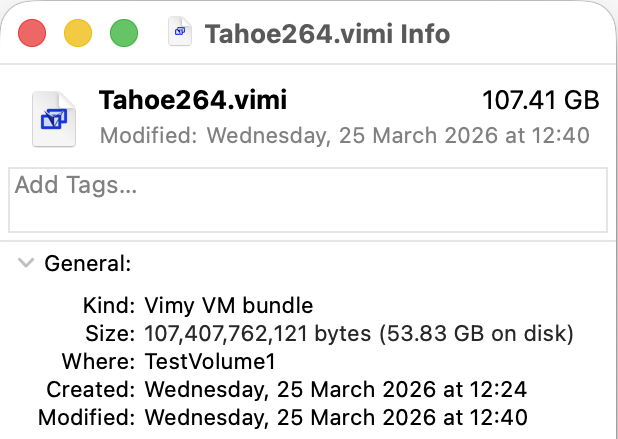
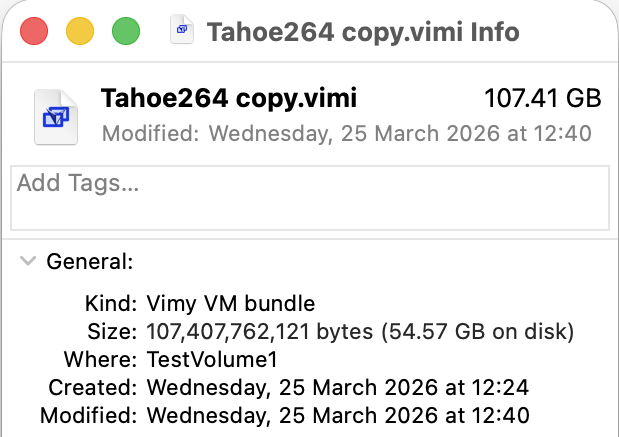
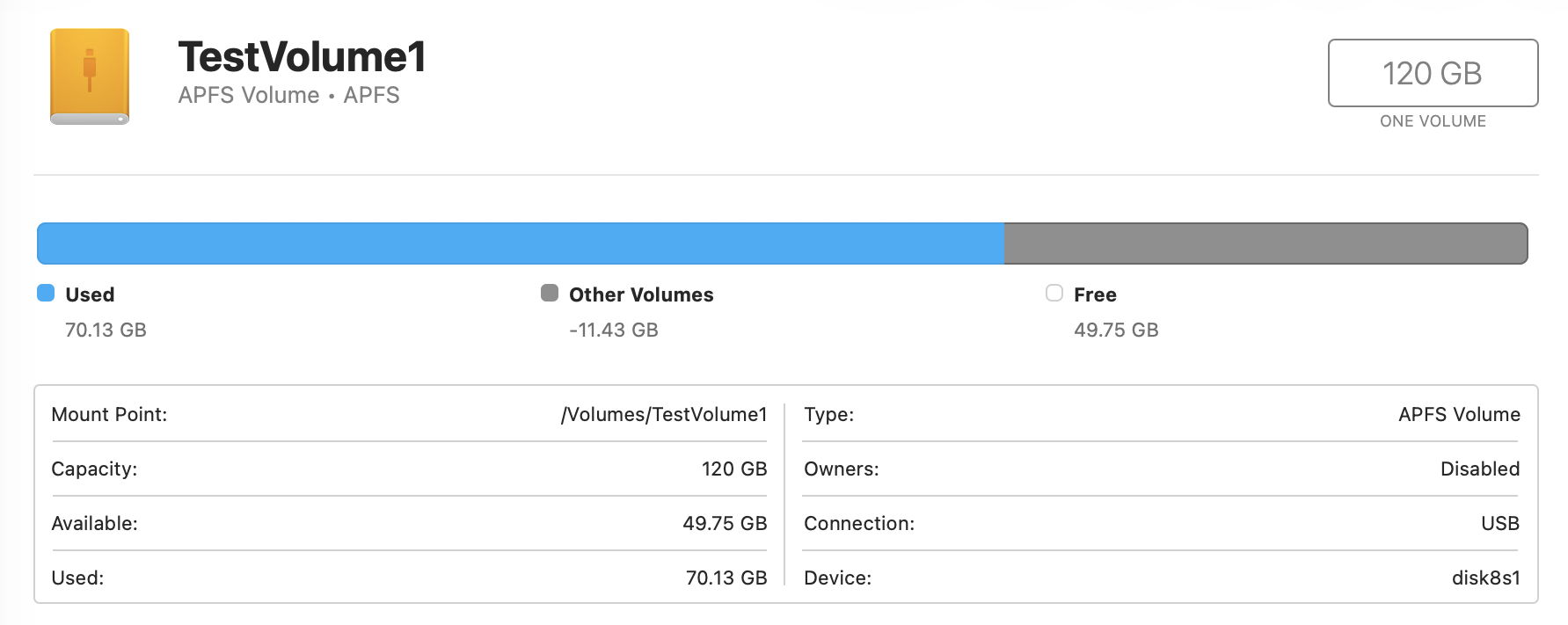
Disk Utility disagreed, because it’s able to take into account the space saved by the clone file. It reported 54.57 GB used, 65.3 GB available (with none purgeable), and 125.7 MB taken by ‘other volumes’. Thus, space actually used by the VMs was
- for the original, 53.83 GB
- for the clone, an additional 0.74 GB.
Although Disk Utility’s figures seemed reliable through much of this, it did have one strange episode shortly after cloning the VM, when it claimed that Other Volumes were taking -11.43 GB of space in that container.
Exhausting free space
I then set about increasing the space required by the cloned VM, first updating its macOS, then by filling it progressively with Stibium’s test files, until there was less than 1 GB available and macOS warned me of the problem.

Inside the VM, space available fell as low as 145.7 MB, with purgeable space of 22.3 MB, although none of that was ever purged, despite ample reason and opportunity. Instead, macOS just stopped writing files to disk. When I took a screenshot, for example, the image floated across the display then vanished instead of being saved to the Desktop.
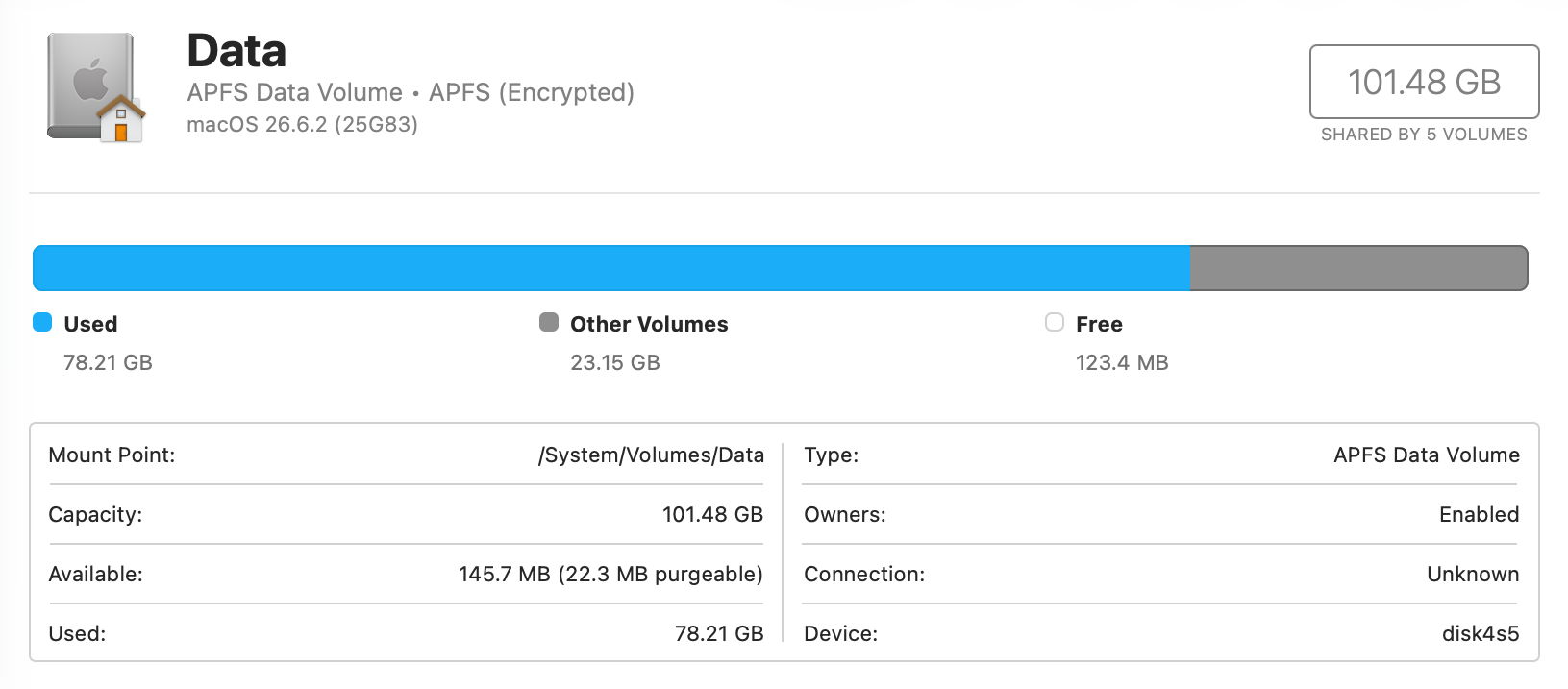
Meanwhile the host reached 118.88 GB used, with 993.5 MB still available in that container. At that stage the clone VM’s use of disk space had risen from its original 0.74 GB to 65.05 GB. But the figures given by the Finder’s Get Info dialog were completely unchanged from its originals, and then underestimated the actual space taken on disk by the cloned VM by 10.48 GB instead of overestimating them by 53.83 GB. Maybe my suspicions would have been aroused had Get Info informed me that the VM was a clone, but as the Finder doesn’t seem able to do that either, I’d be left in the dark.
Cause
The problem arises because of the current implementation of clone files in APFS. Although file attributes do include a flag to indicate whether a file has ever been cloned, discovering which of a file’s extents are shared between two or more files as a result of cloning isn’t simple or quick enough to be taken into account when working out space taken on disk. Despite their great value, clone files will continue to result in misleading figures for file size.
Key point
In the Finder’s Get Info dialog, space given On Disk takes no account of that saved by clone files, but that given as Available in Disk Utility does, much of the time at least.

