
Without resorting to the command line or third-party apps, the Finder’s Get Info dialog and its Inspector provide as much information as you’ll get about files, folders and disk volumes. This article explains what it all means, one section at a time.
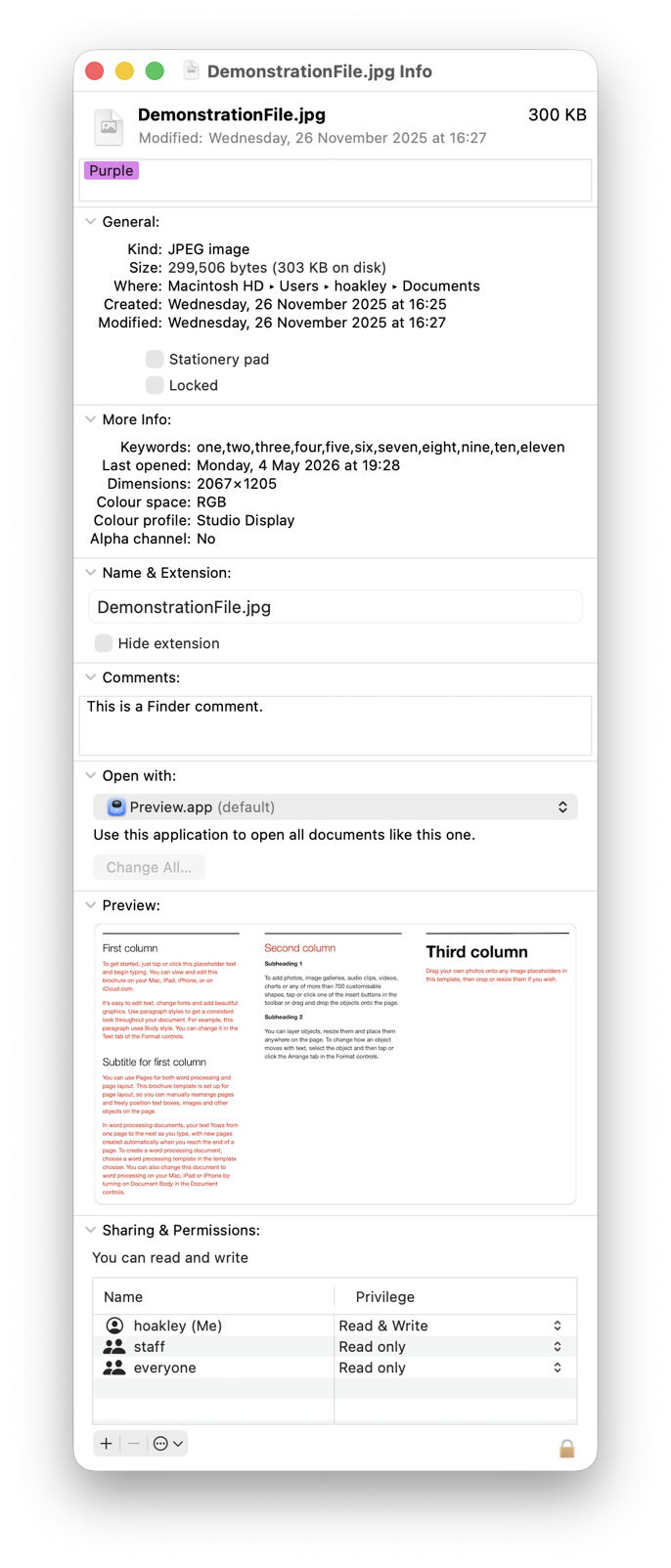
Headline
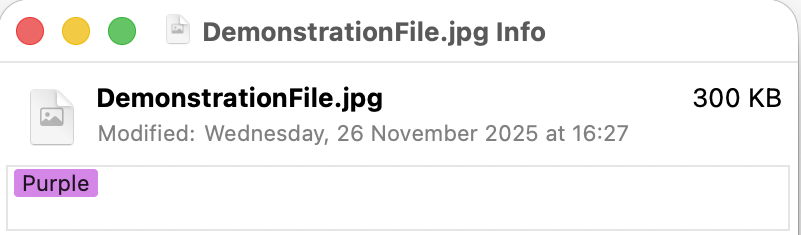
This presents a brief summary consisting of the item’s generic icon, its name, size, the date and time it was last modified, and any Finder tags attached to it. Those should match the same entries in other sections further down. This is where you can add and change Finder tags.
General
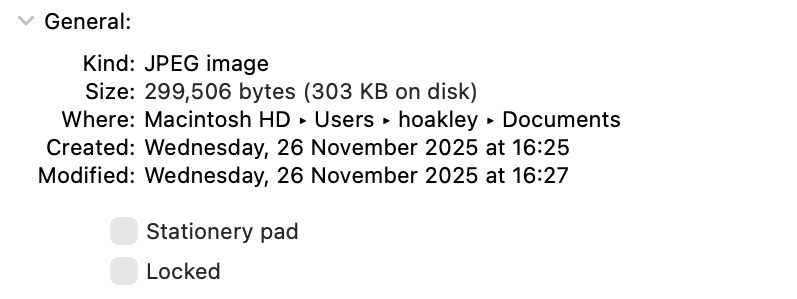
Kind is a basic verbal description of the type of item, such as Folder, text, Zip archive, PDF document, and so on. Although these are derived from the UTI type, they’re not as specific as checking that using an item’s extension.
Size is given using two different measurements, and two different units. These are the result of changes made to the way that size is expressed.
Original measurements of data size were given in bytes using a scale based on powers of two, where 1 kilobyte is 1,024 bytes. That changed just before 2000, and since 2009 all storage capacities given for Macs should use the newer scale based on powers of ten, where 1 kilobyte is 1,000 bytes. To be technically correct now, units should be given using powers of ten and labelled as KB, MB, GB, etc., or using powers of two with KiB for kibibytes, MiB, GiB, and so on.
The first size given uses powers of ten, and for smaller numbers is given in bytes, as the total size of that item’s data, excluding any extended attributes. Following that the space taken on disk is given in parentheses, “on disk”. That depends on the size of storage blocks being used, and is typically a minimum of 4 KiB. Although the unit is given as if using powers of ten, as storage blocks are still sized using powers of two, size “on disk” is actually given in KiB, MiB, etc.
Size “on disk” reflects the actual space allocated for that file’s data, which gets complicated with APFS special file types. For sparse files, it’s the actual space used, so should be significantly less than the nominal data size. However, that isn’t applied to clone files, where size “on disk” isn’t reduced to allow for storage blocks currently allocated to the data of more than one file. In any case, size “on disk” excludes any metadata stored in extended attributes, as those are stored separately from a file’s data.
Folders and volumes are also given the number of items they contain, including both files and folders, and the folder or volume itself. Those don’t include any hidden or invisible items.
Where gives the full path to that item, starting with its volume, and ending with the name of the folder enclosing it. When copied and pasted the separators used here are automatically converted into slash / symbols.
Created gives the date and time that item was created, expressed in current local time to the minute, although that and other times shown here are actually stored to much higher resolution and with time zone information.
Modified gives the same for the moment that item’s data was last changed. That doesn’t apply to any changes made to the item’s extended attributes, though, which are covered by a separate datestamp not shown here.
Whether a Stationery pad (files) or Shared folder (folders).
Whether Locked according to the item’s Immutable BSD flag.
More info
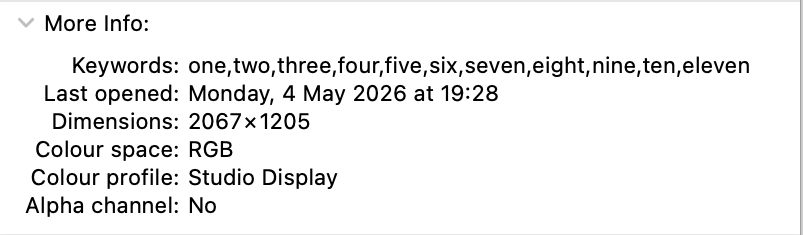
Last opened, where available, gives the date and time that item was last opened, using the same conventions for other datestamps above.
Some Metadata may be given here, depending on their type. Those aren’t set by the Finder’s controls over the display of metadata in its Preview pane, and these lists are fixed. If you want to inspect a wider range of metadata associated with that type of item:
- Select that item in a suitable Finder window, such as one in Column view.
- Open the Finder’s View menu and select the Show Preview Options command.
- With that list open, tick all the categories of metadata you want to be displayed.
Name & Extension

This gives the full filename including any extension, and offers a checkbox to set whether its extension should be hidden. You can edit the name and extension here.
Comments

This displays any Finder comments stored for that item in the hidden .DS_Store file in that folder, but not that contained in any equivalent extended attribute. Its contents can be edited here.
Open with
(files and non-executable bundles only)
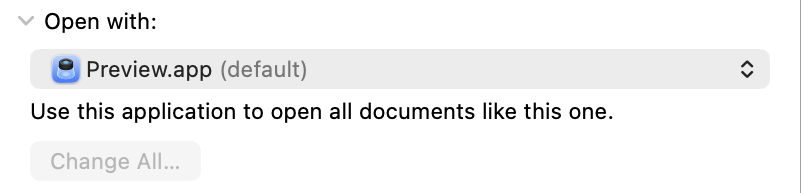
This offers a menu listing all those apps available that are recognised by LaunchServices as being capable of opening that item. Selecting an app in that menu will then change the default app used to open that item. If you want to apply that change to all other items of the same type, use the Change All button.
Preview
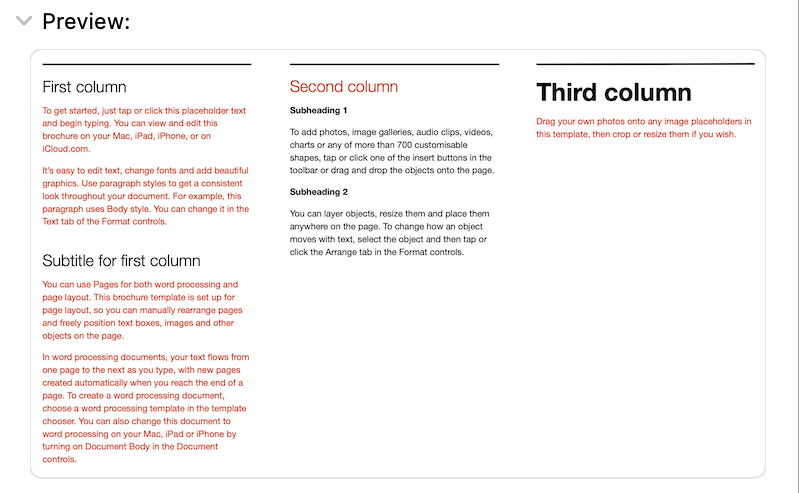
This displays a QuickLook preview of that item, according to its type and available generators for that type. This could consist of an app’s icon, a generic icon for that type of item, or a preview of the contents of that file.
Sharing & Permissions
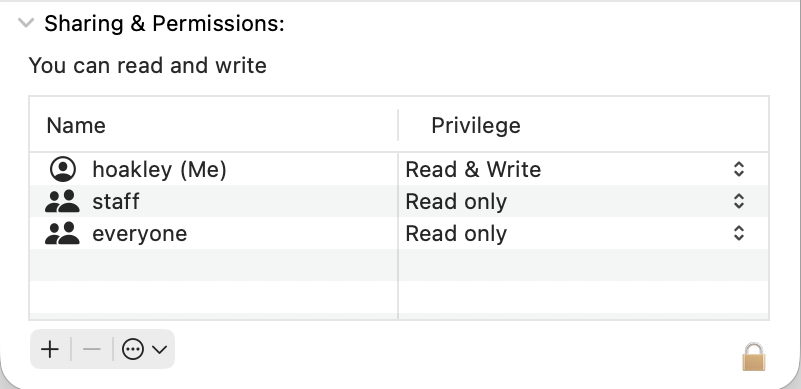
These display current permissions set for that item, prefaced by a statement of effective permissions for the current user. Normally there should be three entries here, the first for the owner, the second for a designated group such as staff, and the third for everyone. Privileges assigned to each are shown and set using the menus on the right. These don’t display ACLs or their restrictions, which are hinted at by mention of “special permissions”. They also don’t include information about any BSD flags such as Immutable (see the Locked checkbox above) or Hidden.
Extended information
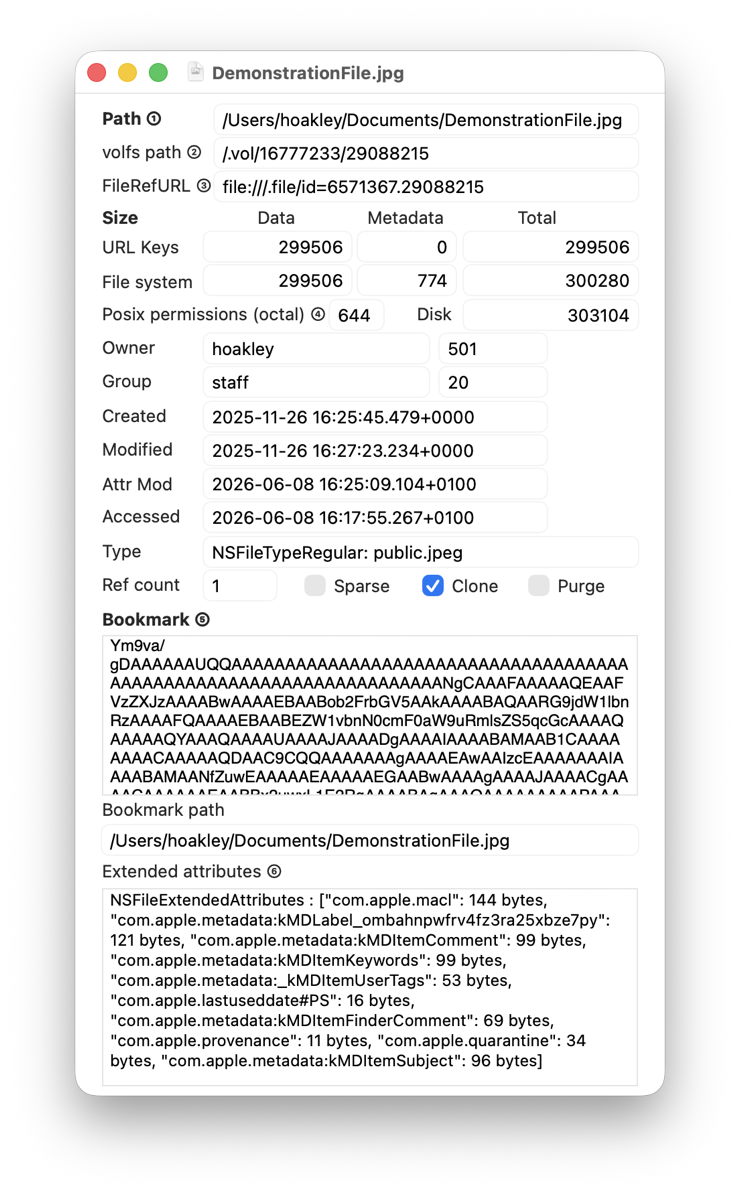
My free Precize provides a more detailed breakdown of sizes, including those for extended attributes, inode number, datestamp of modification of attributes, UTI type, whether a sparse or clone file, whether marked as purgeable, a listing of extended attributes, and bookmark data.

