

After releasing LogUI 1.1, I thought it might be helpful to demonstrate how you can use its new Notes feature, coupled with Search, to discover how an app launches in macOS 26.5.2 Tahoe, an interesting question in itself. To simplify this, I’ve done this in a virtual machine, with 26.5.2 as the guest, and disabled privacy protection in the log, so we can see full detail rather than having to guess or imagine what an entry means by <private>.
The procedure for capturing a log excerpt is simple: I’ve chosen one of my apps, Podofyllin (notarised, not sandboxed), which doesn’t open any windows following launch. I’ve previously run this app before in the VM, so it has passed all its first-run checks and is known to the system. I opened the VM, left it a few minutes for the log to go quiet, then as the seconds in its menu bar clock changed to 00, I double-clicked the app in the Finder and moved my hands away from the trackpad and keyboard. When the seconds reached 10, with the app fully launched, I opened LogUI version 1.1 and obtained a complete log record for the first five seconds.
Double-click
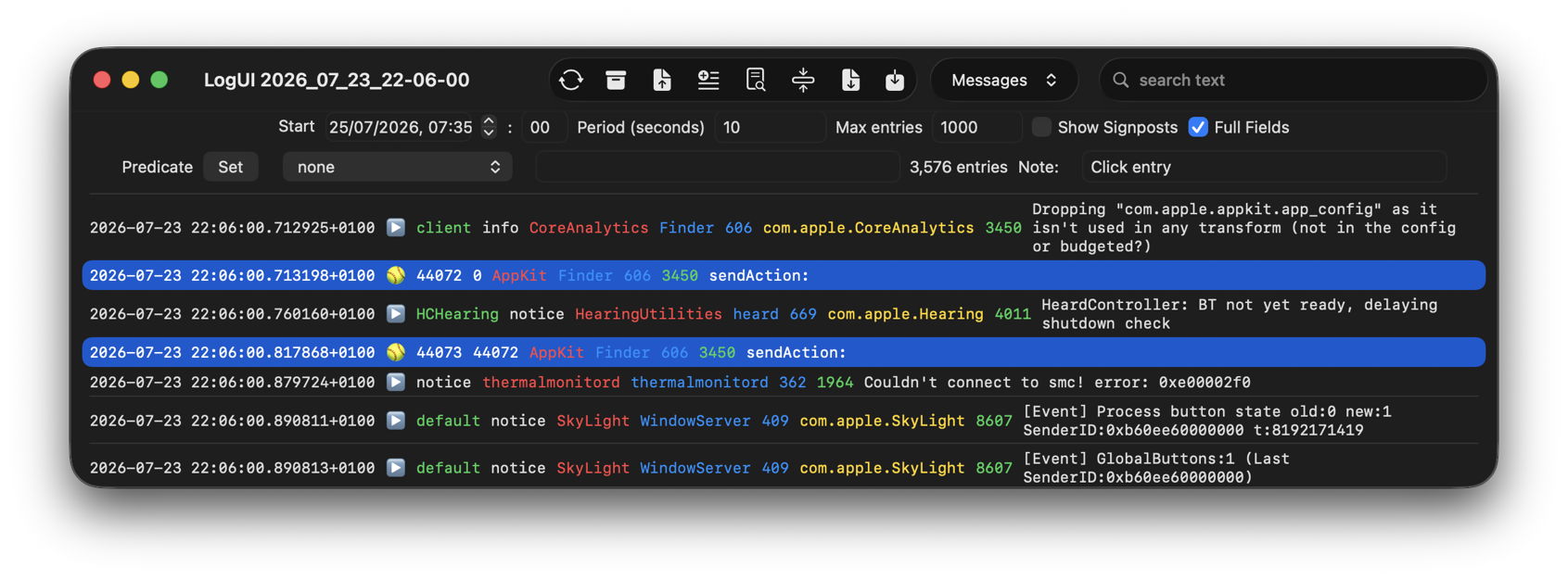
One of the few items of prior knowledge you need is how to recognise a double-click in the log. Each click results in a pair of Activities, distinguished by their 🥎 emoji rather than the usual ▶️ and the message sendAction: to the Finder. The first pair were at 0.71 and 0.82 seconds, and the second at 0.89 and 0.99. As those mark the initiation of launch, I want to label them with notes, so I select all four log entries, and type Click entry in the Note: box above.
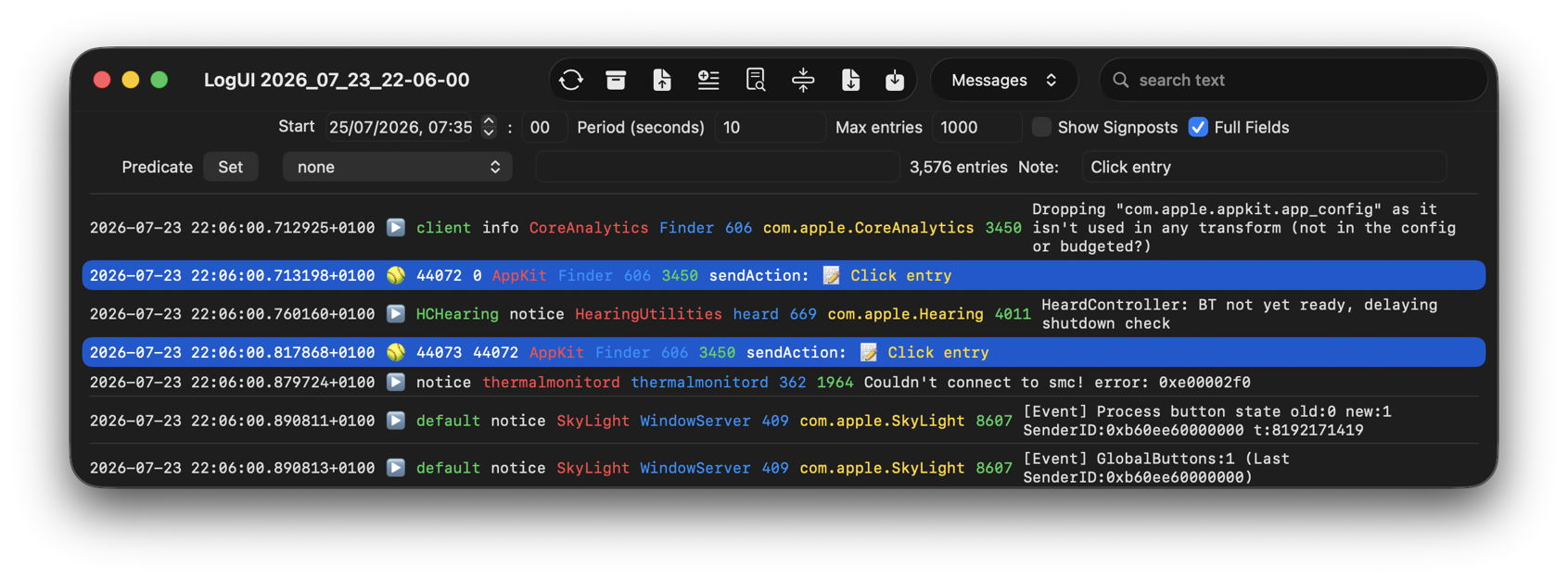
Clicking on the Add Note tool then adds that note to each of the four.
LaunchServices
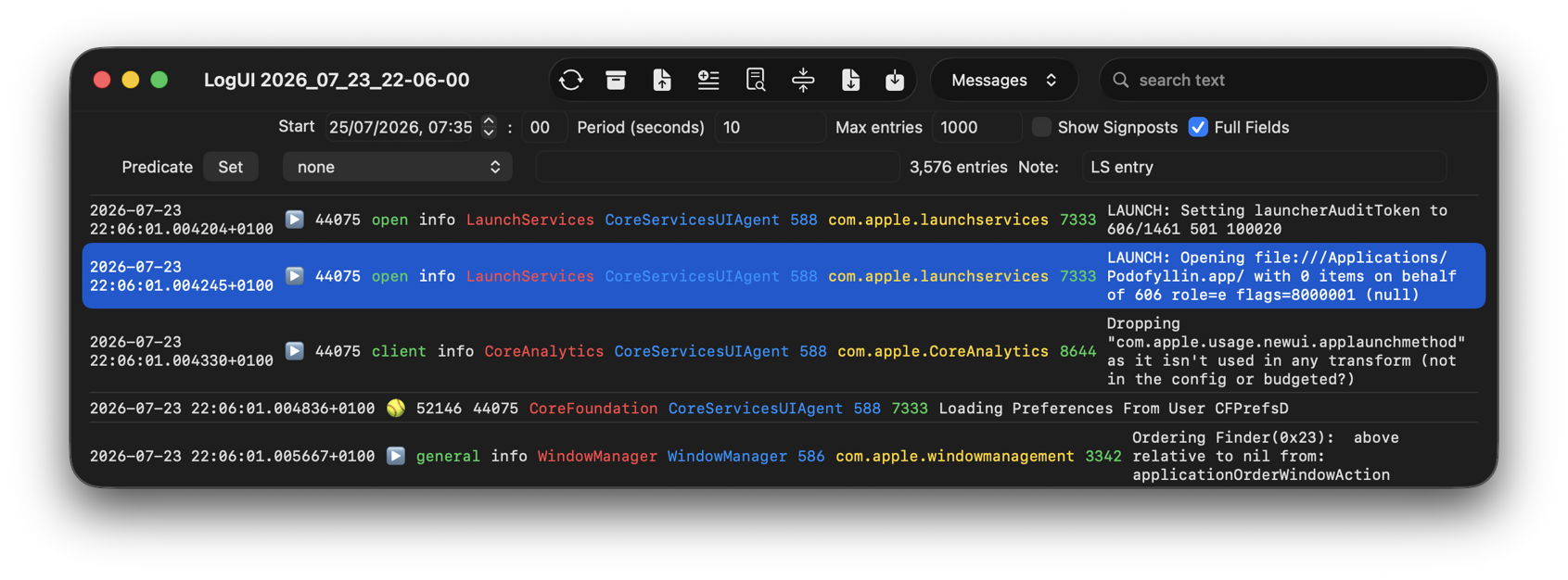
From those I scroll down through the log, looking for the earliest entries containing the app name Podofyllin in their message. As expected, it first appears on those written by the subsystem com.apple.launchservices.
As I’m going to want to collect most of those in my log excerpt, I’ll search on those to select the entries I want to retain for their relevance. In the search menu at the top right I change its selection to read Subsystems, and type in launchservices then press Return.
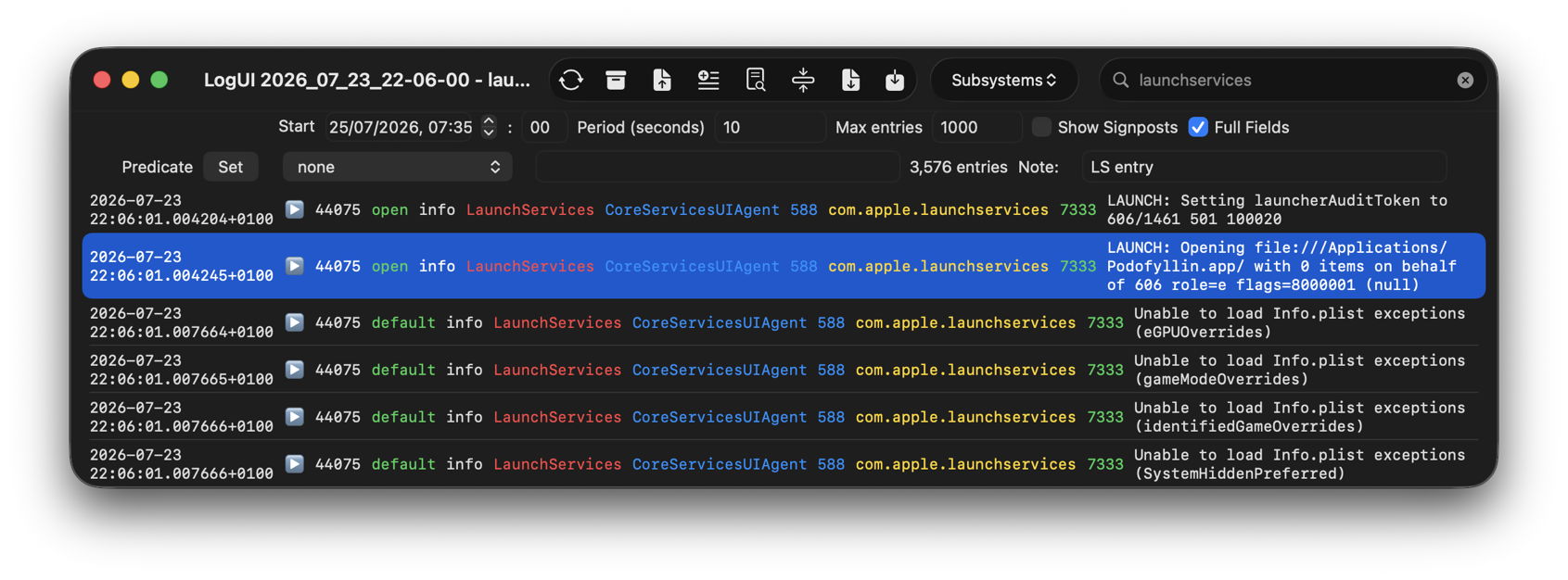
Now I see all entries in my log excerpt from that subsystem. While some are clearly about the launch of Podofyllin, others refer to different apps and processes, so rather than adding notes to all of those, I only select those that appear relevant. If there are many hits in that search result, it’s worth clicking on one, selecting all with Command-A, then deselecting those I don’t want with Command-click.
A few minutes later I have my shortlist of entries to add notes to. I then edit the note text to read LS entry, and click on the Add Note tool again.
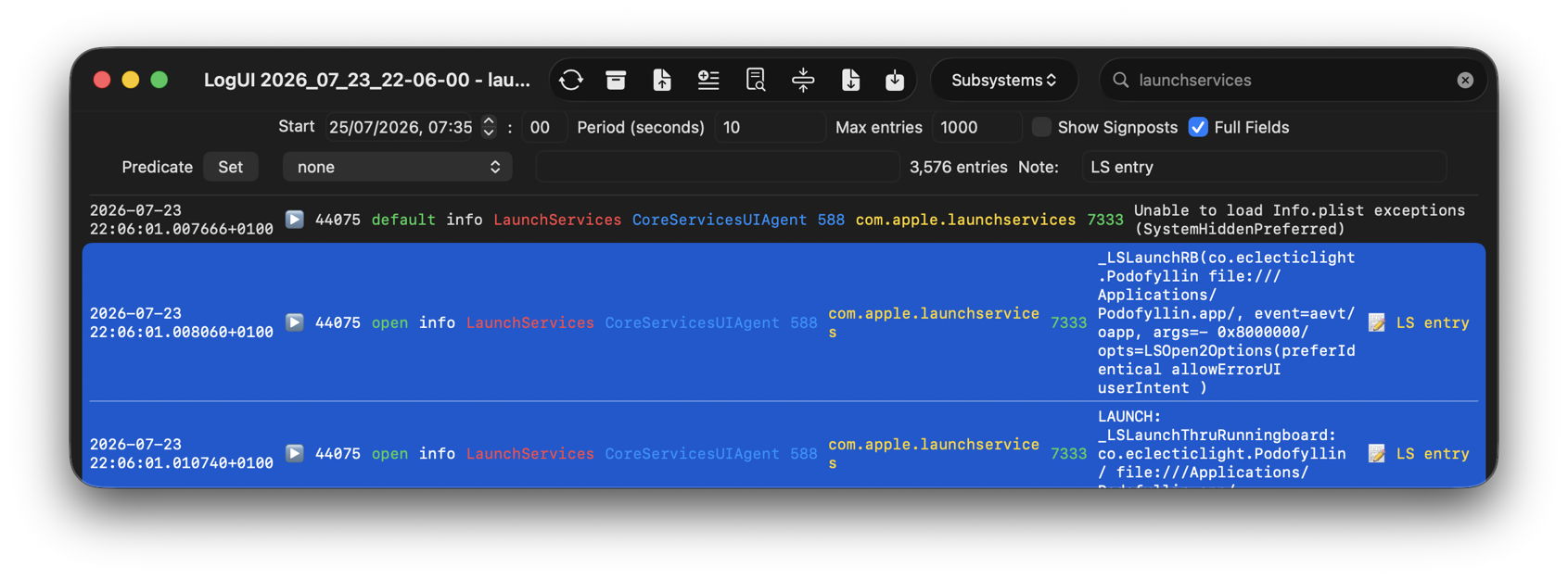
Other entries
I repeat this process for other subsystems including com.apple.runningboard, which also names Podofyllin in many of its log entries, launchd which actually starts the app’s code, and various security systems. If you’re interested in TCC you can do the same for those. For each:
- identify the search text, and set the search menu to look in the right field in each entry;
- run the search by pressing Return at the end of the search text;
- select those log entries you want to add;
- enter appropriate note text ending in
entry; - click on Add Note.
I also take a quick browse through all log entries to check for any others that look relevant but haven’t yet had a note attached. Those should include any reporting errors and faults that might have impact.
Reduction
Once I think I’ve identified all the entries I want to collate, I set the search menu to Notes, type entry into the search box, and press Return.
Now all the log entries I’ve added notes to are displayed together in one sequence, here of 498 entries instead of the original 3,576. Rather than having to keep searching on notes containing entry, I use LogUI’s Reduce tool to remove all the unwanted entries, those that don’t appear in these search results.
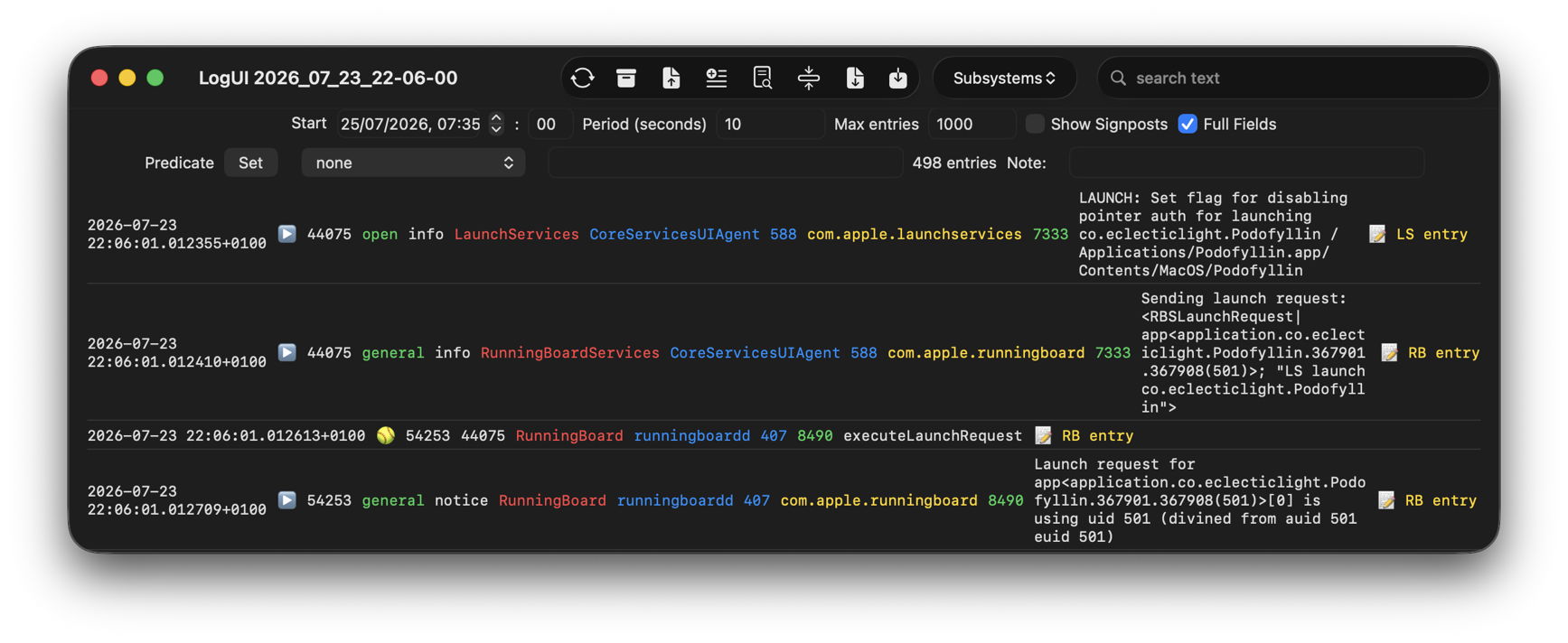
I then save that log excerpt as a new JSON file, while keeping the original in case I need to return to it. When you’re reading this excerpt, you can reduce the information displayed in each entry by unticking Full Fields.
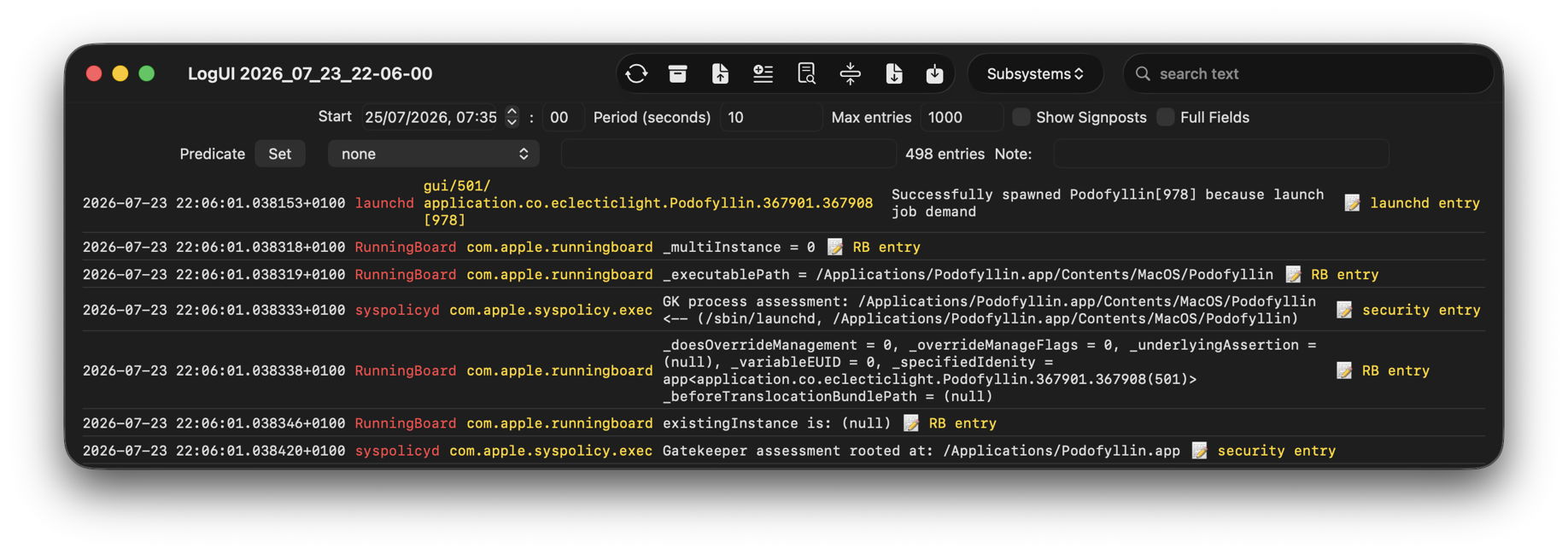
You should find that far more intelligible and accessible in use.
Launching an app
I periodically look at what macOS does when launching an app, and last gave a detailed account just over a year ago for Sequoia. One of the improvements claimed in Tahoe was faster launching by removing the requirement for XProtect malware checks for every launch. However, when I looked at that soon after Tahoe’s release, I wasn’t convinced that had made much difference.
The sequence of events in 26.5.2 differs little from that in 26.0, although on this occasion TCC checks started considerably earlier in the sequence. There was passing mention of XProtect in a couple of entries, but its checks weren’t offered here.
Times taken to reach landmark entries in the log were initially slightly faster than those in macOS Sequoia 15.3, but after starting to check the app’s notarisation ticket with iCloud, this run slowed, and ended up being significantly slower to launch. Those landmarks are:
- 0.000 Finder sendAction
- 0.017 (0.023) LaunchServices, launch through RunningBoard
- 0.019 (0.029) RunningBoard launch request
- 0.027 (0.043) AMFI evaluate
- 0.045 (0.066) Gatekeeper assessment
- N/A (0.080) XProtect scan
- 0.081 (0.085) check notarization ticket
- 0.064 (0.187) TCC checks
- 0.318 (0.204) launched.
The first time given is for 26.5.2 in seconds since the fourth Finder sendAction entry, with that for 15.3 given in parentheses and italics. More favourable performance might be seen in larger and complex apps, those a user is more likely to consider launch slowly.
In case you missed it yesterday, LogUI version 1.1 for macOS 14.6 and later, including Golden Gate, is now available from here: logui11
from Downloads above, and from its Product Page.

