
Some time in the next couple of weeks, Apple is expected to release its first public beta of macOS 27 Golden Gate. This article aims to help you decide whether to risk or resist that tempting offer.
To install the public beta-release you don’t have to download a special enabler from a closed website, as this is done through an extra option in Software Update. All you need to do is sign up here, and once the public beta is released you should see it offered in Software Update, when your Mac is using the Apple Account you signed up with. There’s also an option there that caters for those who wish to use a different Apple Account for betas.
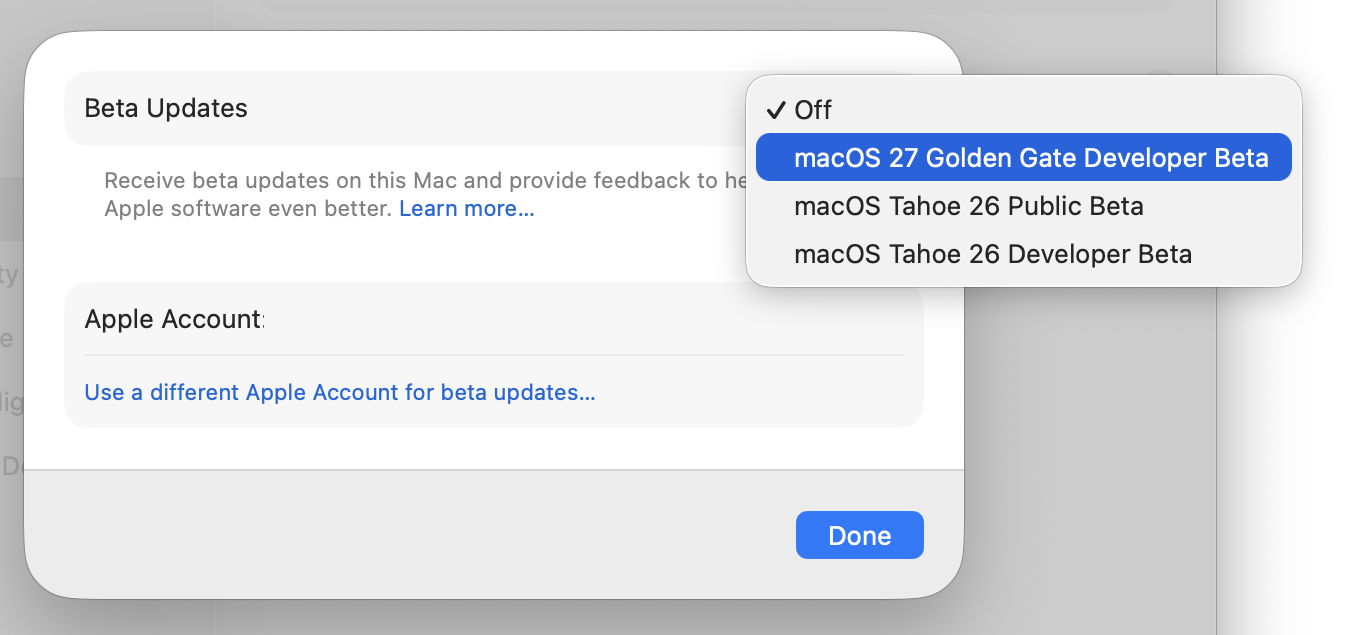
Although the final release is likely to be delivered as an update rather than a full upgrade with its own Installer app, assuming you’re upgrading from macOS Tahoe, your first beta is likely to be almost the size of an IPSW image file and not as an app. It brings with it an mBoot firmware update that you can only downgrade from by restoring your Mac in DFU mode, making it a one-way trip for most.
Do you have a spare Apple silicon Mac?
Unlike in recent years, Golden Gate only runs on Apple silicon Macs, which for many are now their production systems. You can’t repurpose a spare Intel Mac, so unless you have at least two Macs with M-series chips, you’re probably wisest not trying a beta out.
The good news is that Golden Gate runs on all Apple silicon Macs, even those with the original M1. Its only restrictions are for more advanced AI to run on-chip, which requires an M3 or later with at least 12 GB of memory.
What do you get in the beta?
Apple’s official account of new features is fairly brief this year. Headlines include:
- Siri AI and Advanced AI, mostly coming later,
- Child safety controls,
- Human interface design tweaks,
- Faster performance.
I’ve given my own summary of interesting new features detailed at WWDC.
You should also be aware of some of its deprecations and removals, which I’ve examined here. Time Capsule support is perhaps the most significant among them, and note that access to encrypted HFS+ hasn’t been removed yet, and won’t be until macOS 28 next year.
Two improvements you’re most likely to notice are those in its human interface, and performance. Golden Gate doesn’t undo the many changes brought in Tahoe’s interface, but does remove some of its rougher edges, and most who have been using it feel it’s significantly better as a result. Performance improvements are noticeable throughout, and CodeColorist’s detailed explanation is well worth reading.
There appear to be few compatibility issues: if an app runs happily in Tahoe, then it should continue to do so in Golden Gate betas. Apple also provides extensive release notes that could explain any issues you discover.
Can you lose that Mac?
The next question you should ask is whether you could afford to completely lose your Mac for a while, as a result of a problem with the beta. Although that’s most unlikely to happen, it’s a risk you’ve got to be prepared for when you install any pre-release version of macOS.
Never, under any circumstances, install a beta of macOS on any Mac you rely on for production. Betas invariably bring firmware updates, so even if you install the beta on an external disk, it will change your Mac’s firmware. Undoing that requires a second Mac and a USB-C cable, putting the sick Mac into DFU mode, and restoring it from a Tahoe IPSW image file. After that you’ll have to set it up from scratch, and migrate your files from a backup. Although this is a valuable feature of Apple silicon Macs, it’s not something you should have to do to make your Mac usable again.
Betas also normally come with updated versions of key components such as iCloud, the APFS file system and Time Machine. Consider carefully what havoc they could produce if there’s a bug affecting other storage used by that Mac, and its backups.
Internal or external SSD?
One way to reduce the risk posed by beta versions of macOS is to install them on external storage. While that can enforce some degree of separation and protection, it still means that firmware is updated, and brings significant risk of disaster. Don’t try this with a production Mac, even from an external disk.
If you’re going to install the beta on an external disk, you’ll need to be comfortable with the procedure for Apple silicon Macs. Although it does become straightforward with practice, some seem unable to get it to work at all. One crucial detail is performing the installation with the external SSD connected to a non-DFU port.
Multiple systems on the same disk
You can also install multiple boot volume groups on the same disk, letting you choose which version of macOS to start up from. This provides even less separation or protection than installing them on separate disks, so should never be attempted on any production Mac.
Apple recommends that you do this into separate boot volume groups within the same APFS container, which has the great advantage that they share the same free space within that container. However, there are times when that can work against you, and you may prefer to opt for separate containers instead. The choice is yours.
Virtual machine
Some consider the best way of keeping out of trouble when running beta versions of macOS is to install them into a Virtual Machine (VM). This can’t alter the firmware of the Mac hosting the VM, and that alone makes it far safer. Use any of the virtualisers, including Parallels, UTM, and my own Viable.
In theory, all you should have to do is download the Golden Gate beta IPSW of your choice using Mr. Macintosh’s link to Apple’s servers, then use that to build a fresh VM. In practice, that may fail unless it has been performed on a host running Golden Gate. To help that complete successfully, Apple may release a system software enabler. If it doesn’t (as is frequent) you may have better luck if you install the current beta of Xcode 27 on the host. Someone has even worked around this problem by connecting their iPhone to their Mac.
One method that has already been used successfully with Golden Gate is to upgrade a Tahoe VM with the full installer for the beta, although that VM couldn’t then be updated to later versions, another common problem with VMs running betas.
Kernel panics
If you do decide to install the Golden Gate beta, or have already done so, I have a big favour to ask on behalf of tens of millions of users, and most of Apple’s engineers. By all means take a good look at its new features, and give Apple plenty of feedback on what you think of them. But please pay careful attention to the basics, exercising your Mac with peripherals such as external displays and hubs. Should you discover problems, please work with Apple to ensure that it knows what they are. If you can, test out features such as Time Machine (being careful not to put your existing backups at risk), which seldom get much attention from beta-testers.
In particular, send Feedback reports on any kernel panic your Mac encounters when running a beta. The normal panic log, sent after your Mac has restarted, is helpful, but further details are better still. Even betas should never suffer kernel panics; if yours does, please help Apple’s engineers fix that problem before Golden Gate is released.
For those who do beta-test Golden Gate, I wish us success, and hope you enjoy testing, and helping Apple make macOS even better for all of us.

