
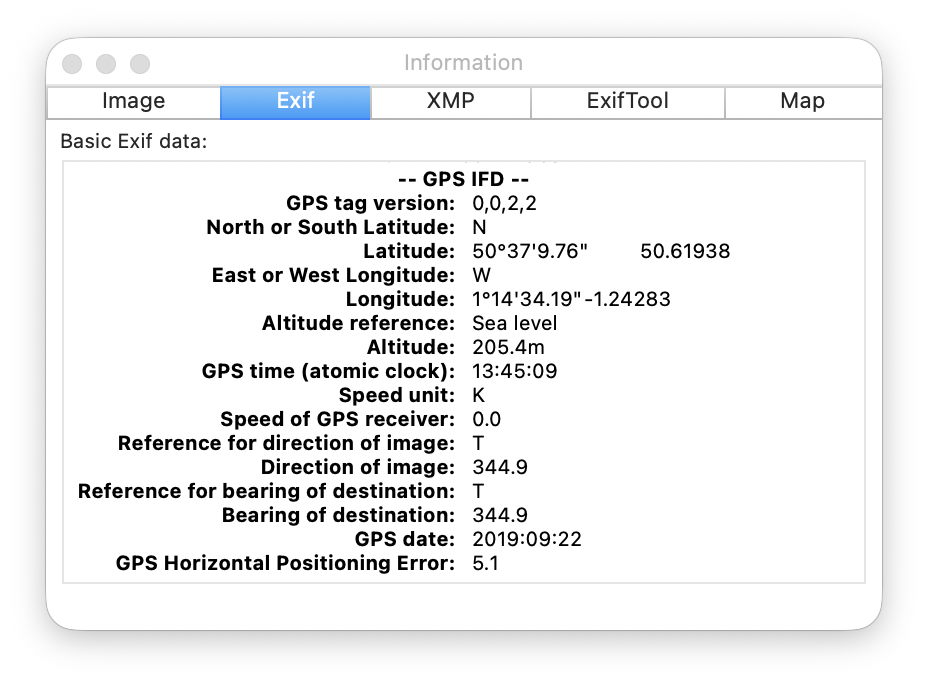
One of the most common ways that folk leak details of their locations is in images containing GPS data from their phones. This can also have the gravest impact: there are many who have died when their leak has enabled them to be targeted by an attack in which they and others were killed. While I hope your consequences aren’t as terminal, revealing where you and others have been, and when, can bring on all sorts of trouble.
In the early days of digital photography, cameras had no GPS or location hardware, but that was soon to change as small GPS units became a popular accessory. When Apple released its second iPhone, the 3G in 2008, it integrated both camera and GPS, and all our photos came with fairly precise details of where they had been taken. While those are generally useful, there are many circumstances when we don’t want to tell everyone where we took each of our photos.
Stop at source
If you live, work or travel in places where revealing your location or movements could have serious consequences, the only solution is to block your phone’s camera from obtaining any information from Location Services. In iOS, this is done in Settings > Privacy & Security > Location Services > Camera.
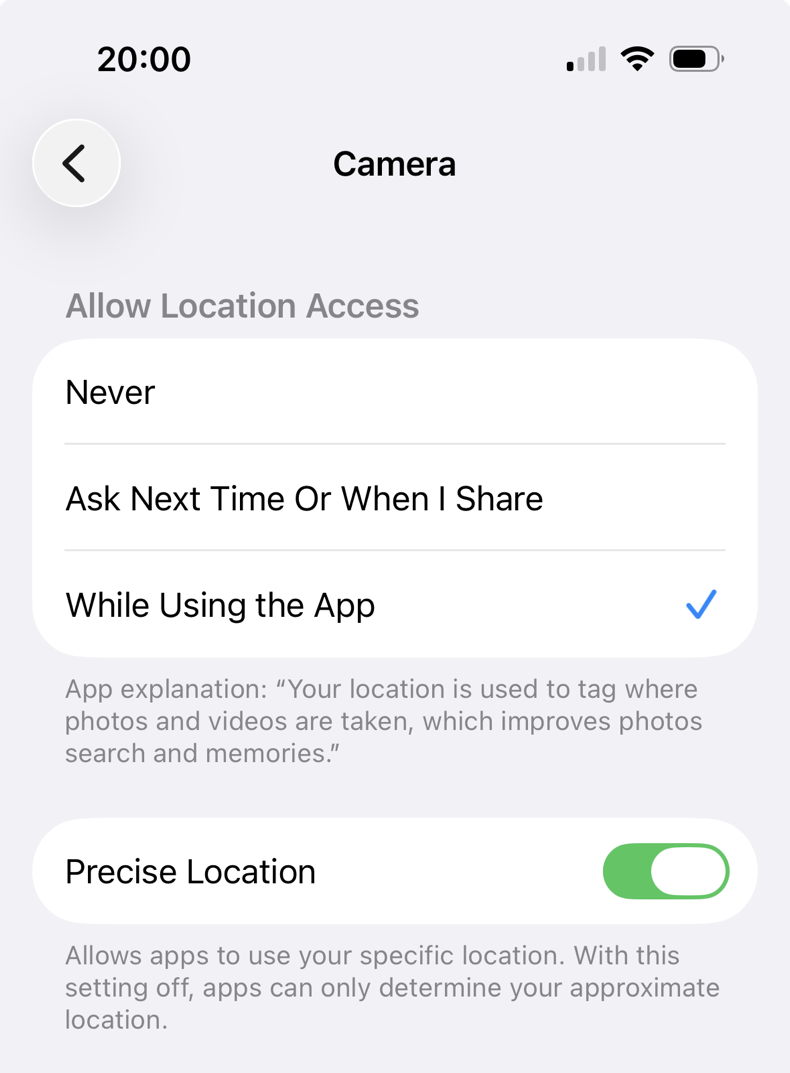
There’s also an option here to turn off Precise Location that can be more appropriate for those who still want sufficient to place an image, but don’t need it to be as precise as possible.
Of course these only apply to photos you take after changing that setting. You’ll also need to remove location information from those you have already taken.
Stop when sharing
If you want your location to remain in images you keep in your Mac and devices, but don’t want it to be included in those you share, the Photos app has a useful setting that can remove the data. In Photos on macOS that’s in its General settings, towards the bottom, under Sharing. Uncheck that box and when you share images from Photos, their location information should be removed automatically.
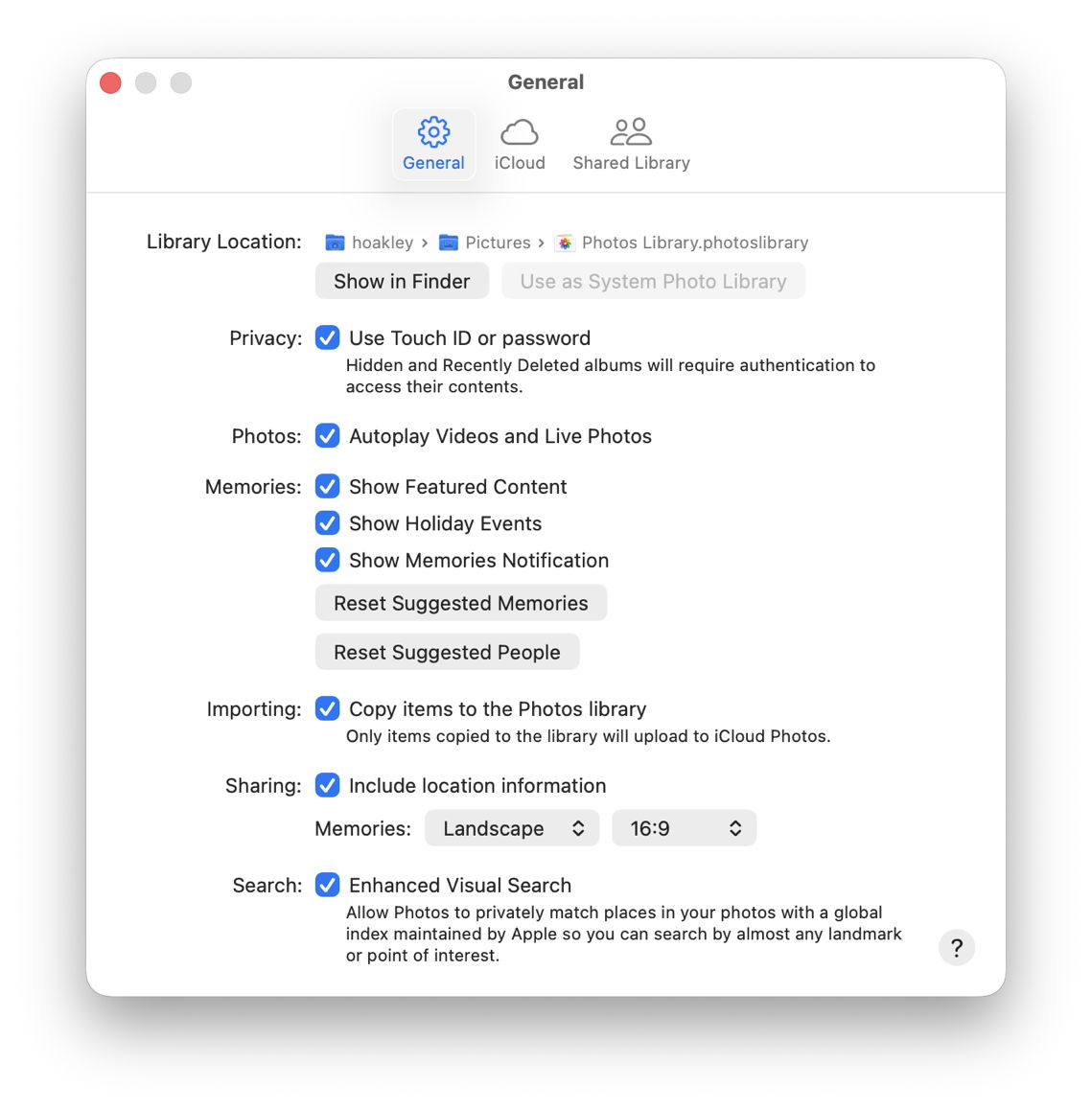
This doesn’t apply to images you share outside the Photos app, though.
Remove location data
For images within Photos on iOS, use its Adjust Location feature, accessible in various ways for selected images.
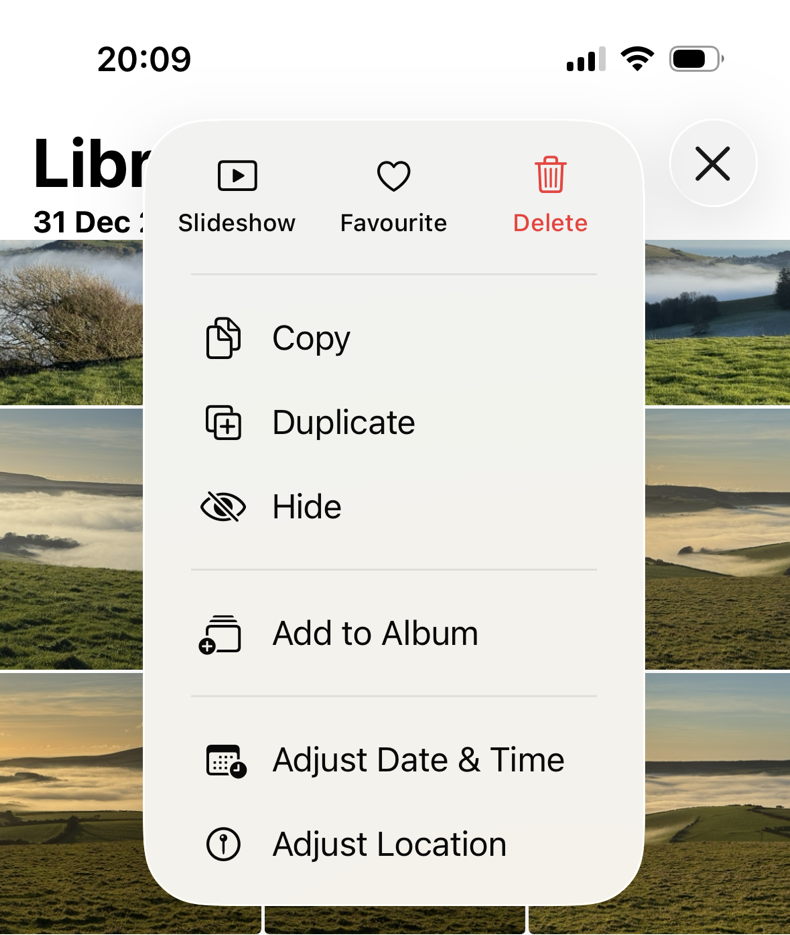
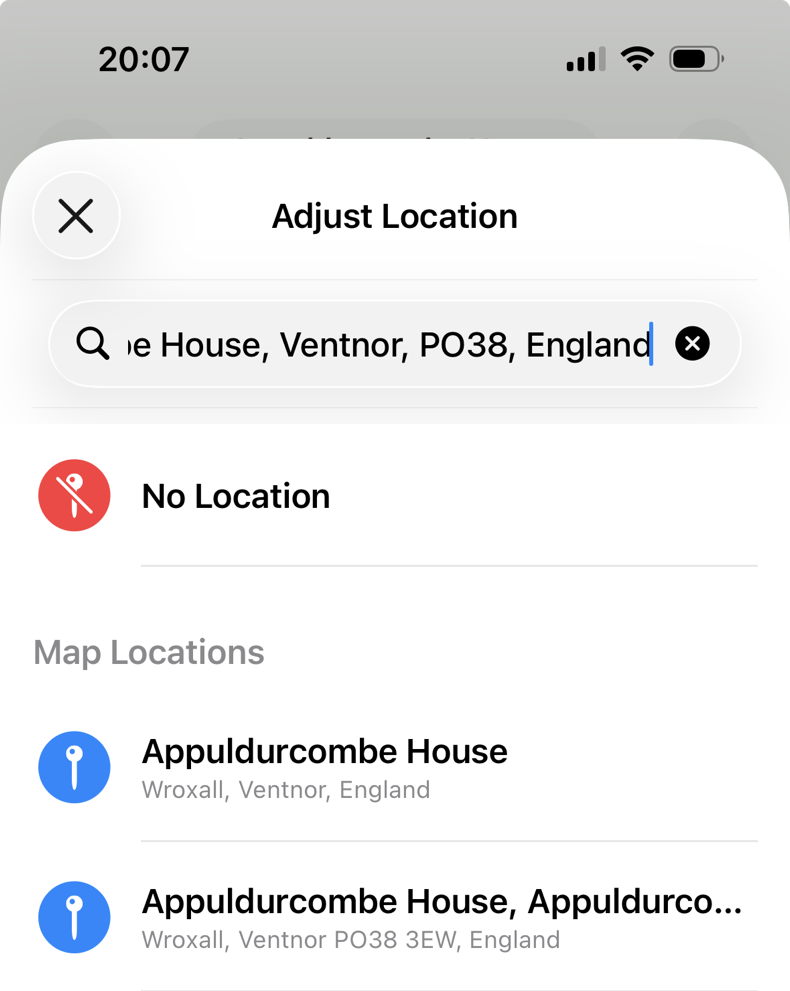
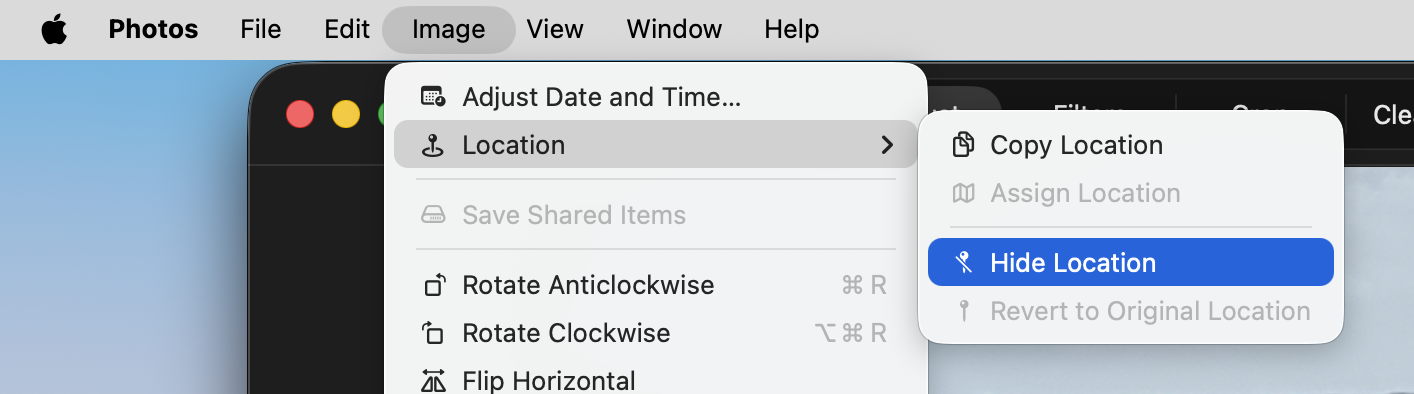
Unfortunately, this isn’t as unambiguous in the macOS version of Photos, which refers to hiding rather than removing the location.
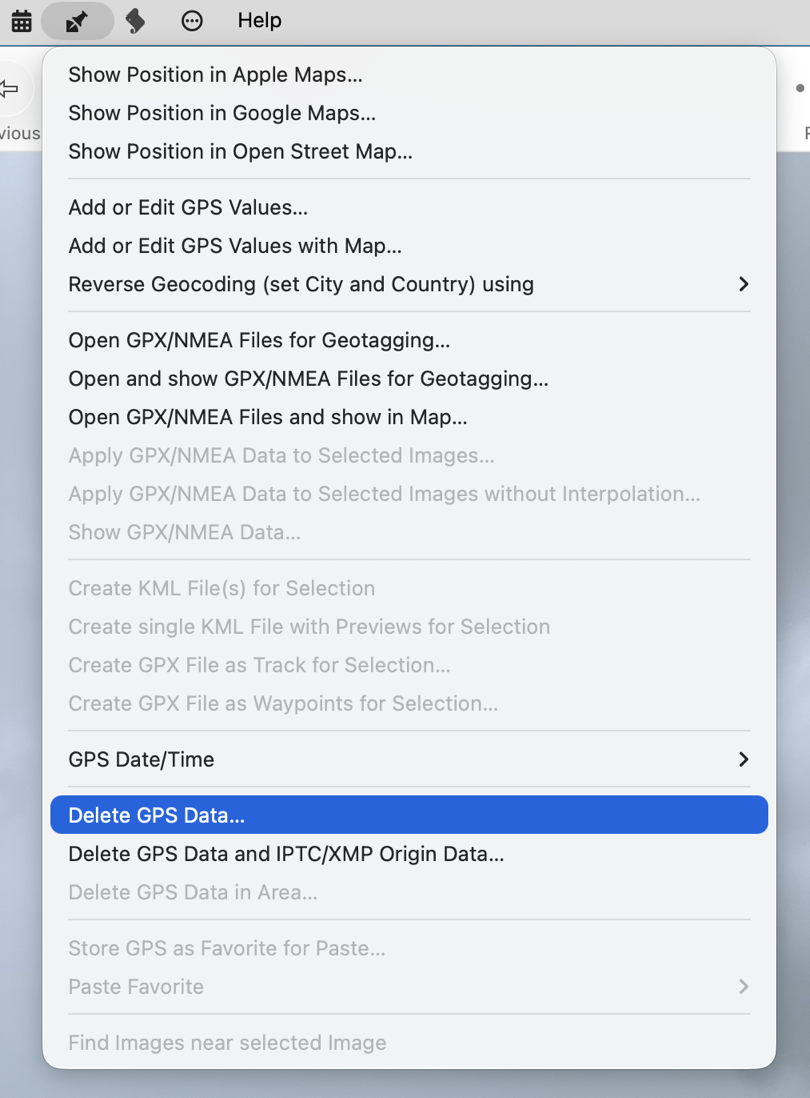
Images that aren’t in a Photos library can have their location data removed using an app, including Preview and my favourite GraphicConverter.
Why isn’t this easier?
When the first Mac was launched in 1984, it was designed to separate file data from metadata in its file system, but that principle never caught on in other systems, in particular successors to IBM’s PC running Microsoft operating systems. As modern image formats developed, they were designed to embed their metadata within the file data, rather than use separate resources. As a result, all major formats do the same. While macOS could store image metadata in extended attributes, that would be incompatible with all other systems, so they have to conform to cross-platform standards.
Since its introduction in 1995, several of the most popular image file formats, including JPEG and PNG, have used the Exchangeable Image File Format, Exif (often referred to as EXIF), which includes location metadata stored using standard tags with the image data. Those formats can also use XMP and other metadata formats, and the more recent HEIF format adopted by Apple in 2017 can embed metadata in Exif, XMP and other formats.
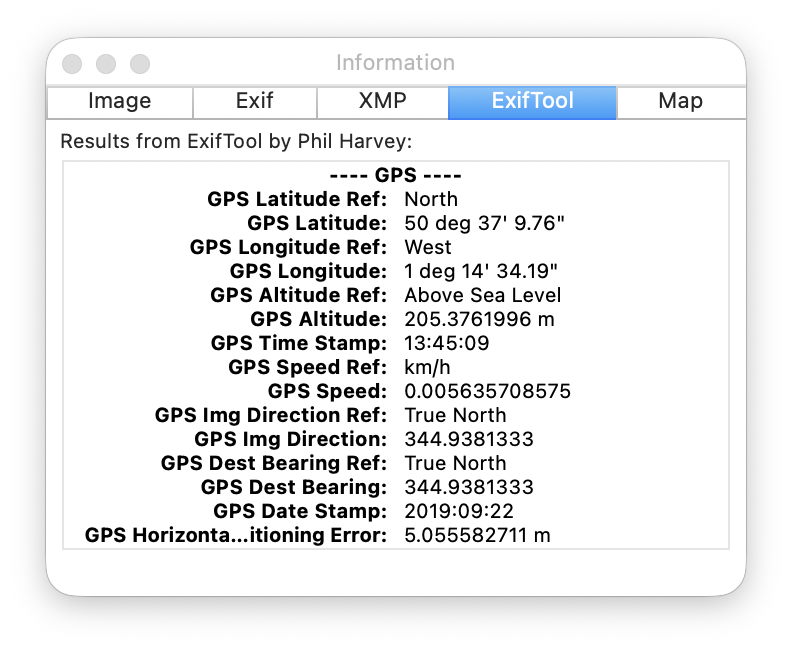
Removing location data from an image file thus requires the file data to be changed and rewritten. With the potential for it to be stored in one or more metadata formats, this becomes non-trivial, and has resulted in problems with some apps that edit images and their metadata.
Because of the possibility of duplicating location metadata using different formats, when it’s important to ensure that none leaks out, each image should be checked individually using an app like GraphicConverter, or a specialist utility. One robust approach is to convert the image to a lossless flat pixmap format that can’t store any metadata, then convert it back again. However, that strips all metadata and not just that for location.
Further reading
Apple’s Personal Safety User Guide is helpful, including
Manage location information
Manage location metadata in Photos.

