
Almost three years ago when Apple released macOS Ventura 13.5 it unintentionally disabled one of its most important privacy features, control over app access to Location Services. For three weeks, until it was fixed in 13.5.1, those who had updated were unable to change or even see which apps and services had access, and which didn’t.
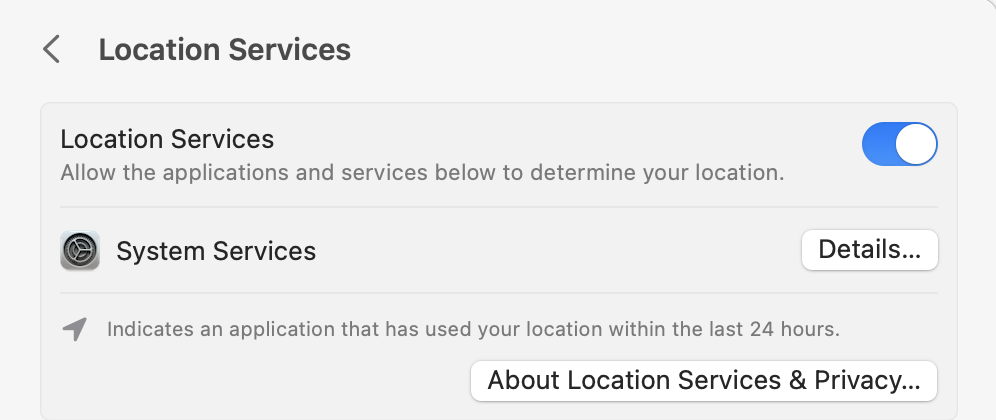
It was then that we realised how widespread Location Services access is, and how there isn’t a command tool alternative to Location Services settings. Unlike most of the other items in Privacy & Security settings, Location Services aren’t managed using TCC and tccutil, but by their own service locationd.
Macs and Apple’s devices assemble information about their location from a wide range of sources. While iPhones have more exotic hardware including magnetometers, barometers and GPS receivers, and use their cellular connections to gain additional information, Macs can still use Wi-Fi and Bluetooth connections and any available iBeacons to work out where they are.
Among the many services that rely on location information are Find My Mac, with its dependent Activation Lock, and automatically setting the time zone, hence local time displayed on a Mac’s clocks. It’s also used by knowledge-based services including Spotlight and Siri. Safari and other browsers are major users, as location information can allow a website to select its local version, and is valuable to those targeting internet advertising services.
Settings
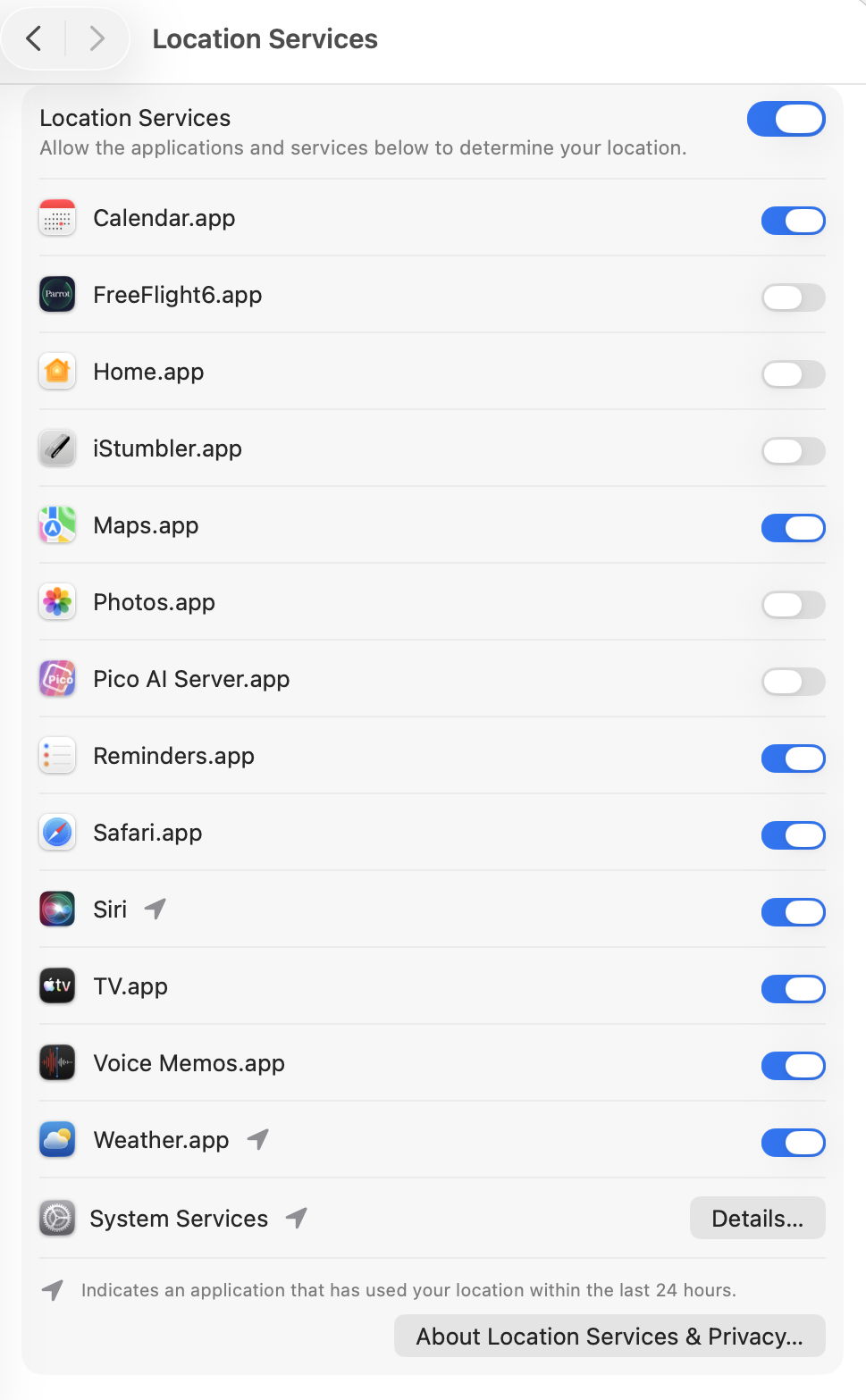
Location Services is the most complex of all the sections in Privacy & Security settings, and nests many of its controls deeply. This has been inherited from the days of System Preferences, and still hasn’t been redesigned to take advantage of System Settings. Above its last item, System Services, is a list of those apps over which you have direct control of their access to location data, although they can only be enabled or disabled and not removed from the list, neither can you add apps of your own choosing.
Unusually, the About Location Services & Privacy button opens a window containing a mixture of help and privacy information, which is worth reading to give you better insight into what’s managed and how data is shared. It bears one important message: by giving a third-party app access to your location, that app’s vendor is in control of your location data in accordance with their terms and privacy policies, not those of Apple. If your location data is sensitive, then you shouldn’t give third-party apps access to it unless you’re confident they will protect it appropriately.
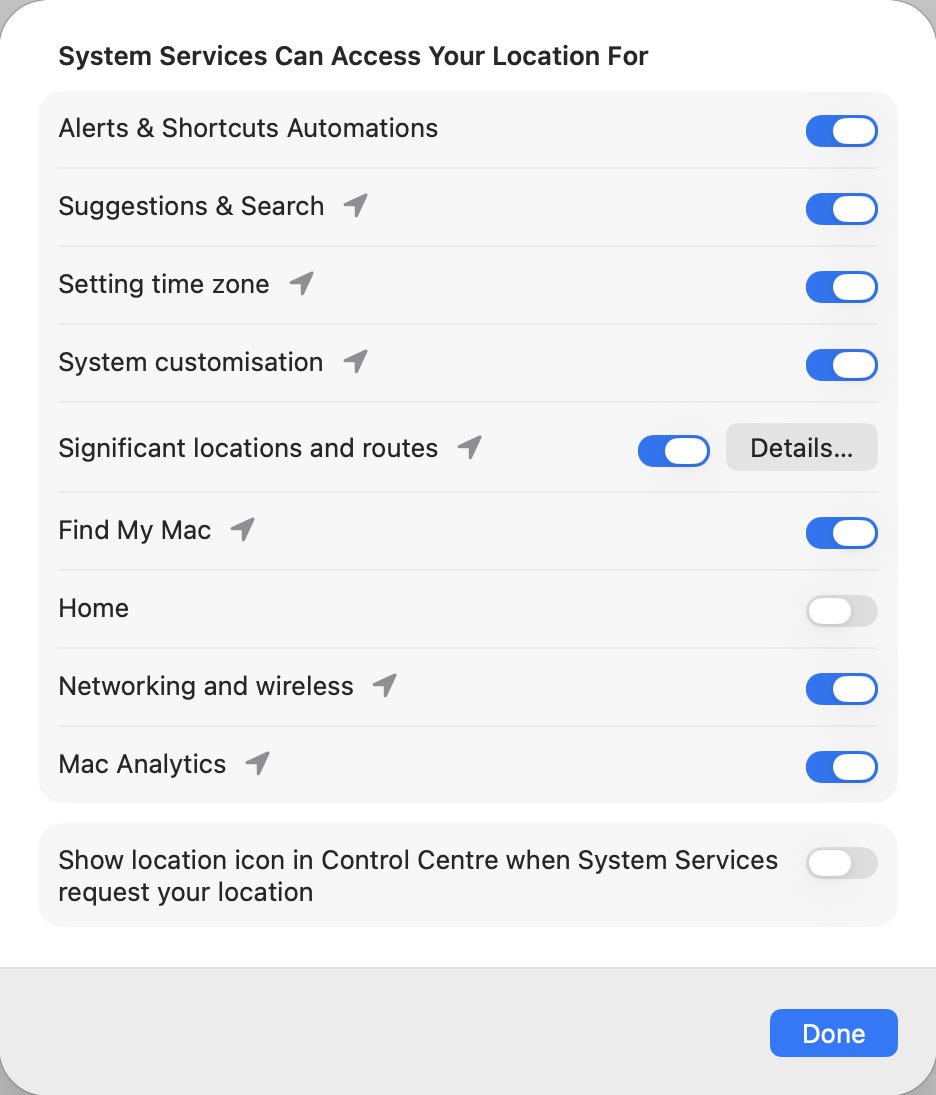
Further important controls are revealed in another window when you click on the Details button for System Services. This lists some of the purposes for which macOS uses location data, giving you fine control over them.
The final layer in this onion is revealed when you click on a second Details button next to Significant Locations: a listing of the most recent locations that macOS considers to be ‘significant’. On a static Mac with mobile iOS devices, those are largely based on location data gathered from those, and are mirrored in similar lists on each device. Significant Locations contain considerable detail, including exact locations with time periods.
Tracking
In addition to those, Safari and other browsers include their own controls over tracking and location. In Safari, these are gathered in the Privacy section of its Settings, and the Location item in Websites. If you subscribe to iCloud+, you can access Private Relay in iCloud settings.
Sharing and Find My services
Location Services are unique in that, when enabled, location data are invariably shared in iCloud, a feature you can’t control in iCloud settings. The only way to stop the sharing of locations across your iCloud-connected devices is to turn the whole service off, which is also true for iOS and iPadOS devices. Although it might seem tempting to disable Location Services altogether, that improved privacy comes at the cost of some valuable services: in particular, Find My services and Activation Lock, and many system services and apps also need Location Services to be enabled.
Internals
Behind these is the system service locationd and its database locked away in /var/db/locationd. The official description of locationd is that it obtains geographic location data and manages access to it. When you’re prompted to give access to location data, that’s the CoreLocationAgent in action on its behalf. Apps that can ask for location data from Location Services should have the com.apple.security.personal-information.location entitlement and provide NSLocationUsageDescription information, something you can check using Apparency.
The /var/db/locationd directory contains one file that’s simple to read and holds important information, clients.plist, and various opaque data files. A sub-directory /Library has a surprising collection of scripts and cached data.
clients.plist is a standard Property List containing a dictionary of all apps and other software that could access Location Services data. Those that are currently granted access contain the key Authorized set to true. In general, these should match apps and other items in the Location Services list in Privacy & Security settings, although that doesn’t apply to public or private frameworks that are included. There’s also a flag available for the key Hide suggesting that some apps or services can be given access to locations but won’t be displayed in Location Services settings.
When Apple fixed the bug it had introduced in macOS 13.5, the 13.5.1 update revealed a more extensive list of many of the components in Location Services. In /System/Library, those included
- in CoreServices, CoreLocationAgent.app
- in Frameworks, CoreLocation.framework and CoreMotion.framework
- in LocationBundles, CountryTracker.bundle and TimeZone.bundle
- in PrivateFrameworks, CoreLocationReplay.framework, CoreMotionAlgorithms.framework and LocationSupport.framework.
While other privacy protections can be managed by the tccutil command tool, there’s no equivalent for Location Services. Besides, clearing its database would affect a lot of system services, including Find My and Activation Lock, with their wider security implications.
Because of the reliance of Location Services on hardware and network features, they don’t function in Virtual Machines running on Apple silicon Macs, even though you can opt to ‘enable’ them. That means you’ll have to set their time zone manually, but it’s advantageous in making their browsing private.
Location leaks
Most attention has been focussed on leaking location data through browser connections, and the use of iCloud+ Private Relay and VPN services to mitigate those. Many users overlook GPS and other metadata embedded in image data. By default, cameras in iPhones and iPads include detailed time and location information in images obtained from them and distributed by their Macs. Location Services in macOS don’t provide any way to strip that potentially compromising metadata.
Summary diagram
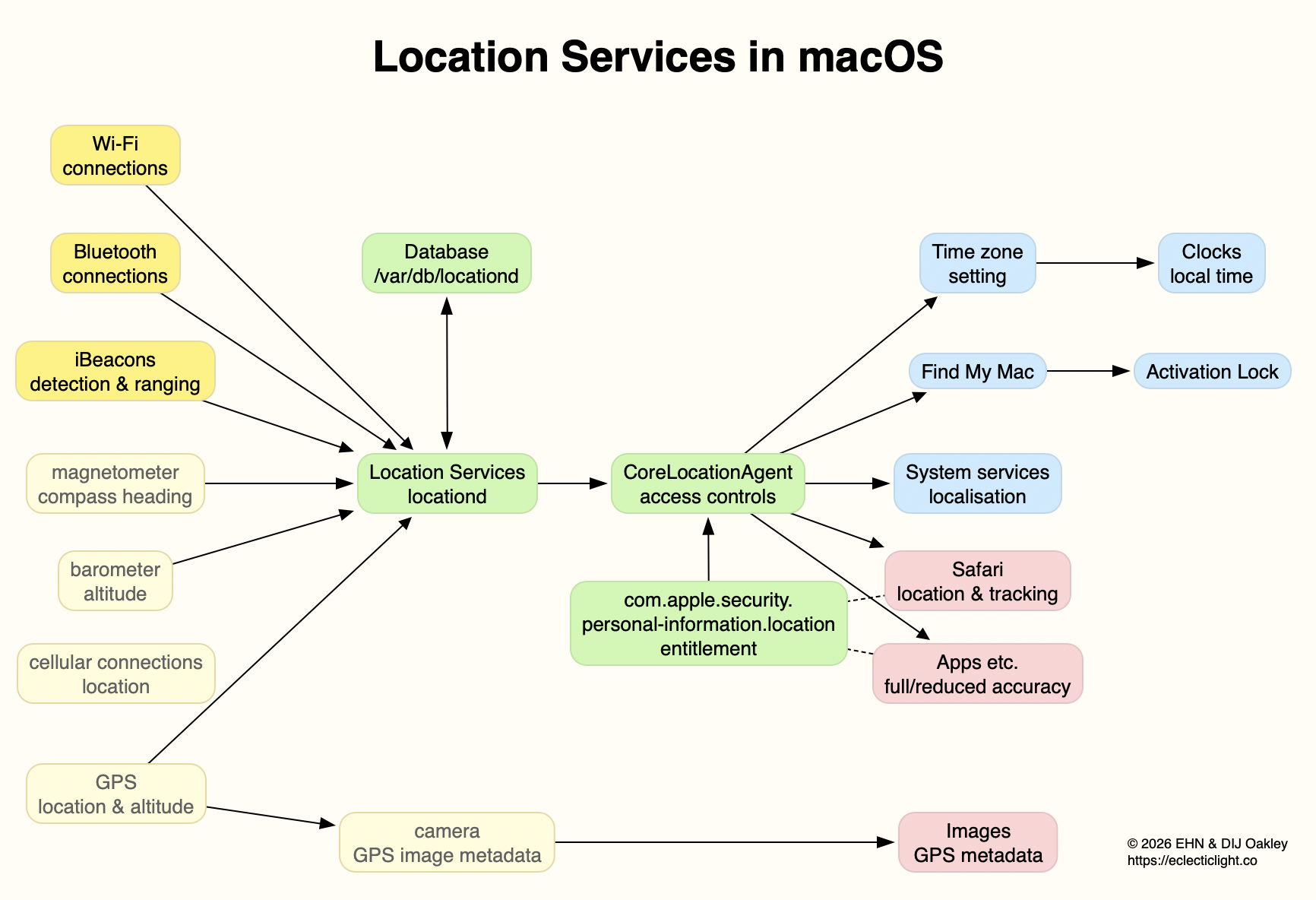
For completeness, location sources only available in devices, and not in Macs, are shown ghosted.

