
One of the most common and frustrating problems with apps is when they crash as soon as you try to open them. Before that app has even had a chance to display its menu bar or splash screen, it has vanished, leaving you without a clue as to why. How could its developer release an app that can’t even run? Where do you look for clues as to what happened when the app was only there for an instant? Fortunately, this is when examining the crash log can be useful, and could help solve the problem.
Common causes include:
- macOS intentionally crashed the app because of an error in code signing, or another serious security failure;
- the app failed because it was in translocation;
- the app couldn’t open a damaged or incompatible document;
- the app had a problem with its Preferences.
Signs and logs
Depending on the type of Mac, the version of macOS it’s running, and the nature of the crash, you may see nothing at all, a simple notification, or a full crash report.


While panic logs can be impossible to recover if you miss them, app crash reports are almost invariably saved to disk, normally in the path ~/Library/Logs/DiagnosticReports, although in some cases you’ll have to look a bit harder there, or in /Library/Logs/DiagnosticReports. As the report’s name should start with the app name, they’re easy to identify, and double-clicking them opens the report in Console (one of its good uses).
Reading the crash log
In the upper Translated Report look for the following:
- Path – check whether this is a long semi-random path typical of app translocation.
- Code Type – on an Apple silicon Mac, check whether the app is running native on Arm, or translated by Rosetta 2.
- Exception Type – this could be
EXC_BAD_ACCESS (SIGKILL (Code Signature Invalid))if macOS has crashed the app because of a code signing problem. - Termination Reason – this may be given as
Namespace CODESIGNING, Code 2 Invalid Pageor similar for code signature problems.
An exception type of EXC_CRASH (SIGKILL) indicates macOS terminated the app, and its crash report should give a Termination Reason with a code explaining the reason for the crash. Apple silicon Macs running recent versions of macOS are less likely to crash apps with signature problems, as they now tend to handle these in a dialog reporting the app is damaged and offering to remove it. Intel Macs with older macOS are more likely to crash the app and leave you wondering.
If you want to learn more about crash reports, they’re well documented for developers, starting from this master page. Worth reading are:
- the structure of a modern crash report,
- the exception types given for different causes,
- how to identify the cause of common crashes.
Code signing errors
One recent and innocent cause of signing and notarisation errors occurs in apps that update themselves, normally using the popular Sparkle method. If an app had worked fine before it updated itself and then can’t start up, it may not have updated its code signature or notarisation correctly. This is easy to fix, by deleting the broken app and downloading a fresh copy of the current version. If that still crashes with a signature error, contact its developer as it may have a bigger problem.
Apparency, free from Mothers Ruin, is the definitive app for checking code signing and notarisation problems. It doesn’t just identify the problem, but explains it in careful detail.
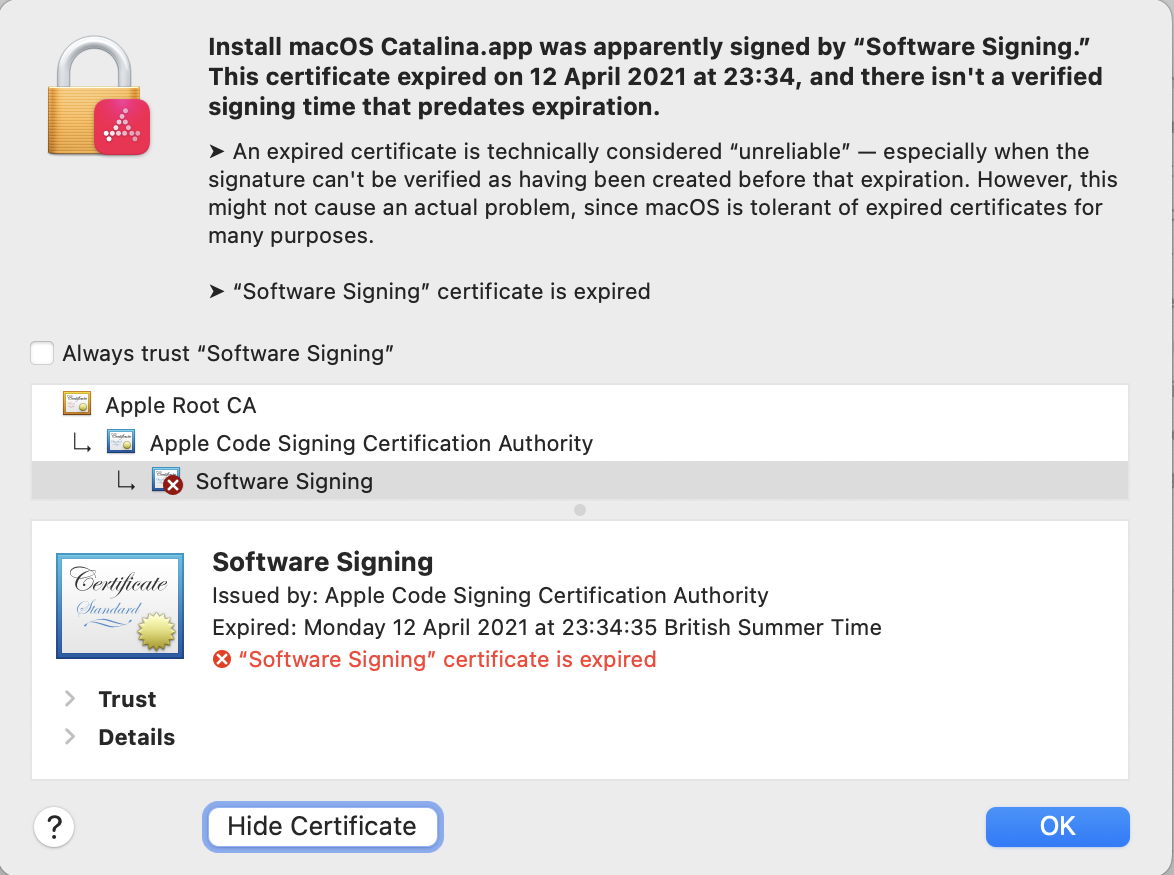
If you’re absolutely certain that the app doesn’t contain any malicious code, you may be able to work around code signing errors by re-signing the app. Doing this to an app that might be malicious would be extremely dangerous, so you require great confidence in the app’s integrity.
Before proceeding any further, you might need to add Terminal to the list in the App Management section of Privacy & Security settings, otherwise your commands could be unable to make any changes to the app. Once you’ve done that, open Terminal and use the command
codesign --remove-signature MyApp.app
to strip the existing signature from the app MyApp.app. Note that two hyphens precede remove-signature. When that’s done, use the command
codesign --sign - MyApp.app
to sign that app with an ad hoc signature. Ad hoc signatures provide only limited security, as they don’t use an Apple-issued certificate for verification against a chain of trust. They’re widely used by malware as a result, and easily exploited.
If that doesn’t work you’ll need to refer the problem to the app’s developer, who should in any case be informed of any problems with their app’s code signature, notarisation or security checks.
App translocation
There are some circumstances in which perfectly good apps may prove unable to run as expected when they’ve been translocated, and some become stuck in translocation, continuing to crash each time you try to run them. If you’ve looked at the crash log, the Path given there should make it obvious if that app is being run in translocation.
The best solution is to try reinstalling the app. Delete the current copy, and download the app again from its source on the internet. If it comes as a compressed archive, decompress it, then move the app from the folder it came in to one of your Applications folders before trying to run it. Do this one app at a time, rather than as one of several, and ensure it doesn’t remain in the folder it came in. If that doesn’t help, contact its developer.
A more hazardous option is to strip the quarantine extended attribute from the download, but you should only consider that as a last resort as it reduces the security checks made by macOS.
Failed to open document
If the app was last quit with a document still open, and that document now has a serious incompatibility with the app, that can cause the app to crash when it’s next opened, and tries to re-open that document. The same effect can occur when an app is opened by opening one of its documents. Try opening the app alone before opening the document. If necessary you can enable Close windows when quitting an application, in the Windows section of Desktop & Dock settings, or move the offending document to a different volume so that app loses track of it.
Preference file problems
Apps that use Property List files stored in ~/Library/Preferences, or an equivalent in the app’s folder in the ~/Library/Containers folder, open them during app startup. If that preference file is malformed or corrupted, it can cause the app to crash when it tries reading it. This may not be easy to recognise in a crash log, although references there to cfprefsd, the path to the preference file, or UserDefaults are useful clues.
The best way to address this is to delete the app’s preference file, forcing the app to create a fresh default preference file, and open normally again. Although you can do this by locating the correct file and dragging it to the Trash, it’s more reliable to use the defaults command in Terminal, as that should delete the right copy and avoid overwriting it and causing the problem to recur. For this you’ll need the app’s formal ID, available from Apparency or taking a peek at the value for the CFBundleIdentifier key in its Info.plist. It should be in the form of a reverse URL like com.mothersruin.Apparency.
The command that you need to enter into Terminal is of the form
defaults delete com.developer.appname
where com.developer.appname is the app’s ID or CFBundleIdentifier.
You should then be able to open the app, which will have to recreate its default settings, hopefully without crashing again.
Other causes
Most other potential causes tend to prolong app opening rather than causing it to crash. Apps that check for updates over the internet usually do so soon after opening, but should perform that check without blocking or crashing the app. Similarly, apps needing to connect to an external authorisation service more usually hang, leaving their Dock icon bouncing indefinitely.
Any damaged or incompatible app may well crash during opening. If you suspect that, check with the app’s support site that the version you are trying to run is the latest that’s compatible with your Mac and macOS. If in doubt, re-install the app.
 The Eclectic Light Company