
Obtaining a definitive list of locations that are subject to privacy protection in macOS Tahoe 26.4 hasn’t been easy, and I’ve previously relied on information given piecemeal in WWDC sessions. This article reports the results of formal testing using a new version of my test app Insent, and brings some surprises.
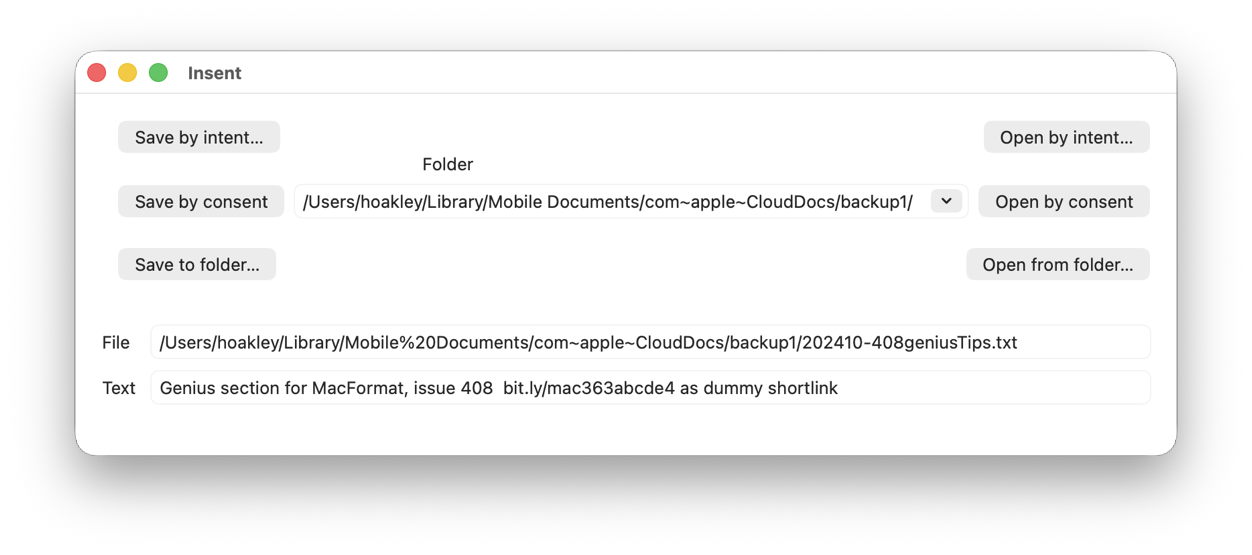
Insent version 1.2 now allows you to set the path to the folder to be used for its Save and Open by consent buttons, using a Combo box. That’s a combination of a popup menu including the three most popular locations, Desktop, Documents and Downloads, and an editable text box into which you can enter a custom folder path.
Save and Open by consent are actions in which the user doesn’t express their intent to write to or read from the protected location, for example in an Open and Save Panel, but the app’s code determines the path and file. Thus, to ensure the app’s access doesn’t compromise the user’s privacy, those actions may be blocked unless the user gives their consent in a dialog presented for TCC, the privacy manager.
In the Save by consent code, all Insent does is construct a URL to a new text file in that folder path, then tries writing a String to that URL using String.write() non-atomically. To open a text file from that folder path, it attempts to enumerate the contents of the directory at that URL using FileManager.default.contentsOfDirectory(), then iterates through the contents until it finds a text file to open. If it does, it tries to read that file using String(contentsOf: url), and displays the start of that String.
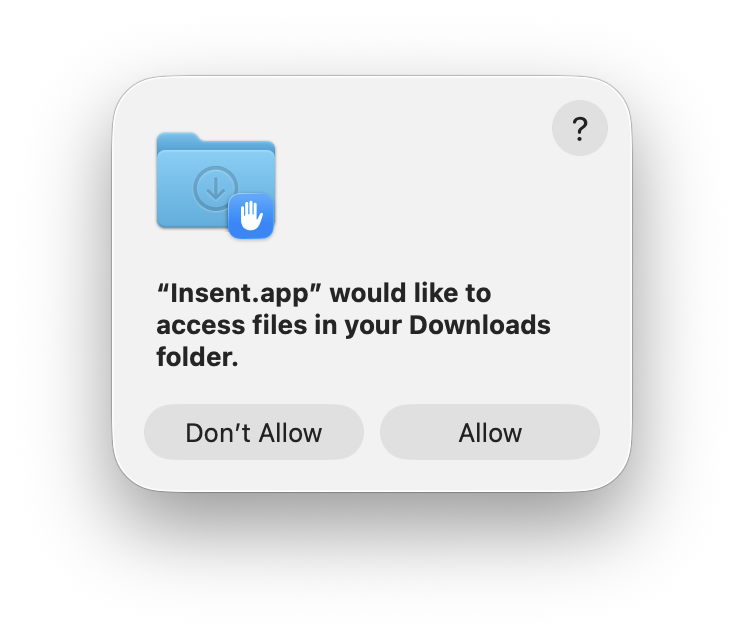
Only three locations conform to the standard control:
- ~/Desktop
- ~/Documents
- ~/Downloads
In each case, there is no control over writing to the location, but any attempt to list the contents of that folder elicits a request for consent, and results in an entry for Insent in the Files & Folders list in Privacy & Security settings.
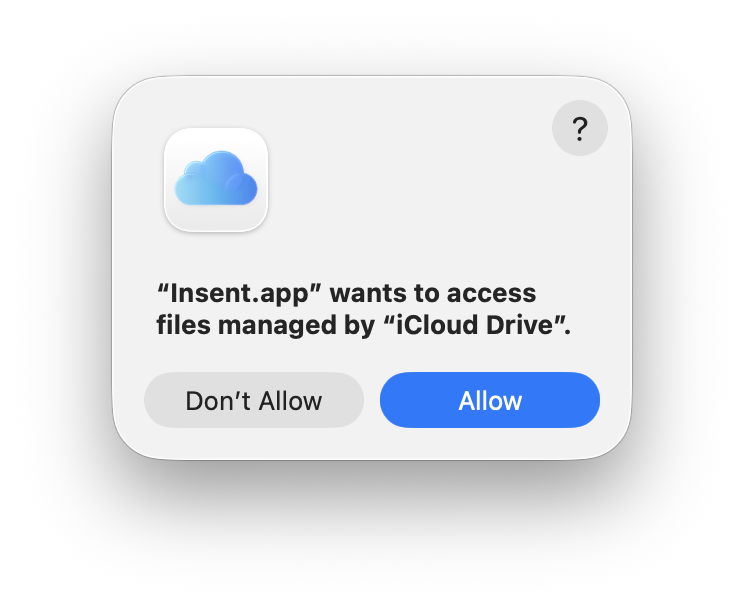
For iCloud Drive, and presumably third-party cloud services with equivalent privacy protection, there is no control over writing to the location, and listing folder contents requires consent, but no entry appears in the Files & Folders list, and I have been unable to discover any equivalent control elsewhere. Thus, once consent has been given, it appears to remain indefinitely, as the user doesn’t have a control to disable that access.
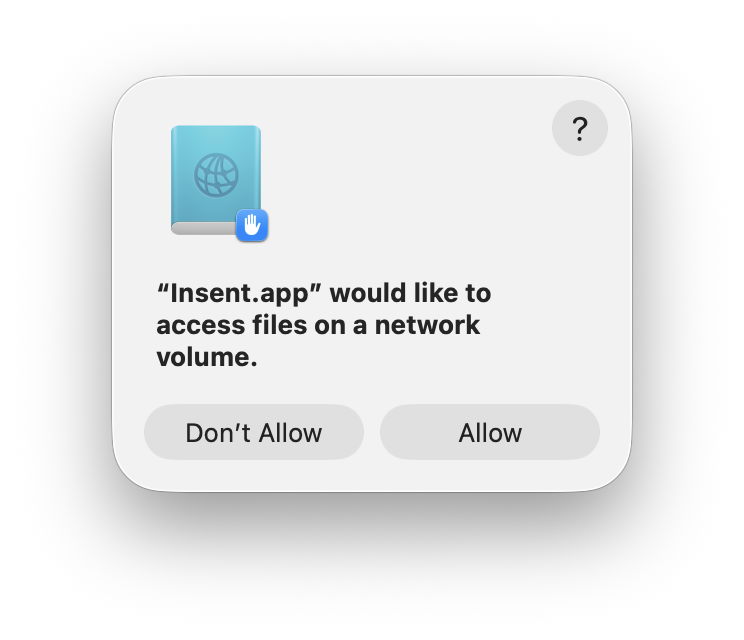
Removable Volumes and Network Volumes differ again, in that both Save and Open by consent require user consent, although giving consent to one action also grants it for the other. However, not all removable volumes are treated as protected. A Time Machine backup drive that is mounted automatically during startup, and has an additional volume not used for backups, wasn’t given any protection, while an SSD connected and mounted well after login was treated as a Removable Volume.
Although often listed as being subject to privacy protection, read access by consent was blocked for Time Machine backups, and they’re read only anyway.
One strange behaviour discovered during testing was the automatic addition of Insent to the Full Disk Access list, rather than individual Files & Folders. However, Full Disk Access hadn’t been granted, and when Insent was removed from that list, individual Files & Folders were shown instead.
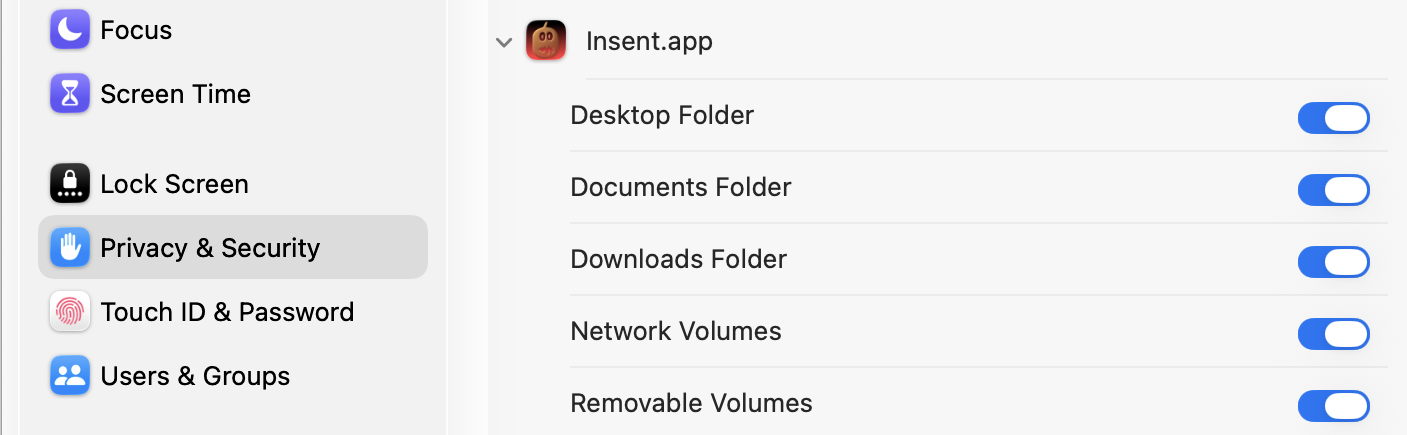
There was no evidence of any other special locations among other standard folders in the user’s Home folder, although there are separate controls covering Photos access, and that to app databases, as listed in Privacy & Security settings.
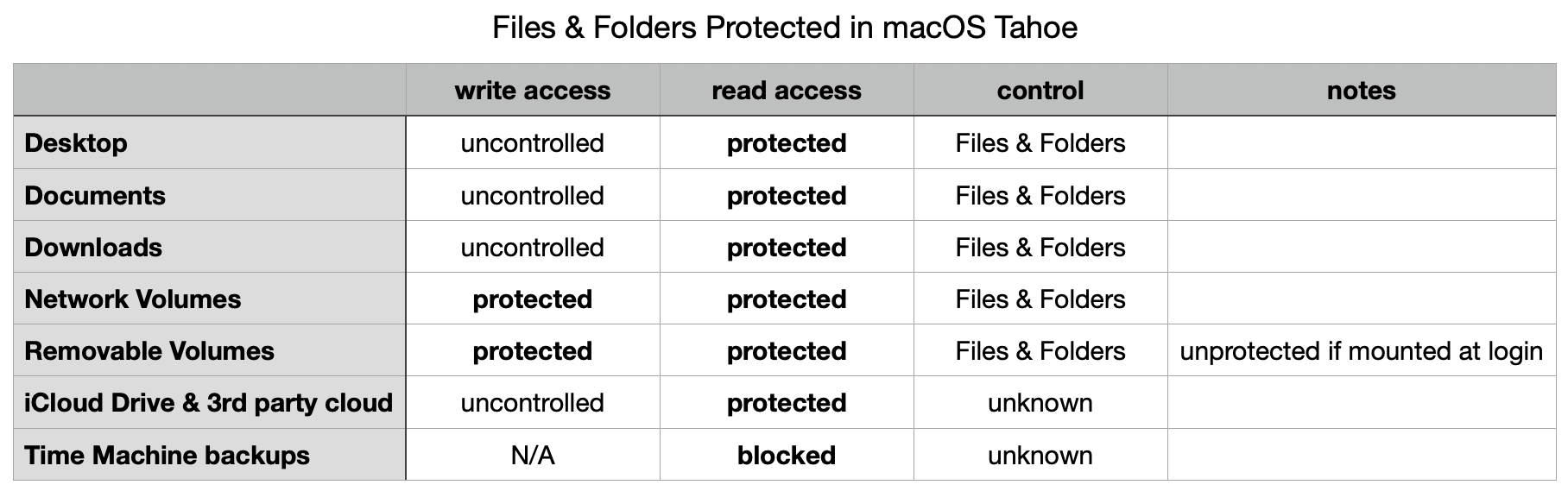
The following table summarises privacy protection for special locations in macOS 26.4.
Insent version 1.2 is now available from here: insent12
Have fun trying to make sense of this protection.

