
What can you do when you know there’s an update available, but your Mac is pretending there isn’t? I’m here referring to those delivered through Software Update, so come from Apple’s software update servers. Although there are several ways to talk to it, all such updates rely on the softwareupdated service, giving you a choice of solutions.
Check the obvious
Before going any further, check that updates aren’t being blocked because there’s insufficient free space on your Mac’s startup disk, and a laptop has ample charge in its battery or is running on mains power.
Restart
Sometimes softwareupdated seems to lapse into a coma, and the best way to wake it up is to restart your Mac. Don’t expect it to jump into action as soon as you’ve logged in, but give it five minutes first.
Safe mode
If a standard restart doesn’t do the trick, start your Mac up in Safe mode, leave it five minutes, and try again. Although Apple no longer includes this as one of the purposes of Safe mode, by disabling third-party extensions it gives softwareupdated every opportunity to do what it’s there for.
SilentKnight
If you haven’t been using my free SilentKnight to check for updates, this is a good time to do so. Because it calls softwareupdated with an undocumented option, that sometimes kicks it into action. If all you want to do is download the latest XProtect or other security data update, SilentKnight can do that for you, even if you don’t want to update macOS.
While you can download and install macOS updates in SilentKnight, that doesn’t display a progress bar and lacks other features found in Software Update in System Settings. If SilentKnight’s checks find a macOS update you want to install, you’re therefore better off opening Software Update and obtaining the update from there.
Where it comes into its own is in dealing with concurrent macOS updates and security data updates, as it makes it easy for you to download and install single updates and leave others alone. That’s explained here.
XProtect in Sequoia and Tahoe
These most recent versions of macOS have to update two copies of XProtect, and inconveniently use different mechanisms for each. Their primary copy relies on the xprotect command tool, whose command
sudo xprotect update
should obtain a copy via iCloud and install it in the right place, provided that Apple has released it through iCloud. Their secondary copy is updated in the normal way by SilentKnight, Software Update or softwareupdate.
softwareupdate
This command tool is the most direct interface to softwareupdated, and that used by SilentKnight, but you need to know its secret options if you’re going to get the best out of it.
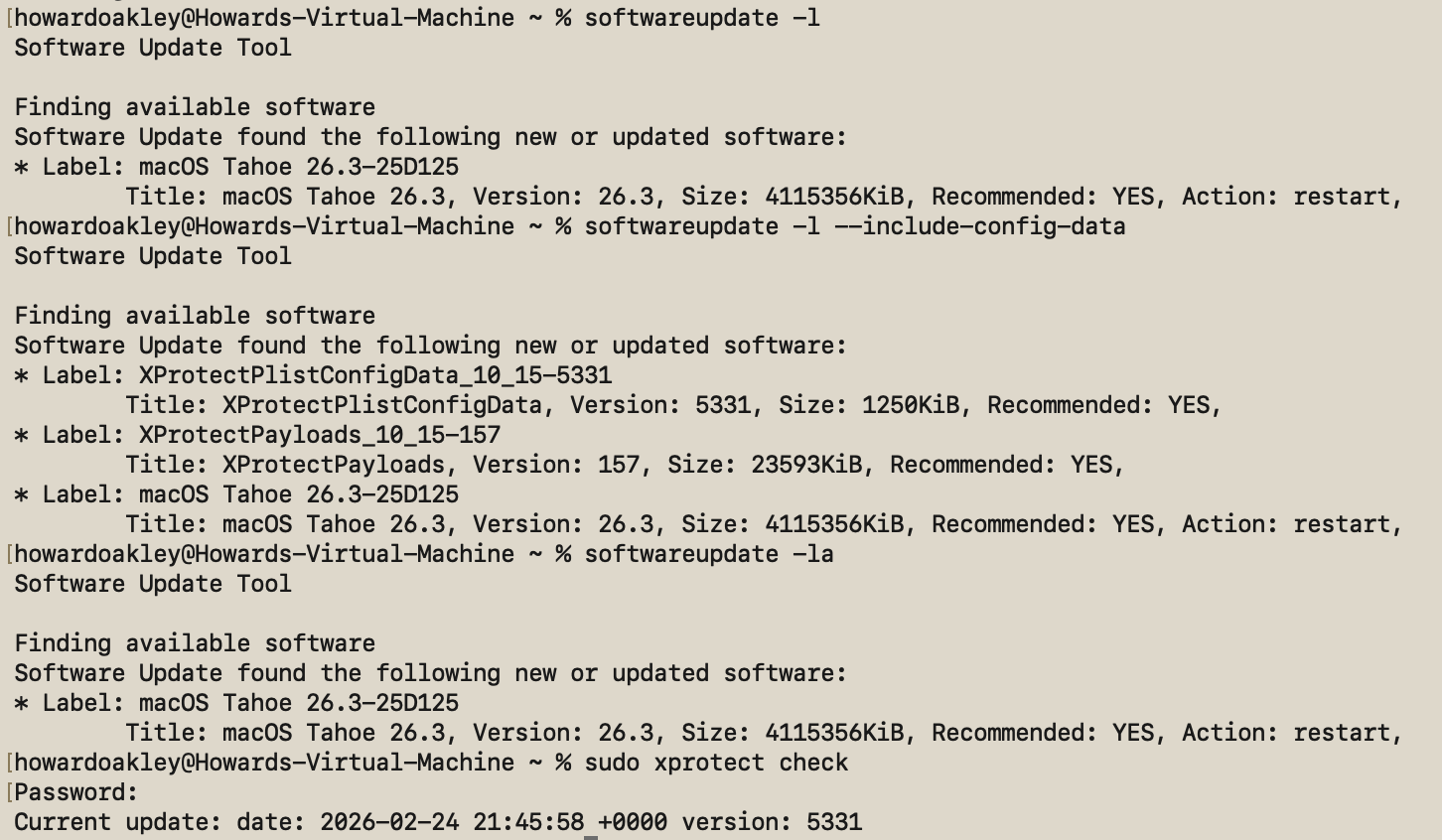
If all you want is a list of available macOS updates,
softwareupdate -l
works fine, and using -la does much the same. Neither will display security data updates like those for XProtect or XProtect Remediator, though. To see those, use the undocumented option
softwareupdate -l --include-config-data
and that should provide the full list. As you’ll probably want to download them individually, use the command
softwareupdate -i --include-config-data updatename
where updatename is the word given as the Label in the listing.
Another invaluable feature of softwareupdate is its list of full installers available for direct download. That’s generated by
softwareupdate --list-full-installers
The current list includes:
- Tahoe 26.1, 26.2, 26.3
- Sequoia 15.7.2, 15.7.3, 15.7.4
- Sonoma 14.8.2, 14.8.3, 14.8.4
- Ventura 13.7.8
- Monterey 12.7.4, 12.7.6
- Big Sur 11.7.10, 11.7.11
- Catalina 10.15.6, 10.15.7 builds 19H2, 19H15
- Mojave 10.14.6
- High Sierra 10.13.6
but that given will include only those compatible with the Mac used to obtain the list. When you want to download one of them, use the command
sudo softwareupdate --fetch-full-installer --full-installer-version 11.7.11
giving the version you want. If you want a different version, then check with one of the sites that provides links to a fuller list, such as Mr. Macintosh.
Avoid using the option to download but not install updates, based on softwareupdate -d, as downloads can go missing from /Library/Updates where you’d expect them, and this doesn’t work at all for macOS updates.
On Apple silicon Macs only, you can use the command
sudo softwareupdate --install-rosetta --agree-to-license
to download and install Rosetta 2 and avoid its normal installation dialog.
Checklist
- Check free space and (in laptops) power.
- Restart and try again.
- Start up in Safe mode and try there.
- Try SilentKnight.
- In Sequoia and Tahoe, XProtect also needs separate
xprotectcommand. softwareupdate -l --include-config-data- To install individual update
softwareupdate -i --include-config-data updatename
 The Eclectic Light Company