
If you have an Apple silicon Mac, take a look at its Thunderbolt ports and you’ll see that, other than being marked with the Thunderbolt lightning symbol, they all look identical. In fact they’re not: one of them is different from the others, although nothing in or on your Mac will tell you that. One of them is the DFU port, and works differently.
Why two types?
Apple designed these new Macs to provide two important features that depend on how their Thunderbolt ports work:
- the ability to start up in a special Boot ROM mode to allow them to connect to another Mac and have the entire contents of their internal SSD replaced, giving them a new set of firmware and setting them back to factory condition in a Restore process;
- the ability to start up from a bootable external disk while remaining in Full Security mode.
Neither of those is available in Intel Macs with T2 chips.
Because starting up using the Boot ROM alone can only support a plain USB-C and not Thunderbolt connection, that Device Firmware Update or DFU mode uses a Thunderbolt port that also supports DFU. However, as a result that port isn’t able to operate fully with a bootable external disk. Hence, every Apple silicon Mac has one Thunderbolt port designated as its DFU port. That’s used to connect it to another Mac when in DFU mode, but can’t be used to install or update macOS on a bootable external disk.
Apple hasn’t explained how the DFU port is different. My speculation is that the Boot ROM directly runs a simple protocol over USB-C for compactness of code, and to ensure it’s less prone to hacking using malicious devices such as those available for Thunderbolt. In contrast, secure protocols using LocalPolicy to enable starting up from an external system could rely on features that are intentionally blocked for DFU mode. The end result is that, while the DFU port works fine in all other respects, and has full USB4 and Thunderbolt 4/5 support, it can’t be used to make an external disk bootable, nor to update macOS on an external disk that’s already bootable.
Identification
The DFU port appears identical to other USB-C ports and has no marking.
System Information and other utilities in macOS don’t provide any information about DFU ports.
The Mac User Guide provided in the Tips app describes the ports on different Macs without making any mention of the DFU port. It contains no relevant information about creating a bootable external disk (except as a bootable installer), or the use of DFU mode.
Apple has published a support note aiming to identify DFU ports on both Apple silicon and T2 Macs, its current version dating from 4 November 2025. However, the information given in that may not be correct, at least for the MacBook Pro 16-inch 2024. According to Apple, the DFU port on a MacBook Pro 16-inch is “the USB-C port furthest to the left when you’re facing the left-hand side of the Mac”. However, Jeff Johnson has reported the DFU Port on his MacBook Pro M4 Pro 16-inch 2024 appears to be on the right side of its case, not the left.
The original version of that support note appears to have been published on 9 December 2024, four years after the release of the first Apple silicon Macs, and almost seven years after the first Intel Macs with T2 chips. When I discovered it in January 2025, I found it internally inconsistent, “for instance, it shows the DFU port as being that on the left of the left side of a MacBook Pro, but states in the text that on a MacBook Pro 14-inch 2024 with an M4 chip, the DFU port is that on the right of the left side instead.” It has since been updated.
There may be an empirical method of discovering the DFU port using System Information, though. This has been tested on at least a dozen different Apple silicon Macs and has held good so far. In the Hardware section, select the Thunderbolt/USB4 item to list each of its buses. In that list at the top, select Bus 0, and below that you should see its details, including those of the Port, where there will be a Receptacle number, starting from 1. As far as I can tell, Receptacle 1 is normally that for the DFU port.
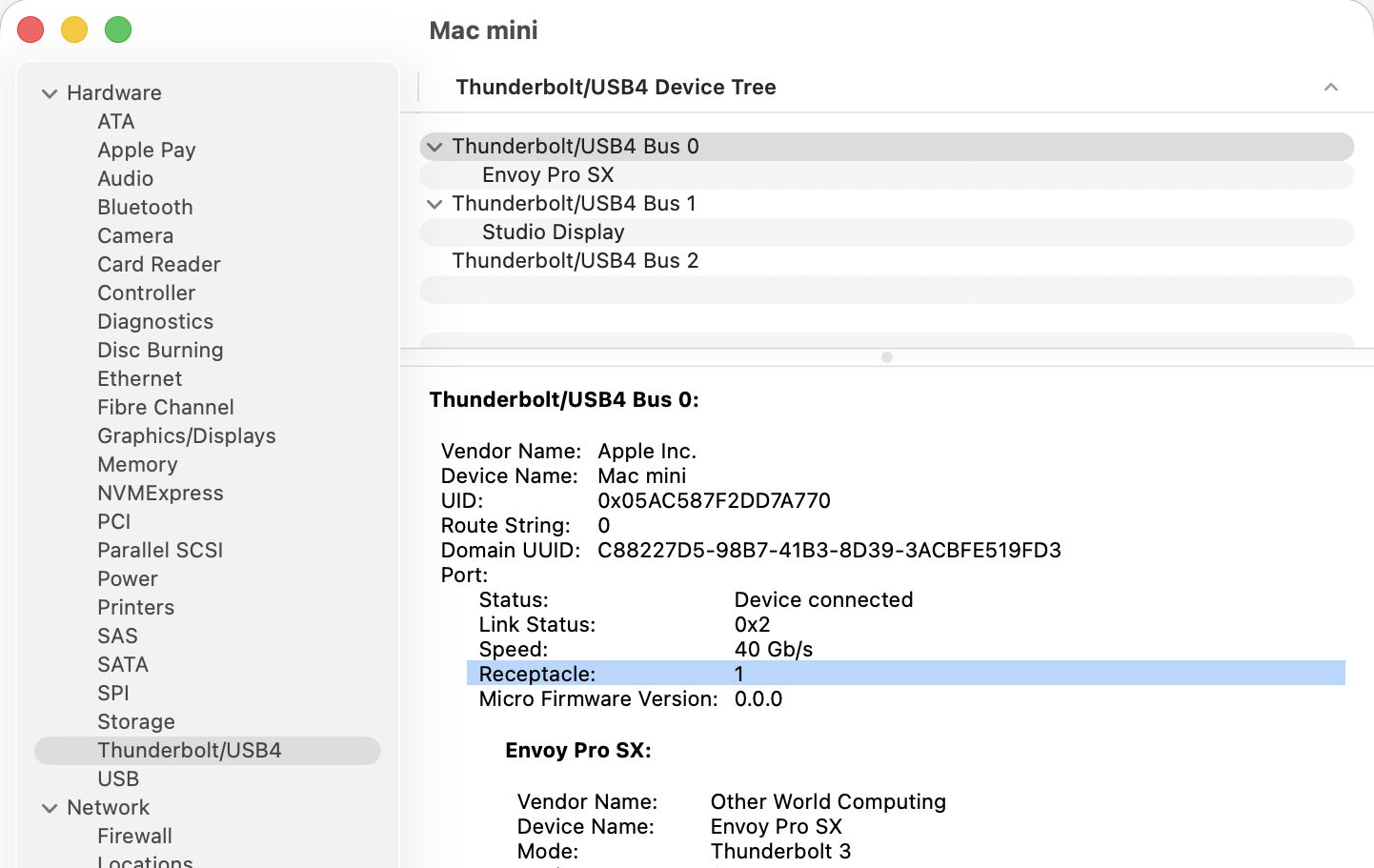
Having identified which of the buses feeds Receptacle 1, the remaining task is to correlate that with the physical port on your Mac. If you already have a device connected to Receptacle 1, you can identify that from the details given below. On my Mac mini, its backup SSD is connected to Receptacle 1, making it simple to see on the case which is the DFU port.
Use
When connecting an Apple silicon Mac in DFU mode using a USB-C cable, that must be connected to the DFU port on that Mac. If a different port is used, the connection is almost certain to fail.
When connecting an external boot disk to an Apple silicon Mac, for that to work fully as expected, it must be connected to a port other than the DFU port. Although the Mac can still boot from an external disk connected to the DFU port, that can’t be used when installing or updating macOS on the external disk, including when creating it, or in other procedures where LocalPolicy for that disk may need to be created or changed.
Intel Macs with T2 chips
DFU ports aren’t unique to Apple silicon Macs, and are also designated for Intel models with T2 chips. However, their impact is then more limited:
- DFU mode is used more rarely, and only to restore current firmware, rather than perform the full restore process available on Apple silicon Macs;
- external bootable disks don’t rely on LocalPolicy, and are installed and used differently as a result.
Recommendations
- Discover which of your Apple silicon Mac’s Thunderbolt ports is its DFU port.
- Use that port to connect it in DFU mode.
- Use any other port when creating a bootable external disk, installing or updating macOS on it, or performing any operation that might create or change LocalPolicy. When possible, it’s simplest to avoid connecting the disk to the DFU port.
- Apple should check and correct, as necessary, information on the DFU port on the MacBook Pro M4 Pro 16-inch 2024.
- System Information should explicitly identify the DFU port on all Apple silicon Macs.
- Future Macs should identify the DFU port on their case.
 The Eclectic Light Company