
You pressed the Power button on your Mac, and nothing happened. It didn’t show signs of starting up, so is it dead, or just pretending? The distinction might seem obvious until you consider DFU mode.
Power reaching the Mac, no sign of life
Simple mains/AC power problems have caught many out: if your Mac isn’t showing any signs of life when it should, ensure that power is reaching it in the first place. Never put yourself at any risk of coming into contact with any live cable, though. Good checks are to verify that the mains socket/receptacle delivers power correctly to another system, and that the Mac’s power cable also does its job. If you’re in any doubt about the electrical safety of either, stop immediately, make everything safe, and obtain professional advice.
If you’re confident that power is going into your Mac, the next and more difficult question is whether the Mac’s hardware is dead, or it has entered DFU mode. DFU mode is the fallback for all Apple silicon Macs that encounter a problem early in the boot process, whether it’s in ROM or later stages before the kernel starts. This also applies to Intel T2 Macs that encounter problems when loading iBridge firmware for their T2 chip, as explained below.
Is it in DFU mode?
Most Apple silicon Macs and T2 models that have entered DFU mode show no obvious signs of life. This is even true of MacBook Pro models with MagSafe 3 power cables: in DFU mode, their LED doesn’t light up. Neither will a notebook keyboard light, nor is there normally any indication that a built-in display has power. Built-in trackpads also feel dead.
Notable exceptions to this are:
- Mac Studio and Mac mini, whose power status indicator light should display amber;
- Mac Pro, whose status indicator light should display amber and may flash.
For all models, once they have connected successfully to a second Mac in DFU mode, you should see the Apple logo and a progress bar on any connected display during IPSW download.
For the Mac Pro, the status indicator light will flash amber in different patterns as a result of memory, PCIe card and other faults. Apple explains those separately for the Mac Pro 2019 and Mac Pro 2023.
DFU mode is detailed by Apple in this support note.
Spontaneously entering DFU mode should be a very rare event, but in most cases the only way to determine whether it has happened is to connect the Mac using an appropriate USB cable to another Mac running recent macOS, which should then connect to the Mac that’s in DFU mode. If that’s suspected, try a firmware Refresh in the first instance to see if that occurs, as that’s non-destructive of the internal SSD’s contents.
Connecting the Macs requires attention to detail. The cable used should be capable of transferring data via USB-C but not Thunderbolt. This is a limitation imposed by DFU mode, and must be observed if the Macs are to connect. That should be connected to the DFU port on the dead Mac, one of its USB-C+Thunderbolt ports. Apple lists those here, and they’re given in MacTracker.
If you aren’t sure, or can’t connect a suitable Mac, it may be best to assume that it’s in DFU mode, and shut it down with a 10 second press of the Power button. On a laptop, DFU mode should use very little power, as there’s normally only one CPU core running and little else. However, as that Mac can’t be charged in DFU mode, this could eventually lead to discharge of the battery.
Not in DFU mode
If there are no signs of life and the Mac isn’t in DFU mode, then it has most probably suffered a fatal hardware failure, and needs the attention of an authorised Apple service provider. If it shows no signs of life in response to a normal press of the Power button, then it’s extremely unlikely to start up in Recovery mode to let you run Diagnostics there.
Signs of life
If the Mac shows signs of life, the next question is how far it proceeds with the boot process:
- It doesn’t reach the login window
- because it freezes and fails to make any further progress, perhaps displaying the Apple logo and progress bar, but no further;
- because it enters a boot loop, in which a kernel panic occurs during boot, forcing the Mac to restart, or to shut down, only to repeat the same sequence.
- It reaches the login window, but sticks there.
- The login window allows user selection and password entry, but refuses any further progress.
- Login is successful, but the Mac freezes or reboots shortly afterwards.
- Login is successful, and problems occur later.
That determines whether you can get it to start up in Recovery mode, and gain access to the tools it provides.
Boot processes

Once a T2 Mac has performed its Power-On Self-Test (POST) and initialised the SMC, the T2 sub-system establishes the level of Secure Boot in force, and, if that’s Full or Medium Security, boot.efi is checked before being loaded, and that leads through to the rest of the boot process. Apple provides a key to the different screens that can appear during these stages.
Boot security in Apple silicon Macs aims to provide a verified chain of trust through each step in the boot process to the loading of macOS, that can’t be exploited by malicious components. Booting an M-series Mac thus starts with the immutable Boot ROM in the hardware, whose most important task is to verify the executable for the next stage, then load and run it. If that isn’t possible, then the fallback is to go into DFU mode and await a connection over USB.
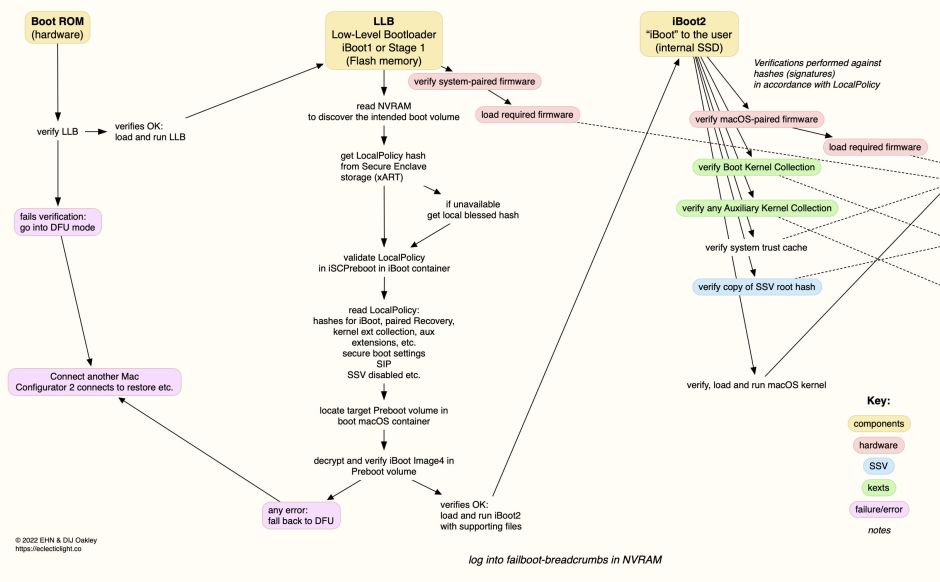
In the event of early boot failure, the only recourse seems to be to abandon the process, and leave the Mac in DFU mode, although Macs running Tahoe could now enter Recovery Assistant to try to fix the problem.
 The Eclectic Light Company