
Snapshots are a simple concept that only becomes complex when you dig into the detail. One of the fundamental features introduced in APFS, they are now used extensively, to form the System volume for all versions of macOS since Big Sur, and in many backup systems including Time Machine.
As the name implies, a snapshot is a preserved copy of a volume at a moment in time. Creating one is both simple and lightning quick: APFS makes a copy of the file system metadata for that volume, and retains with it all the data of its files. From then on, the working copy of the file system metadata changes as files are modified, created and deleted. But all the original file data at the time the snapshot was made is retained. That enables you to roll back the live volume to the exact state it was in when the snapshot was made. The snapshot itself (its file system metadata) is kept in the same container as the live volume, and their file data overlaps.
Snapshots rely on another fundamental feature of APFS, a scheme called copy on write. When a file is changed, the data for that file isn’t changed in place in the same storage blocks, but written out to new blocks. This enables the snapshot to retain all the original data for its files, while the live volume consists of a mixture of old unchanged data, and replacements for those blocks that have changed since the snapshot was made.
Size
This leads to the biggest disadvantage of snapshots: when first made, the only additional storage space they require is for their copy of the file system metadata, which is relatively small. Over time, though, as more data blocks are changed in the live volume, the size of the data the snapshot must retain grows, and can after a few weeks become enormous, depending on how active the file system is in that volume. What was initially measured in MB quickly becomes GB, and if you forget about that snapshot, it will become hundreds of GB in size.
Management
While some operating systems allow users to create their own snapshots and maintain them, macOS doesn’t: apps that have the restricted entitlement to create snapshots are required by Apple to maintain them as well. That’s why apps that make snapshots are backup utilities, and are required to have a mechanism for automatically deleting their old snapshots to prevent them overwhelming storage.
Creating a snapshot is almost instantaneous, but deleting one is more complex and time-consuming. This is because the file system has to identify all the old retained data blocks that are no longer required, and allow them to be freed up for re-use. When that’s performed across the millions of files that could be in the snapshot’s file system metadata, it will inevitably take time. It’s also not entirely predictable, particularly when there may be multiple snapshots for that volume.
APFS snapshots are always of whole volumes, although some file systems can make snapshots of directory trees within a volume. Unlike Time Machine’s backup exclusions, each snapshot it makes of a volume it’s backing up contains every file in that volume. If you have large database or VM files, although Time Machine and other backup utilities can exclude them from taking up space in their backups, they can’t exclude them from their snapshots. If you do want to keep such large files, it’s usually better to put them in a volume that doesn’t get snapshots made of it.
Snapshots are also read-only, and once one is made, it can’t be changed. This is beneficial, as it ensures nothing can change the old files and their data. However, it also means that if something goes wrong in a snapshot and it starts throwing errors, you effectively can’t repair it. At present, you also can’t copy a snapshot, which makes it impossible to make a copy of your Time Machine backup storage, as that’s composed of snapshots.
Purposes
Your Mac uses snapshots in three ways:
- local snapshots, typically made by Time Machine and its equivalents on the volumes they back up. Time Machine only keeps those for 24 hours before automatically deleting them for you, although third-party utilities are usually more flexible. You can normally access these, or roll back to them, by mounting the snapshot as a volume.
- backup snapshots, only created by Time Machine and used to store each backup on your Mac’s backup storage. These are created during the backup process by assembling a copy of the local snapshot together with its changed data into a synthetic snapshot, which is how Time Machine makes its backups now.
- the Signed System Volume, created during installation and updating of macOS on the System volume of your boot volume group. This is a snapshot of that System volume, and is mounted and used as the macOS system. Unlike all other snapshots, this has a tree of cryptographic hashes added to it, to verify and seal the SSV. If a single bit is changed in that snapshot, then that change propagates to the top of the tree, macOS will detect it, and invalidate that SSV.
Utilities
In addition to features provided by third-party backup utilities, you can manage snapshots using Disk Utility. Open its View menu and first enable Show All Devices, then Show APFS Snapshots. Select the Data or Macintosh HD – Data volume in the left of the window, and you’ll see a list of all APFS snapshots for that volume, together with an indication of the size of each.
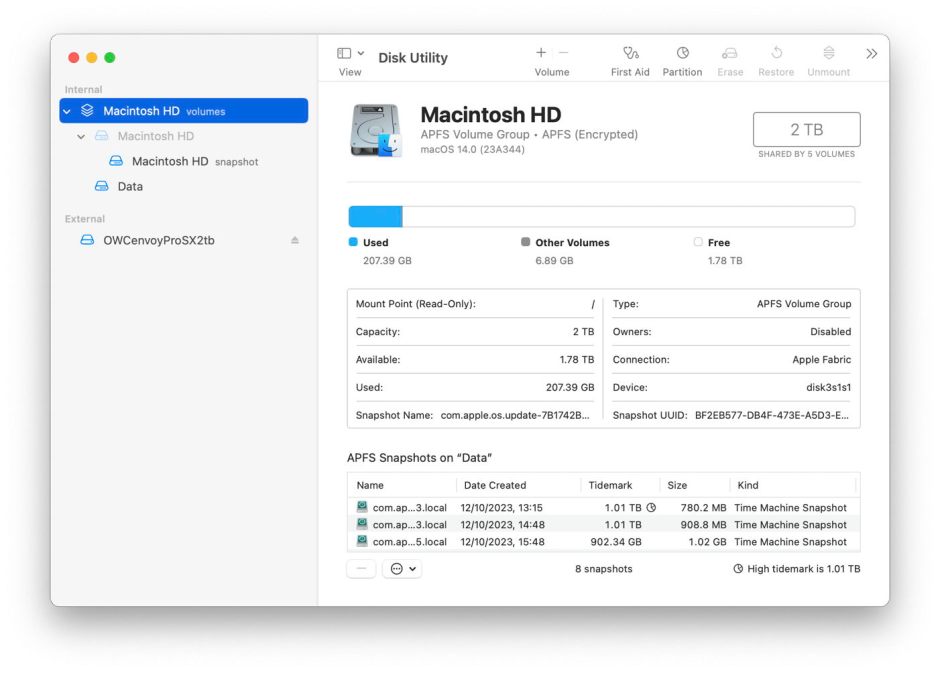
To delete a snapshot in Disk Utility’s list, select it and use the Delete… command from the contextual menu (Control-click). Be careful, though, as there’s no undo. You can safely remove all Time Machine snapshots from that volume except the most recent, which is also the smallest. That latest snapshot is needed when that volume is next backed up by Time Machine. If you remove that too, then the next backup could be a full backup of everything on that Data volume, something best avoided if possible.
 The Eclectic Light Company