
When something’s not working right, one of the most common and effective solutions is to restart your Mac. What happens next is the Mac shuts down and immediately restarts, going through the full boot process. That’s not quite the same as shutting down, leaving your Mac a minute or so, then starting up, what’s sometimes referred to as a cold boot. But neither of those may be necessary, as it may be just as effective to log out and log back in again.
Whether logging out might help is determined by the processes it would restart, something you can see in Activity Monitor. In its View menu select the My Processes command, switch to the CPU view and order those by % CPU. Those are being run on your behalf, with you as the user, they should be closed when you log out and started up again when you log back in. Change the View to All Processes, then order the list by User, and you’ll see that the majority of processes running are yours. If you need to restart processes running as root, or the likes of _windowserver, then only a restart will help.
This can sometimes fix problems with WindowServer, even though it isn’t normally shut down when you log out, neither is the troublemaker cfprefsd. Contrary to what you might expect, some user processes continue running uninterrupted even after you’ve logged out. However, in the recent past macOS itself has used user logout as a way to restart WindowServer without rebooting. In more recent versions of macOS, particularly on Apple silicon Macs, the only reliable way to fix WindowServer problems is by restarting the whole of macOS.
cfprefsd is a particular nuisance here, as there are normally both root and user copies running to handle all those preferences. You wouldn’t expect the root copy to be affected by logging out, but at least the user copy could have the decency to do so. This means that, if you’re trying to slip a manual change to a preference file past cfprefsd, a full restart is likely to be required.
Another useful clue as to what’s likely to be restarted by logging out and back in again is given in their Process ID. With Activity Monitor still showing All Processes, order them by PID.
At the top with PID 0 you’ll see kernel_task, followed by launchd with a PID of 1. Next you’re likely to see the logd service responsible for writing and maintaining the Unified log. On Intel Macs that’s likely to have a PID of around 96, while it’s higher on Apple silicon Macs at around 368. That’s because of the many hardware-related processes that are run during startup to initialise all the features built into the chip.
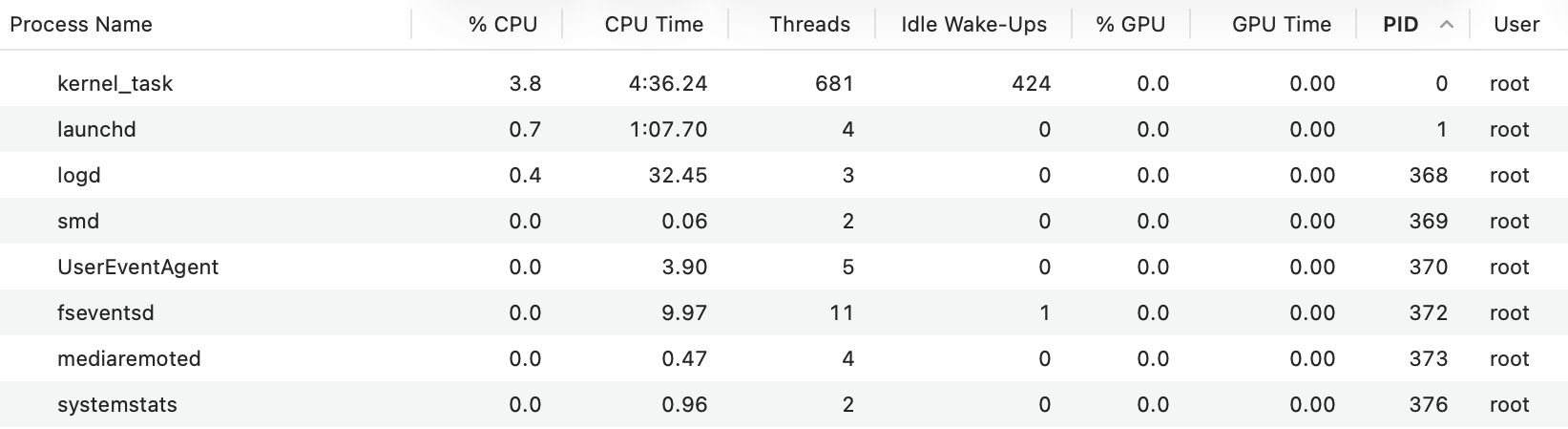
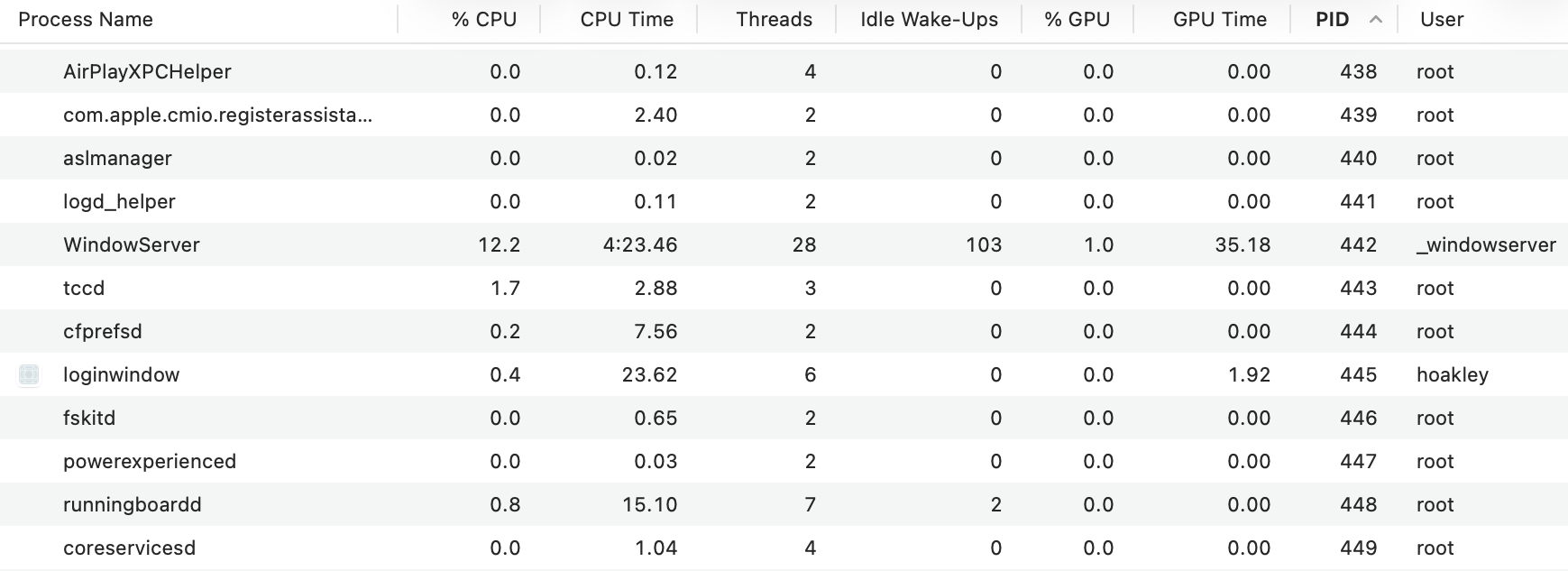
As these PIDs are assigned in simple numerical order, they reveal the sequence of process startup. Find WindowServer in the list, and it’ll generally have a PID of around 442 (166 on Intel). Not too far below it you should see the first user process, loginwindow, at about 445 (205 on Intel); that’s also the first process to be given its own icon at the start of the line. Processes with lower PIDs were all started before login, and those with higher PIDs, including some running as root, were started afterwards.
Many of those user processes, and many with PIDs greater than loginwindow, should be shut down when you log out, then be started up again as needed, when you log back in again. But if you try that and check PIDs again, and glance at the CPU Time column, it’s apparent that many user and other late-loading processes retain low PIDs and long CPU times. To refresh those a restart will be needed.
Normally, logging out and back in should only take a few seconds to complete. Because your Mac isn’t starting up from scratch, its Bluetooth remains working throughout, so there’s no frustrating delay before you can type your password in. With a bit of luck your Mac should then be back in fine fettle again, ready for you to resume work with the minimum of disruption.
What this doesn’t do, of course, is flush the caches and clean up any accumulated crud in your user account. For that, starting up in Safe mode remains the only solution. That’s a little less convenient on Apple silicon, where you have to shut down and start up in Recovery with the Power button held. Then select the startup disk you want your Mac to boot from, and hold the Shift key. The button underneath that disk icon then changes to read Continue in Safe Mode. Click on that and your Mac will restart into Safe mode. Although hardly onerous, if logging out and back in again does fix the problem, it will save you significant time.
 The Eclectic Light Company