
Open Activity Monitor when your Mac isn’t doing a great deal and you’ll see hundreds of processes listed there. Even in a virtual machine with a minimum of services there are at least 500, and in a vanilla setup with no apps open a real Mac can exceed 700. Clearly some of those like WindowServer are essential, but aren’t there plenty we could do without? That’s a question I’m asked repeatedly, which this article tries to answer.
One of the first problems when trying to identify which processes we could do without is knowing what each does, and how they’re interrelated. I doubt whether any individual in Apple knows them all, and trying to establish what some do would be a challenge. If we assume that we need to identify just 500 candidates, and each takes an average of one week to research, that would take over 10 person-years, by which time they would all have changed again. Studying 500 targets that are ever-changing simply isn’t practical.
When problems get difficult, it’s often best to cheat, so I’m going to go for the low-hanging fruit and consider a well-known group of processes, those making Time Machine backups. I’ve been following these since macOS Sierra, and frequently study them in the log. They’re also good candidates for removal, as many folk don’t back up using Time Machine but use one of its alternatives. So some already have good reason to want to be rid of backupd and its relatives. They’re also relatively discrete: although they depend on other processes to function, I don’t know of any other subsystems that require Time Machine, making it potentially disposable.
Set up a basic VM in maOS 26.2 and, even though Time Machine has never been enabled, you’ll see its processes listed in Activity Monitor.
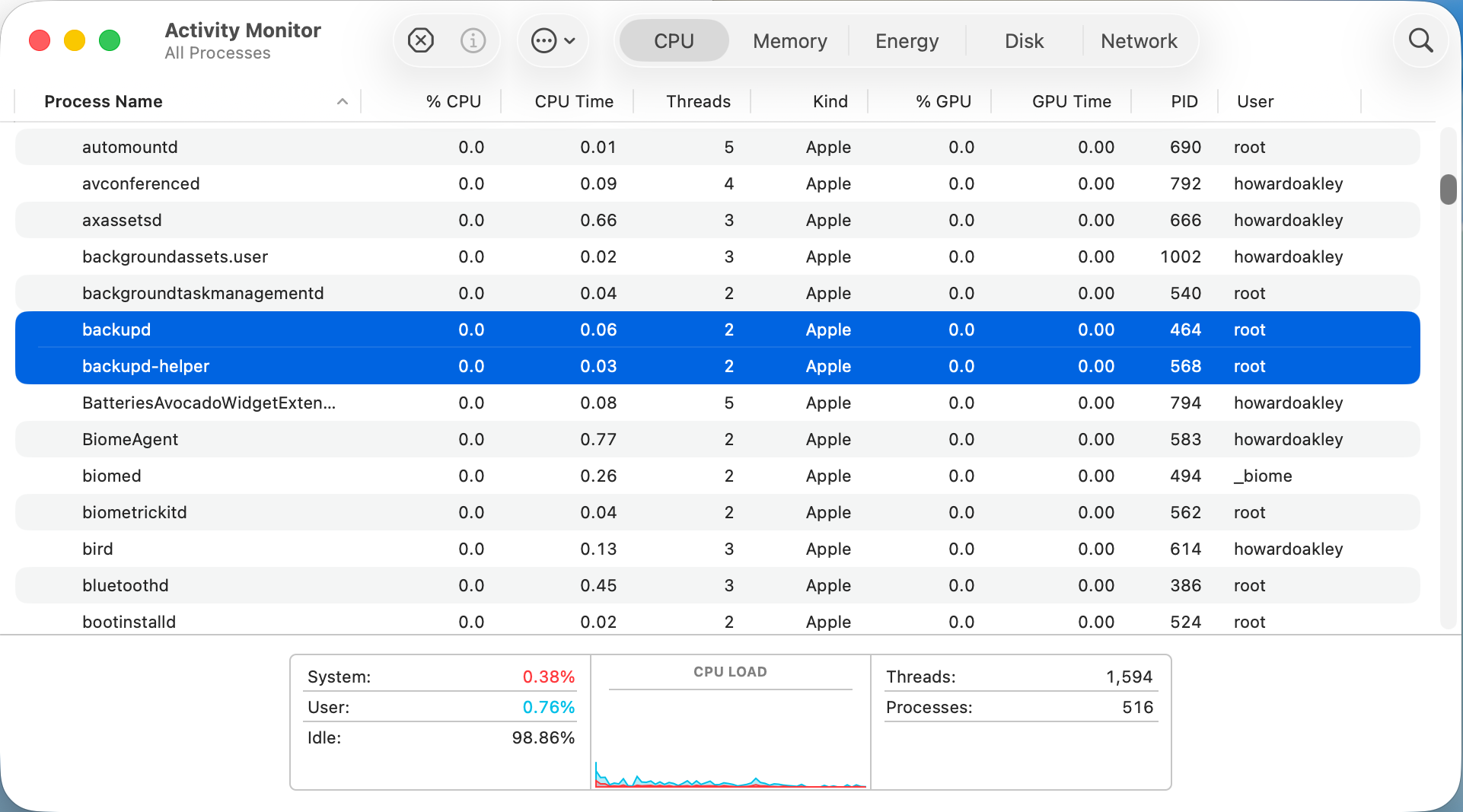
Here are backupd and backupd-helper showing they still take a little % CPU even when Time Machine is completely disabled.
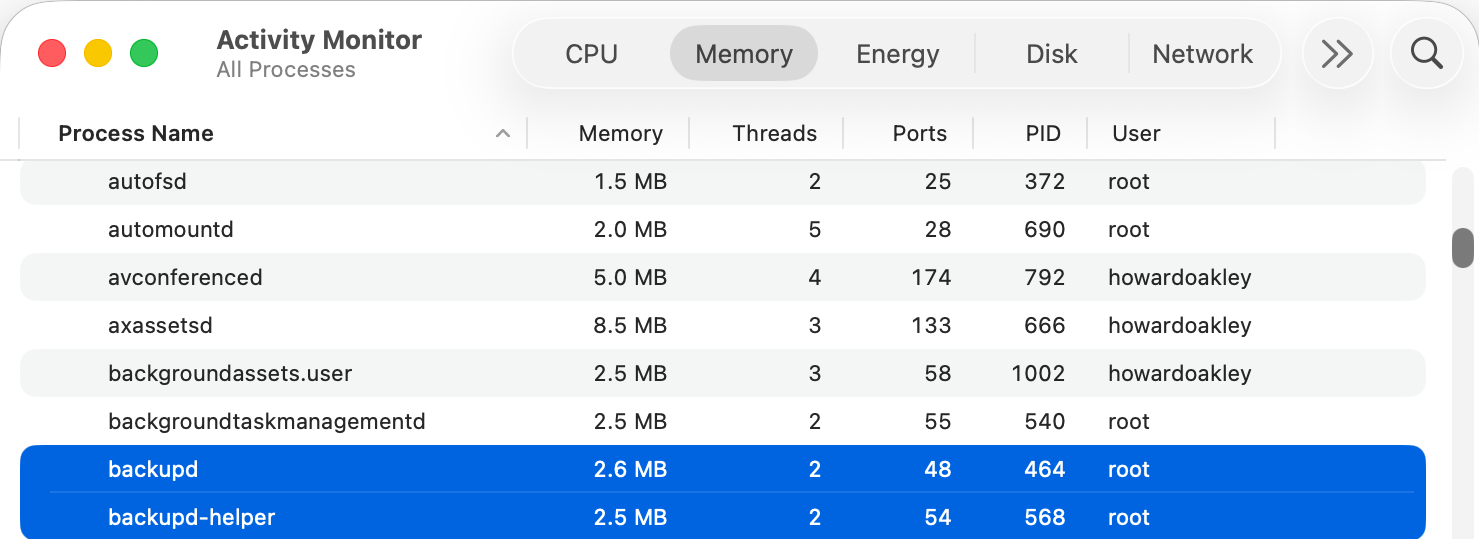
They also take a little memory, here a total of 5.1 MB. While that isn’t much, added up over 500 processes it becomes worth caring about.
Those two processes are controlled by LaunchDaemons stored in /System/Library/LaunchDaemons, in property lists named com.apple.backupd-helper.plist and com.apple.backupd.plist. Here’s our first problem, as those are located in the Signed System Volume (SSV), so we can’t change them in any way. The same applies to the other 417 LaunchDaemons and 460 LaunchAgents that account for most of the processes listed by Activity Monitor. In the days before the SSV it was possible to edit their property lists to prevent them from being launched, but that isn’t possible any more when running modern macOS.
If we can’t stop the backupd-auto process from being run, is there any other way we could block it? To answer that we need to understand how it’s scheduled and dispatched.
Until macOS Sierra, Time Machine backups were run from launchd as timed events, but since then their scheduling and dispatch has been performed jointly by Duet Activity Scheduler (DAS) and Centralised Task Scheduling (CTS), using lightweight inter-process communication (XPC). DAS manages a huge list of activities including com.apple.backupd-auto, and decides when to dispatch it to CTS to run. For example, it won’t do that for the first five minutes after a Mac starts up, to allow other processes to run first.
Once that time is up, DAS decides to run the backup:
38.738 DAS 0:com.apple.backupd-auto:2052A3, Decision: CP Score: 0.949374}

38.738 DAS '0:com.apple.backupd-auto:2052A3' CurrentScore: 0.949374, ThresholdScore: 0.068531 DecisionToRun:1

38.762 DAS REQUESTING START: 0:com.apple.backupd-auto:2052A3
CTS then proceeds with the dispatch via XPC:
38.762 CTS-XPC  DAS told us to run com.apple.backupd-auto (0xb671bcc80)

38.844 CTS-XPC Initiating: com.apple.backupd-auto (0xb671bcc80)

38.846 CTS-XPC  _xpc_activity_dispatch: beginning dispatch, activity name com.apple.backupd-auto, seqno 0

38.846 CTS-XPC _xpc_activity_begin_running: com.apple.backupd-auto (0x7a9014280) seqno: 0.

38.878 CTS-XPC Running (PID 537): com.apple.backupd-auto (0xb671bcc80)

38.879 DAS STARTING <_DASActivity: "0:com.apple.backupd-auto:2052A3", Utility, 60s, [1/19/26, 8:50:43 PM - 1/19/26, 9:10:43 PM], Started at 1/19/26, 9:10:38 PM, Group: com.apple.dasd.default, PID: 537>
This is in a VM with Time Machine disabled, though, so Time Machine reports:
38.879 Time Machine Skipping scheduled Time Machine backup: Automatic backups disabled
However, com.apple.backupd-auto has now completed, and that’s passed back through CTS-XPC:
38.879 CTS-XPC _xpc_activity_set_state: send new state to CTS: com.apple.backupd-auto (0x7a9014280), 5

38.880 CTS-XPC Completed: com.apple.backupd-auto (0xb671bcc80)
The next run is then scheduled in DAS following an interval of at least 30 minutes, and ideally in about an hour:
38.881 CTS-XPC Rescheduling: com.apple.backupd-auto (0xb671bcc80)

38.881 DAS SUBMITTING: 0:com.apple.backupd-auto:B293AE

38.882 DAS Submitted: 0:com.apple.backupd-auto:B293AE at priority 30 with interval 1800 (Mon Jan 19 21:25:38 2026 - Mon Jan 19 21:40:43 2026)
So, even with Time Machine disabled in a VM, DAS-CTS continues to schedule automatic runs of Time Machine at hourly intervals. And, because DAS-CTS is isolated from all user controls, there’s nothing we can do to prevent that scheduling and dispatch. Does that matter, though? This whole sequence was completed in 0.144 seconds, using lightweight inter-process communication with negligible use of resources, and only repeats hourly.
To the Unix purist, this might appear wasteful and unnecessary, but macOS isn’t, and never has been, Unix. It’s a closed-source proprietary operating system designed for use by millions of consumers and regular users. Rather than configuring it using config files or its thousands of property lists, its controls are largely exposed in System Settings, with a few settings hidden away and only accessible through the defaults command.

Classic Mac OS was more modular, with optional installs that the user could pick and choose, as shown above in Mac OS 9.1. These days with the SSV, choice is more limited from the start, with the only real options being whether to install the cryptexes used in AI, and the x86 code translator Rosetta 2. The latter is transient, though, and likely to go away next year.
Like it or not, modern macOS isn’t designed or implemented to give the user much choice in which processes it runs, and architectural features including the SSV and DAS-CTS prevent you from paring its processes down to any significant degree.
 The Eclectic Light Company