
It’s not unusual for strangers to send me an email with a link to an app or document they’d like me to look at. Although always welcome, this raises the question of whether that might be yet another phishing attack. How can I tell if they’re not who they claim to be, and are just trying to lure me into downloading something malicious? This article looks at two potential solutions.
Dangerzone
Journalists face a particular problem, as they’re reliant on strangers sending them crucial information in documents. They can also be targets for more serious attacks, maybe even from state-sponsored actors. Dangerzone, originally developed by Micah Lee and now available from the Freedom of the Press Foundation, is primarily aimed at addressing their problem.
It converts a wide range of document formats to PDF, images each from PDF to pages of pixels, which it then reassembles into a fresh PDF and performs optical character recognition (OCR) to add text content to that, making the ‘safe’ PDF searchable. Stages up to the generation of images are performed inside a sandbox within a container running in a Linux virtual machine, effectively isolating the suspicious document from the host Mac.
Because the app brings its own Linux VM with LibreOffice and several Python tools, it’s large, at 2.2 GB. Its format coverage is cross-platform rather than Mac-oriented, and currently doesn’t appear to include either RTF or RTFD, although they should be low-risk. It does, though, work with all recent Microsoft Office and ODF document types.
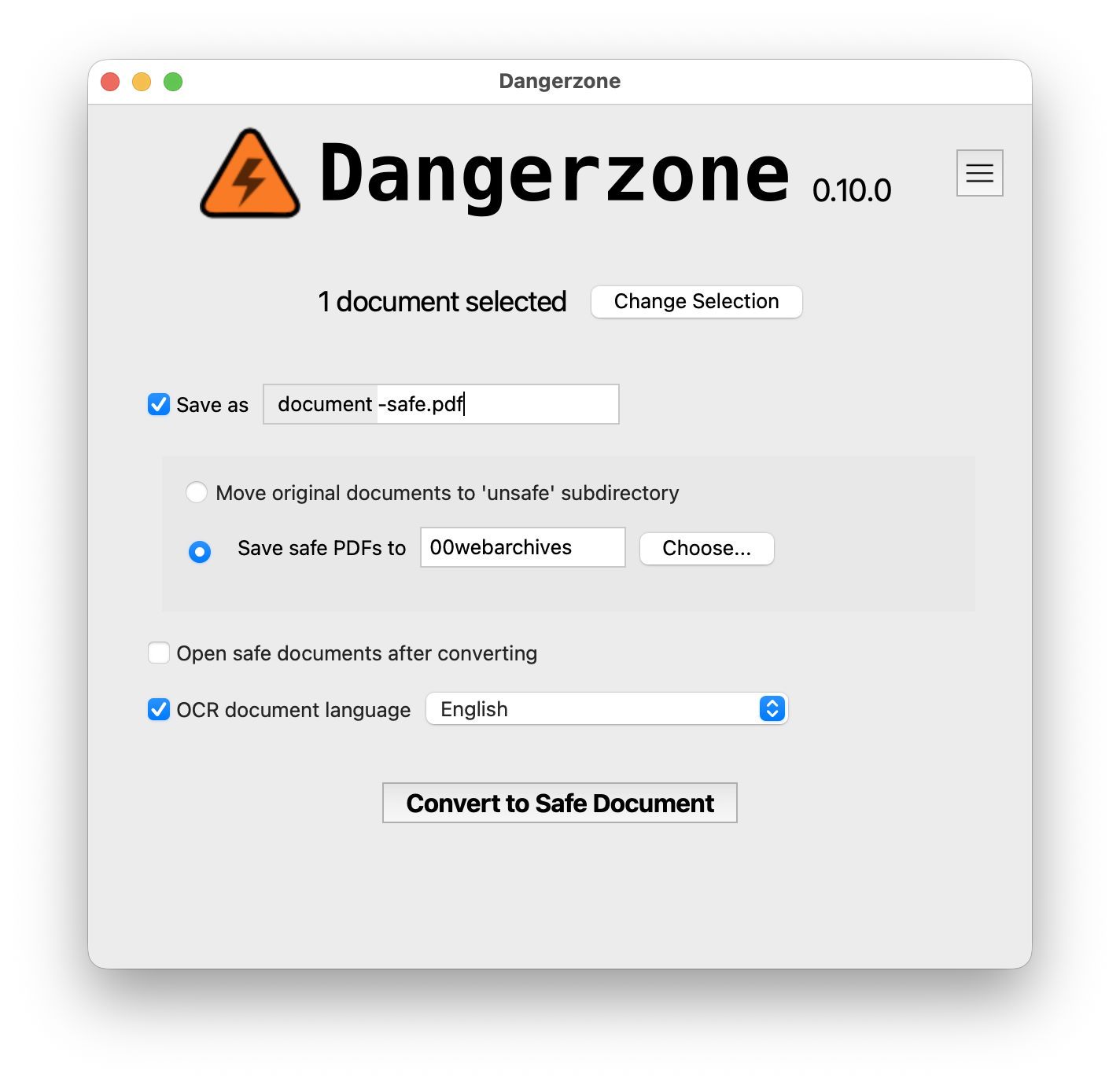
Although still relatively early in its development, Dangerzone already does what it claims. In my brief testing, the quality of its output PDFs was high, although its OCR didn’t cope well with grey text. It also didn’t like the very long single-page PDFs exported by Safari. If what it does meets your needs, then you should test it out.
Locked-down virtual machine
If your requirements are broader than those addressed by Dangerzone, particularly if they extend to suspicious apps, you may find a solution in running a macOS virtual machine on an Apple silicon Mac. This is supported in a special locked-down version of my free virtualiser Viable, named ViableS, but you may be able to achieve something similar using a different virtualiser. I’ll explain how I do this myself.
Start with a ready-built VM of your preferred macOS version, and duplicate it to preserve the original. Because this is performed using APFS cloning, even a 100 GB VM duplicates instantly and takes little real additional space. Open this VM using Vimy or Viable and add a new standard user with a bogus name like John Smith and an obvious password like password. Populate its Applications folder with the apps you’re going to need to assess the suspicious documents or apps. In the case of PDF documents, that could include Podofyllin as the reader, and maybe Textovert for onward conversion. Switch to the standard user and copy across any suspicious files you already have, then shut the VM down.
From here on, you only run that VM using ViableS, as that runs in a sandbox and has no support for sharing folders with the host. If you need to download any suspicious apps or documents, first run ViableS with networking enabled, obtain what you need, then shut the VM down, start it up with networking disabled, and log in to that standard user account.
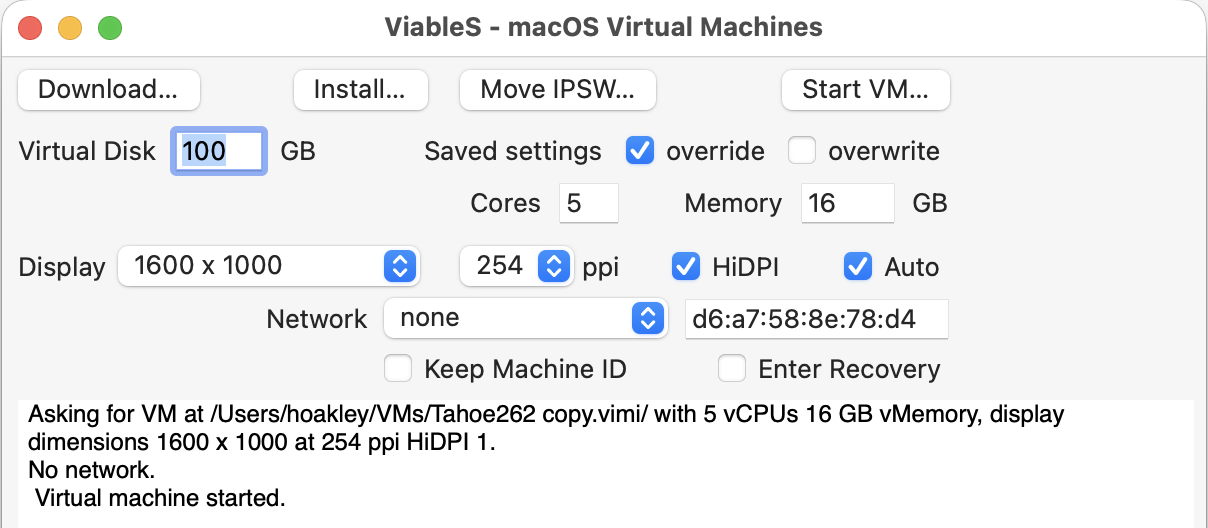
Your VM is now as well protected and isolated from the host Mac as possible. The virtualiser is running in a sandbox, it has no shared access to files between host and VM, it has no network connection, and is running as a standard rather than admin user, with a bogus name and password. You can now extract text and other content from suspicious documents, and save them in formats such as rich and plain text that aren’t able to be subverted by an attacker. If you’re assessing a suspicious app, you can run it here and monitor its actions and behaviour. To remind you that VM is locked down, ViableS adds a red goblin 👺 emoji to the window’s title bar.
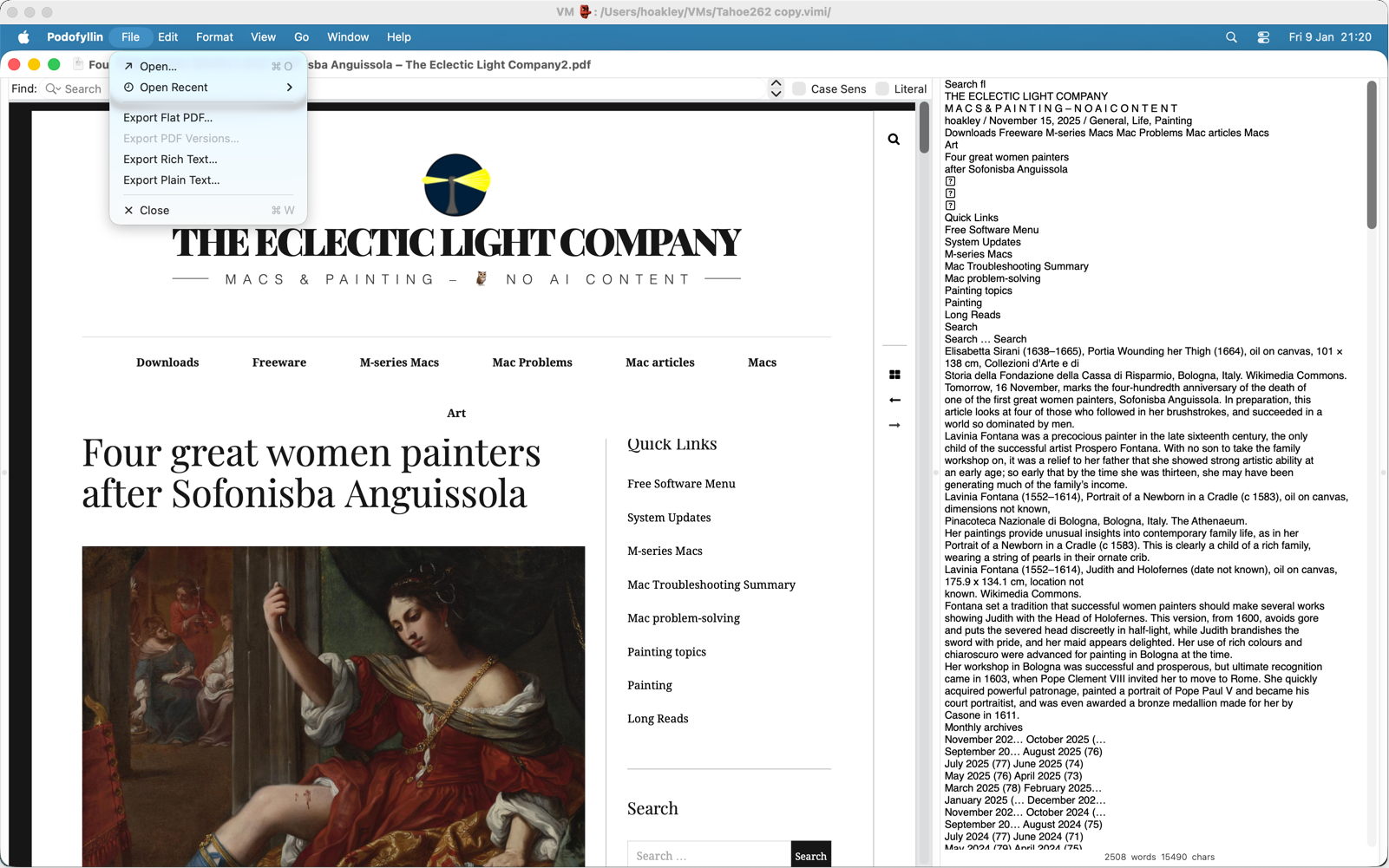
Once you’re satisfied that the documents or apps aren’t malicious, shut the VM down, then reopen it in ViableS with a network connection to enable you to transfer any cleaned formats or other information you have recovered. When you’re done, shut it down and trash the whole VM.
Recommendation
If you receive files or links from a stranger whose identity you can’t verify with certainty, either use Dangerzone (compatible document formats only) or a locked-down VM to protect your Mac from the threat that those may be malicious. Although these might appear demanding, even over-cautious, running malware on your Mac would be a far worse outcome.
I’m very grateful to Adam Engst of TidBITS for telling me of Dangerzone.
 The Eclectic Light Company