
For your entertainment on Boxing Day, here’s some fun and games you can have with Providable.
Does Providable change xattrs?
When you first run Providable, it gets its own Provenance ID once it has cleared its first-run Gatekeeper checks. From then on, if it were to perform any of the 11 file operations that result in a Provenance xattr being added to another file, instead of checking those xattrs, it would end up changing them all. According to Koh M. Nakagawa’s research, the 11 types of file operation are: create, open in write mode, truncate, link, rename, setextattr, deleteextattr, setattrlist, setflags, setmode, setowner, setutimes and setacl. As Providable only uses getxattr, that shouldn’t cause any problems.
To confirm this, if you haven’t already installed and run Providable, download the Zip archive from here, unarchive it, and move just the app from inside that folder into the Applications folder of your choice. Run it the first time without doing anything useful with it, so it undergoes its first-run checks, then quit it, and open it again.
Now it should have been registered in the Provenance Tracking table in the ExecPolicy database, and when you click on the Load Apps tool in its main window, you should see Providable listed as one of the apps with its own Provenance ID.
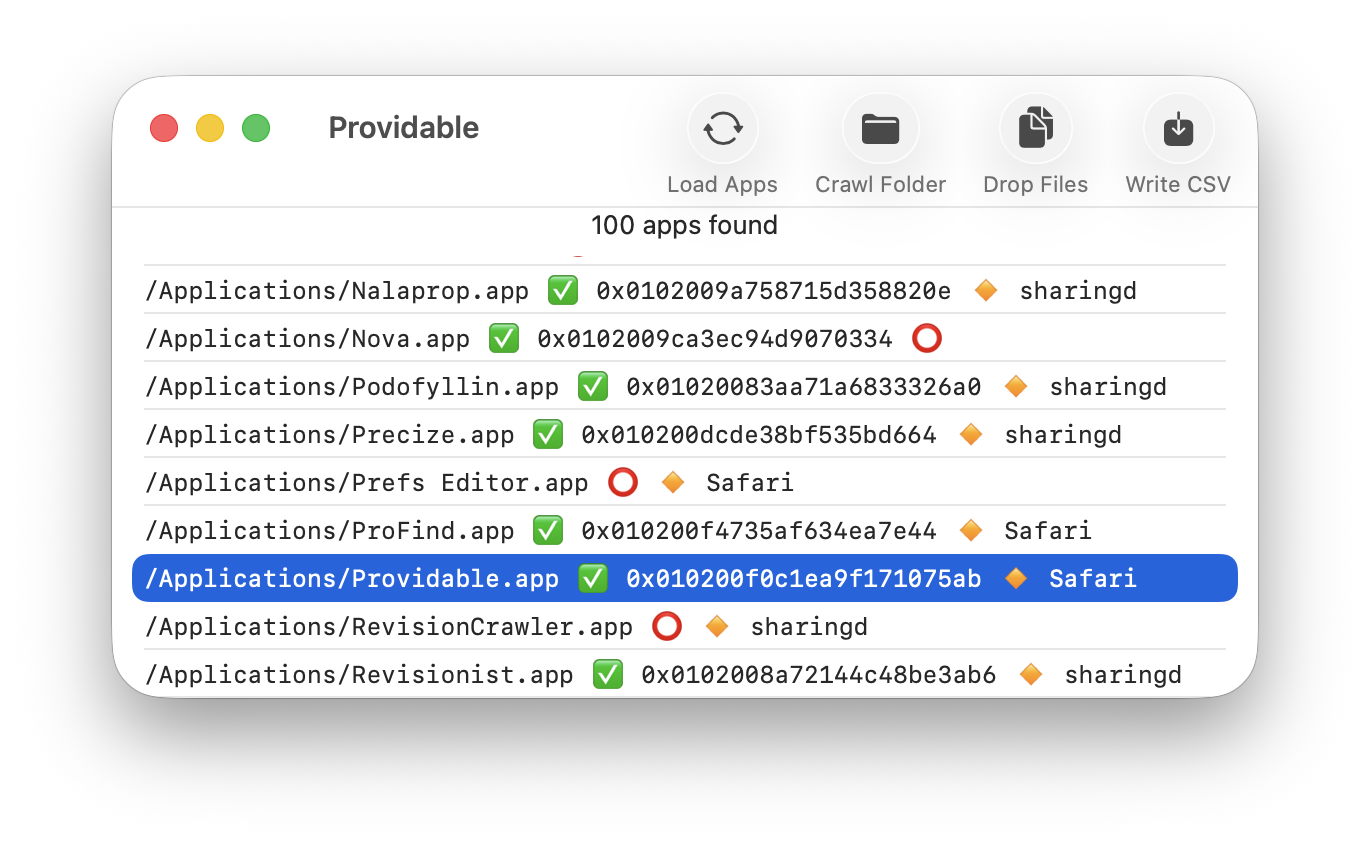
To verify that Providable doesn’t add its own Provenance ID to files that it checks, use the Crawl Folder tool to open a crawler window and check a folder of modest size there once, then check the same folder a second time. If it’s now full of files with Providable’s ID on them, you know something has gone wrong. Otherwise you have demonstrated that checking files using Providable doesn’t alter them in any way.
There is a way of ensuring that the Providable app doesn’t enter Provenance tracking: when you have downloaded its Zip archive, strip its Quarantine xattr using xattred before unarchiving the app. Without that xattr, it won’t undergo full first-run checks, and shouldn’t be entered into the Provenance Tracking table.
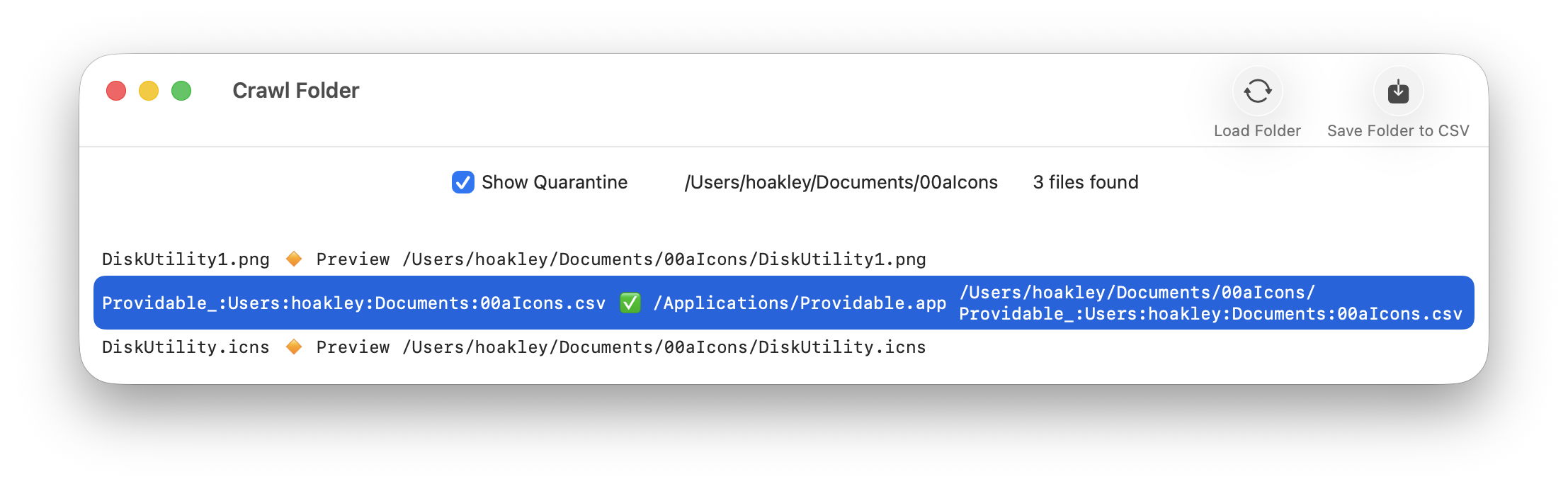
This is a lesson in itself, as it demonstrates how removing Quarantine xattrs not only dodges those first-run checks, but has the lasting effect that it prevents macOS from tracking files that it creates or modifies. You can verify that by crawling a folder and using the Save Folder to CSV tool to write the results to the same folder. Once you’ve done that, repeat the crawl and that CSV file Providable just saved should be found to have Providable as its Provenance ID, as shown below.
False flags
Scroll down through the list in the main window and you’ll notice some apps that appear to share the same Provenance ID. They’re also suspicious because they’re not App Store apps but don’t have a Quarantine xattr. Those, and possibly others, have been updated in place since they were originally installed.
You can explore this further by checking the Applications folder in the Crawl Folder window. However, don’t try that with the Show Quarantine checkbox ticked, and be prepared for this to take a long time: for my 250 or so apps, there were nearly 35,000 files found in /Applications. Look through them and you’ll see some apps with just the .app bundle with a Provenance ID, while others have every single file tagged with one.
Apps with just the single Provenance xattr attached to the .app bundle are giving their genuine and original ID that was attached when they cleared their first-run Gatekeeper checks. Those with IDs found on many or every file in the app bundle have been put there because an updater wrote those files, so are effectively false flags. This doesn’t, of course, worry macOS, as it doesn’t rely on the bundle’s Provenance xattr to determine which ID to tag other files with, as it retrieves the original ID from its Provenance Tracking table.
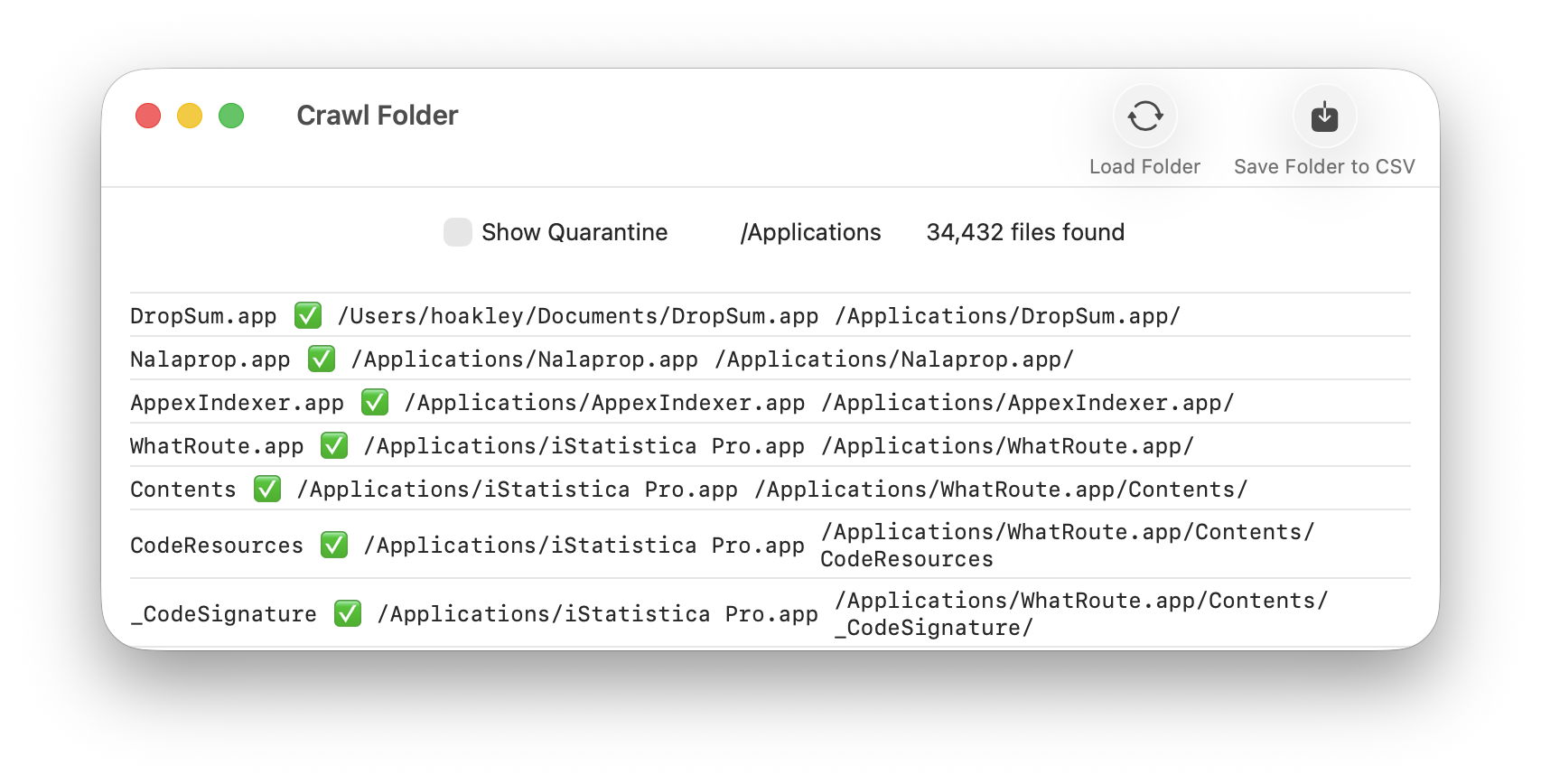
This window shows a tiny fraction of the files with Provenance IDs found in my main Applications folder. The first three are single entries for each app, and genuine IDs from when they were first run. Those shown for WhatRoute below are false flags, attributed to iStatistica Pro, but in fact the result of a Sparkle-based update performed in place.
There are other clues as to what has happened here. The app whose Provenance ID is attached to so many of those files is listed here as iStatistica Pro. Look back in the main window for that app, and you’ll see its ID there is the same as several other apps, a good indicator that they have all been updated using the same Sparkle update mechanism.
If you’re going to use Providable to check the contents of protected folders, you’ll need to add it to the list with Full Disk Access in Privacy & Security settings, but this next check shouldn’t require that.
Who has been writing my Preferences?
We’re rightly sensitive about which apps might be changing the contents of our preference files. This is easy to check using Providable: in its Crawl Folder window, tick the Show Quarantine checkbox, then use the Load Folder tool to select your ~/Library/Preferences folder.
The great majority of files here shouldn’t have a Provenance ID, but their Quarantine xattr should show that they’ve been modified by com.apple.cfprefsd, that’s the standard cfprefsd service in macOS that’s supposed to be used for access to preferences. In other words, those have been maintained as intended.
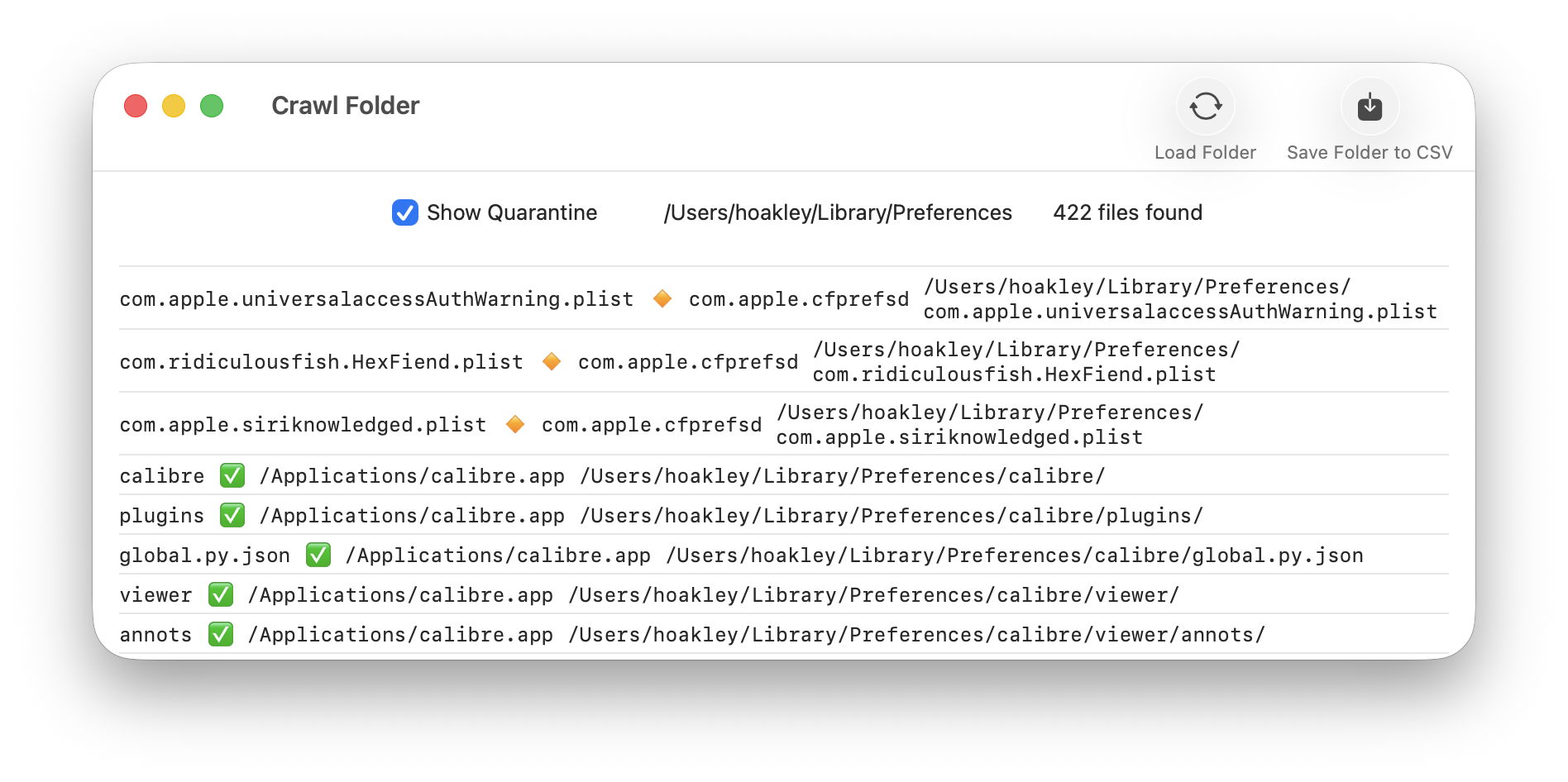
Here I’ve found some exceptions to that, in that the Calibre app has been handling its own work in this folder. Very few other apps do that, with the flight simulator X-Plane being the only other exception seen here. I also discovered a couple of preference files that I had inspected using other apps including a text editor, and a folder created by VMware Fusion.
Track apps without Provenance IDs
Ordinarily, there are three classes of apps that Providable can’t track using Provenance IDs:
- those bundled in macOS, as they’re signed by Apple and located in the SSV or Cryptexes;
- those supplied from the App Store, as they’re signed by Apple and don’t get awarded a Quarantine xattr;
- those updated in place using Sparkle or a similar mechanism, as they are then given Provenance IDs for the updater.
I’m afraid there’s nothing to be done for the first of those, as you can’t attach a Quarantine xattr to them to force them through first-run checks. However, we can do that for the other two classes.
For an App Store app:
- copy the app to another folder, and trash the original;
- add a Quarantine xattr to that copy using xattred;
- move that copy back into the Applications folder and run it.
Although these apps should function normally when run in this way, be prepared to trash them and reinstall the app from the App Store if necessary. However, once it has completed its first-run checks, the app should be enrolled in the Provenance scheme.
Apps that have been updated in place are even simpler to deal with. Trash the app and download its current version. When you install and run that new version, it should be enrolled correctly in the Provenance scheme, and its ID should be propagated to all the documents it creates or changes from then on.
Summary
- Providable doesn’t change xattrs, but preserves those for Provenance and Quarantine.
- To prevent a downloaded app from entering Provenance tracking, strip its Quarantine xattr before installing or running.
- An app that has been updated in place, for example using Sparkle, has a Provenance xattr from the updater, thus presenting a ‘false flag’ Provenance ID.
- Providable can discover which apps have written directly to preference files.
- Track Provenance of App Store apps by running them with a Quarantine xattr added using xattred, so they undergo first-run checks.
- Track Provenance of apps that have been updated in place by downloading and replacing them with the current version.
 The Eclectic Light Company