
One of the features new to macOS 26 Tahoe that you won’t find in Apple’s list is an enhancement to Recovery mode, in Device Recovery Assistant (DRA). This article explains what it is and how to use it.
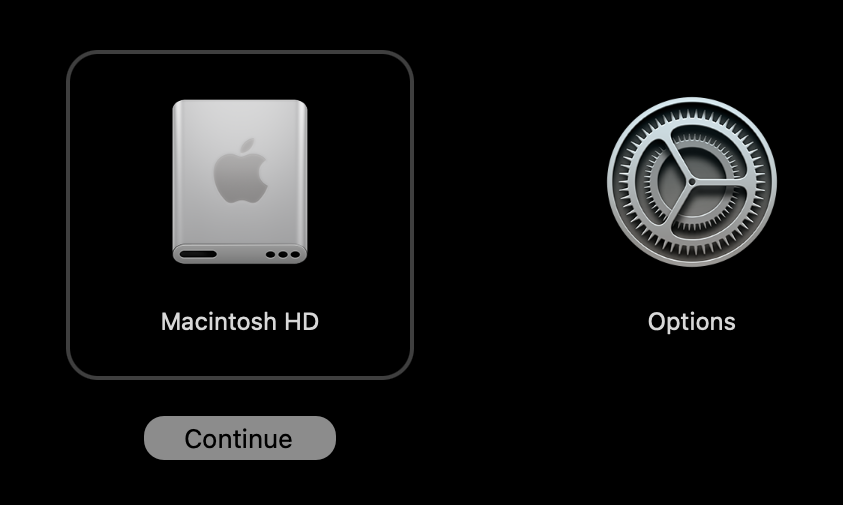
When you put your Mac into Recovery mode from Tahoe, you should notice that Apple has changed the disk icon there, to one intended to more closely resemble an SSD rather than a hard drive, although of course it’s still quaintly named Macintosh HD.

If your Mac (upgraded to Tahoe) has problems starting up correctly, it should now automatically restart and open DRA. You can also enter it manually by starting up in Recovery, passing through to Options, and using the Recovery Assistant command in the Utilities menu there, where its app menu identifies itself as Device Recovery Assistant. DRA requires an internet connection to function. If you’re asked to choose a connection, opt for a Wi-Fi network if possible.

Distinctive to DRA’s opening window is its first aid symbol ⊕. Click on the Continue button to move on.

The next window invites you to send data to Apple for diagnostic purposes. Make your choice as you move on.

If your startup Data volume is protected by FileVault, you’ll then be prompted for the password to unlock it. Once that has been provided, DRA attempts to perform a ‘recovery’.

At the end of that, you should see one of three outcomes:
- no problems were found, and you can restart your Mac back into normal mode;
- problems were found and repaired successfully, so you can restart your Mac back into normal mode;
- problems were found but aren’t fully repaired.
When your Mac restarts, it may show a notification that you need to recover iCloud data. If so, open System Settings and you should see a new item in its sidebar to Recover iCloud Data.
If DRA doesn’t fix your Mac, you’ll almost certainly need to start up in Recovery and try to fix it there. You can also quit DRA to return to Recovery if you wish.
Apple’s support note doesn’t give any further information about what DRA does.
 The Eclectic Light Company