
macOS has three well-known devices for linking to files and folders: Finder aliases and their close relative Bookmarks, symbolic links or symlinks, and hard links. Choosing which is best for any particular use requires insight into their properties, although it’s most often determined by ease of access and habit.
Most file systems provide two methods of creating links, either by referencing the directory path and name of the file/folder in a symlink, or by using a reference to an identity number unique to that file system and part of that file’s attributes, normally the inode number, forming a hard link.
Symlinks

A symlink is a separate file containing the path to the file or folder that it links to. It thus has its own File System Object, and its own tiny data containing the path to the original. This works well as long as that path is preserved in its entirety. The inode of the original file is unaware of any symlinks to it, so deleting the original file also breaks every symlink to that file.
Symlinks are easily created in Terminal using a command like
ln -s /Users/myname/Movies/myMovie.mov /Users/myname/Documents/Project1/myNewMovie.mov
to create a tiny file myNewMovie.mov containing the path /Users/myname/Movies/myMovie.mov referring to the file it links to.
You can’t create symlinks in the Finder but can using third-party apps, and they should also work fully with QuickLook thumbnails and previews. They essentially take no space on disk. Paths used can be shorter and relative, allowing an enclosing folder to be moved within that volume, which would break a full absolute path, and they can specify files on other volumes, so long as the path to them remains correct.
Paths in symlinks work most reliably in structured and static volumes such as the macOS SSV. Although the disciplined user can use them effectively in their Home folder, they’re prone to unintended effects such as the renaming of an intermediate directory, moving any component in the path, and even changing the Unicode normalisation of a character in the path. As symlinks only contain a path, there’s no fallback to try resolving a broken path, making them inherently fragile.
Symlinks are frequently used with command tools and shell scripts, where they’re easiest to incorporate. However, they’re not well suited to modern macOS security and privacy, and Apple is moving away from relying on paths as a means of specifying files.
Hard links

In APFS, a hard link is implemented as a single file, with one File System Object, that has two or more references in the form of Siblings that are associated with the file inode. That object has a single set of File Extents, so each of the siblings refers to exactly the same file and data, although siblings will normally have different paths. In the object, the reference count equals the number of siblings; when a sibling is deleted, that count is decremented, and the object is only removed when the count reaches zero.
Hard links are easily created in Terminal using a command like
ln /Users/myname/Movies/myMovie.mov /Users/myname/Documents/Project1/myNewMovie.mov
to create a new hard link named myNewMovie.mov to the original myMovie.mov.
You can’t create hard links in the Finder, and because they use a single set of File Extents, they essentially take no space on disk.
Hard links look and work exactly like the original, and can be moved around freely within the same volume as they’re not dependent on paths. Copy one to another volume, though, and the copy will be a complete unlinked file. Hard links to files and directories were one of the essential ingredients of Time Machine backups on HFS+, but as APFS doesn’t support directory hard links, Time Machine now has to use a different backup format for storage on APFS. If you need to link to a directory/folder, you can’t use a hard link in APFS, but will have to use a symlink or alias instead.
Aliases and Bookmarks
Aliases originated in System 7, when Mac OS lacked the BSD/Unix features that were to come in Mac OS X. At that time, paths were seldom used, making symlinks implausible, so the original Finder alias was instead built on the equivalent of an inode number. They have evolved into a combination offering both path information and inode number that should be able to resolve links that would break the path in symlinks, and can extend to other volumes, unlike hard links.
Despite their robustness and versatility, macOS provides no bundled command tools for the creation of aliases or their resolution into paths, making them of no use in shell scripts or the command line, although my free alisma addresses these. Neither have they been integrated into APFS as distinct objects in the file system, where they’re just another file.
Bookmarks are a variant of aliases intended to be used in files for similar purposes. For example, the list of files shown in the Open Recent menu command in apps is assembled from a file containing bookmarks to each of those documents. Most lists of apps and files built by Launch Services and other sub-systems are similarly reliant on bookmarks. Apple has also introduced security-scoping of Bookmarks so they integrate well with modern macOS security and privacy systems.
Robustness
In your Documents folder, create a new folder named testfolder, and within that another folder named original. Copy a document such as a small PDF file into that, and rename it test.pdf.
Now create links to that file test.pdf:
- create a Finder Alias by selecting test.pdf in the Finder, and using the Make Alias command in the Finder’s File menu. Drag that alias from the original folder to rest in testfolder.
- create a symlink in testfolder using the command
ln -s ~/Documents/testfolder/original/test.pdf ~/Documents/testfolder/testsymlink - create a hard link in testfolder using the command
ln ~/Documents/testfolder/original/test.pdf ~/Documents/testfolder/testhardlink.pdf
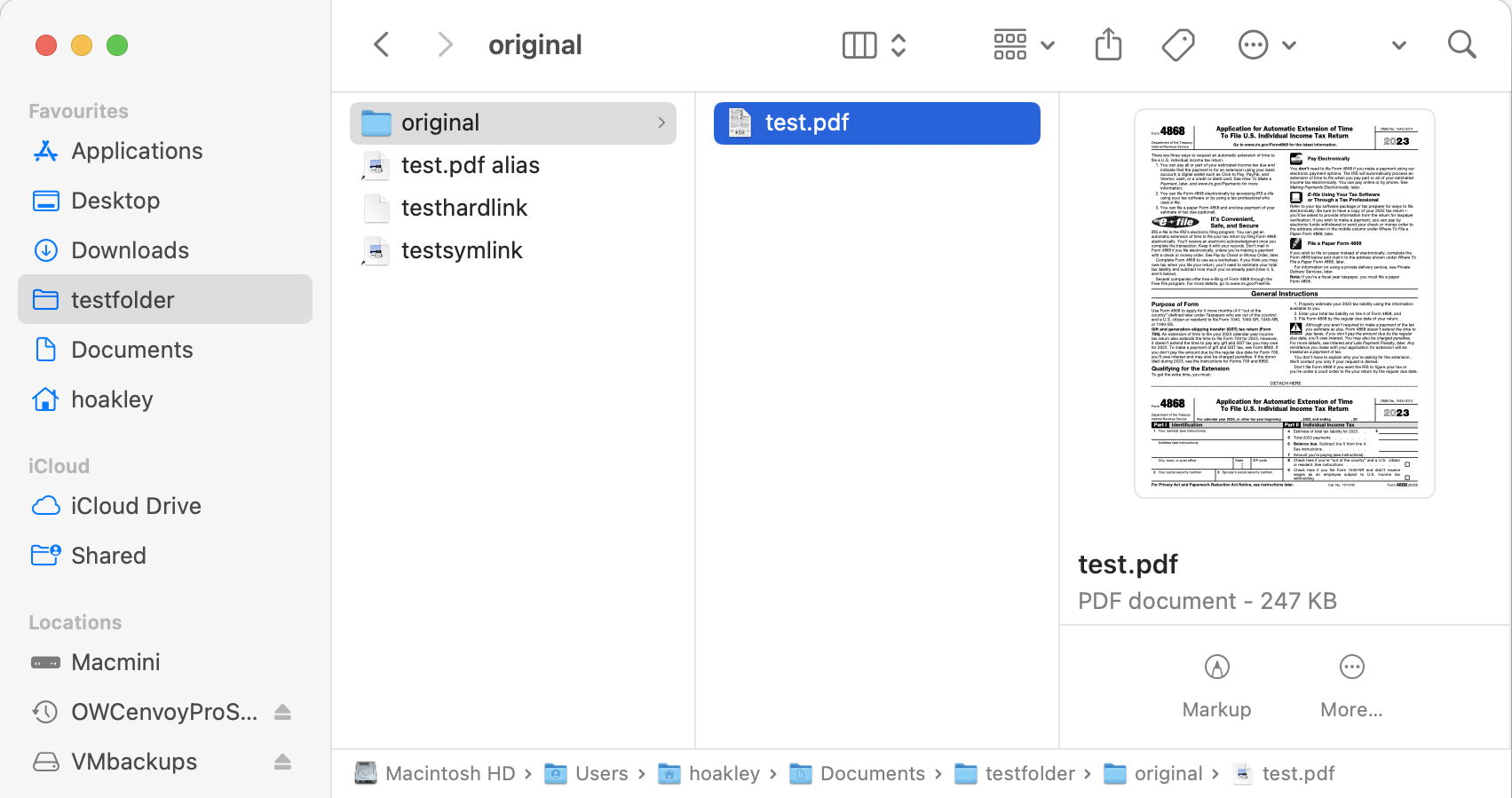
Select each of those links in turn to verify that QuickLook shows its thumbnail correctly, just as if the link was the original file. Then double-click each to verify that each opens correctly in your default PDF reader, such as Preview. Once you have opened all three links, notice how the Open Recent… command only shows two entries for them, one for test.pdf and the other for the hard linked file testhardlink.pdf.
Now change the name of the folder named original by adding an s at the end, making it originals instead. Try double-clicking each of the links again, and notice how the symlink no longer works, even though you may see its thumbnail as if it was still correctly linked to the original document.
Next drag the originals folder out into your main Documents folder, and repeat that test. You’ll also find that both the hard link and the Finder Alias work in Preview’s Open Recent… command.
Finally, leave the originals folder where it is, and copy the testfolder to a different volume, if you have one available. QuickLook still shows a thumbnail for the Finder Alias and the hard link, but not for testsymlink. Both the Finder Alias and the hard link still open correctly, but the latter is now a copy of the original, and not a hard link at all.
Tools
I have already mentioned my free command tool alisma that lets you work with Finder aliases in Terminal and shell scripts. I also have two free utilities for working with Finder aliases and bookmarks.
Alifix detects and tries to fix broken Finder aliases, and is valuable if you have many of them and migrate them from one Mac or disk to another. It does this by trying to rewrite all those it can, and when it can’t it provides information to help you create a new alias.
Among its many roles, Precize helps you work with bookmarks, by creating, analysing and resolving them.
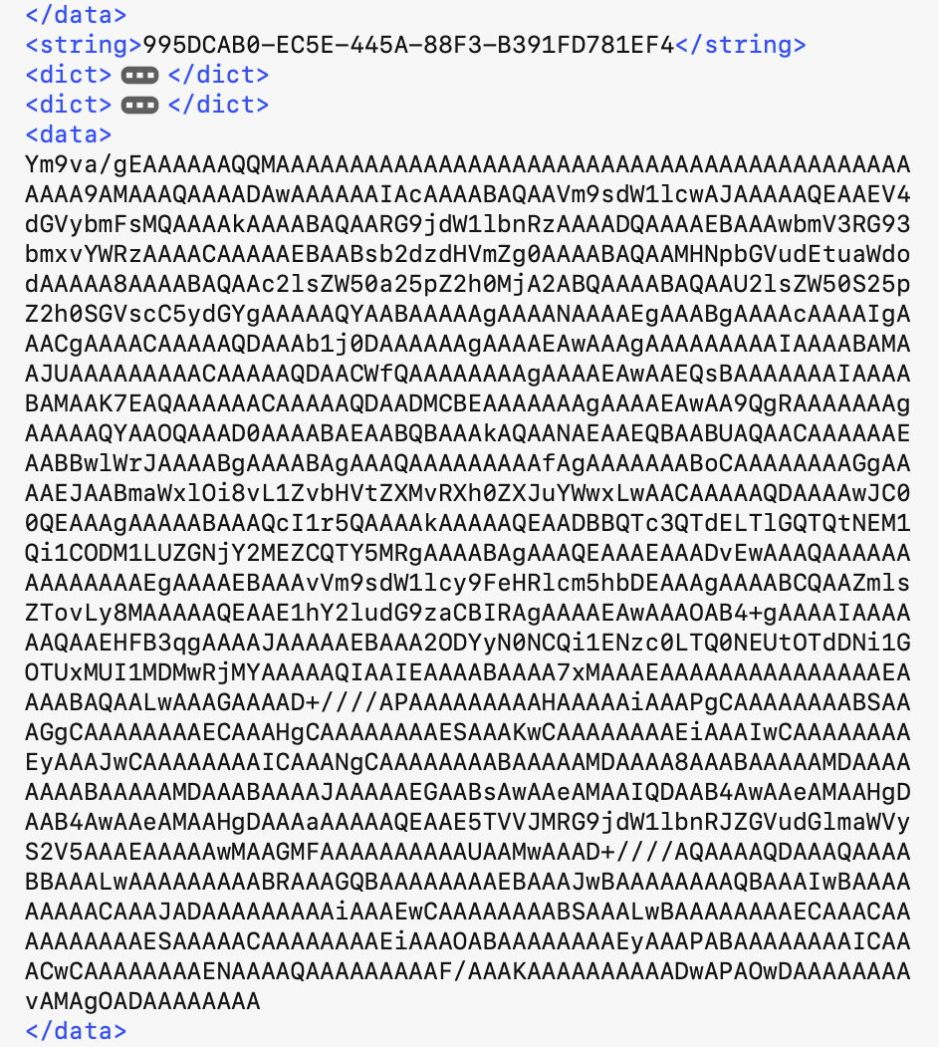
Bookmarks are a generalisation of Aliases introduced in OS X 10.6, and have been used extensively inside macOS and applications since at least Mavericks 10.9 over ten years ago. To analyse and resolve a bookmark, open Precize, and from its Window menu use the Open Resolver command to display a new resolver window.
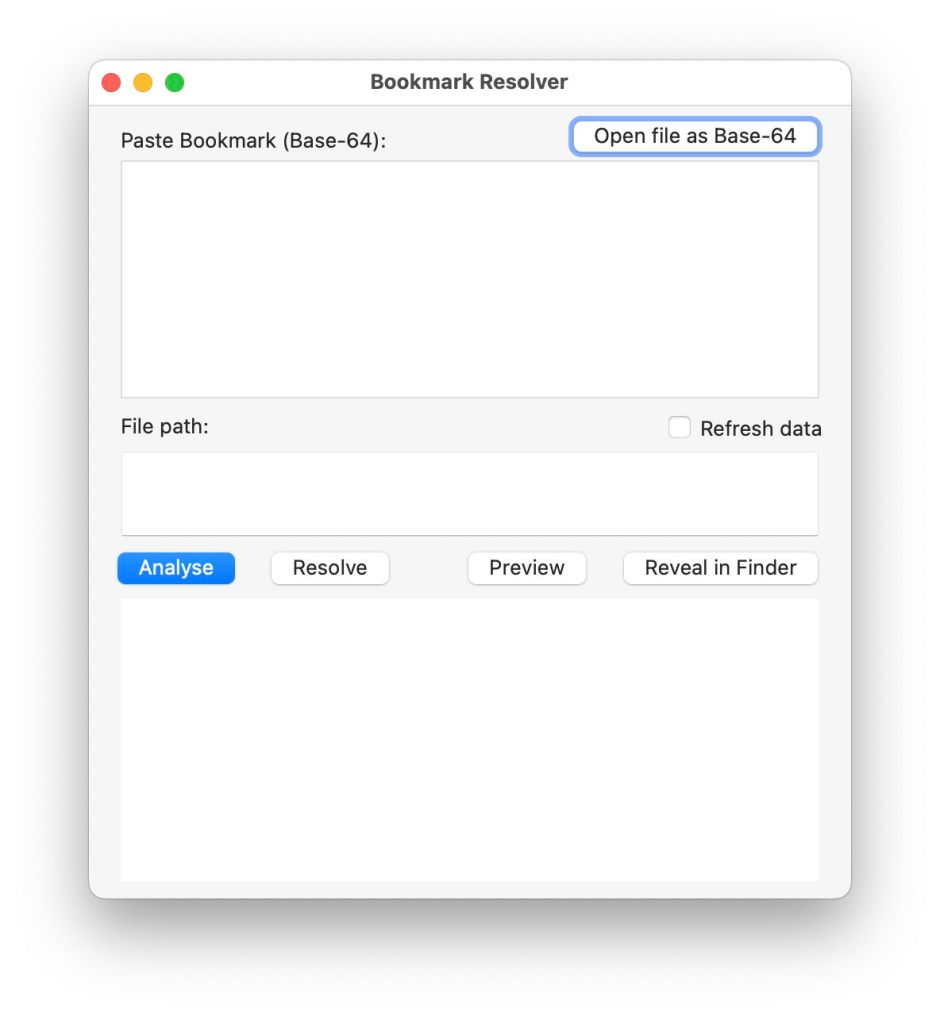
Copy the whole of an encoded bookmark, from immediately after <data> to just before </data>, and paste that text into the upper text box in the resolver. When you click on the Analyse button, Precize will display the Bookmark in the lower text view in three different formats: first, as the content fields in the Bookmark, then as hex raw data, and finally by its table of contents.
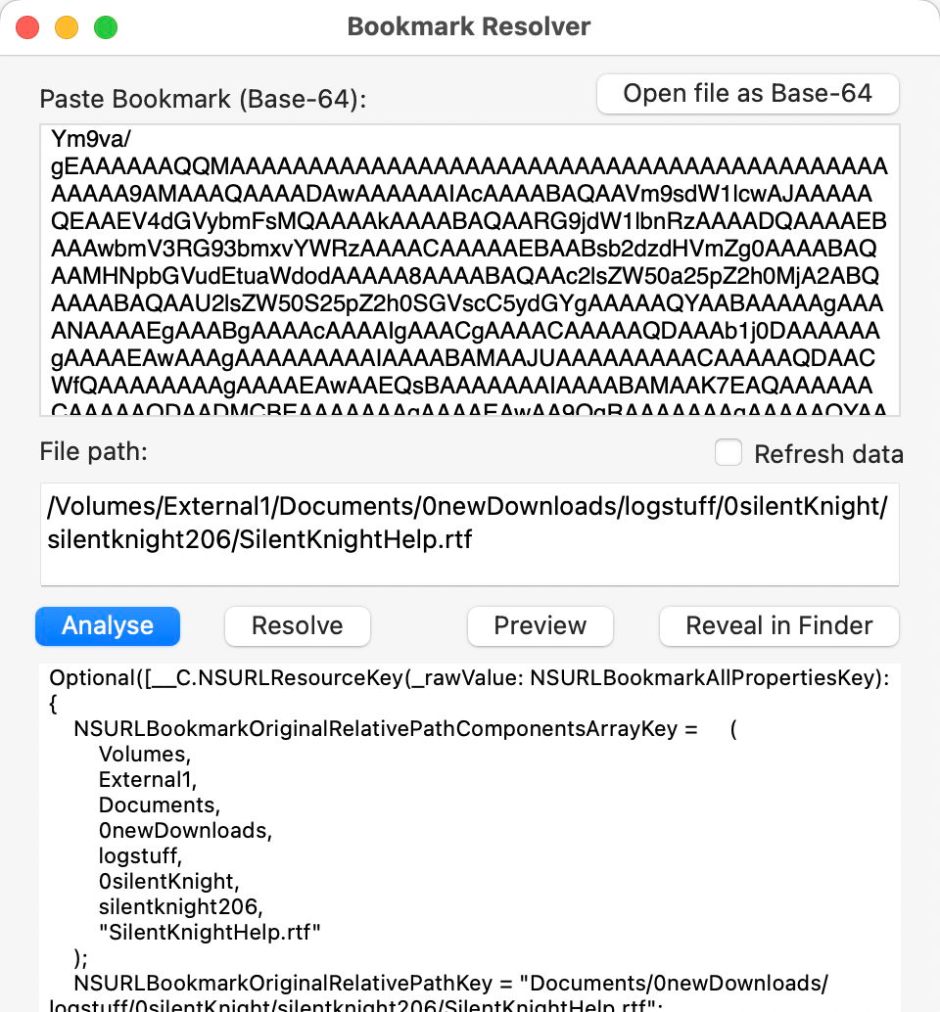
Click on the Resolve button and Precize shows the path to the file both as a normal URL and using the volfs file system, giving its inode number. If the Bookmark has been successfully resolved, the Preview button shows that file in a QuickLook preview, and you can see the file in a Finder window using the Reveal in Finder button.
Among the more useful data resulting from a file being analysed are:
- _NSURLPathKey gives the full path to the file,
- _NSURLBookmarkURLStringKey gives the file’s full URL,
- NSURLCreationDateKey gives the file’s creation timestamp,
- NSURLIsRegularFileKey indicates whether it’s a normal file,
- NSURLIsPackageKey indicates whether it’s a package rather than a file,
- _NSURLBookmarkSecurityScopeCryptoKeyKey is used if this is a Security-Scoped Bookmark, most used with sandboxed apps.
Precize does a great deal more than that. Its main window displays lots of information about files, and will generate a Bookmark for any file you open in the app.

Key points
- Symlinks are created in Terminal, and link to a file or folder using its path. They work best with more static volumes, and with command tools and shell scripts, but will break when anything changes in their path.
- Hard links are created in Terminal, and link to a file but not a folder (in APFS) sharing the same inode as a sibling. They can be moved anywhere within the same volume without breaking, but can’t link between different volumes.
- Aliases are created in the Finder, and use a combination of a path and an inode number to link to a file or folder. That works well with more dynamic volumes, but they aren’t supported by command tools or shell scripts without installing
alisma. They can also work across different volumes, and are generally robust. - Bookmarks are created by macOS and apps as embeddable links that work like aliases. They also work well with macOS security and privacy. Access them using Precize when you need.
 The Eclectic Light Company