
Two centuries ago it was quite normal for adjacent towns to be running local times that differed by many minutes. Even after the railways came and forced synchronisation so their timetables could work, many adults were content to keep time by the occasional glance at the clock on a church or civic building. In the decade before the arrival of the Mac, one of the everyday duties of the police was to respond to requests for the time. Over the last 40 years we have come to expect our computers to keep very accurate time, something that’s particularly important in networking.
The year after the first Mac, when few computers were connected to local networks and the Internet was still in gestation, the Network Time Protocol (NTP) was introduced to enable synchronisation of computer clocks. A few third-party utilities started offering this ability, such as Vremya, Network Time and Mac-NTP, but most of us had to perform this manually.
NTPv3 1998
With the release of System 8.5 in October 1998, support for the use of Network Time Servers was added to the Date & Time Control Panel. Apple offered three servers around the world, at time.apple.com, time.asia.apple.com and time.euro.apple.com, to ensure that all Mac users should have reasonably low-latency access to an NTP service, and some opted for those offered by centres of excellence such as NIST.
During their Classic period and for some years later, Mac internal clocks relied on small batteries for power. As those had limited lifetimes, the user had to periodically open their Mac’s case to replace its battery. Flat batteries were a common problem causing the system clock to be reset and so create havoc, but network time services didn’t seem to help that much.
Mac OS X 2000-01
When Mac OS X was introduced, it continued built-in support for NTP and Apple’s time servers, and that was later updated to NTPv4 after it was released in 2010.
When you started your Mac up, system time was initially set to that of the internal clock. Provided its battery wasn’t flat, that should have been reasonably close to real time. The NTP service then tried to connect to the designated time server, and asked it for the time. If the result differed substantially from that of the internal clock, NTP should correct the clock. This might have occurred by means a series of small corrections over a period, or one larger change: NTP uses a sophisticated algorithm to determine that, and to allow for delays that occur with transmission over the Internet. Periodically thereafter ntpd checked the network time server, correcting the clock as it needed, to achieve an overall accuracy of around 0.1 second.
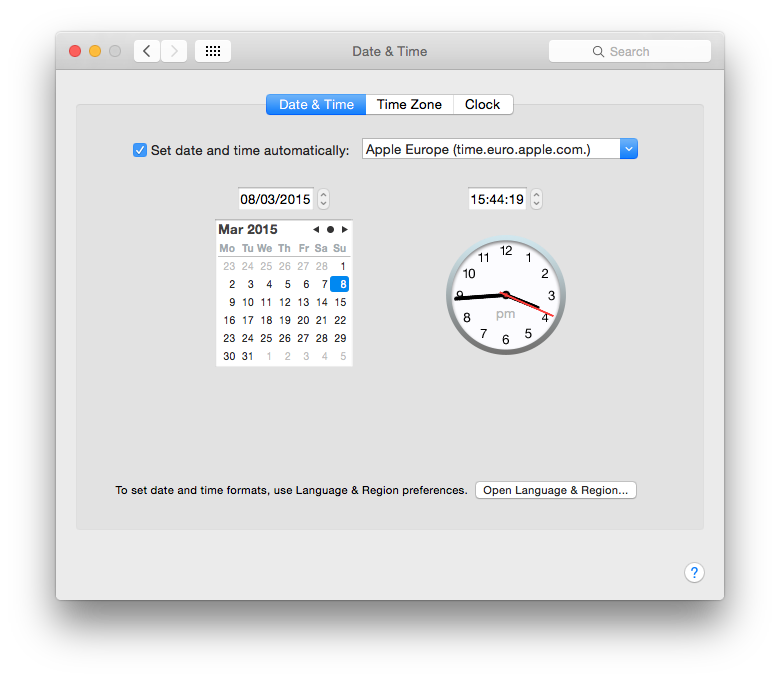
In addition to traditional command tool support, the usual interface to this remained the Date & Time pane in System Preferences, seen here in 2015.
timed 2017
Just before Christmas 2014, Apple propagated a patch for a security vulnerability in NTP, the first to be applied automatically. Otherwise, syncing the clocks of Macs appears to have continued unaltered until macOS 10.13 High Sierra in 2017, when it was replaced by a new and proprietary service timed, described thus:
timed maintains system clock accuracy by synchronizing the clock with reference clocks via technologies like NTP. Inputs are merged inside of timed, where it calculates uncertainty to facilitate scheduling proactive time jobs. timed is also aware of power/battery conditions.
This was apparently derived from the same daemon that had been syncing the clocks in iPhones since iOS 5.0 in 2011.
This is run as a LaunchDaemon, found at /System/Library/LaunchDaemons/com.apple.timed.plist. The time server used is set in /etc/ntp.conf, and is normally time.apple.com. timed relies on three property lists in a locked-down directory /var/db/timed/. These are:
- com.apple.timed.plist containing its cached state, with values for TMLastNtpFetchAttempt, TMLastRtcTime, TMSystemTimeSet and more, and binary data for STF and TDTF;
- Library/Preferences/com.apple.preferences.datetime.plist with a single key-value pair for timezoneset, which should be true;
- Library/Preferences/com.apple.timed.plist with two key-value pairs for NtpUseServicePort and TMAutomaticTimeOnlyEnabled, both set to true.
In 2020, macOS 11.0 Big Sur brought two additions to support basic SNTP:
sntpis a simple NTP client claimed to be able to set or slew the system clock if it’s out of sync;sntpdis a basic SNTP server daemon that can be launched through /System/Library/LaunchDaemons/com.apple.sntpd.plist, and stores header data in /var/sntpd/state.bin.
Neither appears to be run or used routinely in macOS, as it prefers to continue handling this through timed and the com.apple.timed subsystem. SNTP had been defined as a simpler and fully interoperable way of using NTP, and had been merged into NTPv4 in 2010.
Unless a Mac is one of the few that isn’t connected to the Internet, it should be set to check time and clocks by syncing with Apple’s Time Server over the network. Standard settings for doing that are now located in the Date & Time section of General settings.

Time and date are set automatically using time.apple.com as the source, and where possible the time zone is set automatically using the Mac’s current location.

For some, though, syncing using timed isn’t sufficiently accurate, and they resort to a third-party utility chronyd via ChronyControl, bringing this brief history back full circle.
References
NIST Physics Laboratory (2002) Configuring Apple Macintoshes to use NIST Time Servers
NTP, Wikipedia
timed in High Sierra
sntp in Big Sur and later
 The Eclectic Light Company