
Skip to content

The Eclectic Light Company

Macs & painting – 🦉 No AI content
Main navigation
  • Downloads
  • Freeware
  • M-series Macs
  • Mac Problems
  • Mac articles
  • Macs
  • Art
hoakley November 4, 2023 Macs, Technology

Are Finder Tags useful metadata?

Finder tags offer a simple and accessible way of adding metadata to your files and folders. But before you rush off and start tagging everything on your Mac, allow me to explain how to get the best out of them, and what their limitations are.

Using tags

Finder tags are exposed to the user in the Finder, where they’re the most accessible metadata of all. They merit their own section in the Finder’s Settings, where you’ll find simple but powerful tools for their use and customisation.

Each tag consists of two elements: a colour which can be none or chosen from the fixed range of seven (red, orange, yellow, green, blue, purple, and grey), together with a text label. When you use the standard macOS tags, their text labels are simply those colour names; change those labels in the Finder’s Settings by Control-clicking on them, or with two slow clicks on their name just as when renaming a file.
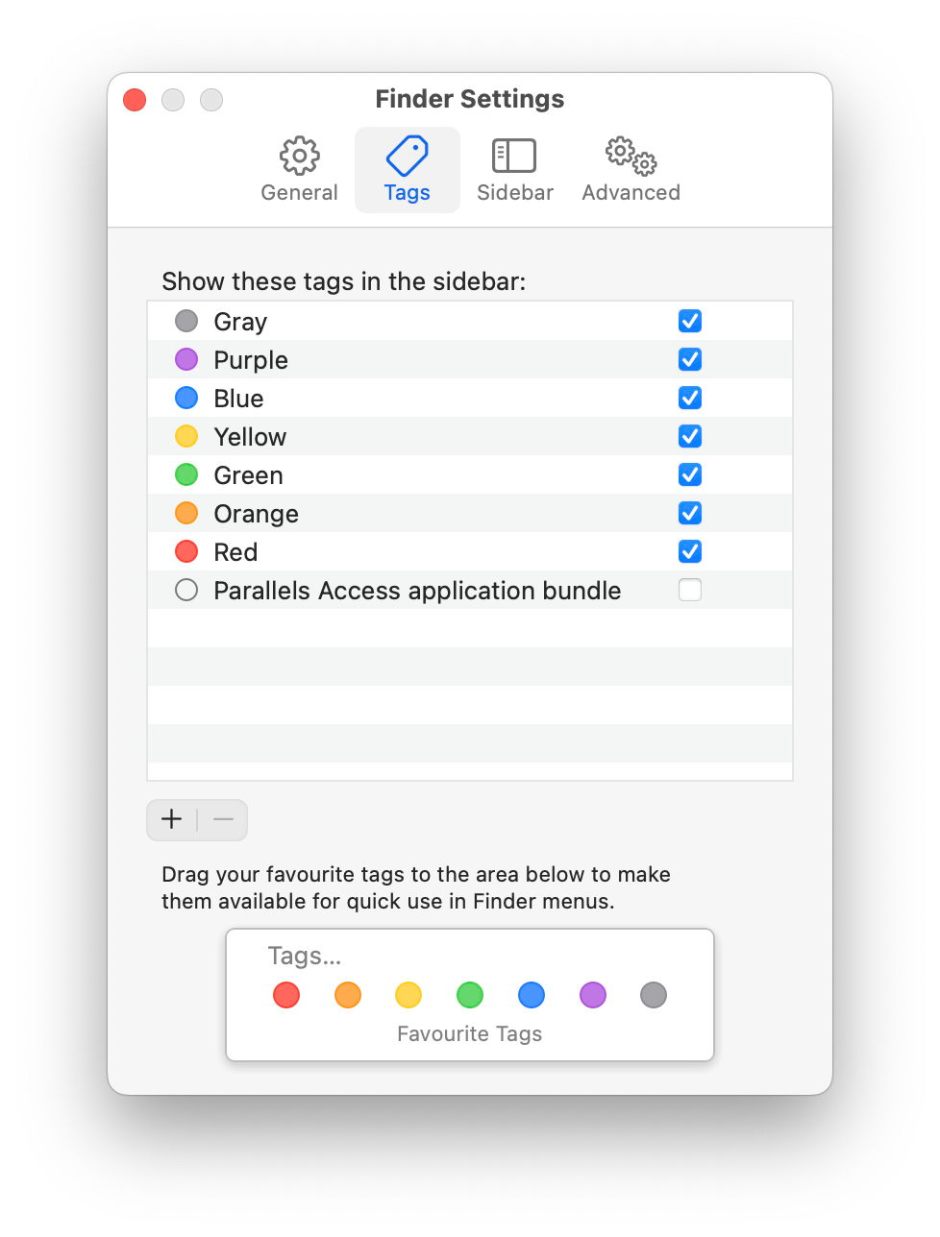
findertags1

Adding a new tag is obvious, by clicking on the + tool at the foot of the tag list, and clicking on the – tool there removes the selected tag.

The extended attribute that stores a tag contains both elements of each of its tags, and can hold multiple tags. When you add your own custom tags, items marked by them have an extended attribute attached containing the label of your custom tag and its set colour, from the range of seven plus no colour.

If you want, you can assign the same colour to multiple text labels, for example both Urgent and Important to red. However, most find that confusing, as the only way to see which text label is associated with a red tag is to Get Info on that file, where it’s shown in the uppermost section of the dialog. In practice, this confines you to using no more than seven text labels, one for each of the standard colours.

The Finder manages tags for you. For example, if you customise one of the standard tags by changing its name, say from Red to Urgent, then the Finder automatically changes all items marked with that tag to show the label Urgent. That tag remains associated with that file or folder: when you copy it across to another Mac, the tag remains attached, and on that second system should continue to show the same colour and label. This also applies to any custom tags you add.

The important exception to this is if the item is moved using a method which doesn’t preserve its metadata (extended attributes), which occurs on some file systems such as NFS, and using some command line tools. Some backup methods may also not preserve metadata, and will strip all your tags; Time Machine preserves them all.

Tags are widely supported in the Finder, macOS tools, and apps. When you show tags in the Finder’s sidebar, you can view items with only a specific tag by selecting that tag in the sidebar of a Finder window. The same feature works in file open and save dialogs in all apps using the standard macOS dialog too. You can further refine a tag-based listing by opting to sort those files in date or other orders, and you can group by tags too.

findertags2

There are several different ways to assign one or more tags to any file or folder, and you can use the same methods to remove tags. The simplest is probably using the Finder’s contextual menu. Note that if you remove a tag from the list in the Finder’s Settings, that tag is also removed from every item tagged with it. You can use that to your advantage if you use a custom tag to work on a specific project: when that’s complete, and the documents are archived, search for any outlying items that still have that tag, then delete the tag in Finder Settings once you have cleared them away.

Scripting

You can tag files automatically in shell scripts, AppleScript, and many other languages supported on macOS. If you want to do this, one easy approach has been to install tag, available in Homebrew and MacPorts, or from its Github site, although it hasn’t been updated for several years.

Spotlight

Finder tags can also be used as a criterion in Spotlight searches, although those are based not on the tag colour but its text, such as Important for a red tag labelled Important. You’ll need to add the Tags item to the Finder’s list of search criteria before you can use it to find items in the Finder.

Extended attribute

Finder tags are stored in extended attributes of type com.apple.metadata:_kMDItemUserTags. They consist of a binary property list containing a little UTF-8 text. This is an NSArray consisting of Strings, each containing a tag name, followed by the newline character, followed by the colour number (0-7). The array can be empty.
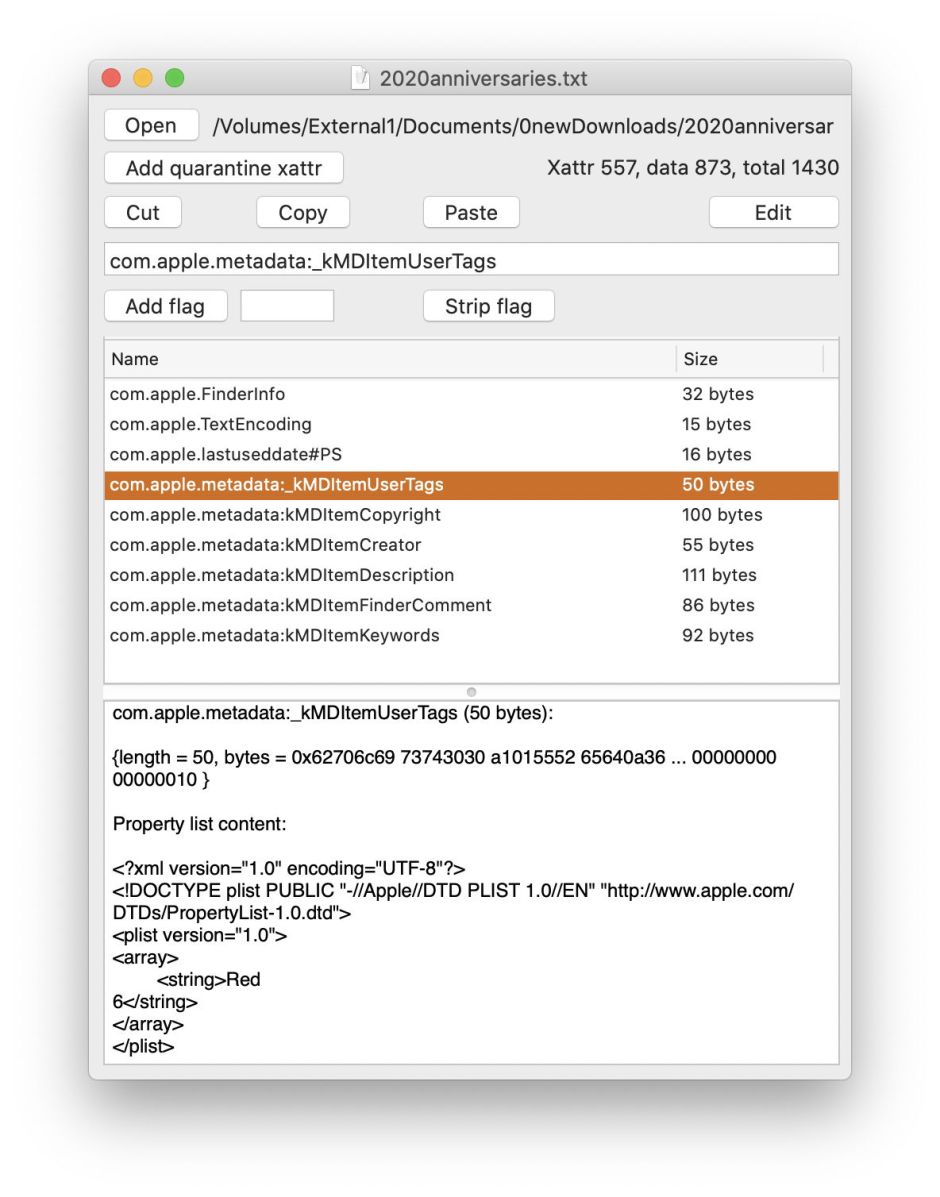
tags04

Colour numbers used are:

  • none, 0
  • grey, 1
  • green, 2
  • purple, 3
  • blue, 4
  • yellow, 5
  • red, 6
  • orange, 7.

Thus a tag name might read Red\n6, or Orange\n7 Green\n2 for two colours, where \n represents the newline character 0a.

When the Finder writes a tag extended attribute to an item, it also adds a null com.apple.FinderInfo xattr of 32 bytes length, if that isn’t already present.

Limitations

Unlike many types of metadata, Finder tags are a closed system giving you just seven different visible tag colours, for seven text labels. While you can use those in combination, you can’t extend the range of visually different tags. Other metadata like keywords are open-ended: you can add any keyword you like, and macOS doesn’t constrain you from using hundreds, but you won’t see those keywords as readily in the Finder.

If you only have a handful of different categories that you want to tag files and folders with, Finder tags should prove ideal. For example, if you want to classify your photos into no more than seven categories, such as social, travel, parties, and so on, they’ll work well with tags. If you want to add the names of people in each image, or their locations, then tags are the wrong type of metadata to do that. Another example is tagging projects: if you need no more than seven different project tags, then Finder tags should serve well. If you need a dozen or more, then they’ll quickly prove inadequate.

Happy tagging!

Share this:

  • Click to share on X (Opens in new window) X
  • Click to share on Facebook (Opens in new window) Facebook
  • Click to share on Reddit (Opens in new window) Reddit
  • Click to share on Pinterest (Opens in new window) Pinterest
  • Click to share on Threads (Opens in new window) Threads
  • Click to share on Mastodon (Opens in new window) Mastodon
  • Click to share on Bluesky (Opens in new window) Bluesky
  • Click to email a link to a friend (Opens in new window) Email
  • Click to print (Opens in new window) Print
Like Loading...

Related

Posted in Macs, Technology and tagged extended attributes, Finder, Mac, macOS, metadata, Spotlight, tags, xattr. Bookmark the permalink.

10Comments

Add yours
  1. 1
    xz4gb8's avatar
    xz4gb8 on November 4, 2023 at 2:20 pm

    Expanding on the use of color tags with text tags: I have found combining a color tag and a plain text tag useful for grouping subsets of items in a folder. The text tag provides the sort while the color tags provide clarity of the group boundaries helpful in small text listings. An example is a set of downloaded financial document folders where the text tag specifies the download window, “Download on 15”, “Download on 25”, and the like. The minor text change between groups becomes visually obvious with the change in color tag, especially for those with mildly impaired vision.

    Note: Finder > View > Use Groups provides a similar approach but expands the window size, providing a separate group for every tag used. This is not helpful where the displayed information is essentially a task list where completion is indicated by modified date or, as in my use, closing the group member folders to indicate document download completion. Chacun à son goût.

    LikeLiked by 1 person

    • 2
      hoakley's avatar
      hoakley on November 4, 2023 at 5:40 pm

      Thank you – useful tips.
      Howard.

      LikeLike

  2. 3
    Matti's avatar
    Matti on November 4, 2023 at 7:53 pm

    I use Finder tags to take my attention to important files in folders. I usually tag the most important file in a folder as “Red”, images that have a raw original as “Gray”, very old scanned images that I know to have the correct date as “Purple”, files in progress as “Green” etc … or something like that depending on my mood at that moment… So I try to preserve those Finder tags.

    -> But what about MDItemFSLabel that some apps like GraphicConverter’s Browser use?

    For example: add Red-Green-Blue Finder tags in that order:

    …Finder displays them stacked on top each other in that order. Great.

    …but GraphicConverter 12.0.7 Browser GUI displays only the lastly added Blue “Label”. Via right-click it displays all those “Tags” but does not define the order in which they were added. bummer.

    …exiftool displays them as:

    exiftool -a -G1 -s -api RequestAll=2 image.jpg
    [MacOS] MDItemFSLabel : 4 (Blue)
    [MacOS] MDItemUserTags : Red, Green, Blue
    [MacOS] XAttrMDItemUserTags : Red.6, Green.2, Blue.4

    …nowadays I pay attention to exiftool ‘-overwrite_original_in_place’ that preserves all Mac metadata while option ‘-overwrite_original’ might be slightly faster. But the latter drops some Mac metadata like that MDItemFSLabel so GraphicConverter’s Labels are no more displayed. …but on the other hand, ‘-overwrite_original_in_place’ prevents some more simple exiftool commands to to be unable to move MacOS:FileCreateDate forward unless some clumsy extra option is used… …so at the moment I use the more clumsy exiftool ‘-overwrite_original_in_place’ command…

    – Matti

    LikeLiked by 1 person

    • 4
      hoakley's avatar
      hoakley on November 4, 2023 at 10:09 pm

      MDItemFSLabel aren’t Finder tags, and I don’t think exiftool is the right tool to use when you’re primarily looking not at EXIF data but at extended attributes – you should find my utility xattred better then. I have recently explained the differences between metadata stored in a file’s normal data, and those stored in external attributes.
      Howard.

      LikeLike

  3. 5
    Arnaud's avatar
    Arnaud on November 8, 2023 at 9:25 am

    Again a great source of information, thanks.
    What I’ve always wondered with this feature is how the OS deals with offline volumes when a tag gets removed in the Finder’s preferences. Does it remember to get rid of the tags once the volume is mounted (waste of information kept forever, as any volume may be mounted anytime) or, instead, the mounted volume is unchanged and there are tags which are now inaccessible but still must be saved in backups and spotlight, leading to inconsistencies?
    I’ve never took the time to check, but your opinion would be interesting.

    LikeLiked by 1 person

  4. 6
    Greg's avatar
    Greg on November 10, 2023 at 6:53 am

    PSA: Finder Tags do not handle the colon character : very well at all. I have dealt with a lot of weirdness because I thought I could use colons in my tag names. I recommend that you do not.

    LikeLiked by 1 person

    • 7
      hoakley's avatar
      hoakley on November 10, 2023 at 7:53 am

      Thank you. I hadn’t realised that. It would appear to be a bug, as I can’t see any good reason for it.
      Howard.

      LikeLike

  5. 8
    Unknown's avatar
    Do You Use It? Finder Tags See Focused Use - TidBITS on November 11, 2023 at 1:26 am

    […] may have changed slightly in the last decade, but most of it still applies. Howard Oakley also wrote about Finder tags recently, and Jeff Carlson has a section on tags in Take Control of Managing Your […]

    LikeLike

  6. 9
    Michele Galvagno's avatar
    Michele Galvagno on January 31, 2024 at 11:55 am

    “You’ll need to add the Tags item to the Finder’s list of search criteria before you can use it to find items in the Finder.”
    How does one do that?
    While Metamer now allows us to add whatever metadata, is it correct that there is no user-facing way in vanilla macOS that allows us to add keyword?

    LikeLiked by 1 person

    • 10
      hoakley's avatar
      hoakley on January 31, 2024 at 12:49 pm

      1. Open a new Finder window, put it into Find mode using the menu command. There, in the left of the two popup menus for the search, select the Other item at the end. In the list of search fields there, locate Tags and tick the checkbox to add it to that menu.
      2. Yes, there’s no built-in way to add keyword metadata in macOS. Amazing, isn’t it?
      Howard.

      LikeLiked by 2 people

·Comments are closed.

Quick Links

  • Free Software Menu
  • System Updates
  • M-series Macs
  • Mac Troubleshooting Summary
  • Mac problem-solving
  • Painting topics
  • Painting
  • Long Reads

Search

Monthly archives

  • November 2025 (35)
  • October 2025 (75)
  • September 2025 (78)
  • August 2025 (76)
  • July 2025 (77)
  • June 2025 (74)
  • May 2025 (76)
  • April 2025 (73)
  • March 2025 (78)
  • February 2025 (67)
  • January 2025 (75)
  • December 2024 (74)
  • November 2024 (73)
  • October 2024 (78)
  • September 2024 (77)
  • August 2024 (75)
  • July 2024 (77)
  • June 2024 (71)
  • May 2024 (79)
  • April 2024 (75)
  • March 2024 (81)
  • February 2024 (72)
  • January 2024 (78)
  • December 2023 (79)
  • November 2023 (74)
  • October 2023 (77)
  • September 2023 (77)
  • August 2023 (72)
  • July 2023 (79)
  • June 2023 (73)
  • May 2023 (79)
  • April 2023 (73)
  • March 2023 (76)
  • February 2023 (68)
  • January 2023 (74)
  • December 2022 (74)
  • November 2022 (72)
  • October 2022 (76)
  • September 2022 (72)
  • August 2022 (75)
  • July 2022 (76)
  • June 2022 (73)
  • May 2022 (76)
  • April 2022 (71)
  • March 2022 (77)
  • February 2022 (68)
  • January 2022 (77)
  • December 2021 (75)
  • November 2021 (72)
  • October 2021 (75)
  • September 2021 (76)
  • August 2021 (75)
  • July 2021 (75)
  • June 2021 (71)
  • May 2021 (80)
  • April 2021 (79)
  • March 2021 (77)
  • February 2021 (75)
  • January 2021 (75)
  • December 2020 (77)
  • November 2020 (84)
  • October 2020 (81)
  • September 2020 (79)
  • August 2020 (103)
  • July 2020 (81)
  • June 2020 (78)
  • May 2020 (78)
  • April 2020 (81)
  • March 2020 (86)
  • February 2020 (77)
  • January 2020 (86)
  • December 2019 (82)
  • November 2019 (74)
  • October 2019 (89)
  • September 2019 (80)
  • August 2019 (91)
  • July 2019 (95)
  • June 2019 (88)
  • May 2019 (91)
  • April 2019 (79)
  • March 2019 (78)
  • February 2019 (71)
  • January 2019 (69)
  • December 2018 (79)
  • November 2018 (71)
  • October 2018 (78)
  • September 2018 (76)
  • August 2018 (78)
  • July 2018 (76)
  • June 2018 (77)
  • May 2018 (71)
  • April 2018 (67)
  • March 2018 (73)
  • February 2018 (67)
  • January 2018 (83)
  • December 2017 (94)
  • November 2017 (73)
  • October 2017 (86)
  • September 2017 (92)
  • August 2017 (69)
  • July 2017 (81)
  • June 2017 (76)
  • May 2017 (90)
  • April 2017 (76)
  • March 2017 (79)
  • February 2017 (65)
  • January 2017 (76)
  • December 2016 (75)
  • November 2016 (68)
  • October 2016 (76)
  • September 2016 (78)
  • August 2016 (70)
  • July 2016 (74)
  • June 2016 (66)
  • May 2016 (71)
  • April 2016 (67)
  • March 2016 (71)
  • February 2016 (68)
  • January 2016 (90)
  • December 2015 (96)
  • November 2015 (103)
  • October 2015 (119)
  • September 2015 (115)
  • August 2015 (117)
  • July 2015 (117)
  • June 2015 (105)
  • May 2015 (111)
  • April 2015 (119)
  • March 2015 (69)
  • February 2015 (54)
  • January 2015 (39)

Tags

APFS Apple Apple silicon backup Big Sur Blake Bonnard bug Catalina Consolation Console Corinth Delacroix Disk Utility Doré El Capitan extended attributes Finder firmware Gatekeeper Gérôme High Sierra history of painting iCloud Impressionism landscape LockRattler log M1 Mac Mac history macOS macOS 10.12 macOS 10.13 macOS 10.14 macOS 10.15 macOS 11 macOS 12 macOS 13 macOS 14 macOS 15 malware Metamorphoses Mojave Monet Monterey Moreau myth narrative OS X Ovid painting performance Pissarro Poussin privacy Renoir riddle Rubens Sargent security Sierra SilentKnight Sonoma SSD Swift Time Machine Tintoretto Turner update upgrade Ventura xattr Xcode XProtect

Statistics

  • 20,408,719 hits
Blog at WordPress.com.
Footer navigation
  • Free Software Menu
  • About & Contact
  • Macs
  • Painting
  • Downloads
  • Mac problem-solving
  • Extended attributes (xattrs)
  • Painting topics
  • SilentKnight, Skint, SystHist, silnite, LockRattler & Scrub
  • DelightEd & Podofyllin
  • xattred, SpotTest, Spotcord, Metamer & xattr tools
  • 32-bitCheck & ArchiChect
  • XProCheck, T2M2, LogUI, Ulbow, blowhole and log utilities
  • Cirrus & Bailiff
  • Precize, Alifix, UTIutility, Sparsity, alisma, Taccy, Signet
  • Versatility & Revisionist
  • Text Utilities: Nalaprop, Dystextia and others
  • PDF
  • Keychains & Permissions
  • Updates
  • Spundle, Cormorant, Stibium, DropSum, Dintch, Fintch and cintch
  • Long Reads
  • Mac Troubleshooting Summary
  • M-series Macs
  • Mints: a multifunction utility
  • VisualLookUpTest
  • Virtualisation on Apple silicon
  • System Updates
  • Saturday Mac Riddles
  • Last Week on My Mac
  • sysctl information
Secondary navigation
  • Search

Post navigation

Painting on the edge: Edge hierarchies
Saturday Mac riddles 228

Begin typing your search above and press return to search. Press Esc to cancel.

  • Reblog
  • Subscribe Subscribed
    • The Eclectic Light Company
    • Join 8,752 other subscribers
    • Already have a WordPress.com account? Log in now.
    • The Eclectic Light Company
    • Subscribe Subscribed
    • Sign up
    • Log in
    • Copy shortlink
    • Report this content
    • View post in Reader
    • Manage subscriptions
    • Collapse this bar
 

Loading Comments...
 

    %d