
Skip to content

The Eclectic Light Company

Macs & painting – 🦉 No AI content
Main navigation
  • Downloads
  • Freeware
  • M-series Macs
  • Mac Problems
  • Mac articles
  • Macs
  • Art
hoakley October 2, 2023 Macs, Technology

Get more from your metadata: reversing Spotlight

Spotlight, particularly when enhanced by a powerful search app like HoudahSpot, is powerful when you know what you’re looking for, and that search term is already indexed. What it doesn’t reveal, though, is what search terms it has indexed. Say you have hundreds of images of the countryside, and you want to find some featuring cows. Should you search for cow, cattle, livestock or ungulate?

When we used to spend hours in Aperture tagging our images, we got to choose those keywords, although I don’t know of anyone who kept a dictionary of all those that they used. Today we’re more likely to leave image recognition to macOS and other software to pick keywords for us. Go beyond images to keywords saved for other documents, like those of Word, Pages, and PDFs, and we’re less likely to know which might have been used.

Here’s a simple example in my everyday image processor, GraphicConverter. Open an image, even a photo of a painting, and click on the Analyze tool. After a few moments of analysis, you’re offered a set of keywords that the app will conveniently save for you as that image’s IPTC keywords.

spotcord01

You can inspect those using Command-I, and when you save that image those keywords are embedded in the file’s data.

Keywords metadata is also available in many other document formats, including RTFD as used by Pages, Nisus Writer Pro and other apps, Word’s .docx files, and PDF. In each of those, you can add keywords in the document information editor. You can even add keywords to plain text and other formats in the com.apple.metadata:kMDItemKeywords extended attribute, made accessible in my free Metamer and other utilities, and normally preserved even when passed through iCloud Drive.

Having got your metadata there, how then can you tell which keywords have been used in your collection of thousands of images or PDFs? That’s where my new app Spotcord comes in.

spotcord02

Spotcord will scan the folders of your choice, inspect and analyse all the Keywords used, and generate an alphabetical list complete with their frequencies, just as you might get in a concordance.

You can either type in the path to the folder you want it to scan, or just click on the Scan button and select it there. In this early testing, Spotcord happily scans through over 50,000 files, although as this is an exhaustive crawl, it will take its time. Because it’s inspecting what’s indexed by Spotlight, you’ll also notice that processes like mds_stores take plenty of CPU when running a scan.
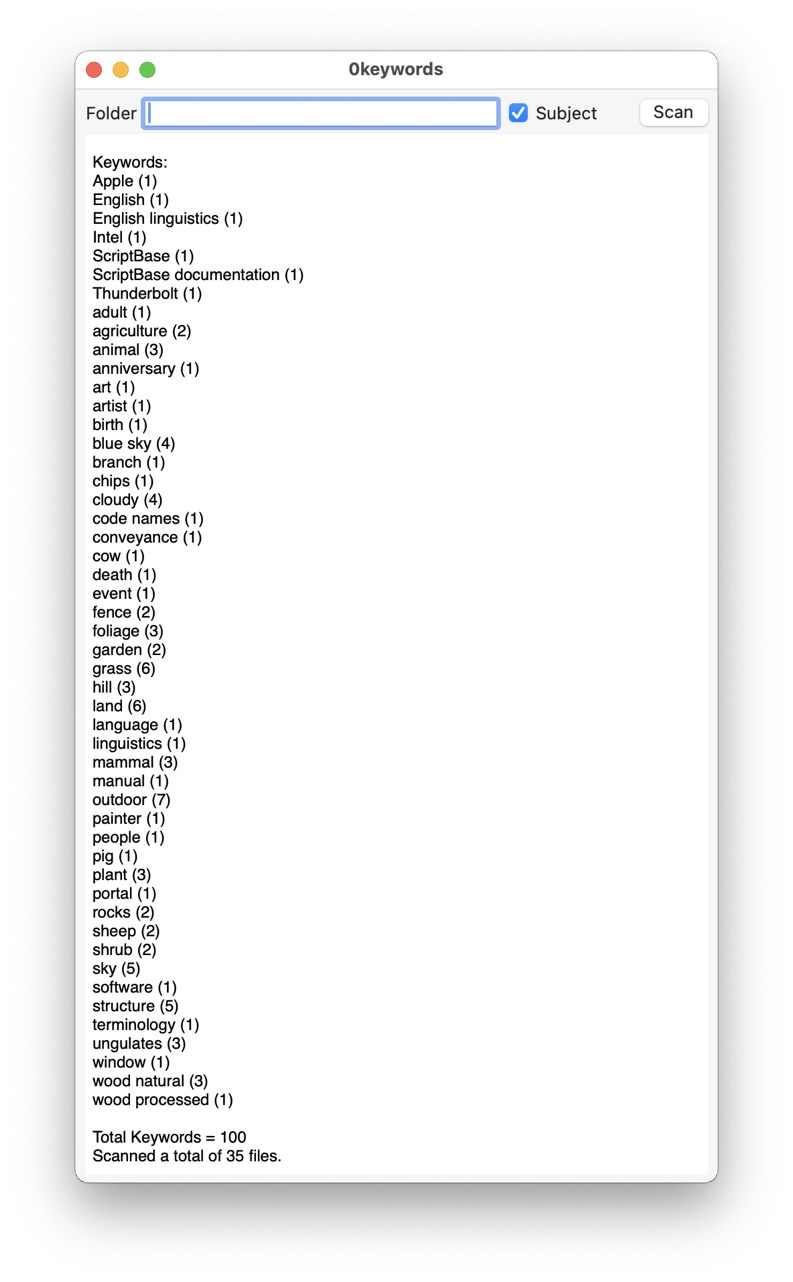
spotcord03

What you get is an alphabetical list of all the keywords it found for files in the folder it has just scanned, together with the number of files in which each appears. These are currently sorted case-sensitively, with A-Z before a-z. You can search this list using the Find… command in the Edit menu. At the end of the list, Spotcord reports the total number of keywords it found, and the number of files that it checked in all.

While Spotcord is interesting enough when scanning files that you have added keywords to, it becomes more fascinating when you scan those you have downloaded. When you come across an intriguing keyword, it’s simple to paste it into a Finder Find window or HoudahSpot and locate those files with that set as a Keyword.

Not all file formats offer keywords, and some metadata conventions suggest storing them in the Subject field, so there is a checkbox that lets you include Subject as well as Keywords in the scan.

My first, proof-of-concept beta is now available from here: spotcord01
but not from anywhere else yet. It is, of course, properly notarized, but still rough in parts and far from complete. It requires macOS 11 Big Sur or later.

I welcome your ideas as to where I should take this. Is there already another app with the same features and more? Would you like direct access to details of all the files containing a selected keyword? Is this potentially useful, or no more than a curiosity?

Enjoy exploring with Spotcord and please let me know where you’d like it to go next.

I’m very grateful to Grant for suggesting this utility.

Share this:

  • Click to share on X (Opens in new window) X
  • Click to share on Facebook (Opens in new window) Facebook
  • Click to share on Reddit (Opens in new window) Reddit
  • Click to share on Pinterest (Opens in new window) Pinterest
  • Click to share on Threads (Opens in new window) Threads
  • Click to share on Mastodon (Opens in new window) Mastodon
  • Click to share on Bluesky (Opens in new window) Bluesky
  • Click to email a link to a friend (Opens in new window) Email
  • Click to print (Opens in new window) Print
Like Loading...

Related

Posted in Macs, Technology and tagged concordance, Graphic Converter, keyword, metadata, PDF, RTFD, search, Spotcord, Spotlight, Word. Bookmark the permalink.

19Comments

Add yours
  1. 1
    Simon's avatar
    Simon on October 2, 2023 at 1:28 pm

    Very interesting idea. Might I suggest being able to sort also by frequency?

    LikeLiked by 2 people

    • 2
      hoakley's avatar
      hoakley on October 2, 2023 at 2:37 pm

      Thank you. Yes, that’s feasible, although I’m not sure what you’d do with the results!
      Howard.

      LikeLike

  2. 3
    Rob's avatar
    Rob on October 2, 2023 at 3:47 pm

    Howard,
    Good article and you introduced me a to new word “ungulate”!

    LikeLiked by 1 person

    • 4
      hoakley's avatar
      hoakley on October 2, 2023 at 4:00 pm

      Thank you. We have plenty of them around here!
      Howard.

      LikeLike

  3. 5
    pleticha's avatar
    pleticha on October 2, 2023 at 6:11 pm

    thank you Howard
    I ran spotcord01 on my “Photos Library.photoslibrary” and it said it found over 100K files yet no keywords nor any subjects. I do have keywords for some photos applied via Apple Photos – are they a differs breed of keyword ?

    LikeLiked by 1 person

    • 6
      hoakley's avatar
      hoakley on October 3, 2023 at 11:02 am

      Thank you.
      I believe that (just to be different) Photos stores keywords in its database, so they’re not attached or embedded metadata. It also won’t normally export keywords with images, which is one reason why so many continued to use Aperture as long as they could.
      I am chasing this up, though, in case there’s a reasonable way to access them in Photos.
      Howard.

      LikeLike

  4. 7
    John Gilbert's avatar
    John Gilbert on October 3, 2023 at 2:34 am

    I would be really interested if the source words were not “keywords” created by GraphicConverter or added via Lightroom, but were the words in the kMDItemPhotosSceneClassificationLabels metadata which are created by macOS.

    Are you aware of the work by Rhet Turnbull who has created a command line python app, which can also analyse keywords and other metadata? This app, like yours does not work with the photo scene metadata. https://github.com/RhetTbull/osxmetadata

    And of his app which extracts data from Apple Photos libraries? https://github.com/RhetTbull/osxphotos.
    The command “osxphotos labels” produces a list of all labels (Apple Photos calls them labels) in frequency order as generated by Photos scanning of image content. In my case, it starts with:
      Plant: 2677
      Outdoor: 1476
      Foliage: 1244
      Land: 1052
      Flower: 940
      Sky: 778
      Blue Sky: 532
      Rocks: 500
      Grass: 478
    and so on.

    ps. I am only a very superficial user of these apps.

    LikeLiked by 5 people

    • 8
      hoakley's avatar
      hoakley on October 3, 2023 at 11:14 am

      Thank you.
      “the words in the kMDItemPhotosSceneClassificationLabels metadata which are created by macOS” Are sure? Can you provide a link to that search key, please? I can’t find it anywhere in Apple’s docs, and even a Google search draws a complete blank.
      The second app you link to accesses the Photos database to extract items like keywords, rather than looking them up in Spotlight indexes. In other words, those metadata aren’t stored in or with the images, but in Photos’ database, which renders them inaccessible without extracting them from there.
      Howard.

      LikeLike

      • 9
        John Gilbert's avatar
        John Gilbert on October 3, 2023 at 10:51 pm

        Evidence for kMDItemPhotosSceneClassificationLabels:
        Do an mdls of a non-RAW image on a Spotlight indexed disk and you will see these lines:
        kMDItemPhotosCharacterRecognitionAnalysisVersion = (null)
        kMDItemPhotosSceneAnalysisVersion                = (null)
        kMDItemPhotosSceneClassificationConfidences      = (null)
        kMDItemPhotosSceneClassificationIdentifiers      = (null)
        kMDItemPhotosSceneClassificationLabels           = (null)
        kMDItemPhotosSceneClassificationSynonyms         = (null)
        kMDItemPhotosSceneClassificationSynonymsCounts   = (null)

        As you know, Apple have not documented anything very much regarding how macOS analyses and indexes image content, but the presence of the above metadata is indicative of the presence of content “labels”. 

        “Labels and “keywords”:
        Not that “labels” refers to the automatic image content indexing, which is quite distinct from “keywords”, “comments” and “tags” added by hand or via an app like GraphicConverter.  This use of the word “labels” is consistent between metadata stored in a Photos library and metadata attached in some way to images outside such libraries.

        Where/how are content “labels” stored?
        1) We know from Rhet Turnbull’s second app that automatically generated “labels” for Photos libraries are stored in the library database and can be extracted programmatically.  This is in addition to “keywords” stored in the database.
        2) For images in the file system (outside Photos libraries), nobody (as far as I know) has done the same for Spotlight content “labels”. I have found no reference to how or where the label data is stored, but I assume that it is stored in the Spotlight index on each disk. 

        SpotCord:
        So, I would love it if Spotcord were able to preform the same analysis for “labels”.

        GraphicConverter vs Spotlight:
        Have you compared the accuracy of GraphicConverter compared with Spotlight when it comes to analysing image content?

        LikeLiked by 2 people

        • 10
          hoakley's avatar
          hoakley on October 4, 2023 at 2:56 pm

          I think I understand now.
          Those search keys aren’t generally available to Spotlight, only to Core Spotlight. So unless you’re Photos or Spotlight itself, they don’t exist and can’t be used for search. That’s is why you won’t be able to use them in apps like HoudahSpot, which is my reference for Spotlight search.
          When you refer to ‘labels’, which general search key are you referring to, please? If there isn’t a defined search key for it, then an app can’t use Spotlight to search for it, and Spotcord can’t either.
          Does Spotlight analyse image content? I know of no evidence that it does. That’s normally performed electively by VisionKit, which is what I believe GraphicConverter uses.
          I think I need to look in the logs to clear this confusion up. Outside Photos libraries, images aren’t analysed for content unless the user requests it, for example using GraphicConverter. Even then, the results aren’t saved or indexed: they have to be saved as IPTC or other metadata to the image file, from where mdworker picks it up and adds it to that volume’s Spotlight indexes. Unless you have a reference to something different happening?
          Howard.

          LikeLiked by 1 person

  5. 11
    Joao Araujo's avatar
    Joao Araujo on October 3, 2023 at 7:10 pm

    I’m having a problem with Sonoma.
    I use Hazel to do some automations on PDF, which uses kMDItemSecurityMethod “Password Encrypted” tag.
    I don’t know if this issue is only on my setup.
    It seams Sonoma its striping the tag.

    LikeLiked by 1 person

    • 12
      hoakley's avatar
      hoakley on October 3, 2023 at 9:55 pm

      I’m sorry to hear that. Have you contacted Hazel’s developer to see if this means anything to them? Otherwise, it’s a matter of reporting the bug to Apple.
      Howard.

      LikeLike

  6. 13
    Ralf's avatar
    Ralf on October 3, 2023 at 7:16 pm

    “Is there already another app with the same features and more?”
    This reminds me off an app called Ammonite https://www.soma-zone.com/Ammonite/

    I would like to have a CLI functionality to search and list all tags so that I can subsequently search for files with certain tags.

    This has little to do with that, but a programme to sync finder comments and xattr comments would be great.

    LikeLiked by 1 person

    • 14
      hoakley's avatar
      hoakley on October 3, 2023 at 9:59 pm

      Thank you. Ammonite seems to work only with tags, which by and large have to be added by the user, and are Mac-specific. Keywords metadata are built into many cross-platform file formats, and are widely used around the world.
      I’m afraid that I don’t recommend using Finder comments, as they’re simply too unreliable. Besides, I don’t know any way to perform that sync.
      Howard.

      LikeLike

  7. 15
    John Gilbert's avatar
    John Gilbert on October 4, 2023 at 10:58 pm

    HoudahSpot (as well asFinder) is able find images using “labels” as general content, not a specific search key. For example:  (** == “waterfall*”cdw && ** == “rock*”cdw && ** == “fern*”cdw) && (kMDItemContentTypeTree == “public.image”cd) finds the appropriate photos.  Those words  are not in Finder keywords, etc. or in EXIF/IPTC metadata.

    This shows that the photos have been analysed by Spotlight and have become searchable by image content. Try it with your images! 

    This is in addition to any on demand analysis by VisionKit or GraphicConverter. 

    I use the word “labels” because that appears in the Spotlight metadata kMDItemPhotosSceneClassificationLabels even if we can’t see the what is in that metadata.

    LikeLiked by 5 people

    • 16
      hoakley's avatar
      hoakley on October 5, 2023 at 5:06 pm

      Thank you. Unfortunately, as I’m sure you know, using ** for the metadata key includes all that contain text. So it’s not practical to use that (and it’s not possible anyway) in an app. I’m completely unconvinced that this content analysis is being performed by Spotlight, though: the usual culprits are photoanalysisd as the service calling on VisionKit, which I believe is the only part of macOS that has this capability. It has been assumed, at least until recently, that this only happened on images in Photos, but re-reading the notes on Ventura, it appears this may now be more general.
      As I suspected, searches performed by HoudahSpot and mdls don’t include any results from Core Spotlight within Photos libraries, unless you have evidence to the contrary.
      What I’m seeing in the results of those wildcard searches is far inferior to the results from VisionKit calls, including those from GraphicConverter: for example, sheep are misclassified as cattle! There’s also a far more limited set of terms that are used in results.
      The big problem, though, is that even mdls can’t give any clue as to which Spotlight key those results come from. That’s a real bummer, as without a key, you can’t even search on them, let alone attempt the reverse as Spotcord does.
      I have a feeling, though, that the data that Spotlight is indexing here is stored somewhere else, somewhere maintained by photoanalysisd and not the images or Spotlight. There’s now so much that’s undocumented, large systems like Biome, that discovering where those ‘labels’ might be isn’t going to be easy.
      I do have another line of enquiry to pursue yet, though.
      Howard.

      LikeLiked by 1 person

  8. 17
    Apollux's avatar
    Apollux on October 17, 2023 at 4:04 pm

    “The path to enlightenment is not a destination; it’s a way of living.”

    🌟 Enlightenment and Happyness isn’t a distant goal but an ongoing journey. Embrace each moment with mindfulness and awareness, and you’ll find the essence of simplicity in daily life

    many regards
    Apollux

    LikeLiked by 2 people

  9. 18
    2J's avatar
    2J on December 2, 2023 at 11:55 pm

    Interesting and useful work, Howard. It caused me to re-read your 31 October, 2020 article about Finder tags.

    However all this reminded me of Apple’s woefully insufficient and rather stalled work on integrating metadata management functionality into its OS’s (esp. macOS). Apple implemented arbitrary tags in 10.9 Mavericks in 2013, now more than a decade ago. That tagging functionality has been enormously useful to many since then, and yet it’s fundamentally limited because it applies to only a limited scope of apps and types of information:

    Say you’re working on a projectABC — it can be very helpful to tag all related files in the Finder to keep track of different aspects of the project — spreadsheets, correspondence, applications, etc. But say you send and receive emails in relation to the project — there’s no Apple-supported way to tag emails (Google’s Gmail has had this functionality for many years now). Say you use your iPhone to take some photos and videos for the project. You can add labels using the Photos app, but those metadata are implemented and managed in an entirely different and incompatible manner. The Music app also has yet another entirely separate mechanism for storing and managing metadata (editing ID3 within the actual data fork — kludgy yet effective). In the end what prevails is a highly fragmented, very much *not* comprehensive system for applying and managing metadata. What’s sorely lacking is a universal, OS-wide mechanism for storing metadata, and a unified, simple (and ideally extensible) interface for accessing and manipulating that metadata.

    I suppose my point (really a complaint) is that a fundamental purpose of an OS is to manage information. Apple took a big step in this direction a decade ago, but seems to have done very little if any work on this since then. Might you have any thoughts as to why Apple has allowed this problem to languish? Mildly in Apple’s defense, my impression is that Microsoft’s Windows isn’t any better in this respect. That’s not necessarily saying much, but is there some kind of fundamental CS problem that’s inhibiting Apple from more meaningfully improving metadata management? Or is the lack of progress more a reflection of Apple’s priorities/laziness?

    LikeLiked by 2 people

    • 19
      hoakley's avatar
      hoakley on December 3, 2023 at 8:52 am

      Thank you.
      I completely agree. I think the root cause is simply that metadata aren’t seen as being ‘sexy’ consumer features. It would take someone with vision to make them so, and there simply doesn’t appear to anyone in Apple with that at present. It’s much more exciting to develop ML or even security tools.
      Howard.

      LikeLiked by 1 person

·Comments are closed.

Quick Links

  • Free Software Menu
  • System Updates
  • M-series Macs
  • Mac Troubleshooting Summary
  • Mac problem-solving
  • Painting topics
  • Painting
  • Long Reads

Search

Monthly archives

  • December 2025 (68)
  • November 2025 (74)
  • October 2025 (75)
  • September 2025 (78)
  • August 2025 (76)
  • July 2025 (77)
  • June 2025 (74)
  • May 2025 (76)
  • April 2025 (73)
  • March 2025 (78)
  • February 2025 (67)
  • January 2025 (75)
  • December 2024 (74)
  • November 2024 (73)
  • October 2024 (78)
  • September 2024 (77)
  • August 2024 (75)
  • July 2024 (77)
  • June 2024 (71)
  • May 2024 (79)
  • April 2024 (75)
  • March 2024 (81)
  • February 2024 (72)
  • January 2024 (78)
  • December 2023 (79)
  • November 2023 (74)
  • October 2023 (77)
  • September 2023 (77)
  • August 2023 (72)
  • July 2023 (79)
  • June 2023 (73)
  • May 2023 (79)
  • April 2023 (73)
  • March 2023 (76)
  • February 2023 (68)
  • January 2023 (74)
  • December 2022 (74)
  • November 2022 (72)
  • October 2022 (76)
  • September 2022 (72)
  • August 2022 (75)
  • July 2022 (76)
  • June 2022 (73)
  • May 2022 (76)
  • April 2022 (71)
  • March 2022 (77)
  • February 2022 (68)
  • January 2022 (77)
  • December 2021 (75)
  • November 2021 (72)
  • October 2021 (75)
  • September 2021 (76)
  • August 2021 (75)
  • July 2021 (75)
  • June 2021 (71)
  • May 2021 (80)
  • April 2021 (79)
  • March 2021 (77)
  • February 2021 (75)
  • January 2021 (75)
  • December 2020 (77)
  • November 2020 (84)
  • October 2020 (81)
  • September 2020 (79)
  • August 2020 (103)
  • July 2020 (81)
  • June 2020 (78)
  • May 2020 (78)
  • April 2020 (81)
  • March 2020 (86)
  • February 2020 (77)
  • January 2020 (86)
  • December 2019 (82)
  • November 2019 (74)
  • October 2019 (89)
  • September 2019 (80)
  • August 2019 (91)
  • July 2019 (95)
  • June 2019 (88)
  • May 2019 (91)
  • April 2019 (79)
  • March 2019 (78)
  • February 2019 (71)
  • January 2019 (69)
  • December 2018 (79)
  • November 2018 (71)
  • October 2018 (78)
  • September 2018 (76)
  • August 2018 (78)
  • July 2018 (76)
  • June 2018 (77)
  • May 2018 (71)
  • April 2018 (67)
  • March 2018 (73)
  • February 2018 (67)
  • January 2018 (83)
  • December 2017 (94)
  • November 2017 (73)
  • October 2017 (86)
  • September 2017 (92)
  • August 2017 (69)
  • July 2017 (81)
  • June 2017 (76)
  • May 2017 (90)
  • April 2017 (76)
  • March 2017 (79)
  • February 2017 (65)
  • January 2017 (76)
  • December 2016 (75)
  • November 2016 (68)
  • October 2016 (76)
  • September 2016 (78)
  • August 2016 (70)
  • July 2016 (74)
  • June 2016 (66)
  • May 2016 (71)
  • April 2016 (67)
  • March 2016 (71)
  • February 2016 (68)
  • January 2016 (90)
  • December 2015 (96)
  • November 2015 (103)
  • October 2015 (119)
  • September 2015 (115)
  • August 2015 (117)
  • July 2015 (117)
  • June 2015 (105)
  • May 2015 (111)
  • April 2015 (119)
  • March 2015 (69)
  • February 2015 (54)
  • January 2015 (39)

Tags

APFS Apple Apple silicon backup Big Sur Blake Bonnard bug Catalina Consolation Console Corinth Delacroix Disk Utility Doré El Capitan extended attributes Finder firmware Gatekeeper Gérôme High Sierra history of painting iCloud Impressionism landscape LockRattler log M1 Mac Mac history macOS macOS 10.12 macOS 10.13 macOS 10.14 macOS 10.15 macOS 11 macOS 12 macOS 13 macOS 14 macOS 15 malware Metamorphoses Mojave Monet Monterey Moreau myth narrative OS X Ovid painting performance Pissarro Poussin privacy Renoir riddle Rubens Sargent security Sierra SilentKnight Sonoma SSD Swift Time Machine Tintoretto Turner update upgrade Ventura xattr Xcode XProtect

Statistics

  • 21,080,563 hits
Blog at WordPress.com.
Footer navigation
  • Free Software Menu
  • About & Contact
  • Macs
  • Painting
  • Downloads
  • Mac problem-solving
  • Extended attributes (xattrs)
  • Painting topics
  • SilentKnight, Skint, SystHist, silnite, LockRattler & Scrub
  • DelightEd & Podofyllin
  • xattred, SpotTest, Spotcord, Metamer & xattr tools
  • 32-bitCheck & ArchiChect
  • XProCheck, T2M2, LogUI, Ulbow, blowhole and log utilities
  • Cirrus & Bailiff
  • Precize, Alifix, UTIutility, Sparsity, alisma, Taccy, Signet
  • Versatility & Revisionist
  • Text Utilities: Textovert, Nalaprop, Dystextia and others
  • PDF
  • Keychains & Permissions
  • Updates
  • Spundle, Cormorant, Stibium, DropSum, Dintch, Fintch and cintch
  • Long Reads
  • Mac Troubleshooting Summary
  • M-series Macs
  • Mints: a multifunction utility
  • VisualLookUpTest
  • Virtualisation on Apple silicon
  • System Updates
  • Saturday Mac Riddles
  • Last Week on My Mac
  • sysctl information
Secondary navigation
  • Search

Post navigation

Paintings of Bathsheba and King David: voyeurism rewarded 2
Solutions to Saturday Mac riddles 223

Begin typing your search above and press return to search. Press Esc to cancel.

  • Reblog
  • Subscribe Subscribed
    • The Eclectic Light Company
    • Join 8,890 other subscribers
    • Already have a WordPress.com account? Log in now.
    • The Eclectic Light Company
    • Subscribe Subscribed
    • Sign up
    • Log in
    • Copy shortlink
    • Report this content
    • View post in Reader
    • Manage subscriptions
    • Collapse this bar
 

Loading Comments...
 

    %d